Do All Laptops Have Hard Drives Or Something Different
Do all laptops have hard drives? The short answer is no. Modern laptops use a range of storage options, from traditional hard disk drives to fast solid state drives and even cloud-based storage. Understanding what type of storage your laptop uses can help you make better buying decisions, troubleshoot issues, and upgrade your device when needed.
When you think about what makes a laptop work, the storage inside matters a lot. Do all laptops have hard drives? It is a simple question, but the answer is more interesting than you might expect. The truth is that laptops have changed a lot over the past decade, and the storage inside them has changed too. Some laptops still use traditional hard drives, while many others use something completely different. In this article, we will break down everything you need to know about laptop storage. You will learn what kinds of storage exist, how they work, and how to tell which one your laptop uses.
Whether you are buying a new laptop or trying to fix an old one, understanding storage is essential. The type of drive your laptop has affects how fast it boots up, how quickly files open, and even how long the battery lasts. So let us dive right in and explore the world of laptop storage in plain, simple terms. By the end of this guide, you will never wonder about laptop storage again.
Key Takeaways
- Not all laptops use traditional hard drives: Many modern laptops rely on SSDs for faster performance.
- SSD storage is now the standard: Most new laptops come with solid state drives instead of HDDs.
- Storage types affect speed and price: SSDs are faster but HDDs offer more storage for less money.
- You can upgrade laptop storage: Most laptops allow you to swap or add storage devices easily.
- Cloud storage is another option: Some laptops rely on online storage instead of local drives.
- Knowing your storage type helps with troubleshooting: It makes fixing laptop problems much simpler.
📑 Table of Contents
- What Is Inside a Laptop? Understanding Storage Basics
- Hard Drives vs Solid State Drives: What Is the Difference?
- Do All Laptops Have Hard Drives?
- Types of Storage You Will Find in Modern Laptops
- How to Check What Type of Storage Your Laptop Has
- Upgrading Your Laptop Storage
- Common Laptop Storage Problems and How to Fix Them
- Final Thoughts
What Is Inside a Laptop? Understanding Storage Basics
Every laptop needs a place to store data. This is where your files, apps, photos, and operating system live when the laptop is turned off. Think of storage as the brain’s memory. Without it, your laptop would not be able to save anything. But not all storage is the same. Over the years, laptop makers have used different types of storage devices, and each one has its own strengths and weaknesses.
The Role of Storage in a Laptop
Storage and memory are not the same thing. Many people confuse them. Your laptop’s memory, or RAM, handles short-term tasks while the laptop is running. Storage keeps your data safe even when the laptop is off. When you save a document or download a photo, it goes into storage. When you open an app, it loads from storage into memory. Both parts work together to make your laptop feel fast and responsive.
How Storage Has Evolved in Laptops
Laptops used to come with big, heavy spinning drives called hard disk drives. These drives had moving parts inside them. They worked like tiny record players with a spinning disk and a reading arm. Over time, technology improved, and laptop makers started using solid state drives instead. These drives have no moving parts at all. They use flash memory to store data, which makes them much faster and more reliable.
Today, the laptop hard drive landscape looks very different from what it did ten years ago. Most new laptops skip traditional drives entirely and use SSDs. Some ultra-thin laptops do not even have a slot for a hard drive at all. Instead, the storage is built right into the motherboard. This change has made laptops lighter, faster, and more durable than ever before.
Hard Drives vs Solid State Drives: What Is the Difference?
If you have ever shopped for a laptop, you have probably seen both HDDs and SSDs listed as options. Understanding the difference between them is key to understanding laptop storage. Each type has its own advantages and trade-offs.
What Is a Hard Disk Drive?
A hard disk drive, or HDD, is the older type of storage. It uses spinning metal disks to read and write data. A small arm moves across the disk to find the right spot, much like a record player needle. HDDs have been around for decades, and they are still widely used in desktop computers and some laptops.
Here are some key facts about HDDs:
- They offer large storage capacities: You can get HDDs with 1 terabyte or more at a low price.
- They are slower than SSDs: The moving parts make them take longer to access data.
- They are more fragile: Because they have moving parts, they can break if dropped.
- They use more power: This can slightly reduce laptop battery life.
What Is a Solid State Drive?
A solid state drive, or SSD, stores data on flash memory chips. There are no moving parts inside an SSD. This makes it faster, quieter, and more durable than an HDD. SSDs have become the go-to choice for most laptop manufacturers. They load programs in seconds and make the whole laptop feel snappier.
Here is what makes SSDs stand out:
- They are much faster: Boot times and file transfers happen in seconds.
- They are more durable: No moving parts means they handle drops better.
- They use less power: This helps your laptop battery last longer.
- They are lighter and thinner: Perfect for modern ultrabook designs.
Comparing HDD and SSD Side by Side
Still not sure which storage type is better? Here is a quick comparison to help you decide.
- Speed: SSDs win by a large margin. They can be five to ten times faster than HDDs.
- Price: HDDs cost less per gigabyte. If you need a lot of storage on a budget, HDDs make sense.
- Durability: SSDs are better because they have no moving parts.
- Capacity: HDDs are available in larger sizes, up to 5 terabytes or more.
- Noise: SSDs are completely silent. HDDs can sometimes make a gentle humming sound.
For most laptop users today, an SSD is the better choice. The speed and reliability benefits are hard to ignore. However, HDDs still have a place in budget laptops and external storage solutions.
Do All Laptops Have Hard Drives?
Now let us answer the big question directly. Do all laptops have hard drives? The answer is no. Not all laptops use traditional hard drives. Many modern laptops use solid state drives instead. Some laptops do not have any removable or replaceable storage at all. The storage in your laptop depends on the model, brand, and price range.
Here is a quick look at what you can expect from different types of laptops:
- Budget laptops: Many still include HDDs because they keep costs low. These are great for storing large amounts of files.
- Mid-range laptops: Most come with SSDs. They offer a good balance of speed and price.
- Premium and ultrabooks: These almost always use SSDs. Some have storage soldered to the motherboard, which means you cannot upgrade it.
- Gaming laptops: These usually use SSDs for fast game loading times. Some also include an HDD for extra storage.
- Chromebooks: These rely heavily on cloud storage and use small SSDs for the operating system.
The bottom line is that traditional hard drives are becoming less common in laptops. SSDs have taken over as the standard. But that does not mean hard drives are dead. They still exist in many laptops, especially at the lower end of the market.
Why Some Laptops Still Use HDDs
You might wonder why anyone would choose an HDD over an SSD in a laptop. The main reason is cost. HDDs are much cheaper per gigabyte of storage. If a laptop maker wants to offer a machine with 1 terabyte of storage at a low price, an HDD makes that possible. Some users also prefer HDDs for storing large media files like movies and photo libraries.
Why Most New Laptops Use SSDs Instead
SSD technology has become more affordable over the years. The price gap between SSDs and HDDs has narrowed significantly. At the same time, laptop makers want to build thinner, faster, and more reliable devices. SSDs fit perfectly into this vision. They are smaller, lighter, and much faster than HDDs. This is why the vast majority of new laptops now come with SSD storage as standard.
Types of Storage You Will Find in Modern Laptops
Laptop storage has come a long way beyond just HDDs and SSDs. Let us explore the different types of storage devices you might find inside a modern laptop.
Traditional 2.5-Inch Hard Drives
These are the classic laptop hard drives. They are about 2.5 inches wide and fit into a dedicated drive bay. Many older laptops and some budget models still use them. If your laptop has a removable drive, you can easily swap it out for a newer one. This makes 2.5-inch HDDs a popular choice for storage upgrades.
M.2 SSDs
M.2 SSDs are the most common type of solid state drive in modern laptops. They are small, flat sticks that plug directly into the motherboard. M.2 drives are incredibly fast and take up very little space. Most laptops made after 2018 use M.2 SSDs as their primary storage device.
There are two main types of M.2 SSDs:
- SATA M.2: These use the same SATA interface as older drives. They are faster than traditional HDDs but not as fast as NVMe drives.
- NVMe M.2: These use a faster PCIe interface. They offer the best speeds available in laptop storage today.
mSATA SSDs
mSATA SSDs are an older form factor that you will still find in some laptops. They are smaller than standard SATA drives and plug into a dedicated mSATA slot on the motherboard. While they are not as common as M.2 drives anymore, they are still used in some thin and light laptops.
eMMC Storage
Some very affordable laptops use eMMC storage instead of a traditional drive. eMMC stands for embedded multimedia card. It is a type of flash memory that is soldered directly to the motherboard. eMMC storage is faster than an HDD but slower than a proper SSD. You will often find it in budget laptops and tablets.
Cloud Storage as a Supplement
Some laptops, especially Chromebooks, rely heavily on cloud storage. The local storage on these devices is minimal. Instead, files and apps live online. This approach works well for users who have a reliable internet connection. It also means the laptop itself can be lighter and cheaper.
How to Check What Type of Storage Your Laptop Has
Not sure what kind of storage your laptop uses? Checking is easier than you might think. Here are a few simple ways to find out.
Using Windows Settings
If you use a Windows laptop, open the Settings app. Go to System and then Storage. You will see a breakdown of your drives and how much space you have used. You can also open the Task Manager and click on the Performance tab. It will tell you the type of drive you have.
Using System Information
You can also search for System Information in the Windows search bar. Look for the Storage section. It will list all drives and their types. You will see whether you have an HDD or an SSD listed there.
Using Third-Party Tools
Tools like CrystalDiskInfo give you detailed information about your drives. They show the drive model, type, health status, and more. These tools are free and very helpful for checking storage details.
Checking on a Mac
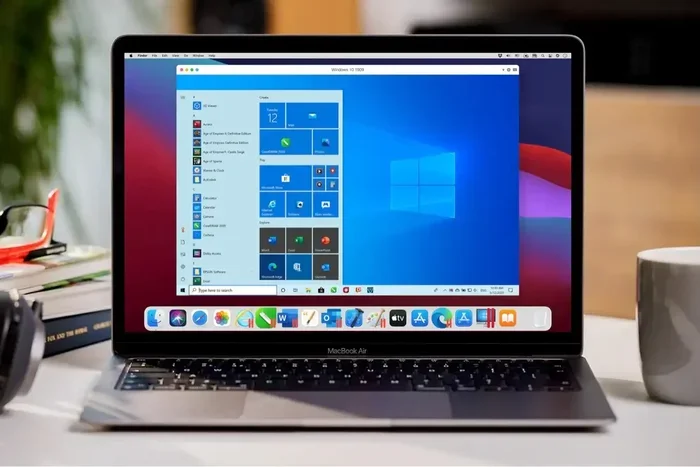
If you use a Mac, click the Apple menu and choose About This Mac. Click on Storage. You will see what type of drive your Mac has and how much space is available.
Upgrading Your Laptop Storage
One of the best things about laptops is that you can often upgrade the storage. Whether you want to replace an old HDD with an SSD or add more space, the process is usually straightforward.
When Should You Upgrade?
You should consider upgrading your storage if your laptop is running slow, running out of space, or making unusual noises. A slow laptop with an HDD can feel brand new after swapping in an SSD. The improvement in speed is dramatic and immediately noticeable.
How to Upgrade Your Laptop Drive
Upgrading a laptop drive is easier than most people think. Here are the basic steps:
- Check if your laptop has a removable drive bay. Some laptops have a dedicated slot for a 2.5-inch drive or an M.2 slot.
- Buy the right replacement drive. Make sure you get the correct type and size for your laptop model.
- Back up your data before starting. Always save your important files before replacing a drive.
- Open the laptop and remove the old drive. Most laptops have a bottom panel held in by screws.
- Install the new drive and close the laptop. Make sure it clicks into place securely.
- Reinstall the operating system or clone your old drive. You can use free tools to copy everything over.
Can You Add a Second Drive?
Some laptops have room for a second storage drive. This is common in gaming laptops and larger models. If your laptop has two drive slots, you can keep your existing drive and add a new one for extra space. Just make sure both drives are compatible with your laptop.
What If Your Storage Is Soldered?
Some modern laptops have storage that is soldered directly to the motherboard. This means you cannot remove or upgrade it. If your laptop has soldered storage, you will need to rely on external drives or cloud storage for extra space. This is something to keep in mind when buying a new laptop.
Common Laptop Storage Problems and How to Fix Them
Storage drives can develop problems over time. Knowing what to look for can save you a lot of trouble.
Slow Performance
If your laptop takes forever to start up or open files, your drive might be the culprit. HDDs naturally slow down as they fill up. Try deleting unnecessary files or upgrading to an SSD. This single upgrade can transform a sluggish laptop into a fast one.
Clicking or Grinding Noises
Strange noises from your laptop are never a good sign. Clicking sounds often mean an HDD is failing. Back up your data immediately and consider replacing the drive. SSDs do not make any noise, so if you hear sounds, it is likely a mechanical drive.
Drive Not Showing Up
Sometimes a drive will stop appearing in File Explorer or Finder. This can happen due to a loose connection or a driver issue. Try checking the drive in Disk Management on Windows. If the drive is still not detected, it may need to be replaced.
Bad Sectors and Data Corruption
Over time, drives can develop bad sectors. These are areas that can no longer store data reliably. You can use built-in tools like CHKDSK on Windows to check for and repair bad sectors. If the problem is severe, replacing the drive is the safest option.
Final Thoughts
So, do all laptops have hard drives? The answer is clearly no. Laptops today use a variety of storage options, from traditional HDDs to modern SSDs and even embedded flash memory. The type of storage your laptop has a big impact on its speed, durability, and price. If you are shopping for a new laptop, pay close attention to the storage type. An SSD will give you a much better experience than an HDD in most cases. And if your current laptop feels slow, upgrading from an HDD to an SSD might be the best investment you can make. Understanding your laptop storage is the first step toward getting the most out of your device.
Storage technology will continue to evolve. Faster and more affordable options will keep appearing. But no matter what changes, the basics remain the same. Your laptop needs a place to store data, and knowing what that place is will always serve you well. Take the time to check your own laptop storage today. You might be surprised by what you find.
Frequently Asked Questions
Do all laptops come with hard drives?
No, not all laptops come with traditional hard drives. Many modern laptops use solid state drives instead. Some budget laptops still include HDDs, but most new laptops use SSDs for better speed and reliability.
Can I replace my laptop hard drive with an SSD?
Yes, in most cases you can replace your laptop HDD with an SSD. This upgrade can dramatically improve your laptop speed and boot times. Just make sure you get the right type of SSD for your laptop model.
What is the difference between an HDD and an SSD?
An HDD uses spinning disks to store data, while an SSD uses flash memory with no moving parts. SSDs are faster, more durable, and use less power than HDDs. They have become the standard storage type in most modern laptops.
How do I know if my laptop has an HDD or an SSD?
You can check your laptop storage type through Windows Settings or System Information. On a Mac, click About This Mac and then Storage. Third-party tools like CrystalDiskInfo also provide detailed drive information.
Is cloud storage a replacement for a laptop hard drive?
Cloud storage can supplement a laptop hard drive but is not a complete replacement for most users. You need a reliable internet connection to access cloud files. Many people use both local storage and cloud storage together for the best results.
How long do laptop hard drives last?
A typical laptop HDD lasts about 3 to 5 years with normal use. SSDs tend to last longer, often 5 to 7 years or more. Proper care, avoiding drops, and keeping drives from overheating can help extend their lifespan.
=== CONCLUSION ===
Understanding your laptop storage is more important than most people realize. Do all laptops have hard drives? No, they do not. The laptop storage world has evolved, and SSDs are now the standard in most machines. Whether your laptop uses a traditional hard drive, a solid state drive, or eMMC storage, knowing what you have helps you make smarter choices. You can troubleshoot problems faster, upgrade when needed, and buy the right laptop for your needs. Take a few minutes today to check your own laptop storage. It is a small step that can make a big difference in how your laptop performs every day.