Can I Charge Dell Laptop With Usb C Here is the Answer
Yes, you can charge a Dell laptop with USB-C, but it depends on your specific model and the right equipment. Many modern Dell laptops, including the Dell XPS and Dell Latitude lines, support USB Power Delivery through their USB-C ports. This means you can ditch the bulky original charger and use a USB-C power adapter or even a USB-C dock to keep your laptop powered up. Below, we walk through everything you need to know about USB-C charging for Dell laptops, from compatibility to wattage requirements and common mistakes to avoid.
Have you ever been stuck with a dead Dell laptop and a forgotten charger? It happens to all of us. You reach for a USB-C cable and wonder, can I charge Dell laptop with USB C? The short answer is yes, but there is more to it than just plugging in a cable. The world of laptop charging has changed a lot in recent years. USB-C charging has become a standard feature on many modern laptops, including several Dell models. However, not all Dell laptops support it, and not all USB-C cables or adapters are created equal.
In this guide, we will cover everything you need to know about charging your Dell laptop with USB-C. We will look at which Dell models support it, what equipment you need, how to check compatibility, and what to do when things go wrong. Whether you own a Dell XPS, Dell Inspiron, or Dell Latitude, this article has you covered. Let us dive in and make sense of USB-C charging for Dell laptops.
Key Takeaways
- USB-C charging works on many Dell laptops: Most newer Dell models, including XPS and Latitude series, support USB-C charging.
- Check your laptop model first: Not every Dell laptop has USB-C charging support, so verify before buying a new adapter.
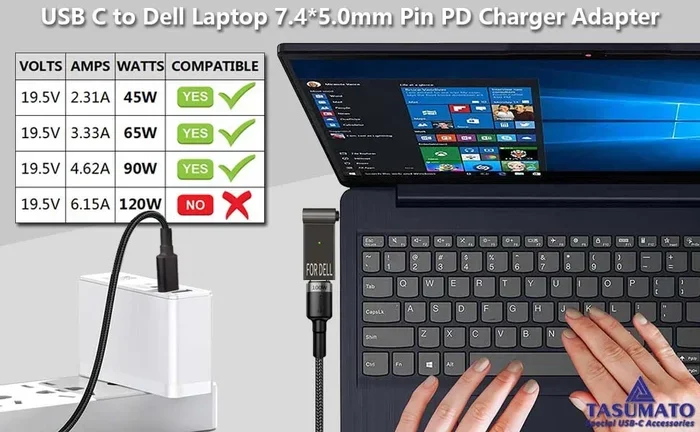
- Wattage matters: You need a USB-C power adapter with at least 45W to 65W to charge your Dell laptop properly.
- Use certified USB-C cables: Cheap or damaged cables can cause slow charging or no charging at all.
- USB-C docks are a great option: A Dell USB-C dock can charge your laptop while expanding your connectivity.
- Avoid common mistakes: Using the wrong wattage, wrong cable, or wrong port can lead to frustration.
📑 Table of Contents
- Understanding USB-C Charging for Dell Laptops
- Which Dell Laptops Support USB-C Charging
- How to Check if Your Dell Laptop Can Charge via USB-C
- USB-C Charging Requirements and Wattage
- Benefits of Using USB-C to Charge Your Dell Laptop
- Troubleshooting USB-C Charging Issues
- Final Thoughts on Charging Your Dell Laptop with USB-C
Understanding USB-C Charging for Dell Laptops
USB-C is a type of connector and cable standard that has taken the tech world by storm. It is small, reversible, and incredibly versatile. You can use a USB-C cable to transfer data, connect to external displays, and yes, charge your laptop. But not every USB-C port on every laptop can deliver power.
The technology behind USB-C charging is called USB Power Delivery, often shortened to USB PD. This is a charging standard that allows devices to negotiate the right amount of power through a USB-C connection. For Dell laptops, USB PD can deliver anywhere from 45 watts to 130 watts, depending on the laptop model and the charger you use.
How USB-C Charging Works
When you plug a USB-C charger into your Dell laptop, the laptop and the charger communicate with each other. This is called a “handshake.” The charger tells the laptop how much power it can provide, and the laptop tells the charger how much power it needs. This negotiation happens automatically. You do not need to do anything special.
Here is what makes USB-C charging so convenient:
- Universal compatibility: USB-C is used across many brands and devices, so one cable can work with your laptop, phone, and tablet.
- Faster charging: USB PD delivers more power than standard USB-A chargers, meaning your laptop charges faster.
- Reversible connector: You can plug in the USB-C cable either way. No more flipping it three times to get it right.
- Smaller and lighter: USB-C chargers and cables are much more portable than traditional barrel-style Dell chargers.
The Role of USB Power Delivery
USB Power Delivery is the key technology that makes it possible to charge a Dell laptop through a USB-C port. Without USB PD, a USB-C port can only provide a small amount of power, which is not enough to charge a laptop battery. USB PD allows the port to deliver significantly more wattage.
Here are the most common USB PD power levels you will encounter:
- 45W: Enough for smaller Dell laptops like the Dell Inspiron 13 and Dell XPS 13.
- 65W: Suitable for most mid-range Dell laptops, including the Dell Inspiron 15 and Dell Latitude 5000 series.
- 90W: Needed for larger Dell laptops like the Dell XPS 15 and Dell Precision mobile workstations.
- 130W: Required for high-performance Dell laptops such as the Dell XPS 17 and Dell Precision 7000 series.
Always check your Dell laptop’s power requirements before buying a USB-C charger. Using a charger with too low wattage may result in slow charging or no charging at all, especially when the laptop is under heavy load.
Which Dell Laptops Support USB-C Charging
Not every Dell laptop can be charged through a USB-C port. The ability to charge depends on the specific model, the year it was manufactured, and whether it has a USB-C port that supports power delivery. Let us look at the most popular Dell laptop lines and their USB-C charging support.
Dell XPS Series
The Dell XPS line is one of the most popular lines of Dell laptops, and most models in this series fully support USB-C charging. Here is a breakdown:
- Dell XPS 13: Supports USB-C charging. Uses USB-C as the primary charging method on most recent models.
- Dell XPS 15: Fully supports USB-C charging. Many models use USB-C as the only charging port.
- Dell XPS 17: Also supports USB-C charging, typically requiring a 130W USB-C power adapter.
Dell Inspiron Series
The Dell Inspiron line covers a wide range of budget to mid-range laptops. USB-C charging support varies by model:
- Dell Inspiron 13: Most recent models support USB-C charging.
- Dell Inspiron 15: Many models from 2020 onward support USB-C charging.
- Dell Inspiron 17: Support varies. Check the specific model number to confirm.
Dell Latitude Series
The Dell Latitude line is designed for business users. Many models support USB-C charging:
- Dell Latitude 5000 series: Most models support USB-C charging.
- Dell Latitude 7000 series: Full USB-C charging support on recent models.
- Dell Latitude 3000 series: Support varies. Some models include USB-C charging, while others do not.
Dell Precision Series
Dell Precision laptops are mobile workstations with powerful hardware. They tend to have higher power requirements:
- Dell Precision 3000 series: Many models support USB-C charging with a 90W or 130W adapter.
- Dell Precision 5000 series: USB-C charging supported on most recent models.
- Dell Precision 7000 series: High-end models support USB-C charging with 130W adapters.
Quick Comparison Table
| Dell Laptop Series | USB-C Charging Supported | Typical Wattage Needed |
|---|---|---|
| Dell XPS 13 | Yes | 45W – 65W |
| Dell XPS 15 | Yes | 90W – 130W |
| Dell XPS 17 | Yes | 130W |
| Dell Inspiron 13 | Yes (recent models) | 45W – 65W |
| Dell Inspiron 15 | Yes (2020 and newer) | 65W |
| Dell Latitude 5000 | Yes | 65W |
| Dell Latitude 7000 | Yes | 65W – 90W |
| Dell Precision 5000 | Yes | 90W – 130W |
If you are unsure whether your specific Dell laptop supports USB-C charging, check the user manual or visit the Dell support website. You can also look at the charging port on your laptop. If it is a standard USB-C port (not a USB-C port that only supports data), then it likely supports charging.
How to Check if Your Dell Laptop Can Charge via USB-C
Before you go out and buy a USB-C power adapter, you should confirm that your Dell laptop actually supports USB-C charging. Here are the easiest ways to check.
Method 1: Check the Dell Support Website
Visit Dell’s official support page and enter your laptop’s service tag or model number. The support page will list all the specifications for your laptop, including which ports support power delivery. Look for a section called “Charging” or “Power” to see if USB-C charging is listed as a supported method.
Method 2: Look at the Charging Port
Examine the USB-C ports on your Dell laptop. Some Dell laptops have a small lightning bolt icon next to the USB-C port. This icon indicates that the port supports USB Power Delivery and can be used for charging. If your USB-C port does not have this symbol, it may only support data transfer, not charging.
Method 3: Check the Original Charger
Look at the charger that came with your Dell laptop. If the original charger uses a USB-C connector, then your laptop definitely supports USB-C charging. If the original charger has a round barrel plug, then your laptop likely does not support USB-C charging.
Method 4: Check Windows Settings
You can also check through your laptop’s operating system. Go to Device Manager in Windows and look under “System Devices” for entries related to USB-C or USB Power Delivery. If you see these entries, your laptop likely supports USB-C charging.
Quick Tip: If you are still unsure, try plugging a USB-C charger into your Dell laptop and see if the charging light turns on. If the battery icon shows a charging indicator, your laptop supports USB-C charging. If nothing happens, your laptop may not support it.
USB-C Charging Requirements and Wattage
One of the most important things to understand about charging your Dell laptop with USB-C is wattage. Not all USB-C chargers are the same, and using the wrong one can lead to problems.
Minimum Wattage Requirements
Every Dell laptop has a specific power requirement. Here are the general guidelines:
- Ultraportable Dell laptops (XPS 13, Inspiron 13): Require at least 45W. A 65W USB-C charger works well.
- Mid-range Dell laptops (Inspiron 15, Latitude 5000): Require around 65W. A 65W or 90W USB-C charger is ideal.
- Performance Dell laptops (XPS 15, Latitude 7000): Require 90W or more. Use a 90W or 130W USB-C charger.
- High-end Dell laptops (XPS 17, Precision workstations): Require 130W. Use a Dell-certified 130W USB-C power adapter.
What Happens If You Use a Lower Wattage Charger?
If you use a USB-C charger with lower wattage than your Dell laptop requires, the laptop will still charge, but it will charge very slowly. In some cases, the laptop may not charge at all when it is under heavy load, such as when you are gaming or running resource-intensive software. The laptop may even lose battery while it is plugged in if the charger cannot keep up with the power demand.
What Happens If You Use a Higher Wattage Charger?
Using a higher wattage charger is generally safe. USB Power Delivery technology ensures that the laptop only draws the amount of power it needs. So a 130W charger will not “overcharge” or damage a Dell laptop that only needs 65W. The laptop controls the power intake automatically.
USB-C Cable Quality Matters
Not all USB-C cables are the same. A cheap or low-quality cable can limit the amount of power that reaches your laptop. To get the best charging speeds, use a USB-C cable that supports USB Power Delivery. Look for cables rated for at least 60W or 100W, depending on your laptop’s power requirements.
Here are some tips for choosing the right USB-C cable:
- Look for cables that are rated for USB PD (Power Delivery).
- Choose cables with thicker gauges for higher wattage.
- Avoid very short or very long cables unless they are certified.
- Stick with reputable brands like Anker, Belkin, or Dell-certified cables.
Benefits of Using USB-C to Charge Your Dell Laptop
Switching to USB-C charging for your Dell laptop comes with several real-world benefits. Let us look at why so many people are making the switch.
One Charger for Everything
With USB-C, you can use the same charger for your laptop, phone, tablet, and even some accessories. This means fewer cables cluttering your bag and fewer adapters to carry around. If you travel frequently, this is a game changer.
Faster and More Efficient Charging
USB Power Delivery is designed to be efficient. It adjusts the power output based on what your laptop needs, reducing wasted energy. Many users report that their Dell laptops charge faster with a USB-C charger than with the original Dell charger.
More Port Options
Many Dell laptops now include multiple USB-C ports. This means you can charge your laptop through one port while using another port for a USB-C dock, external monitor, or data transfer. A Dell USB-C dock can charge your laptop and connect all your peripherals through a single cable to your desk.
Future-Proofing Your Setup
USB-C is becoming the universal standard for laptop charging. By switching to USB-C charging now, you are future-proofing your setup. As more devices adopt USB-C, having a compatible charger and cable collection becomes increasingly valuable.
Reduced E-Waste
Using a universal USB-C charger reduces the need for multiple proprietary chargers. This is better for the environment and helps reduce electronic waste. One good USB-C charger can replace several old chargers from different devices.
Troubleshooting USB-C Charging Issues
Even when everything should work, USB-C charging can sometimes cause problems. Here are the most common issues and how to fix them.
Dell Laptop Not Charging via USB-C
If your Dell laptop is not charging through USB-C, try these steps:
- Check the USB-C cable: Make sure the cable supports USB Power Delivery. Many standard USB-C cables only support data transfer, not charging.
- Try a different USB-C port: Some Dell laptops have multiple USB-C ports, and not all of them may support charging. Try a different port.
- Check the charger wattage: Make sure your USB-C charger meets the minimum wattage requirement for your Dell laptop.
- Restart your laptop: Sometimes a simple restart fixes charging issues by resetting the USB-C power negotiation.
- Update your BIOS: Dell regularly releases BIOS updates that can fix USB-C charging bugs. Check the Dell support website for updates.
Slow Charging via USB-C
If your Dell laptop charges slowly through USB-C, the most common causes are:
- The USB-C charger has too low wattage for your laptop.
- The USB-C cable is not rated for high power delivery.
- The laptop is running power-hungry applications while charging.
- The USB-C port is dusty or dirty. Clean it gently with compressed air.
Intermittent Charging
If your Dell laptop charges sometimes but not others, the issue is likely with the cable or the connection. Try a different USB-C cable and a different USB-C charger. If the problem persists, the USB-C port on your laptop may be damaged and need professional repair.
Common Mistakes to Avoid
Here are some mistakes that many people make when trying to charge their Dell laptop with USB-C:
- Using a phone charger: A standard phone USB-C charger typically delivers only 15W to 18W. This is not enough to charge most Dell laptops.
- Using a non-PD USB-C cable: Not all USB-C cables support power delivery. Always check the specifications.
- Ignoring the wattage requirement: Buying the cheapest USB-C charger you can find often leads to disappointment.
- Assuming all USB-C ports are the same: On some Dell laptops, one USB-C port supports charging while another only supports data transfer.
Expert Insights
According to Dell’s official support documentation, Dell recommends using Dell-certified USB-C chargers and cables for the best charging experience. Third-party chargers that are USB-IF certified and support USB Power Delivery are also reliable options. Always avoid unbranded or uncertified chargers, as they may not deliver consistent power and could potentially damage your laptop battery over time.
Tech experts also recommend checking the USB-C Power Delivery specification of any charger before purchasing. Look for chargers that explicitly state they support USB PD and list their wattage output. A 65W USB-C charger from a reputable brand like Anker, Belkin, or Dell will serve most Dell laptop users very well.
Final Thoughts on Charging Your Dell Laptop with USB-C
So, can I charge Dell laptop with USB C? The answer is a clear yes for most modern Dell laptops. USB-C charging offers convenience, speed, and versatility that traditional barrel chargers simply cannot match. With the right USB-C power adapter, a quality USB-C cable, and a compatible Dell laptop model, you can enjoy a simpler and more streamlined charging experience.
Remember to always check your specific Dell laptop model for USB-C charging support. Match your charger wattage to your laptop’s power requirements. Use certified cables and adapters. And do not be afraid to try a USB-C dock for an even more versatile setup. Once you make the switch to USB-C charging, you will wonder how you ever managed with all those different chargers.
The world of laptop charging is moving toward USB-C, and Dell is right at the forefront of this transition. Whether you have a Dell XPS, Dell Inspiron, Dell Latitude, or Dell Precision, there is a good chance that USB-C charging is already available to you. Embrace the change and enjoy the simplicity of one cable for all your charging needs.
Frequently Asked Questions
Can I use any USB-C charger to charge my Dell laptop?
Not any USB-C charger will work. Your charger must support USB Power Delivery and meet the minimum wattage requirement for your specific Dell laptop model. Check your laptop’s power requirements before purchasing a USB-C charger.
Why is my Dell laptop not charging when I plug in a USB-C cable?
This could be due to several reasons. The USB-C cable may not support power delivery, the charger wattage may be too low, or the USB-C port on your laptop may only support data transfer and not charging. Try a different cable and charger to troubleshoot.
Can I charge my Dell laptop with a USB-C power bank?
Yes, if your Dell laptop supports USB-C charging and the power bank supports USB Power Delivery with sufficient wattage. Look for a power bank rated for at least 45W to 65W, depending on your laptop model.
Is USB-C charging slower than using the original Dell charger?
Not necessarily. In many cases, USB-C charging with a proper USB Power Delivery charger is just as fast as using the original Dell charger. However, using an underpowered charger may result in slower charging speeds.
Can I use a USB-C dock to charge my Dell laptop?
Yes, many USB-C docks support charging through their USB-C host port. Just make sure the dock supports USB Power Delivery and provides enough wattage for your Dell laptop model.
Do all Dell XPS laptops charge through USB-C?
Most modern Dell XPS laptops, including the XPS 13, XPS 15, and XPS 17, support USB-C charging as their primary or sole charging method. However, older models may still use a barrel-style charger, so always check your specific model.
=== CONCLUSION ===
Charging your Dell laptop with USB-C is not only possible, it is also one of the most convenient upgrades you can make. With the right equipment and a little knowledge about your laptop’s compatibility, you can ditch the bulky original charger and enjoy the simplicity of universal USB-C charging. Remember to verify your Dell model supports USB-C charging, choose a charger with the right wattage, and use a quality USB-C cable that supports Power Delivery. Whether you are at home, in the office, or on the go, USB-C charging gives you the freedom and flexibility you need to keep your Dell laptop powered up all day long.