Do All Usb C Ports Support Docks for Modern Devices
Not all USB C ports support docks equally. Some USB C ports only handle basic charging, while others deliver video, data, and power through a single connection. Understanding USB-C port compatibility saves you money and frustration when choosing a docking station or USB-C hub.
You plugged in a shiny new USB C dock, and nothing happened. The monitor stayed black. The peripherals stayed silent. You probably asked yourself, do all USB C ports support docks? The short answer is no. But the full story is more interesting than you might think.
USB C has become the universal connector for laptops, tablets, and phones. Its small reversible design makes it incredibly convenient. But convenience does not always mean full functionality. Many people buy docking stations assuming any USB C port will work. That assumption can lead to disappointment.
This guide breaks down everything you need to know about USB C port compatibility with docks. You will learn which ports work, which do not, and how to pick the right dock for your setup. By the end, you will save time, money, and avoid the frustration of a non-working connection.
Key Takeaways
- USB-C does not mean universal dock support: Many devices have USB-C ports that only charge, not connect to docks.
- Thunderbolt 3 and 4 ports offer the best dock compatibility and fastest data transfer speeds.
- Check your device specs before buying a USB-C dock to avoid compatibility headaches.
- USB-C hub vs dock matters because they serve different purposes and offer different features.
- USB-C power delivery standards vary, so not every dock will charge your laptop at full speed.
- Video output capability depends on the port type, not just the USB-C connector shape.
📑 Table of Contents
- What Makes a USB C Port Different from Another
- Do All USB C Ports Support Docks for Modern Devices
- How to Check If Your USB C Port Supports a Dock
- Common Mistakes People Make When Buying USB C Docks
- Quick Tips for Getting the Most Out of Your USB C Dock
- Expert Insights on USB-C Connectivity and Docks
- Key Takeaways
- Conclusion
What Makes a USB C Port Different from Another
Here is something most people do not realize. The USB C connector shape is the same on every device. But what sits inside the port varies wildly. Two devices can look identical on the outside yet behave completely differently on the inside.
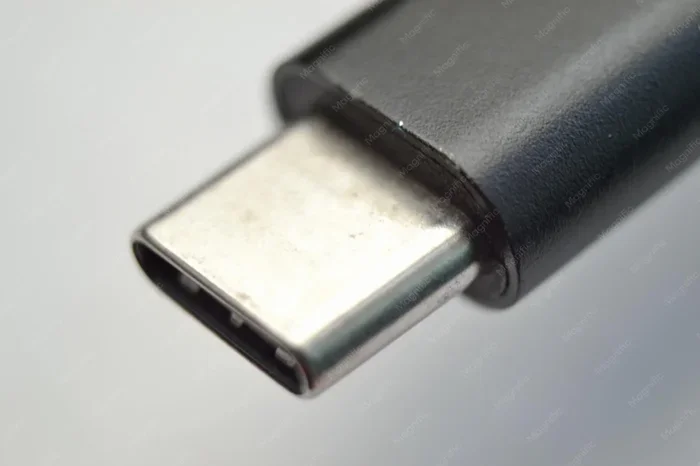
The USB C connector is just the physical shape. It tells you nothing about what the port can actually do. A port might support USB-C data transfer at blazing speeds, or it might only handle basic battery charging. This distinction matters more than most users think.
USB-C Port Compatibility Explained
USB-C port compatibility depends on the underlying technology built into the port. A port can use different protocols and standards. Some ports support USB-C power delivery up to 100 watts. Others limit you to 15 watts or less. The shape of the connector does not tell you the full story.
When you look at a USB C port, you need to check what standards it supports. Does it handle video output? Can it transfer data quickly? Does it support USB-C fast charging? These questions determine whether a dock will work with your device.
The Role of USB-C Specifications
The USB Implementers Forum sets the standards for USB technology. They define what each version of USB can do. USB 3.2, USB4, and Thunderbolt all use the USB C connector. But they offer very different levels of performance.
Here is a quick breakdown of the main USB C specifications you will encounter:
- USB 2.0 over USB-C: Slow data speeds, usually charging only. Cannot support a dock with multiple features.
- USB 3.2 Gen 1: 5 Gbps data transfer. Basic connectivity but limited for high-performance docks.
- USB 3.2 Gen 2: 10 Gbps data transfer. Better support for external monitors and storage.
- Thunderbolt 3: 40 Gbps data transfer. Full dock support with video, data, and power.
- Thunderbolt 4: 40 Gbps with stricter requirements. The gold standard for USB-C dock compatibility.
- USB4: 40 Gbps base speed. Growing support for docks and peripherals.
As you can see, not every USB C port is created equal. The specifications inside the port determine what it can do with a dock.
Do All USB C Ports Support Docks for Modern Devices
This is the big question. And the answer is not a simple yes or no. Many modern devices use USB C, but their ports support different features. Some ports are fully dock-ready, while others are strictly for charging.
Charging-Only USB C Ports
Some laptops and tablets have USB C ports that only charge the battery. These ports do not support data transfer or video output. If you plug a dock into a charging-only port, the dock will not work. Your external monitor will stay dark, and your keyboard and mouse will not connect.
This is one of the most common reasons people ask, do all USB C ports support docks? The answer is no because many devices include at least one charging-only port. Manufacturers sometimes do this to keep costs down or to save space on the device.
USB-C Hub vs Dock: Understanding the Difference
People often use the terms USB-C hub and USB-C dock interchangeably. But they are not the same thing. A USB-C hub vs dock comparison reveals important differences that affect compatibility.
A USB-C hub is a small device that adds a few extra ports. It usually includes USB-A ports, an SD card reader, and maybe an HDMI output. Hubs draw power from the laptop and do not include their own power supply. They work well for light tasks like connecting a mouse or a flash drive.
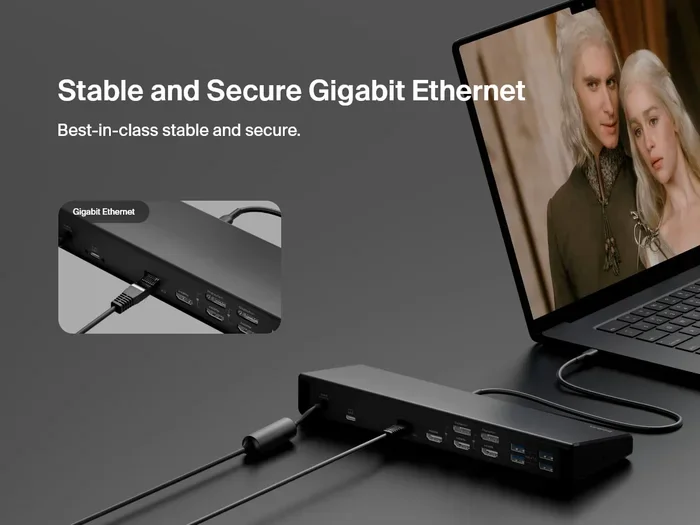
A USB-C docking station is a more powerful device. It often includes its own power supply, supports multiple monitors, and can charge your laptop while connected. Docks require more from the USB C port, which means they need a port with full functionality.
If your USB C port only supports charging, neither a hub nor a dock will give you the full experience you expect.
Thunderbolt Docks and Their Advantages
Thunderbolt technology stands at the top of the USB C ecosystem. A Thunderbolt dock offers the best performance and the widest range of features. These docks support multiple 4K displays, fast data transfer, and rapid charging through a single cable.
Thunderbolt 3 and Thunderbolt 4 docks are backward compatible with USB-C ports. But they only reach their full potential when connected to a Thunderbolt-enabled port. Plugging a Thunderbolt dock into a basic USB-C port will still work, but you will not get the full speed and feature set.
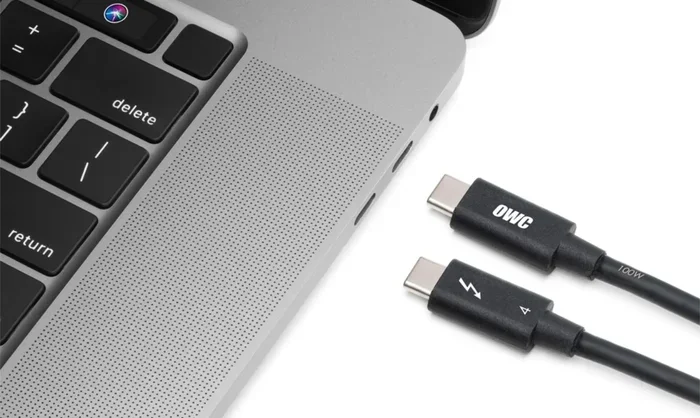
If you want the best experience with a Thunderbolt dock, make sure your device has a Thunderbolt port. Look for the lightning bolt icon next to the USB C connector. That small symbol tells you everything you need to know.
How to Check If Your USB C Port Supports a Dock
Figuring out whether your USB C port supports a dock is easier than you think. You do not need to be a tech expert. A few simple steps will tell you everything you need to know.
Step 1: Check Your Device Manual
Your device manual or product page lists the specifications for every port. Look for terms like Thunderbolt, USB 3.2, or USB4. These terms tell you the port supports full dock functionality. If the manual only mentions USB-C charging, the port is likely limited.
Step 2: Look for Symbols on Your Device
Many laptops and tablets have small icons next to their ports. A lightning bolt symbol means Thunderbolt. A USB symbol means standard USB data support. A battery icon means charging only. These symbols are your quick visual guide to port capabilities.
Step 3: Search Online for Your Device Model
Type your device model into a search engine along with the word specifications. Most manufacturers list detailed port information on their support pages. You can also find community forums where users share their experiences with USB-C connectivity and dock setups.
Step 4: Test with a Basic Dock or Hub
If you already have a USB-C hub or dock, try connecting it. If your external monitor turns on and your peripherals work, your port supports full functionality. If nothing happens beyond charging, the port is likely limited.
Common Mistakes People Make When Buying USB C Docks
Buying the wrong USB-C docking station is easier than you think. Many people make the same mistakes over and over. Here are the most common ones to avoid.
Assuming All USB C Means Full Functionality
This is the biggest mistake. Just because a port is shaped like USB C does not mean it supports all features. Some ports are strictly for power delivery. Always check the specifications before purchasing a dock.
Ignoring Power Delivery Requirements
Not every USB-C dock supports USB-C power delivery. Some docks only pass through a small amount of charging power. If you need to charge your laptop while using a dock, check the wattage rating carefully. A dock that only delivers 60 watts will not charge a 100-watt laptop at full speed.
Buying a Dock Without Checking Monitor Support
If you want to connect an external USB-C monitor or multiple displays, check the dock’s video output capabilities. Some docks only support one display at 1080p. Others handle two or more 4K displays. Make sure the dock matches your setup needs.
Overlooking Cable Quality
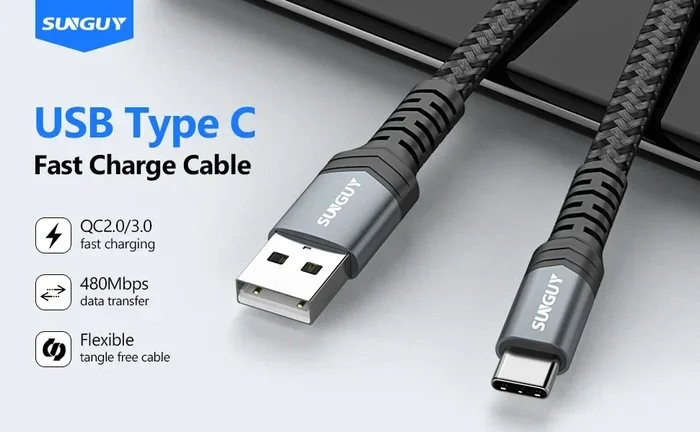
The USB-C cable you use matters more than most people realize. A cheap or damaged cable can limit data speeds and prevent video output. Always use high-quality USB-C cables rated for the speeds and power you need. A good cable makes a huge difference in dock performance.
Quick Tips for Getting the Most Out of Your USB C Dock
Once you have the right dock and the right port, a few simple tips will help you get the best experience.
- Use a powered dock when connecting multiple peripherals. Powered docks have their own power supply and deliver consistent performance.
- Keep your dock firmware updated. Manufacturers release updates that improve USB-C connectivity and fix bugs.
- Plug the dock into your laptop before connecting peripherals. This ensures the dock is recognized properly by your device.
- Use a USB-C expansion station for desktop setups where you need many ports in one place.
- For smart home setups, some users connect Ring doorbells and other security devices through USB-C hubs for centralized power and connectivity. Check device compatibility before setting up.
Expert Insights on USB-C Connectivity and Docks
Industry experts agree that the confusion around USB-C dock compatibility is widespread. The USB-C connector has become so universal that people assume it does everything. But the truth is more nuanced.
According to technology reviewers, the key is understanding what your specific port supports. A Thunderbolt port gives you the most flexibility. A standard USB-C port with USB 3.2 support gives you solid performance for most tasks. A charging-only port limits you to power delivery only.
Experts also recommend checking the DisplayPort Alt Mode support on your port. This feature allows video output through the USB-C connection. Without it, you cannot connect an external monitor through a dock. This is one of the most overlooked specifications when buying a USB-C peripheral setup.
When in doubt, Thunderbolt is the safest choice. Thunderbolt ports support everything. They handle data, video, and power delivery at the highest speeds. If your budget allows, a Thunderbolt dock gives you the most future-proof setup.
Also keep in mind that USB-C vs USB-A compatibility matters when choosing docks. Many docks include USB-A ports for backward compatibility with older devices. This is helpful but does not affect the USB-C port’s dock capabilities on your laptop.
Key Takeaways
- USB-C port compatibility varies by device: Always check your port’s specifications before buying a dock.
- Thunderbolt 3 and 4 ports offer the best dock support and fastest data transfer speeds.
- A charging-only USB-C port will not support docking stations or hubs with external monitors.
- USB-C hub vs dock serves different purposes, and understanding the difference prevents buying mistakes.
- USB-C power delivery standards differ across ports, so check wattage before purchasing.
- Video output capability depends on the port’s protocol, not just the USB-C connector shape.
Conclusion
So, do all USB C ports support docks? The answer is clearly no. USB C has revolutionized how we connect devices, but the connector shape alone does not guarantee full functionality. Your port’s underlying technology determines whether a docking station will work and how well it will perform.
Take the time to check your device specifications. Look for Thunderbolt, USB4, or USB 3.2 support. Understand the difference between a charging-only port and a fully functional port. These small steps save you from buying the wrong equipment and wasting time on setups that do not work.
The right USB-C docking station can transform your workspace. You get multiple monitors, fast data transfer, and seamless connectivity with one cable. But only when your port supports it. Do your homework, choose wisely, and enjoy the full benefits of modern USB-C connectivity.
Whether you are setting up a home office or a professional workstation, understanding USB-C port capabilities puts you ahead. You will make smarter purchases, avoid common pitfalls, and get the most out of every device you own.
Frequently Asked Questions
Can I use any USB C dock with any laptop?
No, not every USB C dock works with every laptop. Your laptop’s USB C port must support data transfer and video output for a dock to function fully. Charging-only ports will not power a dock’s features. Always check your laptop’s specifications before buying a dock.
What is the difference between USB-C hub and docking station?
A USB-C hub is a small device that adds a few extra ports and draws power from your laptop. A docking station is more powerful, often includes its own power supply, supports multiple monitors, and can charge your laptop. Docks require more from the USB-C port and offer more features than hubs.
How do I know if my USB C port is Thunderbolt?
Look for a small lightning bolt symbol next to the USB-C port on your device. You can also check your device specifications in the manual or on the manufacturer’s website. Thunderbolt ports offer the best compatibility with USB-C docks and the fastest data speeds.
Will a USB-C dock charge my laptop?
It depends on the port and the dock. If both support USB-C power delivery, the dock can charge your laptop. Check the wattage rating of both your port and the dock. A dock that delivers 60 watts will charge most laptops, but 100-watt laptops need a dock that supports higher wattage.
Can I connect a monitor to a USB-C dock?
Yes, but only if your USB-C port supports video output. Look for DisplayPort Alt Mode or Thunderbolt support. Without these, the dock cannot send a video signal to an external monitor. Check your port specifications before connecting a USB-C monitor or any external display.
Do USB-C cables matter for dock performance?
Absolutely. A low-quality USB-C cable can limit data speeds and prevent video output. Always use cables rated for the speeds and power you need. High-quality cables ensure your dock performs at its best and your devices charge properly.