Can Usb C Be Used As Thunderbolt For Lightning Speed
Can Usb C Be Used As Thunderbolt? The answer is yes, but only with the right cable and device support. USB-C is a connector type, while Thunderbolt is a protocol that uses the USB-C shape. Not every USB-C cable supports Thunderbolt speeds, so understanding the difference matters. This guide covers everything you need to know about using USB C as Thunderbolt for lightning speed data transfer, display output, and fast charging.
Have you ever plugged in a USB-C cable and wondered if it could deliver the same lightning speed as a Thunderbolt connection? It is a question that confuses a lot of people. The short answer is yes, Can Usb C Be Used As Thunderbolt, but there is a catch. Not every USB-C cable or port supports Thunderbolt speeds. You need the right hardware to unlock those blazing fast transfer rates.
In this guide, we will break down everything you need to know. We will look at how Thunderbolt and USB-C differ, what makes them work together, and how to tell if your gear is compatible. By the end, you will know exactly what to look for when shopping for cables, docks, and devices. Let us dive in.
Key Takeaways
- USB-C and Thunderbolt are not the same thing: USB-C is a connector shape, while Thunderbolt is a protocol that can use the USB-C connector.
- Not all USB-C cables support Thunderbolt: You need a certified Thunderbolt cable to get the full speed benefits.
- Thunderbolt 3 and Thunderbolt 4 both use USB-C: They offer up to 40 Gbps data transfer and can carry video, data, and power over one cable.
- Check your device compatibility: Your device needs a Thunderbolt host controller to use Thunderbolt speeds over USB-C.
- Look for the lightning bolt icon: This is the easiest way to identify Thunderbolt-compatible ports and cables.
- USB-C cables work for basic tasks: Charging and standard data transfer work fine, but you will not get Thunderbolt-level speeds without the right gear.
📑 Table of Contents
- What Is USB-C and What Is Thunderbolt?
- Can Usb C Be Used As Thunderbolt? The Short Answer
- How Thunderbolt and USB-C Work Together
- Thunderbolt 3 vs Thunderbolt 4 on USB-C
- How to Tell if Your USB-C Cable Supports Thunderbolt
- Common Mistakes When Using USB-C as Thunderbolt
- Best Uses for Thunderbolt Over USB-C
- Conclusion
What Is USB-C and What Is Thunderbolt?
Before we answer the big question, let us clear up some basics. Many people use USB-C and Thunderbolt like they mean the same thing. They do not. Understanding the difference is key to getting the right gear for your setup.
What Is USB-C?
USB-C is a connector shape. It is a small, oval-shaped plug that fits into a port on your laptop, phone, or tablet. It is reversible, which means you can plug it in either way. That is a huge convenience compared to older USB types. USB-C supports various protocols, including USB 3.2, USB 4, and Thunderbolt. But the connector itself is just a shape. It does not guarantee any specific speed or feature set.
Think of USB-C like a wall outlet. The outlet can power many different devices, but the speed and power depend on the device you plug in and the circuit behind it. Some outlets deliver more power than others, and the same idea applies to USB-C ports and cables.
The universal connector design of USB-C is one of the reasons it became so popular. It works with smartphones, laptops, tablets, and even some desktop computers. This broad adoption is why so many people assume every USB-C connection is the same. It is not.
What Is Thunderbolt?
Thunderbolt is a protocol developed by Intel and Apple. It combines several technologies into one connection. Thunderbolt 3 and Thunderbolt 4 both use the USB-C connector shape. But they add much more capability on top of what standard USB-C offers.
Here is what Thunderbolt brings to the table:
- Data transfer speeds of up to 40 Gbps with Thunderbolt 3 and Thunderbolt 4.
- Display output support for external monitors, including 4K and even 8K displays.
- Power delivery of up to 100 watts for fast charging your laptop or device.
- PCIe protocol support, which allows connections to external GPUs and high-speed storage.
- Bidirectional data flow, meaning data can move both ways at full speed simultaneously.
The transfer rate of Thunderbolt is what makes it so appealing. Standard USB-C cables without Thunderbolt support max out at 10 Gbps or 20 Gbps depending on the USB version. Thunderbolt doubles or quadruples that speed. This is why professionals who work with large files rely on it.
The charging protocol built into Thunderbolt also supports USB Power Delivery, making it a true all-in-one connection. One cable handles data, video, and power. That is a huge advantage over older connection standards that required separate cables for each function.
Can Usb C Be Used As Thunderbolt? The Short Answer
So, can USB C be used as Thunderbolt? The answer depends on your hardware. If your device has a Thunderbolt-enabled USB-C port and you use a Thunderbolt-certified cable, then yes, Can Usb C Be Used As Thunderbolt for lightning speed performance. If either the port or the cable does not support Thunderbolt, you will only get standard USB-C speeds.
This is the most important thing to understand: USB-C is the physical connector, and Thunderbolt is the technology inside. A USB-C port can support Thunderbolt, but a USB-C port does not always support it. The same goes for cables. When shopping, always check the specifications to confirm cable compatibility with the Thunderbolt protocol.
Why Does This Confusion Happen?
The confusion comes from the fact that Thunderbolt 3 and Thunderbolt 4 use the same USB-C connector shape. When you see a USB-C port on a laptop, you cannot tell just by looking whether it supports Thunderbolt or only standard USB. This is why many people buy the wrong cables or docks and wonder why they are not getting the speeds they expected.
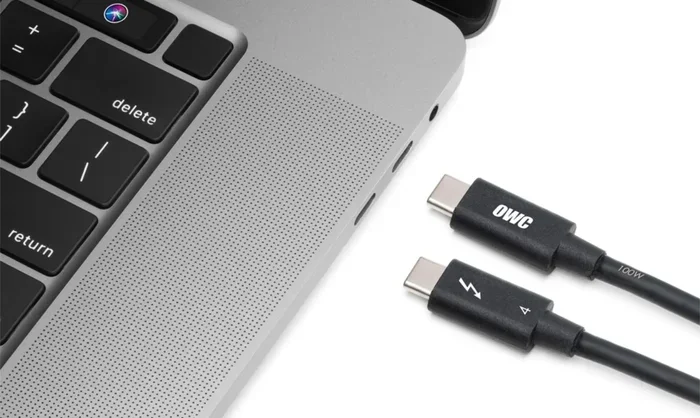
The good news is that there is an easy way to tell. Look for the lightning bolt icon next to the port or on the cable itself. If you see that little bolt symbol, your port supports Thunderbolt. If you do not, it is likely just a standard USB-C port. This simple visual cue saves a lot of guesswork when shopping for accessories.
Also, keep in mind that compatible devices vary widely. Not every laptop, desktop, or tablet supports Thunderbolt. Apple laptops with M1 and M2 chips, many Intel-based laptops, and some high-end Windows machines support it. But budget laptops and most phones typically do not. Always check your device specifications before assuming USB C can be used as Thunderbolt on your gear.
How Thunderbolt and USB-C Work Together
Now that we know the difference, let us look at how Thunderbolt and USB-C work together. This is where things get interesting, especially if you are building or upgrading a workstation.
The Role of the Host Controller
Every Thunderbolt connection needs a host controller. This is a chip inside your device that manages the Thunderbolt protocol. Without a host controller, your USB-C port cannot communicate using Thunderbolt speeds, no matter what cable you use.
This is why some laptops with USB-C ports cannot use Thunderbolt. They simply do not have the right chip inside. If you want to use Can Usb C Be Used As Thunderbolt for high-speed tasks, your device must have a Thunderbolt host controller. This is true for both the sending device and the receiving device. For example, if your laptop has a Thunderbolt port but your external drive does not, the connection will fall back to standard USB speeds.
The host controller also manages how devices are recognized and how data is routed. This is what allows Thunderbolt to support daisy-chaining, where you connect multiple devices in a chain through a single port. Without the right controller, this feature simply will not work.
How Data Travels Through the Cable
When you connect two Thunderbolt-enabled devices with a Thunderbolt cable, the data travels using the PCIe protocol. This is different from standard USB data transfer. PCIe allows for much higher transfer rates and lower latency. This is why Thunderbolt can handle external GPUs, high-speed storage arrays, and multiple monitors all at once.
The bidirectional nature of Thunderbolt means data can flow in both directions simultaneously. This is a big advantage over older USB standards where data typically moved in one direction at a time. For professionals who need to move large files back and forth, this makes a noticeable difference in workflow speed.
A hybrid cable that combines Thunderbolt and USB-C capabilities is what you want for the best results. These cables are designed to handle the full bandwidth of the Thunderbolt protocol while remaining compatible with standard USB-C devices. They are the ideal choice for anyone who wants flexibility without sacrificing speed.
Power Delivery and Charging
One of the best things about using USB C as Thunderbolt is that you get power delivery built in. Thunderbolt 3 and Thunderbolt 4 support USB Power Delivery of up to 100 watts. This means you can charge your laptop, connect an external monitor, and transfer data all with a single Thunderbolt cable.
This is a huge deal for people who work on the go. Instead of carrying multiple cables and chargers, you can use one Thunderbolt cable for everything. It simplifies your setup and reduces cable clutter on your desk. The fast charging capability also means your laptop charges quickly, even while you are using it intensively.
Thunderbolt 3 vs Thunderbolt 4 on USB-C
Both Thunderbolt 3 and Thunderbolt 4 use the USB-C connector. But they have some important differences. Here is a quick comparison:
| Feature | Thunderbolt 3 | Thunderbolt 4 |
|---|---|---|
| Max Data Transfer Speed | 40 Gbps | 40 Gbps |
| Min Data Transfer Speed | Not guaranteed | 32 Gbps |
| Display Support | 1 x 4K or 2 x 1080p | 2 x 4K or 1 x 8K |
| Power Delivery | Up to 100W | Up to 100W |
| Security Features | Basic | Intel VT-D DMA Protection |
| Wake from Sleep | Limited | Yes, from USB-C dock |
| Cable Length (Full Speed) | Up to 2 meters | Up to 2 meters |
As you can see, Thunderbolt 4 is the more refined version. It guarantees minimum performance standards and adds better security and display support. If you are buying new gear, Thunderbolt 4 is the way to go. But both standards use the USB-C connector and deliver lightning speed performance.
Which One Do You Need?
For most users, Thunderbolt 3 is more than enough. It handles 4K video, fast storage, and fast charging with ease. If you are a professional who needs multiple 4K displays or work with large video files daily, Thunderbolt 4 gives you extra headroom and reliability. The guaranteed minimum speeds of Thunderbolt 4 also mean more consistent performance across different compatible devices.
Quick Tip: When shopping for Thunderbolt gear, always look for the official Thunderbolt certification logo. This ensures the product has been tested and meets the required standards for speed and reliability. Uncertified products may claim Thunderbolt support but often fall short.
How to Tell if Your USB-C Cable Supports Thunderbolt
This is one of the most common questions people ask. You have a USB-C cable and a Thunderbolt port, but how do you know if the cable supports Thunderbolt speeds? Here is how to check.
Look for the Lightning Bolt Symbol
The easiest way is to look for the lightning bolt icon on the cable itself or on the packaging. If the cable is Thunderbolt-certified, it will display this symbol. Standard USB-C cables do not have this mark. This is the single most reliable visual indicator that your cable supports the full Thunderbolt protocol.
Check the Cable Specifications
If the symbol is not visible, check the product specifications. Look for terms like “Thunderbolt 3 cable” or “Thunderbolt 4 cable”. The packaging or product listing should clearly state whether it supports Thunderbolt speeds. Pay attention to the listed transfer rate as well. A genuine Thunderbolt cable will advertise 40 Gbps capability.
Test the Speed
If you already have the cable, you can test its speed. Connect two Thunderbolt-enabled devices and run a data transfer speed test. A standard USB-C cable will max out around 10 Gbps. A Thunderbolt cable should hit close to 40 Gbps. If your speeds are much lower, your cable may not support Thunderbolt. This simple test can save you from buying the wrong accessory.
Expert Insight: According to hardware reviewers at major tech labs, the most common reason for poor Thunderbolt performance is using non-certified cables. Spending a few extra dollars on a quality Thunderbolt 3 or Thunderbolt 4 cable can make a massive difference in your setup. Do not let a cheap cable be the bottleneck in your workflow.
Common Mistakes When Using USB-C as Thunderbolt
Even experienced tech users make mistakes when setting up Thunderbolt connections over USB-C. Here are the most common ones and how to avoid them.
Assuming All USB-C Cables Are Thunderbolt Cables
This is the number one mistake. Just because a cable has a USB-C connector does not mean it supports Thunderbolt. Many people buy the cheapest USB-C cable they can find and are surprised when they do not get lightning speed data transfer. Always verify that your cable is Thunderbolt-certified before expecting Thunderbolt performance.
Ignoring Device Compatibility
Your cable is not the only factor. Your device also needs to support Thunderbolt. A Thunderbolt cable plugged into a standard USB-C port will only work at standard USB speeds. Before buying any Thunderbolt gear, check that your laptop, desktop, or device has a Thunderbolt-enabled port. This applies to both the source and destination devices in any connection.
Using Cables That Are Too Long
Thunderbolt cables have distance limitations. For full 40 Gbps speeds, keep your cable under 2 meters. Longer cables may work but could reduce the transfer rate. If you need a longer run, consider using an active Thunderbolt cable or a docking station to boost the signal. Passive cables longer than 2 meters will not maintain full speed.
Overlooking Firmware and Driver Updates
Sometimes Thunderbolt issues are caused by outdated firmware or drivers. Keep your device updated. Intel and Apple regularly release Thunderbolt firmware updates that fix compatibility issues and improve performance. A simple update can resolve mysterious connection problems and unlock better speeds.
Common Mistake: Do not use a USB-C extension cable between your Thunderbolt device and your computer. Extension cables can degrade the signal and reduce the transfer rate. If you need more length, buy a longer Thunderbolt-certified cable instead.
Best Uses for Thunderbolt Over USB-C
Now that you know Can Usb C Be Used As Thunderbolt, let us talk about what you can actually do with it. The speed and versatility of Thunderbolt open up a world of possibilities for both professionals and everyday users.
Connecting a Docking Station
A Thunderbolt docking station is one of the best uses for USB C as Thunderbolt. With a single cable, you can connect your laptop to multiple monitors, keyboards, mice, external drives, and a charging cable. This creates a clean, organized workspace that you can set up and tear down in seconds.
Look for docking stations that are Thunderbolt-certified. They will support the full 40 Gbps data transfer speed and can daisy-chain multiple devices together. This means you can connect a dock to your laptop, then connect your monitor, keyboard, and drive to the dock, all through one USB-C Thunderbolt connection to your laptop.
Using an External GPU
If you are a creative professional or a gamer, an external GPU (also called an eGPU) is a game-changer. Thunderbolt provides the bandwidth needed to connect a full desktop graphics card to your laptop. This lets you enjoy high-performance graphics without a dedicated gaming laptop.
Standard USB-C without Thunderbolt does not have enough bandwidth for an eGPU. This is one area where Thunderbolt truly shines and where using a regular USB-C cable simply will not work. The PCIe protocol support in Thunderbolt is what makes this possible, providing the low-latency connection that graphics cards need.
High-Speed Storage and Backups
Need to transfer huge video files or back up terabytes of data? Thunderbolt external drives offer blazing fast transfer rates that dwarf standard USB-C drives. A Thunderbolt 3 or Thunderbolt 4 SSD can write at speeds over 2,000 MB/s. That is incredibly fast for large file transfers and backups. What would take hours on a standard connection takes minutes with Thunderbolt.
Multi-Monitor Setups
Thunderbolt supports multiple displays through a single connection. With a Thunderbolt dock or chain, you can connect two or even more monitors to your laptop. This is perfect for productivity setups, video editing, and graphic design work where screen real estate matters.
The DisplayPort protocol built into Thunderbolt ensures high-quality video output with support for high resolutions and refresh rates. Whether you are editing video, designing graphics, or just want more screen space for multitasking, Thunderbolt delivers a smooth and reliable display experience.
Conclusion
So, Can Usb C Be Used As Thunderbolt for lightning speed? Absolutely. But it requires the right combination of hardware. You need a Thunderbolt-enabled device, a Thunderbolt-certified cable, and compatible peripherals. When all of these pieces are in place, USB C Thunderbolt delivers unmatched speed, versatility, and convenience.
Remember, not every USB-C cable is a Thunderbolt cable. Not every USB-C port supports Thunderbolt. Always check for the lightning bolt icon and verify your device specifications before making a purchase. With the right setup, you can enjoy data transfer speeds of up to 40 Gbps, connect multiple 4K displays, and charge your devices with a single cable.
Take the time to understand your gear. Check your cable compatibility, update your firmware, and invest in quality Thunderbolt accessories. Once you experience the lightning speed of a proper Thunderbolt connection, you will never go back to standard USB-C alone. The investment in the right Thunderbolt gear pays for itself in time saved and productivity gained.
Frequently Asked Questions
Can I Use a USB-C Cable for Thunderbolt if My Device Supports It?
No, not all USB-C cables work with Thunderbolt. You need a Thunderbolt-certified cable that supports the Thunderbolt protocol. A standard USB-C cable will work for charging and basic data transfer, but it will not deliver Thunderbolt speeds. Look for the lightning bolt symbol on the cable to confirm Thunderbolt support.
What Is the Difference Between USB-C and Thunderbolt 3?
USB-C is a connector shape, while Thunderbolt 3 is a protocol that uses the USB-C connector. Thunderbolt 3 adds faster data transfer speeds of up to 40 Gbps, display output support, and PCIe protocol capabilities. Think of USB-C as the plug shape and Thunderbolt 3 as the technology inside the plug that makes it so fast.
Do I Need a Special Cable to Get Thunderbolt Speeds?
Yes, you need a Thunderbolt-certified cable to achieve the full 40 Gbps transfer rate. Regular USB-C cables are limited to 10 Gbps or 20 Gbps depending on the USB version. Using a non-certified cable with Thunderbolt devices will result in slower speeds or connection issues.
Can I Connect a Thunderbolt Device to a Regular USB-C Port?
You can physically plug in a Thunderbolt device to a regular USB-C port, but it will only work at standard USB speeds. The Thunderbolt features like 40 Gbps data transfer and external GPU support will not be available. Both devices need Thunderbolt support for full functionality.
Is Thunderbolt 4 Backward Compatible with Thunderbolt 3?
Yes, Thunderbolt 4 is fully backward compatible with Thunderbolt 3. You can use a Thunderbolt 4 cable with a Thunderbolt 3 port and vice versa. However, you will only get the speeds and features supported by the older standard. Thunderbolt 4 devices will work at Thunderbolt 3 speeds when connected to Thunderbolt 3 ports.
How Can I Tell if My Laptop Has a Thunderbolt Port?
Look for the lightning bolt icon next to the USB-C port on your laptop. You can also check your laptop specifications in the settings menu or on the manufacturer’s website. If the port supports Thunderbolt, it will be clearly listed in the technical specifications along with whether it is Thunderbolt 3 or Thunderbolt 4.