Can You Connect Two Computers Directly Through USB
Yes, you can connect two computers through USB using a special USB bridge cable or a direct USB networking method. This guide walks you through every step, from choosing the right cable to transferring files safely. You will learn the pros, cons, and best alternatives for connecting two computers through USB without any hassle.
Have you ever wanted to move files from one computer to another without using a cloud service or an external hard drive? Maybe you need to share a big folder between two desktops in the same room. The simplest thought might be to just plug them together with a USB cable. But can you connect two computers through USB directly? The short answer is yes. But there is more to it than just plugging in any old cable. In this guide, we will walk you through everything you need to know about connecting two computers through USB. We will cover the methods, the gear you need, common mistakes, and practical tips that actually work.
Whether you are a student sharing project files, a professional moving large datasets, or just someone curious about how USB networking works, this article has you covered. We will keep things simple and fun to read. No fluff. No jargon. Just clear, honest advice that helps you get the job done right. So let us dive in and explore how connecting two computers through USB can save you time and effort.
Key Takeaways
- Direct USB connection is possible: You can link two computers using a USB bridge cable or USB networking adapter for file sharing.
- USB bridge cables are the easiest method: They require no extra software and work with most Windows and Mac systems.
- Transfer speed depends on the USB version: USB 3.0 offers much faster speeds than USB 2.0 for large file transfers.
- Standard USB cables won’t work for networking: You need a special bridge or host-to-host cable to avoid damaging your ports.
- Alternatives exist: Ethernet, Wi-Fi Direct, and cloud storage offer other ways to share files between PCs.
- Safety matters: Always use compatible cables and follow setup steps to protect your hardware and data.
📑 Table of Contents
- What Is a Direct USB Connection Between Two Computers?
- How to Connect Two Computers Through USB: Step-by-Step
- USB Bridge Cable vs. Standard USB Cable
- Benefits of Connecting Two Computers Through USB
- Limitations You Should Know About
- Alternative Ways to Connect Two Computers
- Common Mistakes to Avoid
- Expert Tips for the Best USB Connection Experience
- Is It Safe to Connect Two Computers Through USB?
- Can You Connect a Mac and a PC Through USB?
- How Fast Is File Transfer Through USB?
- Can You Share an Internet Connection Through USB?
- What About USB-C and Thunderbolt Connections?
- Frequently Asked Questions
- Final Thoughts
What Is a Direct USB Connection Between Two Computers?
A direct USB connection between two computers means linking them physically using a USB cable so they can share files, folders, and even internet access. This is different from plugging in a flash drive or external hard drive. Instead of a storage device in the middle, the two machines talk to each other directly. Think of it like a digital bridge that lets data flow back and forth in real time.
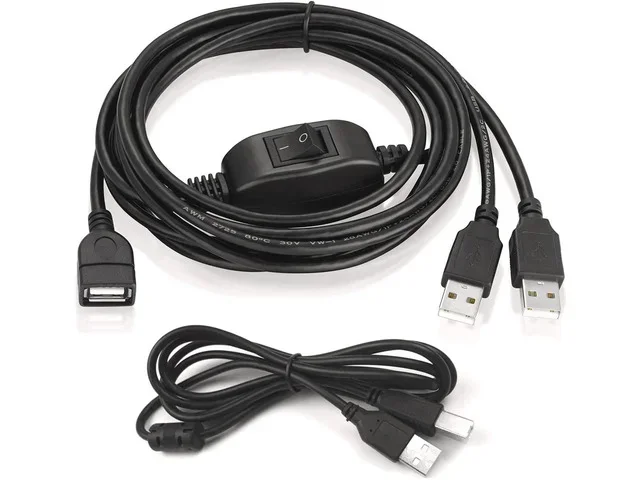
The technology behind this is not magic. It relies on something called a USB bridge cable or a USB host-to-host cable. These special cables have a small chip inside that manages the communication between the two computers. Without that chip, plugging two standard USB cables together will not work and could even harm your ports. So the right hardware is absolutely essential.
How Does USB Networking Work?
When you use a USB bridge cable, the chip inside acts like a tiny network adapter. It creates a peer-to-peer link between the two machines. Your operating system recognizes the second computer as a network device. From there, you can share folders, drag and drop files, and sometimes even share an internet connection. The process is a lot like setting up a small local area network, but instead of using Ethernet cables, you use USB.
Most modern computers support this feature natively. Windows 10 and 11 have built-in tools for USB networking. macOS also supports direct connections through certain adapters. The key is using the right cable and following the correct setup steps. Once you get the hang of it, connecting two computers through USB becomes second nature.
How to Connect Two Computers Through USB: Step-by-Step
Setting up a direct USB link between two computers is easier than most people think. You do not need to be a tech expert. Follow these steps and you will be sharing files in minutes.
Step 1: Get the Right USB Bridge Cable
The first thing you need is a proper USB bridge cable. These cables are sometimes called USB networking cables, USB data transfer cables, or USB host-to-host cables. They look similar to regular USB cables but have special circuitry inside. You can find them online or at electronics stores. Make sure the cable matches the USB ports on your computers, whether that is USB-A or USB-C.
Here are some tips for choosing the right cable:
- Check the USB version: Go for USB 3.0 or higher for faster transfer speeds.
- Match your ports: If your computers have USB-C ports, get a USB-C bridge cable.
- Look for brand names: Cables from reputable brands like StarTech, Plugable, or Belkin tend to be more reliable.
- Check compatibility: Some cables are designed for Windows only. If you use a Mac, make sure the cable supports macOS.
Step 2: Install Any Required Software
Many USB bridge cables come with a small software disc or a download link. This software helps manage the connection and makes file sharing smoother. Install the driver or application on both computers before plugging in the cable. Some newer cables are plug-and-play, meaning you do not need any extra software at all. Check the product instructions to know which applies to your cable.
Step 3: Plug in the Cable
Once the software is ready, plug one end of the bridge cable into each computer. You should hear a chime or see a notification that a new device has been detected. Both computers will recognize the other as a network neighbor. Do not force the cable if it does not fit. Double-check that you are using the correct port.
Step 4: Configure the Network Settings
Now you need to set up file sharing on both machines. On Windows, go to Settings, then Network and Sharing Center. Make sure network discovery is turned on. On macOS, go to System Settings, then General, then Sharing, and enable File Sharing. You can then select which folders you want to share with the other computer.
Step 5: Transfer Your Files
With the connection live and sharing enabled, you can now move files between the two computers. Open File Explorer on Windows or Finder on Mac. You should see the other computer listed in the network section. Browse to the shared folder, select the files you want, and copy them over. The transfer speed depends on your USB version and file size. USB 3.0 can move files at up to 5 Gbps, which is incredibly fast.
USB Bridge Cable vs. Standard USB Cable
This is an important distinction that many people miss. A standard USB cable is designed for connecting a computer to a peripheral device like a printer, keyboard, or phone. It is not built to connect two computers directly. A USB bridge cable, on the other hand, has a special controller chip that manages data flow between two hosts. Using the wrong type of cable can lead to poor performance or even hardware damage.
| Feature | USB Bridge Cable | Standard USB Cable |
|---|---|---|
| Designed for computer-to-computer | Yes | No |
| Has internal bridge chip | Yes | No |
| Supports file sharing | Yes | No |
| Risk of port damage | Low | High |
| Transfer speed | Up to 5 Gbps (USB 3.0) | Varies |
| Price range | $15 to $50 | $5 to $15 |
As you can see from the table, a USB bridge cable is the only safe and effective way to connect two computers through USB. Do not try to improvise with regular cables. The small investment in a proper bridge cable will save you from headaches and potential hardware issues down the road.
Benefits of Connecting Two Computers Through USB
There are several great reasons to use a USB connection for linking two computers. Let us look at the biggest advantages.
Fast File Transfer Speeds
USB 3.0 and USB 3.1 offer blazing fast transfer rates. You can move gigabytes of data in just minutes. This is much quicker than burning files to a DVD or copying them to a slow external drive. If you work with large video files, datasets, or backups, USB networking can be a real time-saver.
No Internet Required
USB networking works offline. You do not need Wi-Fi or an internet connection. This makes it perfect for secure environments where internet access is limited or not available. You can share sensitive files without ever sending them over a network.
Simple and Direct
No routers, no switches, no complicated network setup. Just plug in a cable and go. This simplicity makes USB connections ideal for quick file exchanges between two machines in the same room.
Low Cost
A good USB bridge cable costs between fifteen and fifty dollars. That is much cheaper than buying a network switch or running Ethernet cables through your home. For occasional file sharing, a USB bridge cable is the most budget-friendly option.
Limitations You Should Know About
USB computer-to-computer connections are not perfect. Here are some things to keep in mind before you get started.
Distance Is Limited
USB cables have a maximum recommended length of about five meters, or roughly 16 feet. If your two computers are far apart, you will need a longer cable or a different method. You can use a USB extender, but signal quality may drop over longer distances.
Not Ideal for More Than Two Computers
A USB bridge cable connects exactly two machines. If you need to share files among three or more computers, a traditional network setup with a router or switch works better.
Driver Compatibility Issues
Some older computers may not recognize USB bridge cables without updated drivers. Always check the cable manufacturer’s website for the latest software before you buy. This is especially important if you are using Windows 7 or older systems.
One-Time Use Per Cable
While you can use the same cable repeatedly, you cannot daisy-chain multiple computers through a single bridge cable. Each connection is strictly between two devices.
Alternative Ways to Connect Two Computers
USB is not the only way to link two computers. Sometimes another method fits your needs better. Here are some popular alternatives for connecting two computers and sharing files.
Ethernet Cable Connection
An Ethernet cable is the most traditional way to network two computers. You can use a simple crossover Ethernet cable or a standard cable with a modern router. Ethernet offers stable speeds of up to 1 Gbps or more. It also works over longer distances than USB. If you transfer files often between the same two machines, an Ethernet connection might be your best bet.
Wi-Fi Direct and Ad-Hoc Networks
Both Windows and macOS support Wi-Fi Direct and ad-hoc networking. This lets two computers connect wirelessly without a router. It is convenient when you do not want to deal with cables. However, wireless connections are generally slower and less stable than wired options like USB or Ethernet.
Cloud Storage Services
Services like Google Drive, Dropbox, and OneDrive let you upload files from one computer and download them on another. This works well for smaller files and teams that need remote access. The downside is that you need an internet connection, and large files can take a long time to upload and download.
Bluetooth File Sharing
Bluetooth can transfer files between two computers, but the speed is very slow compared to USB or Ethernet. It works best for small documents or images. For anything larger, Bluetooth is not practical.
USB Docking Station or KVM Switch
A KVM switch lets you control two computers with one keyboard, mouse, and monitor. Some docking stations also support file sharing between connected PCs. These devices are handy if you work with multiple machines at your desk every day.
Common Mistakes to Avoid
Even with the best intentions, people make mistakes when setting up a USB connection between two computers. Here are the most common ones and how to avoid them.
- Using a regular USB cable: This is the number one mistake. Always use a proper USB bridge cable designed for host-to-host connections.
- Skipping driver installation: Some bridge cables need specific drivers. Skipping this step can cause the connection to fail.
- Ignoring USB port versions: Plugging a USB 3.0 bridge cable into a USB 2.0 port will slow down your transfer speed. Match the ports whenever possible.
- Forgetting to enable sharing: The cable creates the connection, but you still need to turn on file sharing in your operating system settings.
- Using a damaged cable: A frayed or broken cable can cause connection drops or data corruption. Inspect your cable before each use.
Expert Tips for the Best USB Connection Experience
Here are some insider tips that make a big difference when you are connecting two computers through USB.
- Use USB 3.0 or higher whenever possible. The speed difference between USB 2.0 and USB 3.0 is huge. You will notice it immediately when transferring large files.
- Keep your operating systems updated. The latest updates often include better driver support for USB networking devices.
- Close unnecessary programs during transfers. This frees up system resources and helps maintain a stable connection.
- Label your shared folders clearly. This makes it easy to find the files you need on the other computer.
- Test with a small file first. Before moving gigabytes of data, send a small test file to confirm the connection works properly.
- Eject the connection properly. On Windows, use the “Safely Remove Hardware” option before unplugging the cable. This prevents data loss.
Is It Safe to Connect Two Computers Through USB?
Yes, it is generally safe as long as you use the right equipment and follow proper steps. A USB bridge cable is designed to handle the electrical and data requirements of connecting two host devices. There is minimal risk of hardware damage when you use a compatible cable. However, always buy from reputable manufacturers and avoid cheap, unverified cables from unknown sellers. A quality cable ensures both safety and reliable performance.
From a data security standpoint, a direct USB connection is actually quite safe. The data stays between the two machines you are connecting. There is no internet exposure, no cloud server, and no third-party involvement. This makes USB networking a great option for sharing sensitive or confidential files.
Can You Connect a Mac and a PC Through USB?
Yes, you can connect a Mac and a PC through USB, but there are a few extra steps. The USB bridge cable method works with both systems. However, you may need to install additional drivers on the Mac side. macOS has built-in support for file sharing through SMB (Server Message Block) protocol. Once both machines are on the same USB network, you can access shared folders from either system. Some users also use a USB Ethernet adapter on each computer and then connect them through a small router. This method offers more flexibility and works well for mixed OS environments.
How Fast Is File Transfer Through USB?
Speed depends on the USB version and the size of the files you are moving. Here is a quick breakdown:
- USB 2.0: Up to 480 Mbps. Suitable for documents and small files. Slow for large videos or backups.
- USB 3.0: Up to 5 Gbps. Great for most file transfer needs. Can move a 10 GB file in under a minute.
- USB 3.1 and USB 3.2: Up to 10 Gbps or 20 Gbps. Blazing fast. Ideal for professionals who handle massive datasets.
Real-world speeds are always a bit lower than the theoretical maximum. Factors like file size, number of small files, and computer processing power all play a role. But even at reduced speeds, USB networking is significantly faster than most wireless methods.
Can You Share an Internet Connection Through USB?
In some cases, yes. If one of the two computers has an active internet connection, you can share that connection through the USB bridge cable. This is called internet connection sharing or ICS. The second computer can then access the internet through the USB link. However, not all USB bridge cables support this feature. Check your cable’s specifications before relying on it for internet sharing. Also, the shared connection will be slower than a direct Ethernet or Wi-Fi connection because the data has to pass through the USB bridge chip.
What About USB-C and Thunderbolt Connections?
USB-C is the newest standard and offers some exciting possibilities for connecting two computers. USB-C cables that support Thunderbolt 3 or Thunderbolt 4 can deliver speeds up to 40 Gbps. That is incredibly fast and perfect for professionals who move huge files regularly. Some Thunderbolt docking stations also allow you to network two computers through a single USB-C connection. If your computers have USB-C ports, consider investing in a Thunderbolt or USB4 cable for the best performance.
Frequently Asked Questions
Can you connect two computers directly through USB without any extra hardware?
No, you cannot use a standard USB cable to connect two computers directly. You need a special USB bridge cable or a USB host-to-host cable that has a built-in chip to manage the connection between the two machines. Without this chip, the computers will not recognize each other and you risk damaging your USB ports.
Is USB or Ethernet better for connecting two computers?
Both have their strengths. USB bridge cables are simpler to set up and great for quick file transfers in the same room. Ethernet offers longer cable runs and more stable connections for ongoing networking. For most home users, a USB bridge cable is the easiest and most affordable option. For professional setups or long-term networking, Ethernet is usually the better choice.
Can I connect two laptops through USB to transfer files?
Absolutely. The process works the same way for laptops as it does for desktops. Just make sure you have the right USB bridge cable that matches your laptop’s ports, whether USB-A or USB-C. Install any necessary drivers, plug in the cable, and enable file sharing on both machines. You will be transferring files in no time.
Does connecting two computers through USB slow down either machine?
Generally, no. The USB bridge cable uses a small amount of system resources, but it should not noticeably slow down your computer. However, if you are transferring very large files while doing other demanding tasks, you might experience a slight dip in performance. For the best results, close unnecessary programs during large file transfers.
Can I use a USB hub to connect more than two computers?
A standard USB hub is not designed to network multiple computers together. It simply adds more ports for peripherals. If you need to connect more than two computers, consider setting up a small Ethernet network with a router or using a dedicated KVM switch designed for multi-computer setups.
What is the maximum cable length for a USB bridge connection?
The recommended maximum length for a standard USB cable is about five meters, or roughly 16 feet. Beyond this distance, signal quality can degrade. If you need a longer connection, consider using a USB extender with a repeater or switch to an Ethernet cable, which can run much farther without signal loss.
Final Thoughts
Connecting two computers through USB is a practical, fast, and affordable way to share files between machines. Whether you use a USB bridge cable, a direct networking adapter, or one of the alternative methods, the key is choosing the right approach for your needs. A proper bridge cable gives you a simple, wired connection that works without internet and delivers impressive transfer speeds. Just remember to avoid the common mistakes we covered, use quality hardware, and follow the setup steps carefully.
Now that you know the answer to “can you connect two computers through USB,” you have the knowledge to get it done right. Grab the right cable, follow the steps in this guide, and enjoy seamless file sharing between your computers. The process is simpler than you think, and once you try it, you will wonder why you did not set it up sooner.