Can You Use Costco Printing Without A Membership Now
The short answer is yes, you can use Costco printing without a membership in most cases. Non-members can access in-store print kiosks and place online orders, but there are limits. This guide covers the exact steps, costs, and insider tips to print hassle-free.
Have you ever needed to print something urgent but realized you don’t have a Costco membership? You’re not alone. Many people wonder can you use Costco printing without a membership. The good news is that the answer is mostly yes. You can still access the print kiosks and place orders online. This guide will show you exactly how it works. We’ll cover the steps, costs, and a few insider tips. By the end, you’ll feel confident about printing at Costco without a membership card.
Costco is known for its bulk deals and member perks. But printing doesn’t have to be locked behind a membership wall. Whether you need a few black-and-white copies or a stack of color photos, non-members have options. Let’s dive into the details and clear up the confusion.
Key Takeaways
- Non-members can print at Costco using self-service kiosks and online orders.
- You’ll need a file format like PDF or JPEG and a USB drive or email access.
- Printing without a membership may cost slightly more for certain services.
- Peak hours can mean long waits, so visit early or use online ordering.
- Guest passes and temporary cards sometimes unlock member-only printing perks.
- Always check the print preview to avoid wasted pages and extra charges.
📑 Table of Contents
- What Is Costco Printing and Why People Ask About Membership
- Can You Use Costco Printing Without a Membership
- Step-by-Step Guide to Printing at Costco Without a Membership
- Comparing Costco Printing Options: With vs. Without Membership
- Common Mistakes People Make When Printing at Costco Without a Membership
- Expert Tips to Save Money and Time on Costco Printing
- Conclusion
What Is Costco Printing and Why People Ask About Membership
A Quick Look at Costco’s Printing Services
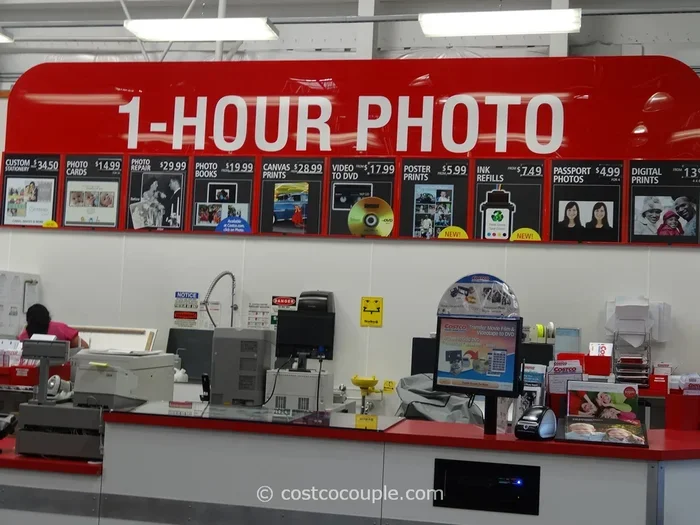
Costco offers both in-store and online printing services. You can print documents, spreadsheets, and photos. The in-store kiosks allow you to upload files from a USB drive. Online, you can submit orders through the Costco website. Members and non-members can both use the online upload feature. However, there are some differences in pricing and speed. Costco printing without a membership is definitely possible. You just need to know the right doors to walk through.
The kiosks use professional-grade inkjet and laser printers. You get sharp text and vibrant colors. The paper options include standard copy paper, glossy photo paper, and matte finishes. You can print single pages or bulk orders. The system is designed for ease of use. Even if you’ve never printed at Costco before, the process is straightforward.
Why the Membership Question Keeps Coming Up
Many people assume Costco printing requires a gold card. This is not true for basic self-service printing. The confusion comes from the fact that some services are member-exclusive. For example, certain bulk orders or custom photo books might require a membership. But standard document and photo printing at the kiosks are open to everyone. So if you’ve asked yourself, “can you use Costco printing without a membership,” the short answer is a clear yes.
The membership myth also spreads because Costco’s website sometimes pushes member login prompts. Don’t let that scare you. You can still navigate to the guest upload page. The store associate at the service desk can also point you to the kiosk. You don’t need to prove you’re a member for simple print jobs.
Can You Use Costco Printing Without a Membership
The Guest Access Policy Explained
Costco allows guests to use the print kiosks. You don’t need to show a membership card at the kiosk. The kiosk is a self-service terminal. It’s located in the office supplies or electronics section. You can walk up, insert a USB drive, and start printing. The system accepts common file types. This makes costco printing without a membership very straightforward for simple jobs.
However, there are a few rules. Non-members cannot use the member-only online portal for discounted prices. Guest access is limited to the physical kiosk and the standard online ordering. You’ll pay the regular non-member price. That’s usually a small surcharge compared to member rates. Still, for occasional prints, it’s very convenient.
Some people worry about being turned away at the door. Costco’s guest policy is generally welcoming. You can enter the store and head straight to the print kiosk. If a staff member asks, just explain you’re using the self-service printer. They’ll usually point you in the right direction. The whole experience is designed to be frictionless.
How the Print Kiosks Work for Non-Members
The kiosk screen is easy to navigate. You tap the options to upload your file. You can choose color or black-and-white. You can also select paper size. Standard sizes like letter and A4 are available. You can also print photos on glossy or matte paper. The kiosk will show a preview and the total cost. Once you confirm, the printer starts working.
If you’re not comfortable with touch screens, bring a computer mouse with a USB adapter. A mouse gives you more precise control. It can make selecting files and adjusting settings much easier. This small tip can save you time and frustration at the kiosk.
The kiosk accepts cash, debit, and credit cards. You don’t need to use a specific payment method. The machine will print a receipt for your records. Keep that receipt if you need to resolve any issues later. The entire process usually takes less than five minutes for a small job.
Step-by-Step Guide to Printing at Costco Without a Membership
Preparing Your Files at Home
Before you go to Costco, get your files ready. The kiosk accepts PDFs, JPEGs, and some Microsoft Office formats. If you’re printing a spreadsheet, check the layout carefully. Sometimes hidden rows or columns cause issues. If a line won’t delete in Microsoft Excel, it can mess up your printout. Make sure all your data fits on the page. Use the print preview function in your software.
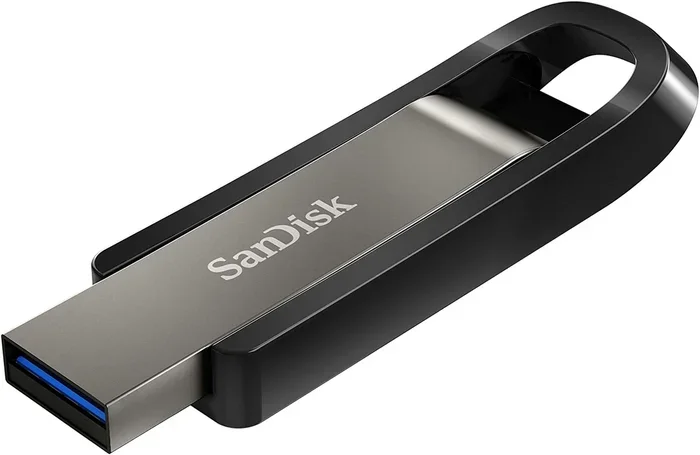
For photos, resize them to the correct dimensions. A 4×6 inch photo prints best at 300 DPI. Save your files in a folder on your desktop. Then copy them to a USB drive. Use a USB drive with at least 8GB of space. Label the drive clearly so you can find your files fast. This preparation step is the key to smooth costco printing without a membership.
Here are a few file tips to keep in mind:
- Use PDF for documents to preserve formatting.
- Save photos as JPEG for the best compatibility.
- Avoid password-protected files unless you can share the password.
- Check that your USB drive is formatted as FAT32 or NTFS.
- Remove any hidden or system files from the USB folder.
Using the In-Store Kiosk
Walk into your local Costco. Head to the print kiosk. The kiosk is usually near the office supplies aisle. Insert your USB drive into the port on the screen. Wait for the file list to appear. Tap the file you want to print. Choose your options: color, black-and-white, paper type, and number of copies.
Review the cost breakdown on the screen. The kiosk accepts cash, debit, and credit cards. After you pay, the printer will start. You’ll hear a chime when your prints are ready. Collect them from the output tray. If you need help, a store associate can point you to the kiosk. That’s all there is to it for can you use Costco printing without a membership in person.
Pro tip: If you’re printing multiple jobs, number your USB files in order. This saves you from scrolling through a long list at the kiosk. A little planning goes a long way.
Placing an Online Order as a Non-Member
You can also print from home. Go to the Costco website and look for the printing section. You don’t need to log in with a membership. You can upload files as a guest. Choose your print options and pay online. Costco will prepare your order. You can pick it up at the store or have it shipped. This is great for people who don’t live near a Costco or have busy schedules.
Online printing gives you more time to review your files. You can fix errors before submitting. The turnaround is usually one to two business days. For large photo orders, this method is very reliable. Just remember that non-member online orders don’t get member discounts. The prices are the same as the in-store kiosk for non-members.
To place an online order, follow these steps:
- Visit the Costco website and go to the printing page.
- Click on “Upload Files” or “Order Prints.”
- Select your files from your computer.
- Choose paper type, size, and finish.
- Enter your email for a confirmation and pickup notice.
- Pay with a credit or debit card.
- Wait for the confirmation email with your order number.
Comparing Costco Printing Options: With vs. Without Membership
Price Differences
Members often enjoy lower per-print costs. For example, a black-and-white page might cost $0.15 for members and $0.20 for non-members. Color prints can also be a bit pricier without a membership. Photo prints follow a similar pattern. A 4×6 glossy photo might be $0.39 for members and $0.49 for non-members. These small differences add up if you print often.
However, for one-off prints, the price difference is negligible. The convenience of walking in and printing outweighs the small surcharge. The table below shows a quick comparison of common print types.
| Print Type | Member Price | Non-Member Price |
|---|---|---|
| Black & White (per page) | $0.15 | $0.20 |
| Color (per page) | $0.50 | $0.60 |
| 4×6 Glossy Photo | $0.39 | $0.49 |
| 4×6 Matte Photo | $0.35 | $0.45 |
| PDF Document (B&W, letter) | $0.10 | $0.15 |
As you can see, non-member prices are only slightly higher. For most people, the difference is worth the flexibility. You get the same high-quality output either way.
Convenience and Speed
Members can sometimes skip the line. They may have access to a dedicated member pickup counter. Non-members use the same kiosk or online queue. During busy hours, the line can be longer for everyone. But the kiosk process is fast. A 10-page document usually takes less than 5 minutes. Photos take a bit longer, around 10 to 15 minutes for a set.
If speed matters, go early in the morning. The store is less crowded then. You can get your prints in and out quickly. This applies to both members and non-members. The costco printing without a membership experience is quite similar in terms of speed.
Another convenience factor is the online order pickup. Non-members can place an order and simply pick it up. You don’t need to wait at the kiosk. This is perfect for large photo orders or last-minute document runs. Just check the store hours and plan your pickup accordingly.
What You Get as a Member vs. Non-Member
Members get access to member-only online printing deals. They can also use the Costco app to place orders. Non-members miss out on those app features. But they still get the same high-quality prints. The paper and ink used are the same for everyone. Costco uses professional-grade printers. The output looks sharp and vibrant. So you don’t sacrifice quality by not having a membership.
Members also get access to the Costco Photo Center for more elaborate projects. Things like photo books, banners, and custom calendars often require a membership. But for everyday printing, the difference is minimal. Non-members can still get excellent results on every visit.
Common Mistakes People Make When Printing at Costco Without a Membership
Ignoring File Format Requirements
Not all file types work on the kiosk. Avoid using obscure formats like .tiff or .eps. Stick to PDF, JPEG, PNG, or basic Office documents. If your file is corrupted, the kiosk will reject it. Always double-check the file before you leave home. This saves a trip back and forth.
A common error is trying to print a .docx file with complex macros. The kiosk may not support advanced features. Convert your document to PDF first. This locks in your formatting and ensures the printer reads it correctly. It’s a simple step that prevents many headaches.
Forgetting to Check the Print Preview
The kiosk shows a preview before you pay. Always review it carefully. Check for cut-off text or misaligned photos. A small mistake can waste a whole set of prints. You’ll pay for those wasted pages. The preview is your best friend. Take the extra 30 seconds to look it over.
Also, check the page range. If you only wanted pages 1 to 5, make sure you didn’t accidentally select all pages. This is a quick fix that saves money and paper. It’s especially important for long documents or presentations.
Not Arriving Early During Peak Hours
Lunchtime and after work are busy times. The kiosk line can grow quickly. If you’re in a hurry, go during off-peak hours. Early morning or mid-afternoon on weekdays is ideal. You’ll get faster service and a stress-free experience. This tip helps both members and non-members.
Weekends can be especially crowded at Costco. If you need prints on a Saturday, arrive right when the store opens. The line moves faster in the morning. You can complete your job in minutes instead of waiting in a queue.
Expert Tips to Save Money and Time on Costco Printing
Use the Online Upload Feature
Even without a membership, you can upload files online. This lets you prepare everything from home. You can organize your orders and track them. The website is user-friendly. You just need an email address to create a guest account. This is a great way to handle costco printing without a membership in an organized way.
Online upload also lets you compare prices before you commit. You can see the exact cost for each print job. There are no surprises at the kiosk. You just pay what you see online. This transparency is a big plus for non-members.
Bring Your Own Storage Device
Don’t rely on email or cloud services at the kiosk. The kiosk may not support all cloud logins. A USB drive is the most reliable method. It works every time. Keep a small flash drive in your bag or car. You’ll always be ready to print when the need arises.
Label your USB drive with your name or a simple label like “Print Files.” This helps you find the right drive quickly. It also prevents mix-ups if you use the same drive for personal and work files. A little organization goes a long way.
Leverage the Mouse for Precision
Editing documents at home is much easier with a computer mouse. A mouse helps you navigate menus, select text, and adjust images. It’s more comfortable than a trackpad for long editing sessions. Before you go to Costco, use a mouse to perfect your files. This small step can prevent printing errors and save you money.
A good mouse also helps you zoom in on photos. You can check for pixels or alignment issues before you upload. This level of control is hard to achieve on a laptop trackpad. Invest in a basic optical mouse if you don’t already have one. It’s a small tool that makes a big difference.
Conclusion
So, can you use Costco printing without a membership? Yes, you absolutely can. You have access to in-store kiosks and online ordering. The process is simple and straightforward. You just need to prepare your files, bring a USB drive, and know the steps. The small price difference is a fair trade for the convenience. Next time you need prints, don’t let the lack of a membership card stop you. Follow this guide and you’ll be printing in no time.
Remember to check your files, arrive early, and use the tips above. Costco printing without a membership is a practical solution for everyone. Give it a try and see how easy it really is. You’ll wonder why you ever worried about the membership question in the first place.
Frequently Asked Questions
Do I need a Costco membership to use the print kiosk?
No, you do not need a membership to use the in-store print kiosks. The kiosks are self-service and open to all guests. You can walk up, insert a USB drive, and print your documents or photos. Just be aware that non-members pay the regular non-member price, which is slightly higher than the member rate.
Can I print from my phone at Costco without a membership?
Currently, the in-store kiosks do not support direct phone printing. You need to transfer your files to a USB drive first. However, you can place an online order from your phone as a guest. Upload your files through the Costco website, pay online, and pick up the prints at the store. This is a great workaround for non-members.
What file formats does the Costco print kiosk accept?
The kiosk accepts common formats like PDF, JPEG, PNG, and basic Microsoft Office files. It does not support obscure formats like .tiff or .eps. If your file is password-protected, you’ll need to share the password with the kiosk. Always test your file on your own computer first to ensure it prints correctly.
Is Costco printing cheaper with a membership?
Yes, members usually enjoy lower per-print costs. The difference is small for individual prints but adds up for bulk jobs. For example, a black-and-white page might cost $0.05 less for members. Photo prints also have a slight member discount. If you print frequently, a membership can save you money over time.
Can I print photos at Costco without a membership?
Absolutely. Non-members can print photos at the kiosk or through the online guest order system. You can choose glossy or matte finishes and various sizes. The photo quality is the same for members and non-members. Just expect to pay the non-member price, which is a little higher than the member rate.
What should I do if the kiosk rejects my file?
First, check the file format. Make sure it’s a PDF, JPEG, PNG, or compatible Office file. Ensure the file is not corrupted or password-protected. Try converting the file to PDF if you’re unsure. If the problem persists, ask a store associate for help. They can often troubleshoot common issues quickly.