Can You Replace A Battery In A Hp Laptop Without Help
Yes, you can replace a battery in an HP laptop without professional help. Most HP laptops allow easy battery swaps with basic tools and a little patience. This guide walks you through every step, from finding the right battery model to testing your new one safely.
Replacing the battery in your HP laptop might seem intimidating at first. But the truth is, most people can do it themselves. You do not need a tech degree or expensive tools. With the right guidance, you can save money and get your laptop running like new. This guide covers everything you need to know about HP laptop battery replacement at home.
Whether you own an HP Pavilion, HP Envy, or HP Omen, the process is similar across most models. You will learn how to identify your battery type, find the right replacement, and install it safely. We also share common mistakes to avoid and tips to extend your new battery’s life. By the end, you will feel confident tackling this repair on your own.
Key Takeaways
- DIY Battery Replacement Is Possible: Most HP laptops let you swap the battery yourself with simple tools and basic know-how.
- Know Your Battery Type: HP laptops use either removable or internal batteries, and each requires a different approach.
- Safety Comes First: Always power off your laptop, unplug it, and follow proper discharge steps before starting.
- Compatibility Matters: Using the correct HP battery model ensures performance and avoids damage to your device.
- Calibration Improves Life: After replacement, calibrate your new battery for accurate charge readings and longer lifespan.
- Warranty May Be Affected: Check your HP warranty before replacing the battery to avoid losing coverage.
📑 Table of Contents
- Why Replace Your HP Laptop Battery?
- How To Find the Right Battery for Your HP Laptop
- Tools You Need for HP Laptop Battery Replacement
- Step-by-Step Guide to Replace Your HP Laptop Battery
- Common Mistakes to Avoid When Replacing an HP Laptop Battery
- How To Calibrate Your New HP Laptop Battery
- When To Seek Professional Help
- Extending the Life of Your New HP Laptop Battery
- HP Battery Replacement vs Professional Service: Which Is Right for You?
- Final Thoughts on Replacing Your HP Laptop Battery
Why Replace Your HP Laptop Battery?
Laptop batteries do not last forever. Over time, they lose their ability to hold a charge. You might notice your HP laptop dying quickly or not charging at all. These are clear signs that a replacement is needed. Ignoring a worn-out battery can also damage your laptop’s motherboard.
A fresh battery brings back the portability you love. You can work from anywhere without hunting for a wall outlet. It also improves overall performance because your laptop runs more efficiently with a healthy power source. Let us look at the types of batteries HP laptops use.
Removable vs Internal Batteries
HP laptops come with two main battery designs. Some have removable batteries that slide out with a latch or screw. These are the easiest to replace. You just pop the old one out and click the new one in. Older HP models often use this design.
Other HP laptops have internal batteries sealed inside the chassis. These require removing the bottom panel and disconnecting a cable. While slightly more involved, internal battery replacement is still very doable at home. Newer slim HP models typically use internal batteries.
How To Find the Right Battery for Your HP Laptop
Finding the correct battery is the most important step. Using the wrong model can cause poor performance or even damage. You need to match the battery to your specific HP laptop series.
Check Your Laptop Model Number
Start by finding your HP laptop model number. You can usually find it on a sticker on the bottom of the laptop. You can also check the system information in Windows. Click the Start menu, type “System Information,” and look for your model name.
Write down the exact model number. This will help you search for the correct HP battery compatibility. You can also check the HP Support website and enter your model number there. The site will show you the exact battery part number you need.
Understanding Battery Specifications
Every HP battery has key specifications you should know. These include voltage, watt-hours, and cell count. The voltage must match your laptop exactly. Watt-hours tell you how much energy the battery holds. A higher number means longer battery life.
The cell count affects both capacity and physical size. Most HP laptops use 3-cell, 4-cell, or 6-cell batteries. Make sure the replacement battery fits your laptop’s compartment. Always buy from trusted sellers to avoid counterfeit cells.
Tools You Need for HP Laptop Battery Replacement
You do not need many tools for this job. Most HP battery replacements require only basic household items. Here is what you should gather before you start.
- Phillips-head screwdriver: This is the most common tool you will need.
- Plastic pry tool: This helps open the laptop case without scratching it.
- Anti-static wrist strap: This protects your laptop from static damage.
- Soft cloth or mat: Use this to rest your laptop on during the process.
- New HP battery: Make sure it matches your model number exactly.
You might also want a small tray to keep track of screws. A flashlight can help you see inside the laptop better. Keep your workspace clean and well-lit. A tidy setup makes the whole process smoother and safer.
Step-by-Step Guide to Replace Your HP Laptop Battery
Now let us walk through the actual replacement process. Follow these steps carefully and take your time. Rushing can lead to mistakes or accidental damage.
Step 1: Power Down and Disconnect
Start by turning off your HP laptop completely. Do not just put it to sleep. Shut it down from the Start menu. Once it is off, unplug the power adapter from the laptop. If you have any USB devices or peripherals connected, remove those too.
Next, drain any remaining charge. Hold down the power button for about 15 seconds. This helps discharge static electricity in the circuits. It is a simple step that keeps your laptop safe during the repair.
Step 2: Remove the Bottom Panel
Flip your laptop over so the bottom faces up. Look for screws holding the bottom panel in place. Use your Phillips-head screwdriver to remove them. Keep the screws in a safe spot. They often differ in size, so a tray or magnetic mat helps.
Once all screws are out, gently lift the bottom panel. Use a plastic pry tool if the panel is snug. Avoid using metal tools that could scratch the casing. Set the panel aside carefully.
Step 3: Locate and Disconnect the Battery
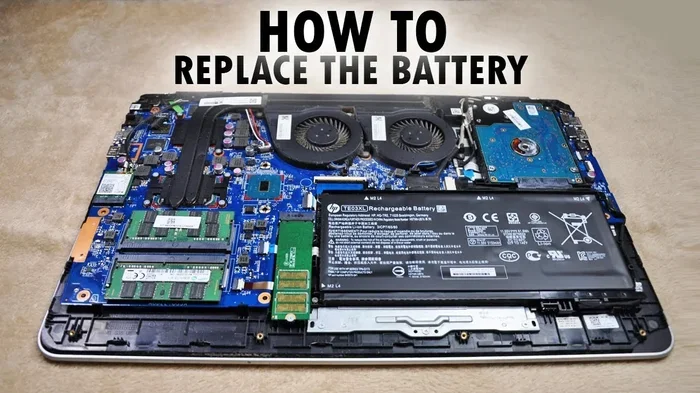
With the bottom panel removed, you should see the internal components. Look for the battery, which is usually a large rectangular block. Before touching it, make sure your laptop is fully powered off.
Find the battery connector on the motherboard. It is a small plug that links the battery to the system board. Gently pull the connector straight out. Do not yank it. If it feels stuck, wiggle it very gently side to side until it releases.
Some HP laptops have a battery lock or release latch. Check for any small switches or tabs near the battery. Slide or flip them to unlock the battery before removing it.
Step 4: Remove the Old Battery
Now you can carefully lift the old battery out of its compartment. Some batteries are held by small screws. Remove those first if needed. Handle the battery gently. Do not bend, puncture, or drop it. Damaged batteries can leak or even catch fire.
Place the old battery aside for proper recycling. Do not throw it in the regular trash. Many electronics stores and HP service centers accept old batteries for recycling. This is the environmentally responsible thing to do.
Step 5: Install the New Battery
Take your new HP replacement battery out of the packaging. Check that it matches the old battery in size, shape, and connector position. If anything looks different, stop and double-check your order.
Place the new battery into the compartment. If there are screws, secure them now. Connect the battery cable to the motherboard by pressing the connector in firmly until it clicks. Make sure the connection is secure and not loose.
Step 6: Reassemble and Test
Put the bottom panel back on and align it properly. Replace all the screws you removed earlier. Tighten them gently. Do not over-tighten, as this can strip the threads or crack the plastic.
Plug in your power adapter and turn on the laptop. Check if the battery icon appears in the taskbar. If it does, let the battery charge to 100 percent before unplugging. This first charge is important for setting the battery’s capacity correctly.
Common Mistakes to Avoid When Replacing an HP Laptop Battery
Even with a good guide, mistakes can happen. Here are some common errors people make during battery replacement. Avoiding these will save you time and frustration.
- Using the wrong battery model: Always double-check compatibility before purchasing. A mismatched battery will not fit or work properly.
- Forgetting to disconnect power: Always unplug the laptop and hold the power button to discharge static before opening it.
- Forceful connector removal: Never yank the battery cable. Gentle pressure is all you need.
- Skipping battery calibration: After installation, calibrate the new battery for accurate readings.
- Ignoring warranty status: Opening your laptop might void your HP warranty. Check first if you are still covered.
Another mistake is rushing the process. Take your time and work carefully. If something feels stuck, stop and figure out why. Forcing parts can cause expensive damage. Patience is your best tool in any DIY repair.
How To Calibrate Your New HP Laptop Battery
Calibration helps your laptop accurately read the battery’s charge level. Without calibration, you might see incorrect battery percentages or unexpected shutdowns. The process is simple and only takes a few hours.
Start by charging your new battery to 100 percent. Leave it plugged in for at least two hours after it reaches full charge. This ensures the battery cells are fully saturated.
Next, unplug the power adapter and use your laptop normally until it shuts down from low battery. Do not turn it back on. Let it sit unused for at least five hours. Then plug the power adapter back in and charge it to 100 percent again without interruption.
Your laptop’s battery gauge should now be accurately calibrated. You can repeat this process once a month to maintain accuracy. This simple habit extends the overall health of your HP laptop battery life.
When To Seek Professional Help
DIY battery replacement works for most HP laptops. But there are situations where professional help is the better choice. Knowing when to call in an expert can save you from costly mistakes.
If your HP laptop has a sealed battery that requires extensive disassembly, consider professional service. Some newer models have batteries glued inside the chassis. Removing these without proper tools risks damaging the laptop body or internal components.
Also seek help if your laptop still has warranty coverage. Opening the case yourself may void the warranty. HP Support can often replace the battery for free or at a reduced cost during the warranty period. You can contact HP Support directly or visit an authorized service center. If your battery shows signs of swelling or physical damage, do not attempt replacement yourself. Swollen batteries are a safety hazard and need professional handling.
Finally, if you feel unsure at any point during the process, it is okay to stop. There is no shame in asking for help. A local repair shop can often complete the job quickly and affordably. Your safety and your laptop’s health come first.
Extending the Life of Your New HP Laptop Battery
Getting a new battery is only half the battle. Proper care helps it last longer and perform better. Follow these simple habits to get the most from your replacement battery.
Charge Habits That Help
Avoid letting your battery drain to zero percent regularly. Lithium-ion batteries prefer partial charges between 20 and 80 percent. This range reduces stress on the battery cells. If you mostly use your laptop plugged in, consider using HP Battery Care features. These settings limit the charge to 80 percent, which extends battery health over time.
Temperature and Storage Tips
Heat is the biggest enemy of laptop batteries. Keep your HP laptop in a cool, well-ventilated area. Avoid using it on soft surfaces like beds or couches that block air vents. If you store your laptop for a long time, keep the battery at about 50 percent charge.
Store the laptop in a cool, dry place. Extreme cold or heat can permanently damage battery cells. A room temperature between 60 and 75 degrees Fahrenheit is ideal for storage.
Regular Maintenance
Run battery diagnostics every few months. HP includes built-in tools for this in Windows. You can also check your battery health through the HP Support Assistant app. These tools tell you when the battery is degrading and needs replacement again.
Keeping your laptop clean also helps battery performance. Dust buildup inside the laptop can cause overheating, which drains the battery faster. Use compressed air to clean vents and fans regularly.
HP Battery Replacement vs Professional Service: Which Is Right for You?
Deciding between DIY replacement and professional service depends on your comfort level and situation. Here is a quick comparison to help you decide.
| Factor | DIY Replacement | Professional Service |
|---|---|---|
| Cost | Lower (just battery cost) | Higher (labor + battery) |
| Time | 30-60 minutes | 1-3 days |
| Skill Required | Basic tools and patience | None needed |
| Risk | Minor if careful | Very low |
| Warranty Impact | May void warranty | Keeps warranty intact |
| Convenience | Do it anytime | Must schedule appointment |
For most users with removable or easily accessible batteries, DIY is the clear winner. You save money, learn a valuable skill, and get the satisfaction of fixing it yourself. Professional service makes more sense for sealed batteries or if your laptop is still under warranty.
Many people also track their laptop service history using simple tools. For instance, organizing your HP laptop service records is much easier when you have a system in place, similar to how you might organize data in a spreadsheet or even a simple tool like a line that won’t delete in Microsoft Excel for record keeping. This kind of organization helps you stay on top of maintenance tasks and warranty dates.
Additionally, when working on any computer, having the right peripherals matters. A comfortable computer mouse can make the process more comfortable, especially if you are working on a desk for an extended period. Choosing the right accessories supports a smoother overall experience.
Final Thoughts on Replacing Your HP Laptop Battery
Replacing the battery in your HP laptop without help is entirely achievable. You just need the right battery, basic tools, and a steady hand. The process is straightforward for most HP models, and the satisfaction of doing it yourself is unbeatable. You save money, gain confidence, and learn something new about your device.
Remember to always prioritize safety. Power down completely, disconnect everything, and handle the battery gently. Take your time with each step, and do not be afraid to pause if something does not feel right. A careful approach prevents mistakes and protects your investment.
After installation, calibrate your new battery and adopt good charging habits. These small efforts pay off in longer battery life and better performance. Your HP laptop will feel refreshed and ready for whatever tasks you throw at it. With this guide, you have everything you need to succeed. Happy repairing.
Frequently Asked Questions
Can I replace the battery in any HP laptop model?
Most HP laptops allow battery replacement, but the process varies by model. Older and mid-range models typically have removable or easily accessible batteries. Newer slim models may have sealed internal batteries that require more disassembly. Always check your specific model before starting.
How do I know if my HP laptop battery needs replacing?
Signs include significantly reduced battery life, the laptop only working while plugged in, or the battery draining very fast. You can also check battery health in Windows through the Command Prompt by running a battery report command. If the health percentage is below 50 percent, replacement is a good idea.
Is it safe to replace an HP laptop battery myself?
Yes, it is safe as long as you follow proper precautions. Always power off the laptop, disconnect the charger, and discharge static before opening. Handle the battery gently and never puncture or bend it. If you feel uncertain at any point, consider seeking professional help.
How much does an HP laptop battery replacement cost?
The cost depends on your HP model and where you buy the battery. Official HP batteries typically range from $40 to $100. Third-party options can be cheaper, sometimes around $20 to $50. Professional service adds labor costs, usually between $50 and $100 extra.
Does replacing the HP laptop battery void the warranty?
This depends on your warranty terms and whether you use authorized parts and service. Some HP warranties cover battery replacement at no cost. Opening the laptop yourself may void coverage, so check your warranty status first. Contact HP Support for guidance before proceeding.
How long does a new HP laptop battery last?
A new HP laptop battery typically lasts 2 to 4 hours on a single charge, depending on usage and model. With proper care, the battery can maintain good health for 2 to 3 years. Avoiding extreme temperatures and following good charging habits extends the lifespan significantly.
=== META TITLE ===
Replace Battery in HP Laptop Without Help: Full DIY Guide
=== URL SLUG ===
replace-battery-hp-laptop-without-help
=== SEO TITLE ===
Can You Replace A Battery In A Hp Laptop Without Help?
=== OPENING SUMMARY ===
Yes, you can replace a battery in an HP laptop without professional help. Most HP laptops allow easy battery swaps with basic tools and a little patience. This guide walks you through every step, from finding the right battery model to testing your new one safely. You will learn about removable and internal batteries, proper tools, and common mistakes to avoid. By the end, you will feel confident tackling this simple repair on your own.