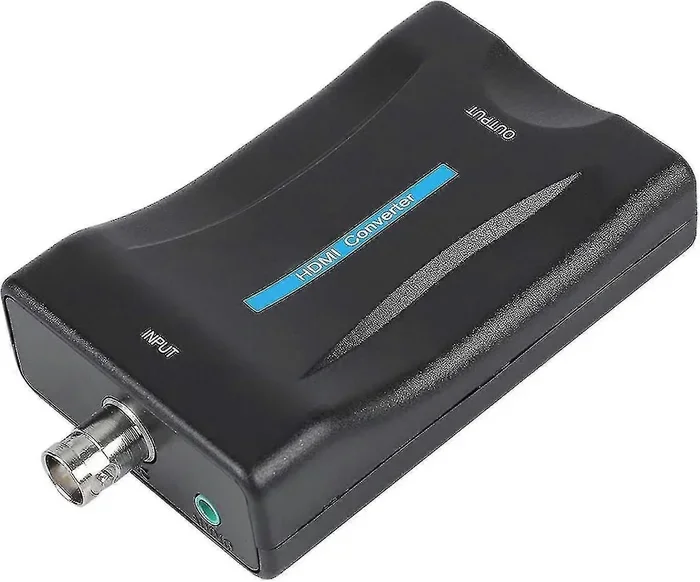
Can You Do Extended Display With Hdmi Splitter Guide
Can you do extended display with HDMI splitter? The short answer is no — HDMI splitters mirror your screen, they don’t extend it. A splitter sends the same signal to every display, so all screens show the same content. However, you can achieve extended display using other methods like built-in graphics card ports, USB display adapters, or an HDMI switch with proper PC settings. This guide walks you through everything you need to know about HDMI splitter vs extended display setups.
You plugged in an HDMI splitter and hoped for the best. You wanted two screens. You wanted more workspace. But something went wrong. Instead of extending your desktop, both screens show the exact same image. Sound familiar? You are not alone. Many people ask this question every single day: can you do extended display with HDMI splitter?
The answer might surprise you. HDMI splitters are not designed for extended display. They are built to do something different entirely. But here is the good news — there are real solutions that actually work. In this guide, we will break down exactly why splitters mirror your screen, what you can do instead, and how to set up a true multi-monitor workstation without spending a fortune.
Key Takeaways
- HDMI splitters mirror, not extend: A standard HDMI splitter duplicates the same image on all connected screens.
- Extended display needs different hardware: Use multiple ports on your graphics card, USB adapters, or a docking station.
- Windows display settings matter: You must configure your PC correctly to extend rather than duplicate your screen.
- HDMI switches serve a different purpose: A switch lets you toggle between inputs, while a splitter duplicates one input to many outputs.
- Quality splitters are affordable: Good HDMI splitters cost between $10 and $40 for reliable performance.
- Resolution limits exist: Cheap splitters may not support 4K or high refresh rates.
- Alternative solutions work better: USB-C to HDMI adapters and docking stations offer true extended display capability.
📑 Table of Contents
- What Does an HDMI Splitter Actually Do?
- Can You Do Extended Display With HDMI Splitter?
- HDMI Splitter vs HDMI Switch: What Is the Difference?
- How to Set Up True Extended Display
- Common HDMI Splitter Mistakes to Avoid
- Expert Tips for Multi-Monitor Setups
- When Should You Actually Buy an HDMI Splitter?
- Best HDMI Splitters Worth Your Money
- Key Takeaways
- Conclusion
What Does an HDMI Splitter Actually Do?
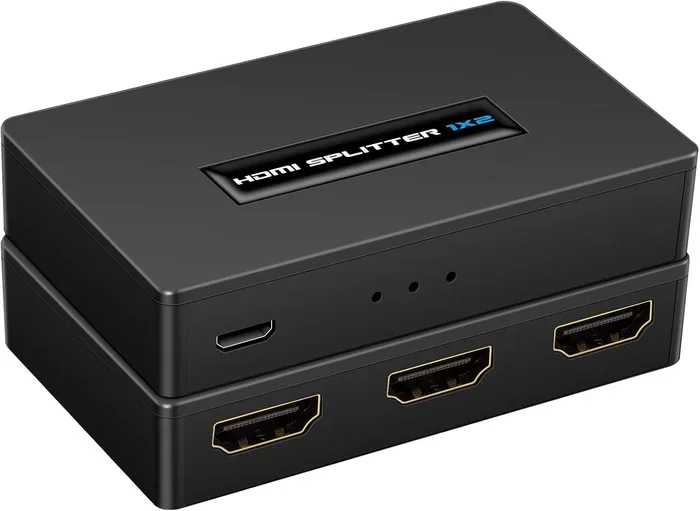
An HDMI splitter takes one HDMI input and sends that same signal to multiple outputs. Think of it like a garden hose splitter. Water flows through one pipe, and the splitter divides it into two or more streams. But every stream carries the same water. It does not create new water.
The same idea applies to video signals. When you connect a laptop or PC to an HDMI splitter, the device sends one video signal out to every connected display. Every screen receives the identical image. This is called screen mirroring or duplicate mode. It is not extension.
Common Uses for HDMI Splitters
Even though splitters do not extend displays, they are still very useful tools. Here are some real-world scenarios where an HDMI splitter shines:
- Presenting to a group: Send the same presentation to a projector and your laptop screen at the same time.
- Gaming setups: Play on your TV while keeping an eye on your monitor for chat or system info.
- Digital signage: Run the same video on multiple screens in a store or office lobby.
- Home theater: Send one cable box signal to two TVs in different rooms.
So if mirroring is what you want, an HDMI splitter is perfect. But if you want to extend your desktop across multiple screens, you need a different approach entirely.
Can You Do Extended Display With HDMI Splitter?
Here is the direct answer: no, you cannot extend your display using a standard HDMI splitter. The hardware simply does not support it. An HDMI splitter copies one video signal and repeats it across all outputs. There is no intelligence built in to tell each screen to show a different part of your desktop.
Some people try to trick their computer into thinking each splitter output is a separate display. But this does not work in most cases. The computer sees the splitter as one output device. It does not matter if you have three monitors plugged into the splitter. Your PC still thinks there is only one screen.
Why People Get Confused
This confusion happens all the time. Many users buy an HDMI splitter expecting it to work like a docking station or a multi-port graphics card. They assume more outputs means more screens. But the type of splitter matters a lot.
There are two main types of HDMI splitters on the market:
- Basic HDMI splitters: These only duplicate the signal. They cannot extend displays. Period.
- Smart HDMI splitters with EDID management: These are slightly more advanced. They handle display communication better. But even these still mirror, not extend.
No matter what the product description says, a true HDMI splitter will mirror your screen. If a seller claims their splitter can extend displays, read the fine print carefully. You may be paying extra for features that do not deliver what you need.
HDMI Splitter vs HDMI Switch: What Is the Difference?
People often confuse HDMI splitters with HDMI switches. These are two completely different devices. Understanding the difference helps you buy the right tool for your setup.
What Is an HDMI Switch?
An HDMI switch lets you connect multiple source devices to one display. For example, you might have a gaming console, a Blu-ray player, and a laptop. You plug all three into the switch, and then connect the switch to your TV. You press a button to toggle between inputs. The TV shows one source at a time.
An HDMI switch does not help with extended display either. It simply saves you from constantly unplugging and replugging cables.
What Is an HDMI Splitter?
An HDMI splitter does the opposite. It takes one source and sends it to many displays. Every screen gets the same content.
Quick Comparison Table
| Feature | HDMI Splitter | HDMI Switch |
|---|---|---|
| Input Ports | 1 | Multiple |
| Output Ports | Multiple | 1 |
| Function | Mirrors signal to many screens | Switches one screen between sources |
| Extended Display | No | No |
| Best For | Duplicating content | Sharing one display among devices |
Neither device provides true extended display. If you want to spread your desktop across multiple monitors, you need different hardware. Let us look at what actually works.
How to Set Up True Extended Display
If an HDMI splitter will not extend your display, what will? Fortunately, there are several reliable methods. Some cost almost nothing. Others require a small investment. Let us walk through each option step by step.
Method 1: Use Multiple Ports on Your Graphics Card
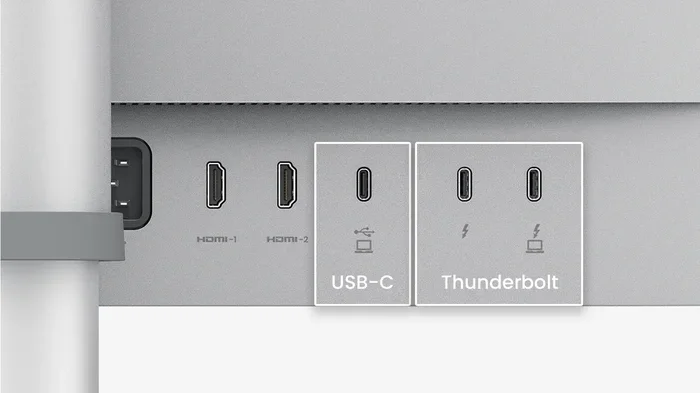
The easiest and most common way to extend your display is to use the video outputs already built into your computer. Most modern desktops and laptops come with multiple display ports. These might include HDMI, DisplayPort, VGA, or USB-C connections.
Here is how to set it up:
- Connect your first monitor to your PC using an HDMI cable.
- Connect your second monitor to another available port on your graphics card.
- Right-click on your desktop and select Display Settings (on Windows) or Displays (on Mac).
- You should see two monitor icons on screen.
- Click the Identify button to see which number corresponds to which physical screen.
- Select Extend these displays.
- Arrange the monitor icons to match your physical setup.
This method gives you full control over each screen. You can set different resolutions, refresh rates, and primary display settings. It is also the most stable option because it uses native graphics card hardware.
Method 2: USB to HDMI Display Adapter
What if your computer does not have enough video outputs? A USB display adapter is a great solution. These small devices plug into a USB port and add a new HDMI output to your system.
Popular brands like DisplayLink make adapters that work with both Windows and Mac. You simply plug the adapter in, connect your monitor via HDMI, and Windows automatically detects a new display. You can then extend your desktop to that screen just like any other monitor.
Here are some tips when choosing a USB adapter:
- Look for DisplayLink technology for the best compatibility.
- Check that the adapter supports your desired resolution (1080p, 4K, etc.).
- Make sure your USB port is version 3.0 or higher for smooth performance.
- Install the manufacturer drivers before plugging in the adapter.
USB adapters are affordable, usually ranging from $25 to $60. They are one of the best budget-friendly ways to add extended display capability to any laptop or desktop.
Method 3: Use a Docking Station
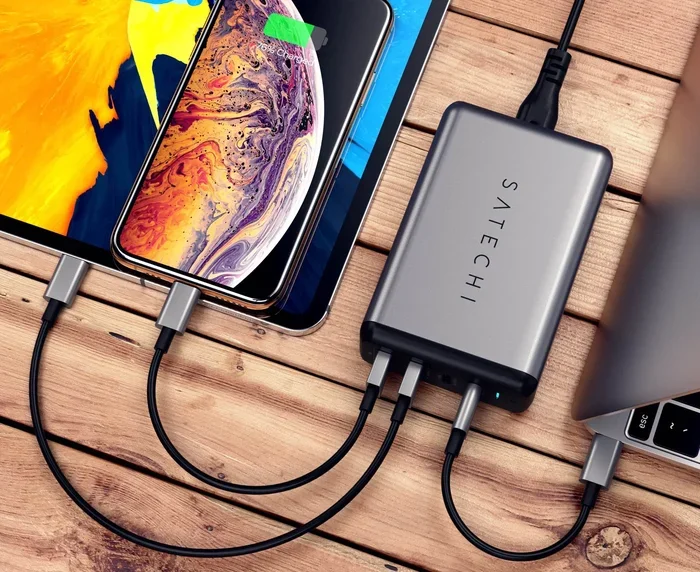
A docking station is like a power hub for your laptop. It connects to your laptop through a single cable (usually USB-C or Thunderbolt) and provides multiple video outputs, USB ports, ethernet, and charging all in one unit.
Docking stations are ideal for people who want a clean desk setup. You connect your laptop to the dock once. Then you can plug in two, three, or even four monitors through the dock’s video outputs. Your computer recognizes each monitor as a separate display, and you can extend your desktop across all of them.
Some popular docking station brands include CalDigit, Anker, and Belkin. Prices range from $100 to $300 depending on features and the number of displays supported.
Method 4: Use a DisplayPort Daisy Chain
If your monitors support DisplayPort, you can daisy chain them together. This means you connect the first monitor to your PC, then connect the second monitor to the first monitor. The signal passes through like a chain.
Daisy chaining requires DisplayPort 1.2 or higher on both your computer and your monitors. You also need to enable MST (Multi-Stream Transport) in your display settings. Once set up, each monitor acts as an independent display, giving you a true extended desktop experience.
Common HDMI Splitter Mistakes to Avoid
Many people make avoidable mistakes when setting up their displays. Here are the most common ones and how to fix them.
Buying the Wrong Device
The biggest mistake is purchasing an HDMI splitter when you actually need an HDMI switch or a docking station. Always ask yourself what you want to achieve. Do you want the same image on multiple screens, or do you want different images on each screen?
- Same image on multiple screens: Buy an HDMI splitter.
- Different images on each screen: Use multiple ports on your graphics card, a USB adapter, or a docking station.
Ignoring EDID Handshake
EDID stands for Extended Display Identification Data. It is how your computer communicates with your monitors to understand their capabilities. Cheap HDMI splitters sometimes have poor EDID handling, which can cause resolution problems, flickering, or no signal at all.
To avoid EDID issues, buy a splitter from a reputable brand. Look for products with built-in EDID management. Also, always let your computer fully detect the displays before changing any settings.
Using Low-Quality Cables
Even the best HDMI splitter will underperform with cheap cables. Poor-quality cables can cause signal loss, especially over long distances. Always use high-speed HDMI cables rated for the resolution you need. For 4K content, make sure your cables are HDMI High Speed or Premium High Speed certified.
Expert Tips for Multi-Monitor Setups
Setting up multiple monitors is one of the best ways to boost productivity. Here are some expert tips to get the most out of your setup.
Match Your Monitor Resolutions
When possible, use monitors with the same resolution. Mixing a 1080p monitor with a 4K monitor can cause scaling issues. Text might look blurry on one screen while appearing sharp on the other. If you must mix resolutions, adjust your Windows scaling settings for each display individually.
Use Monitor Arms for Better Ergonomics
A monitor arm lets you position your screens at the perfect height and angle. This reduces neck strain and frees up desk space. Many people find that dual monitor arms transform their entire workspace.
Check Your Graphics Card Limits
Before buying extra hardware, check how many displays your graphics card supports. Most modern GPUs handle three to six displays easily. You can find this information in your GPU specifications or in your GPU control panel software. If your card does not support enough outputs, a USB adapter or docking station fills the gap.
Update Your Graphics Drivers
Outdated graphics drivers cause more display problems than people realize. Always keep your GPU drivers up to date. Visit NVIDIA, AMD, or Intel’s website to download the latest version. Updated drivers often fix multi-monitor detection issues and improve overall performance.
When Should You Actually Buy an HDMI Splitter?
Despite our focus on extended display, HDMI splitters are still valuable tools. You should buy one if your goal is screen mirroring. Here are specific situations where a splitter makes perfect sense:
- You want to show the same content on a TV and a monitor simultaneously.
- You are setting up a digital menu board or advertising display.
- You need to send one gaming console to multiple TVs in your home.
- You want a backup screen that always shows the same thing as your primary display.
In all these cases, a good HDMI splitter delivers exactly what you need. Just make sure your expectations match what the device can actually do.
Best HDMI Splitters Worth Your Money
If you have decided that mirroring is your goal, here are some reliable options to consider. These splitters handle EDID well and support high resolutions at fair prices.
- Kinivo 550BN: A popular 2-port HDMI splitter that supports 1080p and 4K. It is affordable and works reliably for most users.
- UGREEN HDMI Splitter: A compact design with good build quality. Supports 4K at 30Hz and works well for home use.
- IOGEAR HDMI Splitter: A trusted brand in the accessories space. Offers 4-port options for larger setups.
When shopping, pay attention to the resolution support, number of output ports, and whether the splitter requires external power. Powered splitters tend to perform better, especially over longer cable runs.
Key Takeaways
- HDMI splitters mirror, not extend: A standard HDMI splitter duplicates the same image on all connected screens.
- Extended display needs different hardware: Use multiple ports on your graphics card, USB adapters, or a docking station.
- Windows display settings matter: You must configure your PC correctly to extend rather than duplicate your screen.
- HDMI switches serve a different purpose: A switch lets you toggle between inputs, while a splitter duplicates one input to many outputs.
- Quality splitters are affordable: Good HDMI splitters cost between $10 and $40 for reliable performance.
- Resolution limits exist: Cheap splitters may not support 4K or high refresh rates.
- Alternative solutions work better: USB-C to HDMI adapters and docking stations offer true extended display capability.
Conclusion
The question can you do extended display with HDMI splitter comes up every day, and the answer remains the same: an HDMI splitter mirrors your screen, it does not extend it. Understanding this distinction saves you time, money, and frustration.
If you need true extended display, you have several excellent options. Use the multiple video outputs on your graphics card. Add a USB-to-HDMI adapter. Invest in a docking station. Or set up a DisplayPort daisy chain. Each method gives you independent control over each screen, letting you spread your desktop across as many monitors as your system supports.
On the other hand, if you simply want the same image on multiple displays, an HDMI splitter is a perfect and affordable solution. The key is knowing what you actually need before you buy.
Take some time to evaluate your setup. Figure out your goals. Choose the right hardware. And you will have a smooth, productive multi-monitor experience that works exactly the way you want it to. The right knowledge makes all the difference, and now you have it.
Frequently Asked Questions
Can an HDMI splitter be used for dual monitors?
Yes, but only for mirroring. An HDMI splitter sends the same signal to both monitors. If you want each monitor to show different content, you need a different solution like multiple ports on your graphics card or a USB display adapter.
What is the difference between screen mirroring and extended display?
Screen mirroring shows the exact same image on every connected display. Extended display spreads your desktop across multiple screens, giving you more workspace. Each screen can show different windows and applications.
Do I need a special HDMI splitter for 4K?
Yes, standard HDMI splitters may only support 1080p. To use 4K resolution, you need an HDMI splitter rated for 4K. Look for High Speed HDMI cables and splitters that explicitly state 4K support in their specifications.
Can a USB-C hub extend my display?
Yes, many USB-C hubs and docking stations can add extended display capability. They work by adding new video outputs to your system. Your computer recognizes each output as a separate monitor, allowing true desktop extension.
Why does my HDMI splitter show no signal on one monitor?
This is usually caused by EDID handshake issues or a faulty cable. Try using a shorter HDMI cable or a powered splitter. Also make sure both monitors are set to the correct input source. Updating your graphics drivers can also resolve detection problems.
Is an HDMI switch the same as an HDMI splitter?
No, they are completely different. An HDMI switch connects multiple source devices to one display. An HDMI splitter takes one source and sends it to multiple displays. Neither device extends your desktop across screens.