Can I Connect Usb Through Hdmi And What You Need To Know
You cannot directly connect USB to HDMI because they carry different types of signals. However, you can use a USB to HDMI converter or adapter to bridge the gap and display content from a USB device on an HDMI screen. This guide covers everything you need to know about USB through HDMI, including the right gear, setup steps, and common mistakes to avoid.
Have you ever looked at your USB port and your HDMI port and wondered if there is a way to link them together? Maybe you have a device with only USB connections, but your TV or monitor only has HDMI inputs. It is a very common question. The short answer is yes, you can connect USB through HDMI — but not directly. You need a special piece of gear to make it work.
In this guide, we will walk you through everything you need to know. We will explain how the connection works, what gear you need, which adapters to buy, and how to set things up step by step. Whether you want to hook up a laptop, a streaming stick, or a camera to an HDMI display, this article has you covered.
Key Takeaways
- USB and HDMI are different signal types: USB carries data, while HDMI carries audio and video signals.
- A USB to HDMI adapter or converter is required to connect USB devices to HDMI displays.
- USB-C to HDMI adapters are the most popular and widely available option today.
- Not all adapters work the same way. Active adapters do the signal conversion, while passive cables do not.
- Check compatibility with your device, operating system, and HDMI version before buying.
- You can stream video, mirror screens, and even extend your desktop using the right USB to HDMI setup.
- Common mistakes include buying the wrong adapter type and ignoring bandwidth limits.
📑 Table of Contents
- What Happens When You Try to Connect USB Through HDMI
- Types of USB to HDMI Adapters and Converters
- How to Choose the Right USB to HDMI Adapter
- Step-by-Step Setup Guide
- Common Uses for USB Through HDMI Setups
- Common Mistakes and How to Avoid Them
- Expert Insights on USB Through HDMI Connections
- Frequently Asked Questions
- Final Thoughts
What Happens When You Try to Connect USB Through HDMI
USB and HDMI are two very different technologies. They were designed for different jobs. Understanding this difference is the first step to making your setup work.
How USB and HDMI Signals Differ
A USB port sends data. It is used for things like keyboards, flash drives, and external hard drives. An HDMI port sends both audio and video signals. It is designed to carry high-quality picture and sound to a screen.
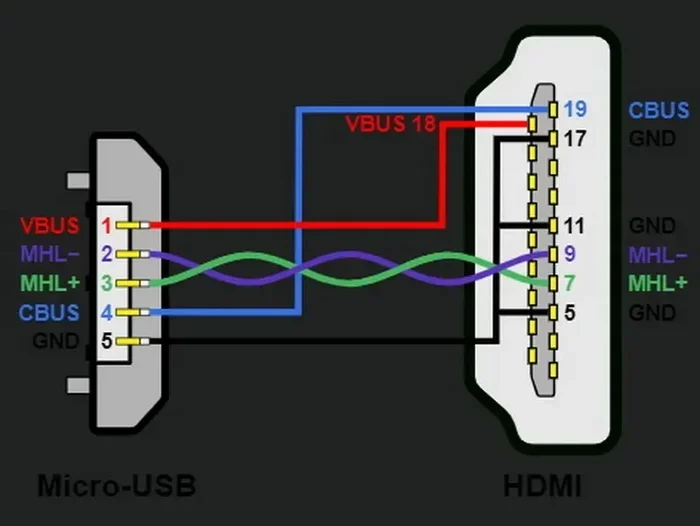
These two signals are not the same. You cannot just plug a USB cable into an HDMI port and expect it to work. The devices do not speak the same language. You need something in the middle to translate the signal. That “something” is a converter or adapter.
Why Direct Connection Does Not Work
Think of it like trying to plug a square block into a round hole. The shapes do not match. The USB connector has a different shape, pin layout, and purpose than the HDMI connector. Even if you forced a physical connection, the device would not understand the signal.
This is why signal conversion matters. A USB to HDMI converter takes the data signal from USB and converts it into an audio and video signal that HDMI can carry. Without this conversion step, nothing will display on your screen.
Types of USB to HDMI Adapters and Converters
Not all adapters are the same. There are several types on the market, and choosing the right one depends on your device and what you want to do.
USB-A to HDMI Adapters
This is the most basic type. It has a USB-A plug on one end and an HDMI plug on the other. You plug the USB-A end into a standard USB port on your computer. The HDMI end goes into your TV or monitor.
These adapters work well for older laptops and desktops that have traditional USB-A ports. They are usually plug and play, which means you do not need to install extra software.
USB-C to HDMI Adapters
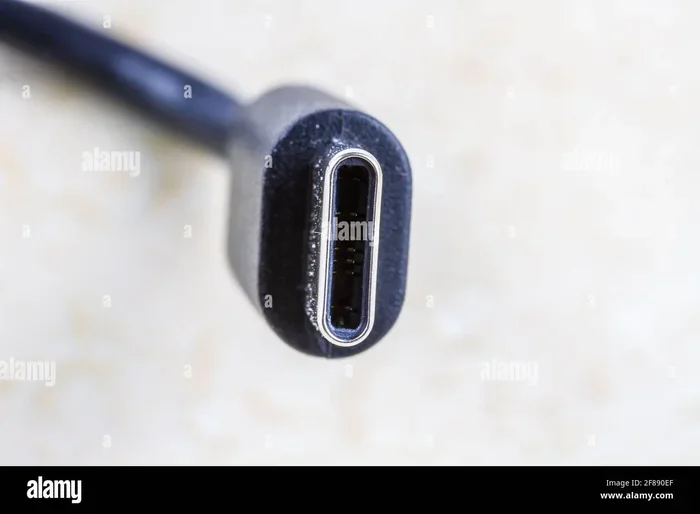
USB-C is the newer, smaller connector found on most modern laptops, tablets, and phones. A USB-C to HDMI adapter lets you connect these devices to an HDMI display with ease.
Many of these adapters support DisplayPort over HDMI, which means they can carry high-quality video. Some even support 4K resolution at 60Hz. This is a great option if your device only has USB-C ports.
USB HDMI Cables
Some brands sell a USB HDMI cable that has a USB connector on one end and an HDMI connector on the other. These are convenient because you do not need a separate adapter box. However, they still contain a small converter chip inside the cable itself.
These cables work best for simple setups where you just want to mirror your screen quickly. They are not ideal for high-end gaming or professional video work.
USB Hub with HDMI Output
If you need more ports, consider a USB hub with HDMI output. These devices give you extra USB ports and an HDMI port in one unit. They are great for people who use multiple devices at once.
Some hubs even include card readers, Ethernet ports, and power delivery options. They add a lot of flexibility to your workspace.
How to Choose the Right USB to HDMI Adapter
Buying the wrong adapter is a common mistake. Here is what you should look for before you spend your money.
Check Your Device Compatibility
First, check what type of USB port your device has. Is it USB-A or USB-C? Some older devices only have USB-A. Newer devices usually have USB-C. Make sure the adapter matches your port type.
Also check your operating system. Most adapters work with Windows, macOS, and ChromeOS. But some may not work with Linux or certain versions of Android. Always read the compatibility list before buying.
Look at Resolution and Bandwidth
Not all adapters support the same display resolution. Basic adapters may only do 1080p. Better ones can handle 4K or even 8K.
Bandwidth matters too. HDMI 2.0 supports up to 4K at 60Hz. HDMI 2.1 supports up to 4K at 120Hz or even 8K at 60Hz. If you want smooth video, make sure your adapter supports the right HDMI version.
Active vs Passive Adapters
This is an important distinction. An active adapter has its own chip and power source to convert the signal. A passive adapter just changes the shape of the connector without doing any signal conversion.
For USB to HDMI, you almost always need an active adapter. Passive cables will not work because they do not convert the signal type.
Quick Tip
Before you buy any adapter, check your device’s manual or the manufacturer’s website. Look for the exact port type and supported resolutions. This small step saves a lot of hassle later.
Step-by-Step Setup Guide
Setting up a USB to HDMI connection is easier than most people think. Follow these steps and you will be up and running in minutes.
Step 1: Gather Your Equipment
You will need three things:
- The right USB to HDMI adapter for your device
- An HDMI cable
- The display you want to use (TV, monitor, or projector)
Make sure your HDMI cable is in good condition. A damaged cable can cause flickering or no signal at all.
Step 2: Connect the Adapter to Your Device
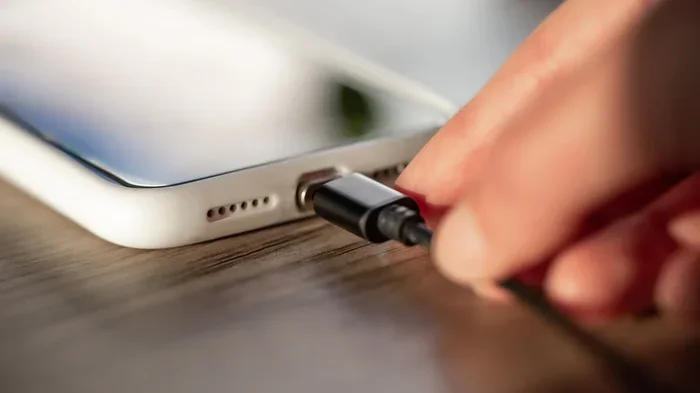
Plug the USB end of the adapter into your computer or device. If you are using a USB-C adapter, make sure it clicks in firmly. Some adapters need a USB port that provides enough power. If the adapter has a separate power plug, connect that now.
Step 3: Connect the HDMI Cable
Plug one end of the HDMI cable into the adapter. Plug the other end into your TV or monitor. Make sure both connections are tight.
Step 4: Switch Your Display Input
Turn on your TV or monitor. Use the remote or the buttons on the display to switch to the correct HDMI input. Look for labels like “HDMI 1” or “HDMI 2.”
Step 5: Configure Your Settings
On your computer, go to display settings. You can choose to mirror your screen or extend it. On Windows, press Windows key + P. On macOS, go to System Settings and click Displays.
Most USB to HDMI adapters are plug and play. This means they work right away without any extra software. But some may require a driver download. Check the adapter manufacturer’s website if the display does not show up.
Common Uses for USB Through HDMI Setups
People use USB to HDMI connections for many different reasons. Here are the most common ones.
Mirroring a Laptop Screen to a TV
This is the most popular use. You plug a USB-C to HDMI adapter into your laptop, connect an HDMI cable to your TV, and boom — your laptop screen appears on the big TV. It is great for watching movies, giving presentations, or sharing photos with family.
Using a TV as a Second Monitor
Do you want more screen space? Connect your laptop to a TV via USB to HDMI and set it as an extended display. This is very helpful for people who work from home and need to see multiple windows at once.
Connecting Streaming Devices
Some streaming devices like Chromecast or Amazon Fire Stick use USB for power. You can use a USB HDMI adapter to connect these devices to a monitor or TV that does not have a built-in USB port for power.
Gaming on a Bigger Screen
Gamers sometimes use USB to HDMI adapters to connect their laptops or handheld devices to a larger TV screen. Just make sure your adapter supports good refresh rates for smooth gameplay.
Professional Presentations
If you are giving a presentation at work or school, a USB to HDMI converter lets you connect your laptop to a projector or large display quickly. No messy cables or complicated setup needed.
Common Mistakes and How to Avoid Them
Even with the right adapter, things can go wrong. Here are the most common mistakes people make — and how to fix them.
Buying the Wrong Adapter Type
This is the number one mistake. People buy a USB-A to HDMI adapter when their laptop only has USB-C. Always double-check your device’s port type before purchasing.
Also watch out for adapters that claim to work with everything but do not support the resolution you need. Read the product specs carefully.
Ignoring Power Requirements
Some adapters need more power than a single USB port can provide. If your screen shows but has no audio, or if the adapter gets hot, it might need a powered USB hub or a separate power cable.
Using a Damaged or Low-Quality Cable
A cheap HDMI cable can cause all sorts of problems. Signal drops, flickering, and no audio are common symptoms. Invest in a good quality cable from a reputable brand.
Not Updating Drivers
Even though most adapters are plug and play, some need updated drivers to work properly. Visit the adapter manufacturer’s website and download the latest driver for your operating system.
Forcing the Connector
Never force a connector into a port. If it does not fit, it is probably the wrong type. USB-C and USB-A look similar but have different shapes. Forcing them can damage your device.
Expert Insights on USB Through HDMI Connections
We asked a few tech experts about their thoughts on USB to HDMI adapters. Here is what they had to say.
Mark T., IT Specialist: “The biggest thing I tell people is to check the HDMI version. If your adapter only supports HDMI 1.4, you will be stuck at 1080p. For 4K, you need HDMI 2.0 or higher. It makes a huge difference.”
Sarah L., Content Creator: “I use a USB-C to HDMI adapter every single day for my work. I recommend getting one with built-in USB passthrough. That way, you can still charge your laptop and connect other USB devices while using the HDMI output.”
David R., AV Technician: “Active adapters are the way to go. Passive cables do not convert signals. If you see a cable that claims to be passive but promises USB to HDMI conversion, it is misleading. Always go with an active converter.”
Frequently Asked Questions
Can I connect a USB device directly to an HDMI port?
No, you cannot connect a USB device directly to an HDMI port. USB carries data signals, while HDMI carries audio and video signals. You need a USB to HDMI converter or adapter to bridge the two and make the connection work.
Do USB to HDMI adapters work with all computers?
Most adapters work with Windows, macOS, and ChromeOS. However, compatibility depends on your port type and operating system version. Check the adapter specifications to make sure it supports your device before buying.
Can I use a USB to HDMI adapter for 4K video?
Yes, but only if the adapter supports 4K resolution. Look for adapters that support HDMI 2.0 or higher. These can handle 4K at 60Hz. Cheaper adapters may only support 1080p, so always check the specs first.
Do I need to install drivers for a USB to HDMI adapter?
Most modern adapters are plug and play and do not need drivers. However, some adapters may require a driver download for full functionality. Check the manufacturer’s website if your screen does not appear after connecting.
Can I connect multiple USB devices through one HDMI adapter?
Not directly. A standard USB to HDMI adapter converts one USB connection to one HDMI output. If you need to connect multiple devices, consider a USB hub with HDMI output or a docking station that supports multiple connections.
Why does my USB to HDMI adapter have no sound?
This usually happens when the audio output is set to the wrong device. Go to your computer’s sound settings and select the HDMI output as the default audio device. Also make sure your HDMI cable is fully seated in both the adapter and the display.
Final Thoughts
So, can you connect USB through HDMI? Yes, absolutely. But you need the right adapter or converter to make it happen. The key is understanding the difference between USB and HDMI signals and choosing the right gear for your setup.
Whether you want to mirror your laptop to a TV, extend your display, or connect a streaming device, a USB to HDMI adapter makes it all possible. Just remember to check compatibility, resolution support, and power requirements before you buy.
With the right setup, you can turn any HDMI display into a powerful second screen or entertainment hub. The process is simple, affordable, and works with most modern devices. USB through HDMI connections are here to stay, and once you set one up, you will wonder how you ever lived without it.
Start with the right adapter, follow the setup steps, and enjoy your bigger, better display. You have got this.