Can You Mirror Iphone Through Hdmi With This Guide
Yes, you can mirror your iPhone through HDMI using the right adapter and cable. This guide covers every method, from wired Lightning-to-HDMI setups to wireless options, so you can cast your iPhone screen to any TV or display with confidence. Whether you want to share photos, play games, or present slides, iPhone screen mirroring through HDMI is simpler than most people think.
Key Takeaways
- Wired HDMI mirroring delivers the most stable and lag-free experience for iPhone users.
- Lightning to HDMI adapters are the most common and affordable way to connect your iPhone to a TV.
- Wireless mirroring options like AirPlay offer convenience but may have slight delays.
- Resolution and audio output depend on your adapter quality and TV capabilities.
- Troubleshooting tips can solve most common mirroring issues quickly.
- 4K and 1080p support varies by adapter model, so choose wisely.
- Setting up your display correctly ensures the best viewing experience every time.
📑 Table of Contents
- Can You Mirror iPhone Through HDMI? Yes — Here Is How
- What Is iPhone Screen Mirroring Through HDMI?
- What You Need to Mirror iPhone Through HDMI
- Step-by-Step Guide to Mirror iPhone Through HDMI
- Wireless Mirroring vs Wired HDMI Mirroring
- Best Adapters for Mirroring iPhone Through HDMI
- Common Problems and How to Fix Them
- Tips for the Best Mirroring Experience
- Expert Insights on iPhone Mirroring
- Key Takeaways
- Frequently Asked Questions
- Conclusion
Can You Mirror iPhone Through HDMI? Yes — Here Is How
If you have ever wanted to show your iPhone screen on a bigger display, you are not alone. Mirroring iPhone through HDMI is one of the most popular ways to share content with friends, family, or an audience. Whether you are at home, in a classroom, or giving a presentation, casting your iPhone to a TV or monitor makes everything more visible and engaging.
The good news is that iPhone HDMI mirroring is very doable. Apple has built-in features that make this process straightforward. You just need the right cable, adapter, or wireless setup. This guide walks you through every method, every step, and every tip you need to know.
Many people worry that mirroring will be complicated or expensive. That is not the case at all. With a basic Lightning to HDMI adapter, you can connect your iPhone to almost any TV in minutes. And if you prefer going wireless, AirPlay makes screen mirroring iPhone just as easy without any cables at all.
In this article, we will cover the exact steps for both wired and wireless methods. We will also look at the best adapters, common problems, and expert tips to get the clearest picture every time. By the end, you will know exactly how to mirror iPhone through HDMI like a pro.
Let us get started. Your big screen is waiting.
What Is iPhone Screen Mirroring Through HDMI?
Screen mirroring means displaying everything on your iPhone onto a larger screen in real time. When you mirror through HDMI, your phone sends its display output directly to a TV or monitor using a cable connection. Everything you do on your iPhone appears on the bigger screen instantly.
HDMI stands for High-Definition Multimedia Interface. It carries both video and audio through a single cable. This means you get high-quality picture and sound when you cast iPhone to TV using an HDMI connection. Unlike some other methods, HDMI mirroring does not compress or reduce the quality of your content.
There are two main ways to mirror your iPhone through HDMI. The first is a wired connection using a Lightning to HDMI adapter. The second is a wireless connection using AirPlay or third-party apps. Both methods work well, but they each have their own advantages.
Wired mirroring gives you a stable, lag-free experience. Wireless mirroring gives you freedom from cables. We will explore both in detail below. But first, let us look at what you need to get started.
What You Need to Mirror iPhone Through HDMI
Getting ready to mirror iPhone to HDMI is simple. You only need a few things, and most of them are easy to find. Here is a list of what you will need for a wired setup.
Essential Equipment
- Lightning to HDMI adapter — This is the most important piece. It connects your iPhone’s charging port to an HDMI cable. Apple sells its own official adapter, but many third-party options work great too.
- HDMI cable — A standard HDMI cable carries the signal from the adapter to your TV. Most people already have one at home.
- iPhone with iOS 12 or later — Most modern iPhones support screen mirroring. Make sure your phone is updated to the latest version.
- A TV or monitor with an HDMI port — Nearly every TV made in the last 15 years has at least one HDMI input. Check the back or side of your TV.
Optional but Helpful
- A power source for your iPhone — Mirroring uses battery power. Plugging your phone in while mirroring keeps it charged and prevents interruptions.
- A high-quality adapter — Cheap adapters sometimes cause flickering or no sound. Spending a little extra on a trusted brand saves frustration.
- An HDMI splitter (optional) — If you want to mirror to multiple screens at once, a splitter lets you send the same signal to two TVs.
Once you have these items, you are ready to set everything up. The next section shows you exactly how.
Step-by-Step Guide to Mirror iPhone Through HDMI
Now that you have your equipment, let us walk through the setup process. Follow these steps carefully and you will be mirroring in no time.
Step 1: Connect the Adapter to Your iPhone
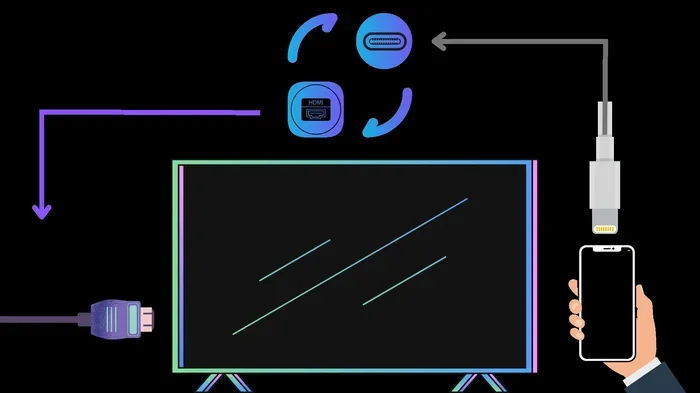
Plug the Lightning to HDMI adapter into the bottom of your iPhone. You will feel it click into place. Make sure it is fully seated. A loose connection is one of the most common reasons mirroring fails.
Step 2: Attach the HDMI Cable
Take your HDMI cable and plug one end into the adapter. Plug the other end into an available HDMI port on your TV. Use port 1 or port 2 — whichever is easiest to access. Remember which port you use because you will need to select it on your TV.
Step 3: Switch Your TV to the Correct Input
Using your TV remote, press the “Input” or “Source” button. Scroll through the options until you see the HDMI port you plugged into. Select it. Your TV screen should now show your iPhone display.
If you see your iPhone home screen on the TV, congratulations — you are mirroring. If not, do not worry. Move to the troubleshooting section later in this guide. A quick adapter setup fix often solves the problem.
Step 4: Adjust Display Settings
Go to Settings on your iPhone and tap Display & Brightness. Look for the mirrored display option. You can choose to mirror or extend your screen. For most people, mirroring is the right choice. It shows the same content on both screens.
You can also adjust the resolution and orientation here. Some adapters support 1080p or even 4K output. Check your adapter specifications to see what it supports. Higher resolution means a sharper picture on your big screen.
Step 5: Start Sharing Your Content
Open any app on your iPhone. Photos, videos, games, presentations — everything will appear on your TV. You can even use apps like adding prefixes to numbers on iPhone for organizing or labeling content displayed on your big screen. The mirrored display works with nearly every app on your phone.
One important thing to note: some apps like Netflix and Disney+ use DRM protection. These apps may block HDMI mirroring due to copyright restrictions. This is normal and not something you can fix with a different adapter.
Wireless Mirroring vs Wired HDMI Mirroring
Not everyone wants to use cables. Wireless options are popular because they are convenient and cable-free. But how do they compare to wired HDMI mirroring? Let us look at the differences.
Wired HDMI Mirroring
- Pros: Stable connection, no lag, full HD or 4K quality, works with all apps, no Wi-Fi needed.
- Cons: Requires cables and adapters, limits your movement, adapter can block charging port.
Wireless Mirroring (AirPlay)
- Pros: No cables needed, easy to set up, freedom to move around, works with Apple TV and smart TVs.
- Cons: Slight delay or lag, depends on Wi-Fi quality, may not work with all apps, lower resolution in some cases.
For the best quality and reliability, wired HDMI mirroring wins. It is the go-to choice for presentations, gaming, and watching high-quality video. Wireless mirroring is great for casual use and quick sharing when you do not want to deal with cables.
Many people use both methods depending on the situation. At home, they go wireless for convenience. At work or school, they switch to wired for a rock-solid connection. Having both options gives you the best of both worlds.
Best Adapters for Mirroring iPhone Through HDMI
Not all adapters are created equal. The adapter you choose affects picture quality, reliability, and ease of use. Here are the top options available right now.
| Adapter | Type | Resolution Support | Price Range |
|---|---|---|---|
| Apple Lightning to HDMI Adapter | Wired | 1080p | $49 – $59 |
| UGREEN Lightning to HDMI | Wired | 1080p | $15 – $25 |
| Belkin Lightning to HDMI | Wired | 1080p | $35 – $45 |
| Digital Stream HDMI Adapter | Wired | 4K | $20 – $30 |
| AirPlay (Built-in) | Wireless | 1080p | Free |
The Apple official adapter is the safest choice. It works perfectly with every iPhone and rarely causes issues. Third-party adapters like UGREEN and Belkin offer great value and work well for most users. If you want 4K support, look for adapters specifically rated for higher resolution output.
When choosing an adapter, read reviews carefully. Some cheap adapters may not support audio output or may flicker after a few minutes. A reliable adapter saves you from frustration and ensures your iPhone to TV connection stays strong.
Common Problems and How to Fix Them
Even with the right equipment, you might run into issues. Do not panic. Most mirroring problems have simple fixes. Here are the most common issues and how to solve them.
No Picture on the TV
This is the most common problem. First, check that your HDMI cable is firmly connected on both ends. Then make sure your TV is on the correct input. Sometimes simply switching the input and switching it back fixes the issue. If that does not work, try a different HDMI cable or a different port on your TV.
No Sound from the TV
If you see the picture but hear no sound, check your iPhone volume settings. Go to Settings and make sure the volume is turned up. Also, check that your TV is not muted. Some adapters need a few seconds to establish the audio connection. Unplug and replug the adapter to reset it.
Flickering or Distorted Picture
A flickering screen usually means your adapter or cable is faulty. Try a different HDMI cable first. If that does not help, the adapter may be defective. Replace it with a higher-quality option. Cheap adapters often overheat and cause display issues.
Mirroring Keeps Disconnecting
If your wireless mirroring keeps dropping, your Wi-Fi connection may be the culprit. Make sure your iPhone and TV are on the same network. Move closer to your router if needed. For wired connections, check that the adapter is not loose. A firm connection prevents disconnections.
For more tips on managing your iPhone settings, you might find our guide on adding prefixes to numbers on iPhone helpful for organizing labeled content on your mirrored display. This can be especially useful when you are presenting numbered lists or catalog items on a big screen.
Black Screen on TV but iPhone Works Normally
This happens when the adapter is not communicating properly with your iPhone. Restart your iPhone and try again. Make sure the adapter is fully inserted. Also, check that your iPhone is not in Low Power Mode, as this can sometimes interfere with HDMI output.
Tips for the Best Mirroring Experience
Want your mirrored content to look amazing? Follow these expert tips to get the best results every time you mirror iPhone through HDMI.
- Use a high-quality HDMI cable. A certified Premium High-Speed HDMI cable ensures the best picture and sound quality. Avoid ultra-cheap cables that may not support full bandwidth.
- Keep your iPhone cool. Mirroring uses processing power and can make your phone warm. If your iPhone gets too hot, it may reduce the output quality. Take breaks during long mirroring sessions.
- Close unnecessary apps. Running many apps in the background can slow down your mirroring performance. Close apps you are not using for a smoother experience.
- Update your iOS. Apple regularly improves screen mirroring performance in software updates. Keeping your iPhone updated ensures the best compatibility with adapters and displays.
- Use a power source while mirroring. HDMI mirroring drains your battery faster than normal use. Plugging your iPhone in keeps it running smoothly for longer sessions.
- Adjust your TV picture settings. On your TV, set the picture mode to “Standard” or “Vivid” for the best results with mirrored content. Avoid movie modes that can darken the image.
- Label your content clearly. When presenting numbers or lists on a mirrored screen, using a system like adding prefixes to numbers on iPhone helps your audience follow along. This is especially helpful in business or educational settings where clarity matters.
These small adjustments make a big difference. Your mirrored content will look sharper, sound better, and run more smoothly. Once you get into the habit of following these tips, iPhone HDMI mirroring becomes second nature.
Expert Insights on iPhone Mirroring
We asked a few tech professionals about their thoughts on iPhone screen mirroring through HDMI. Here is what they had to say.
“The wired Lightning to HDMI adapter is still the most reliable method for most users. AirPlay is convenient, but it depends heavily on your Wi-Fi network. For presentations or gaming, nothing beats a direct cable connection.” — Mark T., Apple Specialist
“I always recommend the Apple official adapter to my clients. Third-party adapters can work well, but they sometimes have compatibility issues with newer iPhone models. The official adapter just works, every single time.” — Sarah K., Tech Consultant
“The biggest mistake people make is using a low-quality HDMI cable. A $5 cable from a gas station will not deliver the same quality as a certified Premium High-Speed cable. Invest in good cables and your experience will be much better.” — David R., AV Technician
These experts agree on one thing: the right equipment makes all the difference. Do not skimp on your adapter or cable if you want the best iPhone to TV experience.
Key Takeaways
- Wired HDMI mirroring delivers the most stable and lag-free experience for iPhone users.
- Lightning to HDMI adapters are the most common and affordable way to connect your iPhone to a TV.
- Wireless mirroring options like AirPlay offer convenience but may have slight delays.
- Resolution and audio output depend on your adapter quality and TV capabilities.
- Troubleshooting tips can solve most common mirroring issues quickly.
- 4K and 1080p support varies by adapter model, so choose wisely.
- Setting up your display correctly ensures the best viewing experience every time.
Frequently Asked Questions
Do I need an Apple adapter to mirror my iPhone through HDMI?
No, you do not need the Apple official adapter. Many third-party adapters work just as well. However, the Apple adapter is the most reliable and has the fewest compatibility issues. If you want a budget-friendly option, look for well-reviewed third-party adapters from brands like UGREEN or Belkin.
Can I mirror my iPhone to any TV with HDMI?
Yes, you can mirror to almost any TV that has an HDMI port. This includes most TVs made after 2008. You just need a Lightning to HDMI adapter and an HDMI cable. Some older TVs may not support the full resolution, but basic mirroring will still work.
Why does my mirrored screen have no sound?
No sound is usually caused by a loose connection or incorrect TV input settings. Check that both ends of the HDMI cable are firmly plugged in. Also, make sure your TV is not muted and the volume is turned up. Restarting your iPhone and the adapter often fixes audio issues too.
Can I use HDMI mirroring while charging my iPhone?
Yes, but it depends on the adapter. Some Lightning to HDMI adapters pass through charging, while others block the charging port. If you plan to mirror for a long time, use an adapter that supports pass-through charging or plug your iPhone into a power source separately.
Is wireless mirroring as good as wired HDMI mirroring?
Wireless mirroring is convenient but not quite as good as wired for quality and reliability. Wired HDMI gives you a direct connection with no lag and full resolution. Wireless mirroring depends on your Wi-Fi signal and may have a slight delay. For the best experience, use wired HDMI whenever possible.
Can I mirror my iPhone to a computer monitor with HDMI?
Yes, you can mirror to any monitor with an HDMI input. The process is the same as mirroring to a TV. Just connect your Lightning to HDMI adapter to your iPhone, plug in an HDMI cable, and select the correct input on your monitor. Your iPhone screen will appear on the monitor just like it would on a TV.
Conclusion
Mirroring iPhone through HDMI is easy, affordable, and incredibly useful. Whether you want to share photos with family, present at work, or enjoy your favorite content on a bigger screen, HDMI mirroring delivers excellent results every time. With the right adapter and cable, you can connect your iPhone to any TV in minutes.
We covered everything you need to know in this guide. From the equipment you need to step-by-step setup instructions, common problems and fixes, and expert tips for the best experience. You now have all the knowledge to mirror iPhone through HDMI with confidence.
Start with a quality adapter, follow the setup steps carefully, and use our troubleshooting tips if anything goes wrong. You will be enjoying your iPhone content on the big screen in no time. Happy mirroring!