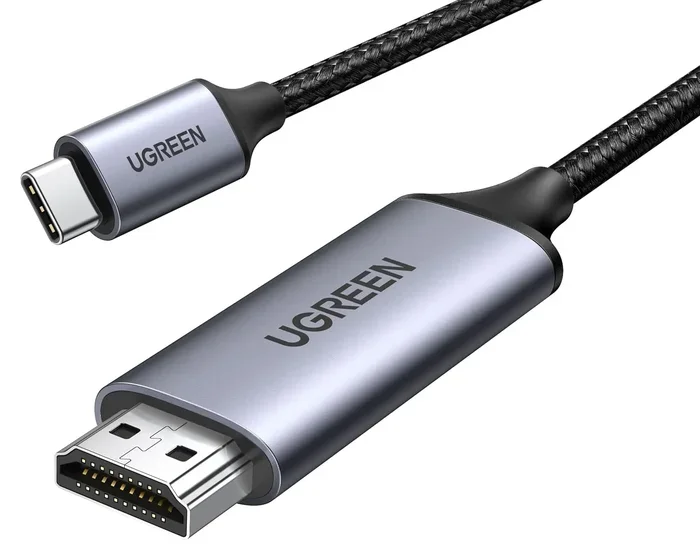
Can You Convert A Dvi To Hdmi Here Is The Complete Guide
Yes, you can convert DVI to HDMI easily with the right adapter or cable. This guide covers everything you need to know about DVI to HDMI conversion, including active vs passive adapters, compatibility, and step-by-step setup tips. Whether you are connecting an older monitor to a modern TV or setting up a home office, this guide has you covered.
Have you ever stared at your computer or TV and wondered, can you convert DVI to HDMI? Maybe you have an older monitor with a DVI port and a brand new TV with only HDMI inputs. Or perhaps you are setting up a home office and need to connect different devices together. Whatever the reason, this guide will walk you through everything you need to know.
The good news is that converting DVI to HDMI is simpler than most people think. You do not need expensive equipment or advanced technical skills. A basic adapter or cable can get the job done in minutes. Let us dive into the details and help you get your setup working perfectly.
If you are new to display connections, do not worry. We will explain every concept in plain language. By the end of this guide, you will feel confident choosing the right adapter and setting up your devices without any hassle.
Key Takeaways
- DVI to HDMI conversion is straightforward: You only need a simple adapter or a dedicated DVI to HDMI cable to make it work.
- Active and passive adapters serve different purposes: Active adapters add signal conversion and power, while passive ones simply reroute the signal.
- DVI does not carry audio: HDMI does, so keep this in mind when setting up a home theater or sound system.
- Resolution support depends on your DVI type: Single-link DVI maxes out at 1920×1200, while dual-link supports higher resolutions.
- Most modern devices work plug-and-play: No drivers or software are needed in most cases.
- Check your ports before buying: Not all DVI ports are the same, and using the wrong adapter can cause issues.
📑 Table of Contents
- What Is DVI and How Does It Work?
- What Is HDMI and Why Is It So Popular?
- Can You Convert DVI to HDMI? Here Is the Answer
- Active vs Passive Adapters: What Is the Difference?
- Step-by-Step Guide to Converting DVI to HDMI
- Common Problems and How to Fix Them
- DVI to HDMI Conversion for Home Theater Setups
- Can You Use DVI to HDMI for Gaming?
- Frequently Asked Questions
- Final Thoughts
What Is DVI and How Does It Work?
DVI stands for Digital Visual Interface. It was introduced in the late 1990s and became a standard connection for computer monitors and projectors. For many years, DVI was the go-to port on desktop computers and laptops.
There are three main types of DVI connectors:
- DVI-D (Digital): This sends a purely digital signal. It does not carry any analog signal at all.
- DVI-A (Analog): This sends an analog signal only. You will rarely see this type today.
- DVI-I (Integrated): This supports both digital and analog signals. It is the most versatile option.
DVI also comes in two bandwidth versions: single-link and dual-link. Single-link DVI supports resolutions up to 1920×1200. Dual-link DVI can handle higher resolutions, making it better for larger monitors and projectors.
One important thing to know is that DVI does not carry audio. It only transmits video signals. This is a key difference from HDMI, which we will cover next.
When Did DVI Become Popular?
DVI gained popularity in the early 2000s. Most desktop computers from 2002 to 2012 featured at least one DVI port. If you have an older computer or monitor, there is a good chance it uses DVI. Many people still use these devices today, and they work perfectly fine with the right adapter.
What Is HDMI and Why Is It So Popular?
HDMI stands for High Definition Multimedia Interface. It has become the most common connection type for TVs, streaming devices, gaming consoles, and modern monitors. Unlike DVI, HDMI carries both video and audio through a single cable.
Here are some reasons why HDMI is so widely used:
- It transmits both audio and video: One cable handles everything, which keeps your setup clean and simple.
- It supports high resolutions: HDMI 2.0 and HDMI 2.1 can handle 4K and even 8K content.
- It is plug-and-play: Most devices recognize HDMI connections instantly without any extra setup.
- It is found on almost every modern TV: Nearly every television made in the last 15 years has at least one HDMI port.
HDMI also supports features like Consumer Electronics Control (CEC), which lets you control multiple devices with one remote. This is a nice convenience that DVI simply cannot offer.
When you compare DVI vs HDMI, the main differences come down to audio support and resolution capabilities. HDMI is clearly the more versatile option for modern setups.
Can You Convert DVI to HDMI? Here Is the Answer
So, can you convert DVI to HDMI? The short answer is yes. You can convert a DVI output to an HDMI input using an adapter or a dedicated DVI to HDMI cable. The process is simple and works in most situations.
Here is what you need to understand before you buy an adapter:
- DVI is digital, and HDMI is digital: This means the signal type is the same. A passive adapter can often handle the conversion without any extra processing.
- DVI does not carry audio: When you convert DVI to HDMI, the audio signal will not come through. You will need a separate audio connection if sound matters to you.
- Resolution depends on your DVI type: A single-link DVI connection will not suddenly produce 4K resolution just because you are using an HDMI cable. The resolution limit stays the same.
If you have ever struggled with display connection issues, you are not alone. Many people run into confusion when trying to connect older devices to newer displays. The good news is that DVI to HDMI conversion is one of the easiest fixes.
For those who also deal with other connectivity challenges, understanding the advantages and disadvantages of a computer mouse can help you troubleshoot broader peripheral issues, since connection types affect how all your devices communicate with each other.
What You Will Need for the Conversion
To convert DVI to HDMI, you typically need one of these:
- A DVI to HDMI adapter: A small box or dongle that plugs into your DVI port and provides an HDMI output.
- A DVI to HDMI cable: A single cable with a DVI connector on one end and an HDMI connector on the other.
- A DVI to HDMI converter with audio extraction: This type pulls the audio signal out separately, which is useful for home theater setups.
Adapters and cables are widely available and affordable. You can find them online or at most electronics stores for under $15 in most cases.
Active vs Passive Adapters: What Is the Difference?
This is one of the most important things to understand when converting DVI to HDMI. The type of adapter you choose can make or break your setup.
Passive Adapters
A passive adapter simply reroutes the signal from one connector to another. It does not change or boost the signal in any way. Passive adapters work when your DVI port is sending a digital signal (DVI-D or DVI-I).
Passive adapters are great because they are cheap and require no power. They work instantly with no setup. If you are just connecting a computer to a monitor, a passive adapter will usually do the trick.
Active Adapters
An active adapter contains built-in electronics that convert the signal. Active adapters are needed in certain situations, such as when your DVI port is analog (DVI-A) or when you need to boost the signal for longer cable runs.
Active adapters also draw power from the USB port or the HDMI connection itself. They cost a bit more but offer more flexibility and reliability in tricky setups.
Here is a quick comparison to help you decide:
- Choose passive if: Your DVI port is digital, the cable run is short, and you just need a simple connection.
- Choose active if: Your DVI port is analog, you need signal boosting, or you are running longer cables.
When shopping, always check what type of DVI port your device has. This single detail determines which adapter you need. Using the wrong type can lead to no signal or a poor picture.
Step-by-Step Guide to Converting DVI to HDMI
Follow these steps to set up your DVI to HDMI connection. The process takes about five minutes.
Step 1: Check Your DVI Port Type
Look at the DVI port on your computer or device. Is it a DVI-D, DVI-A, or DVI-I? The shape and pin layout will tell you. DVI-D has a flat pin block, DVI-A has a row of pins, and DVI-I has both.
Step 2: Choose the Right Adapter or Cable
Based on your DVI type, pick either a passive or active adapter. If you are unsure, a passive adapter works for most digital DVI connections. You can also find helpful advice on setting up your tech space in our guide on 10 gadgets to make moms life easier, which covers useful tech accessories for any home setup.
Step 3: Connect the Adapter
Plug the DVI end of the adapter into your computer or device. Make sure it clicks into place. Then connect the HDMI end to your TV or monitor.
Step 4: Connect Audio Separately (If Needed)
Since DVI does not carry audio, you will need a separate connection for sound. Use a 3.5mm audio cable or an optical audio cable to connect your device to your speakers or TV speakers.
Step 5: Power On and Switch Input
Turn on both devices. On your TV or monitor, switch the input source to HDMI. Your computer screen should now appear on the display.
Step 6: Adjust Display Settings
Go to your computer display settings and adjust the resolution and orientation as needed. Most systems will detect the new display automatically.
If you run into any display line issues after connecting, you might want to check out our troubleshooting guide on how to fix a line that won’t delete in Microsoft Excel, which covers general display and troubleshooting tips that apply to many tech problems.
Common Problems and How to Fix Them
Even with a simple setup, you might run into a few issues. Here are the most common problems and their solutions.
No Signal on the HDMI Display
This is the most common issue. First, check that the adapter is firmly connected on both ends. Then make sure your TV or monitor is set to the correct HDMI input. If you are using a passive adapter with a DVI-A (analog) port, that will not work. You need an active adapter for analog signals.
Poor Picture Quality or Flickering
Flickering or blurry images often mean your cable or adapter is low quality. Try a different adapter or a shorter cable. Also, check your resolution settings. If you are pushing a single-link DVI beyond its limits, the image will suffer.
No Sound Through HDMI
Remember that DVI does not carry audio. This is normal. You need to connect audio separately using a 3.5mm cable or an optical cable. Check your sound settings to make sure the correct output device is selected.
Adapter Not Recognized
Sometimes your computer will not detect the new display. Try unplugging the adapter, waiting a few seconds, and plugging it back in. Restarting your computer can also help. If the problem persists, try a different USB port for powered adapters.
Most of these issues have simple fixes. Patience and a little troubleshooting go a long way.
DVI to HDMI Conversion for Home Theater Setups
Many people want to convert DVI to HDMI for their home theater systems. This is a very common use case. Older Blu-ray players, gaming consoles, and computers often have DVI outputs. Modern TVs almost exclusively use HDMI.
Here are some tips for a great home theater experience:
- Use an active adapter with audio extraction: This lets you pull audio out separately and feed it to your soundbar or receiver.
- Use high-speed HDMI cables: These support the best video quality and ensure you get the full resolution your device can output.
- Keep cable runs short: Longer cables can degrade the signal. Try to keep your DVI and HDMI cables under 6 feet for the best results.
- Consider a universal remote: Since DVI and HDMI devices may not share the same CEC protocol, a universal remote can simplify control.
Setting up a home theater with mixed connection types can feel overwhelming at first. But with the right adapter and a bit of patience, you will be watching movies in no time. For more tips on making your tech setup work for you, check out our collection of gadgets that make life easier for practical ideas on streamlining your home technology.
Can You Use DVI to HDMI for Gaming?
Many gamers wonder if DVI to HDMI conversion is good enough for gaming. The answer depends on your setup and the games you play.
For casual gaming and older titles, DVI to HDMI conversion works perfectly fine. The picture quality will be identical since both DVI and HDMI carry digital signals. You will not notice any difference in image quality.
For competitive or high-refresh-rate gaming, there are a few things to keep in mind:
- Check your DVI type: Dual-link DVI supports higher refresh rates than single-link DVI.
- HDMI version matters: HDMI 2.0 supports 144Hz at 1080p, and HDMI 2.1 supports even higher refresh rates at 4K.
- Input lag is minimal: A good quality adapter will not add noticeable input lag to your gaming experience.
Overall, DVI to HDMI is a solid choice for gaming setups. Just make sure your adapter and cables are high quality to avoid any signal issues.
Expert Insight: Choosing the Right Adapter for Your Needs
When it comes to choosing between adapters, always match the adapter to your specific port type. A DVI-I to HDMI passive adapter works for most modern computers. But if you have an older device with a DVI-A port, you will need an active converter that handles analog-to-digital conversion.
Also, consider your future needs. If you plan to upgrade to a 4K display, make sure your adapter and HDMI cable support the resolution you want. Buying a cheap adapter that does not support high resolutions will only lead to frustration later.
Frequently Asked Questions
Can You Convert DVI to HDMI Without an Adapter?
No, you cannot directly connect a DVI cable to an HDMI port without an adapter or converter. The connectors have different shapes and pin configurations. You will need either a DVI to HDMI adapter, a DVI to HDMI cable, or a dedicated converter box to make the connection work.
Does DVI to HDMI Conversion Affect Video Quality?
No, the video quality remains the same because both DVI and HDMI transmit digital signals. The resolution and clarity you get on a DVI connection will be identical on an HDMI connection. The only factor that can affect quality is a low-quality adapter or cable.
Can You Get Audio Through a DVI to HDMI Adapter?
No, DVI does not carry audio signals. When you convert DVI to HDMI, only the video signal passes through. You will need a separate audio cable, such as a 3.5mm jack or optical cable, to get sound from your device to your speakers or TV.
Is a Passive or Active Adapter Better?
It depends on your DVI port type. If your DVI port is digital (DVI-D or DVI-I), a passive adapter works great and costs less. If your DVI port is analog (DVI-A), you need an active adapter that can convert the analog signal to digital. Always check your port type before purchasing.
Can You Run DVI to HDMI Over Long Distances?
Yes, but signal quality can degrade over long cable runs. For runs under 15 feet, a standard passive adapter and cable will work fine. For longer distances, consider an active adapter with signal boosting or use a DVI extender to maintain a strong, clear signal.
Do You Need Drivers to Use a DVI to HDMI Adapter?
No, most DVI to HDMI adapters and cables are plug-and-play. Your computer or device should recognize the connection automatically. You typically do not need to install any drivers or software unless you are using a very old operating system.
Final Thoughts
Converting DVI to HDMI is easy, affordable, and works in almost every situation. Whether you are connecting an old computer to a new TV, setting up a home theater, or building a gaming station, the right adapter makes all the difference.
Remember to check your DVI port type before buying an adapter. Choose passive for digital signals and active for analog signals. And do not forget to set up a separate audio connection since DVI does not carry sound.
With just a few simple steps, you can bridge the gap between older and newer devices and enjoy a seamless display experience. The world of display connections does not have to be confusing. Now that you know the answer to can you convert DVI to HDMI, you are ready to set up your own connection with confidence.
Start today. Grab an adapter, plug in your devices, and enjoy your upgraded setup. You will wonder why you did not do it sooner.