Can Vga Be Converted To Usb And What You Need To Know
Yes, you can convert VGA to USB using the right adapter or converter box. This process lets you connect older VGA devices like monitors and projectors to modern USB ports on laptops and desktops. Understanding the differences between active and passive adapters ensures you get the best display output for your setup.
Have you ever stared at an older monitor or projector with a VGA port and wondered if your modern laptop could work with it? The answer is yes, and the solution is simpler than most people think. VGA to USB conversion opens up a world of possibilities for users who still rely on legacy devices. Whether you are setting up a home office, connecting a classroom projector, or repurposing an old monitor, understanding how this conversion works saves you time and money. Let us walk through everything you need to know about converting VGA signals to USB in plain, simple terms.
Technology changes fast, but many devices still use older connection standards. VGA ports have been around for decades, and they remain common in projectors, monitors, and even some televisions. On the other side, modern computers increasingly rely on USB ports, especially USB-C, for almost everything. Bridging this gap requires the right adapter or converter, and that is exactly what this guide covers. You will learn how the conversion works, what gear you need, and how to avoid common pitfalls.
Key Takeaways
- VGA to USB conversion is possible: You need either a dedicated adapter or a converter box depending on your devices.
- Active adapters do the heavy lifting: They include built-in chips that handle the analog to digital signal conversion.
- Check compatibility first: Not every VGA to USB adapter works with all devices, so verify your port types before buying.
- Resolution matters: The right adapter supports your desired display output without quality loss.
- Setup is simple: Most adapters plug and play, but some may need driver installation for full functionality.
- Avoid common mistakes: Using passive adapters for signal conversion is the most frequent error users make.
📑 Table of Contents
What Is VGA and Why Do People Convert It to USB?
VGA stands for Video Graphics Array, and it has been a standard connection since the late 1980s. The VGA connector carries an analog video signal from your computer to a display device. It uses a distinctive blue, 15-pin connector that you have likely seen on older monitors and projectors. Many people still have VGA-equipped devices sitting in drawers or offices around the world.
So why do people want to convert VGA to USB? The answer comes down to laptop connectivity and modern hardware design. Today’s laptops often lack VGA ports entirely. They may only have USB-C or Thunderbolt ports. Users need a way to connect their old monitors, projectors, or displays without buying entirely new equipment. USB ports are everywhere, making them the ideal bridge for video conversion from older standards.
Here are some common scenarios where VGA to USB conversion comes in handy:
- Connecting an old projector to a new laptop for presentations
- Using a vintage monitor as a secondary display
- Setting up a computer lab with legacy monitors
- Connecting to display devices in conference rooms
- Repurposing old monitors for home office setups
The good news is that adapter technology has made all of this possible without expensive replacements. A simple VGA to USB adapter can breathe new life into your old devices.
Can You Actually Convert VGA to USB?
The short answer is yes, but the process is not as straightforward as plugging in a standard cable. VGA carries an analog signal, while USB transmits digital data. This means you cannot simply connect a VGA cable to a USB port and expect it to work. You need a device that performs signal conversion from analog to digital.
How the Conversion Process Works
When you use a VGA to USB adapter, the adapter contains a small chip or circuit board that takes the analog VGA signal and converts it into a digital USB signal. This process is called analog to digital conversion. The adapter then sends the digital data through the USB connection to your computer, which recognizes the display as an external monitor or output device.
Think of it like a translator between two languages. Your computer speaks digital, and your old monitor speaks analog. The adapter acts as the translator, making sure both devices understand each other. Without this translation step, the display output simply would not appear.
Active vs. Passive Adapters
Not all adapters are created equal. There are two main types you should know about:
- Active adapters: These contain built-in electronics that actively convert the signal. They require power, often drawn from the USB port itself. Active adapters are what you need for true VGA to USB conversion.
- Passive adapters: These simply reroute pins or change connector shapes without converting the signal. A passive adapter will not work for converting VGA to USB because no actual signal translation happens.
Always look for an active VGA to USB adapter when shopping. Passive adapters are fine for connecting two similar port types, but they cannot handle analog to digital conversion. This is the most important distinction to understand before making a purchase.
Types of VGA to USB Adapters and Converters
The market offers several options for VGA to USB conversion, and knowing the differences helps you choose the right one. Each type serves different needs and device setups.
USB-A VGA Adapters
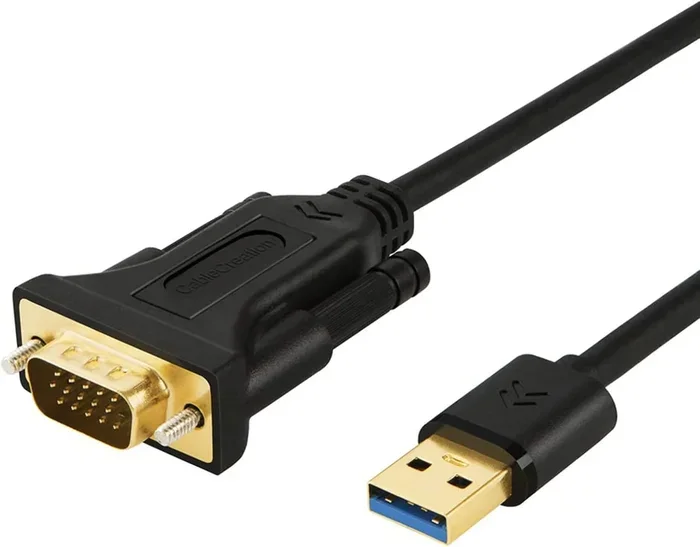
The most common type connects your VGA cable to a standard USB-A port. These adapters are compact and affordable. They work well with desktop computers and older laptops that still have USB-A ports. You plug the VGA end into your monitor or projector, and the USB-A end into your computer. Many models support resolutions up to 1080p, which is more than enough for most everyday tasks.
USB-C VGA Adapters
If you have a modern laptop with only USB-C ports, a USB-C VGA adapter is your best bet. These adapters plug directly into the USB-C port and provide a VGA output for your display. They tend to be slightly more expensive than USB-A versions, but they are essential for users with newer laptops, tablets, or smartphones that support USB-C adapter functionality.
USB Hub with VGA Output
Some USB hubs include a VGA port alongside regular USB ports. These are great for users who need multiple connections. You get the convenience of extra USB ports for peripherals while also having a VGA output for your display. This option works well in office environments where connectivity options are limited.
Standalone Converter Boxes
For more demanding setups, standalone converter boxes offer the best performance. These devices sit between your computer and display, handling the signal conversion with higher-quality chips. They often support higher resolutions, better color accuracy, and more stable connections. If you use your setup for graphic design or video work, a converter box is worth the investment.
How to Choose the Right VGA to USB Adapter
Not every adapter works the same way, and choosing the wrong one leads to frustration. Here is what to look for before you buy.
Check Your Port Types
First, identify the ports available on both your computer and your display device. Does your computer have USB-A or USB-C? Does your monitor or projector have a standard VGA port? Matching the adapter to your specific ports ensures adapter compatibility and a smooth setup. Taking two minutes to check this saves you from returning the wrong product.
Consider Resolution Support
Different adapters support different maximum resolutions. Basic adapters may cap out at 800×600 or 1024×768, while better ones support 1080p or even 4K. For most office work and presentations, 1080p is more than sufficient. But if you need crisp text and sharp images, look for adapters that explicitly state their resolution support capabilities.
Look for Audio Support
VGA carries video signals only. If your display device also needs audio, you will need a separate solution. Some VGA to USB adapters include a 3.5mm audio jack so you can connect speakers or headphones. Check the product specifications carefully to see if audio support is included.
Driver and Software Requirements
Most modern adapters are plug and play, meaning you just connect them and they work. However, some adapters require you to install drivers or software for full functionality. Check the product listing or packaging for any setup requirements. If you are not comfortable installing additional software, stick with adapters that advertise plug-and-play compatibility.
Build Quality and Brand Reputation
Cheap adapters sometimes cause flickering, signal loss, or poor image quality. Investing in a reputable brand pays off in reliability and performance. Look for adapters with good customer reviews and solid build quality. A well-made VGA cable and adapter combo lasts much longer than a bargain option that fails after a few months.
Step-by-Step Setup Guide
Setting up your VGA to USB adapter is straightforward. Follow these steps for a smooth connection.
- Unbox your adapter: Take the adapter out of the packaging and inspect it for any physical damage.
- Connect the VGA cable: Plug the VGA end of the cable into your monitor or projector. Tighten the screws on the sides to secure the connection.
- Plug the adapter into your computer: Connect the USB end of the adapter to an available USB port on your laptop or desktop.
- Power on the display: Turn on your monitor or projector and select the correct input source (VGA or PC).
- Configure display settings: On your computer, go to display settings and choose to extend or duplicate your screen. Your new display should appear in the settings menu.
- Adjust resolution if needed: If the image looks blurry or too small, go to your display settings and adjust the resolution to match your display’s native resolution.
For users working with legacy devices, this setup process is a game changer. It takes less than five minutes and requires no technical expertise. If the display does not appear right away, try unplugging the adapter and plugging it into a different USB port. Sometimes the first port you try may not provide enough power or may have a conflict.
Quick Tips for Best Performance
- Use a short VGA cable to reduce signal loss
- Plug the adapter directly into your computer rather than a USB hub when possible
- Keep your adapter drivers up to date for the best display output
- Avoid bending or stressing the VGA cable near the connector
- If you experience flickering, try a different USB port on your computer
Common Problems and How to Fix Them
Even with the right adapter, you may run into occasional issues. Here are the most common problems and their solutions.
No Display Output
If your screen stays black after connecting the adapter, first check that both the VGA cable and USB connection are secure. Try a different USB port. If you are using a USB hub, connect the adapter directly to the computer. Some computers require you to press a function key (like Fn+F7) to switch the display output to the external port.
Flickering or Unstable Image
A flickering image usually points to a loose connection or insufficient power. Make sure the VGA screws are tightened. If you are using a long VGA cable, try a shorter one. Also, avoid plugging the adapter into a USB port shared with power-hungry devices like external hard drives.
Poor Image Quality
Blurry or pixelated images often result from a low-quality adapter or cable. Upgrade to a better VGA to USB adapter with higher-quality conversion chips. Check that your display settings match the monitor’s native resolution for the sharpest image possible.
No Audio Through the Adapter
Remember that VGA does not carry audio. If you need sound, connect your speakers or headphones directly to your computer’s audio output. Some adapters include a separate audio jack, which makes this step easy. Just make sure your computer’s sound settings are configured to output through the correct port.
Adapter Not Recognized by the Computer
If your computer does not detect the adapter, try restarting the computer with the adapter already plugged in. You may also need to update your USB drivers. On Windows, you can check for driver updates through Device Manager. On Mac, system updates usually include the latest driver support. If the issue persists, the adapter itself may be defective and need replacement.
For general tech tips and accessory recommendations, you might also enjoy checking out 10 Gadgets To Make Moms Life Easier for some creative ideas on useful tech tools.
Expert Insights on VGA to USB Conversion
Industry professionals emphasize that signal conversion quality varies widely between adapters. The chip inside the adapter determines how well the analog VGA signal translates to digital USB data. Premium adapters use better conversion chips that preserve color accuracy, contrast, and sharpness. Budget adapters may compress or degrade the signal, resulting in a noticeable drop in image quality.
When choosing an adapter, experts recommend prioritizing the conversion chip quality over price. A slightly more expensive adapter from a trusted brand will outperform a cheap no-name option every time. Look for adapters that explicitly state their supported resolutions and include positive reviews from verified buyers.
Another expert tip is to always check your graphics card settings. Some graphics cards have specific requirements for external display connections. Updating your graphics card drivers before connecting a new adapter can prevent many common issues. This simple step ensures your USB connection works at its best from the start.
For users dealing with older devices, remember that legacy devices still have value. A VGA to USB adapter lets you keep using perfectly functional monitors and projectors that would otherwise go to waste. This is both cost-effective and environmentally friendly. Before you toss an old display, try connecting it with an adapter first.
Many people also find that keeping a VGA cable and a compact adapter in their laptop bag is incredibly useful. You never know when you will need to connect to a projector or older display at a client site, school, or conference. Having the right laptop connectivity tools on hand prevents awkward moments when presentations or meetings require a specific connection type.
For those who want to explore more about device connectivity and settings, you might find our guide on Adding Prefixes To Numbers On Iphone helpful for managing phone settings and number formatting across devices.
Key Takeaways
VGA to USB conversion is not only possible but also practical and affordable. With the right active adapter or converter box, you can connect almost any VGA-equipped display to a modern computer with USB ports. The key is understanding your device compatibility, choosing the right adapter type, and following proper setup steps.
Active adapters are essential because they perform the actual analog to digital signal conversion that passive adapters cannot do. Always check resolution support, audio capabilities, and driver requirements before purchasing. Most setups take only a few minutes, and the results are immediate.
By avoiding common mistakes like using passive adapters for conversion or ignoring cable quality, you ensure a reliable and high-quality display output. Keep these tips in mind, and your VGA to USB setup will serve you well for years to come.
Frequently Asked Questions
Can I connect a VGA monitor directly to a USB port without an adapter?
No, you cannot connect a VGA monitor directly to a USB port without an adapter. VGA carries an analog signal while USB is digital. You need an active VGA to USB adapter that performs the necessary signal conversion for the connection to work.
What is the difference between a VGA to USB adapter and a VGA to HDMI converter?
A VGA to USB adapter converts the VGA signal into a format your computer can recognize through a USB connection. A VGA to HDMI converter changes the VGA signal into HDMI for modern displays. Both perform analog to digital conversion, but they output to different port types depending on your display needs.
Do I need to install drivers for a VGA to USB adapter?
Most modern VGA to USB adapters are plug and play and do not require driver installation. However, some adapters may need drivers for full functionality or higher resolution support. Check the product specifications before purchasing to see if any software setup is required.
Can I use a USB hub with a VGA to USB adapter?
Yes, you can use a USB hub with a VGA to USB adapter. However, for the best performance and stability, connect the adapter directly to your computer’s USB port. USB hubs can sometimes cause power issues or recognition problems with display adapters, especially if the hub is not powered.
What resolution can I expect from a VGA to USB adapter?
Resolution depends on the adapter quality. Most adapters support up to 1080p, which is ideal for presentations and everyday use. Higher-end adapters may support 4K resolution. Always check the product specifications for the maximum supported resolution before purchasing.
Is VGA to USB conversion good for gaming or video editing?
VGA to USB adapters work for basic display tasks, but they are not ideal for gaming or professional video editing. The analog to digital conversion process can introduce slight delays or quality loss. For demanding tasks, consider using native digital connections like HDMI or DisplayPort whenever possible.
=== CONCLUSION ===
Converting VGA to USB is a practical solution that bridges the gap between older devices and modern computers. With the right active adapter, you can connect VGA monitors, projectors, and displays to laptops and desktops with USB ports. The process is simple, affordable, and incredibly useful for anyone who still relies on legacy display equipment.
Remember to choose an active adapter, check your port compatibility, and follow the setup steps carefully. Avoid the common mistake of using passive adapters for signal conversion, and always verify resolution support before making a purchase. Whether you are setting up a home office, a classroom, or a conference room, VGA to USB conversion gives your old devices new life.
Take a few minutes today to explore the adapter options available. You will be surprised how easy it is to connect your older displays to modern systems. With the right VGA to USB adapter in hand, you are ready to go. Happy connecting.