Can Usb C Support Dual 4k Monitors Find Out Right Now
Can USB C support dual 4K monitors? The short answer is yes, but it depends on your port type, cable quality, and bandwidth capabilities. This guide breaks down everything you need to know about USB-C dual 4K setups, from Thunderbolt 3 and Thunderbolt 4 to DisplayPort Alt Mode and the best docking stations for a seamless multi-monitor experience.
So you want to run two 4K monitors from a single USB-C port. Maybe you are a creative professional who needs screen real estate for editing. Or maybe you just want a cleaner desk with fewer cables cluttering everything up. Either way, you have probably asked yourself one question: can USB C support dual 4K monitors?
The answer is not a simple yes or no. It depends on several factors that many people overlook. The type of USB-C port your device has matters. The cable you use matters. Even the docking station or USB-C hub you pick matters. This guide will walk you through every detail so you can set up your dual monitor setup with confidence.
We will cover everything from bandwidth limits to port compatibility. You will learn how Thunderbolt 3 and Thunderbolt 4 compare to standard USB-C. You will also discover the best gear for the job and common mistakes to avoid. By the end, you will know exactly what you need to run two 4K displays from a single USB-C connection.
Key Takeaways
- USB-C can support dual 4K monitors: But only with the right port type, cable, and adapter combination.
- Thunderbolt 3 and Thunderbolt 4 are your best friends: They offer the bandwidth needed for two 4K displays at 60Hz.
- DisplayPort Alt Mode is essential: This feature allows USB-C to carry a video signal without extra hardware.
- A quality docking station simplifies everything: It handles the video output for both monitors in one clean setup.
- Cable quality matters more than you think: A cheap cable can ruin your dual monitor setup experience.
- Not all USB-C ports are equal: Check your laptop or PC specs before buying any gear.
- Setting up dual 4K over USB-C is easier than ever: With the right gear, you can be up and running in minutes.
📑 Table of Contents
What Is USB-C and Why Does It Matter for Dual Monitors?
USB-C is a small, reversible connector that has become the standard on most modern laptops, tablets, and desktops. It is compact, fast, and surprisingly versatile. But here is the thing many people miss: not every USB-C port is created equal.
Some USB-C ports can only carry data and charge your device. Others can also carry a video signal. And a select few can handle multiple high-resolution displays at the same time. Understanding this difference is the first step toward building a successful dual 4K setup.
USB-C vs USB-C: Not All Ports Are the Same
Here is where things get tricky. Your laptop might have two USB-C ports that look identical but behave very differently. One port might support DisplayPort Alt Mode, which lets it send a video signal to an external monitor. The other port might only handle data transfer and power delivery.
Before you buy any USB-C adapter or cable, check your device specifications. Look for terms like “DisplayPort Alt Mode,” “video output,” or “Thunderbolt.” If you do not see any of these terms, your port may not support video at all. And if you want to run two 4K monitors, you need a port that can handle serious video output demands.
The Role of Bandwidth in Dual 4K Performance
Every USB-C connection has a limit on how much data it can move at once. This is called bandwidth. Think of it like a highway. A wider highway can handle more cars at the same time. A narrower highway gets congested fast.
Running a single 4K monitor at 60Hz requires about 12 gigabits per second of bandwidth. Now imagine trying to push two of those signals through the same connection. That doubles your bandwidth needs to around 24 gigabits per second. Standard USB 3.1 Gen 1 ports max out at 5 gigabits per second. That is nowhere near enough. You need at least USB 3.1 Gen 2 or, better yet, a Thunderbolt connection to handle dual 4K smoothly.
How USB-C Handles Dual 4K Displays
Now let us get into the technical side. How does a USB-C connection actually manage to push two 4K video signals to separate monitors? The answer lies in a few key technologies working together.
DisplayPort Alt Mode Explained
DisplayPort Alt Mode is a feature built into many USB-C ports. It allows the port to directly transmit a video signal using the DisplayPort protocol. This means you can connect a monitor directly to your USB-C port without any extra hardware in most cases.
However, DisplayPort Alt Mode on its own typically supports only one display. To get two 4K monitors, you usually need a docking station or a USB-C hub that can split the signal. These devices contain their own graphics processing chips that handle the heavy lifting of driving multiple screens.
The Importance of Cable Quality
Do not underestimate the power of a good cable. A cheap, low-quality USB-C cable can bottleneck your entire setup. It might not carry enough bandwidth for two 4K streams. It might overheat. It might simply fail to work at all.
Look for cables that are rated for high-speed data transfer and support the power delivery you need. E-marker chips inside premium cables help them negotiate the right bandwidth and power levels automatically. When building a multi-monitor setup, spending a few extra dollars on a quality cable is one of the best investments you can make.
Understanding 4K Resolution and Refresh Rates
Not all 4K is the same. A 4K monitor running at 30Hz feels sluggish compared to one running at 60Hz. For creative work, gaming, or even just smooth scrolling, 60Hz makes a noticeable difference.
When you are pushing two 4K monitors, the refresh rate matters even more. Some budget USB-C adapters can only manage 30Hz on dual displays. If you need 60Hz on both screens, you will need a more powerful solution. This is where Thunderbolt connections and dedicated docking stations really shine.
| Connection Type | Max Bandwidth | Dual 4K at 60Hz? | Best For |
|---|---|---|---|
| USB 3.1 Gen 1 | 5 Gbps | No | Basic data transfer |
| USB 3.1 Gen 2 | 10 Gbps | One 4K at 60Hz | Single monitor setups |
| USB4 | 40 Gbps | Yes | Future-proof multi-monitor |
| Thunderbolt 3 | 40 Gbps | Yes | Professional dual 4K |
| Thunderbolt 4 | 40 Gbps | Yes | Certified reliability |
Thunderbolt vs Standard USB-C for Dual 4K
If you are serious about a dual monitor setup, you need to understand the difference between standard USB-C and Thunderbolt. These two technologies share the same connector shape, but their capabilities are worlds apart.
Thunderbolt 3: The Game Changer
Thunderbolt 3 uses the same USB-C connector but delivers 40 gigabits per second of bandwidth. That is four times faster than standard USB 3.1 Gen 2. This massive bandwidth headroom means Thunderbolt 3 can easily handle two 4K displays at 60Hz without breaking a sweat.
Thunderbolt 3 also supports daisy chaining, which means you can connect multiple devices in a chain from a single port. You can plug your laptop into a Thunderbolt dock, then connect two 4K monitors and even an external hard drive, all through one cable. This makes laptop docking incredibly convenient for professionals who move between desks.
Thunderbolt 4: The Refined Standard
Thunderbolt 4 builds on the foundation of Thunderbolt 3 but adds stricter requirements. Every Thunderbolt 4 dock must support dual 4K displays or a single 8K display. This certification gives you peace of mind that your gear will work reliably.
Thunderbolt 4 also improves security features, wake-from-sleep functionality, and charging speeds. If you are buying new gear today, Thunderbolt 4 is the safest bet for a dual 4K monitor setup. It ensures port compatibility across devices and future-proofs your investment.
Standard USB-C Without Thunderbolt
Can you still run dual 4K on a standard USB-C port without Thunderbolt? It is possible, but with limitations. You will need a USB-C hub or adapter with its own display controller. These devices take the USB-C data signal and convert it into two separate video outputs.
The trade-off is that these hubs often max out at 30Hz on dual 4K or require specific compression techniques. For everyday office work and browsing, 30Hz is tolerable. For video editing or fast-paced gaming, it is not ideal. Always check the specifications of any hub before purchasing to confirm its dual 4K capabilities.
Best Docking Stations and Hubs for Dual 4K
Choosing the right docking station can make or break your multi-monitor experience. Not all docks are created equal, and picking the wrong one can lead to frustration, flickering screens, or worse.
What to Look for in a Dual 4K Dock
When shopping for a USB-C hub that supports two 4K monitors, keep these factors in mind:
- Thunderbolt support: Thunderbolt 3 or Thunderbolt 4 docks offer the most reliable dual 4K performance.
- Built-in display controller: This chip handles the video signal processing for both monitors.
- Power delivery: A good dock charges your laptop while powering your monitors, reducing cable clutter.
- Port variety: Look for docks with multiple USB-A ports, Ethernet, SD card readers, and audio jacks.
- Driver support: Some docks require specific drivers. Check compatibility with your operating system before buying.
Top Picks for Dual 4K USB-C Setups
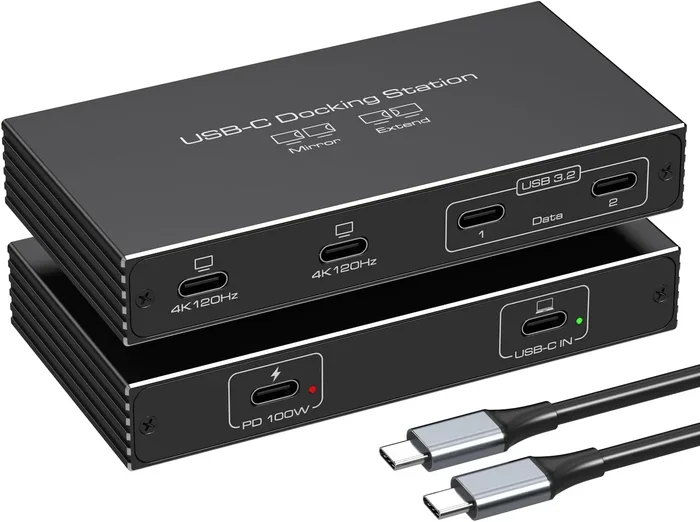
Several docking stations stand out for their dual 4K capabilities. Look for models that explicitly advertise support for two 4K displays at 60Hz. Brands like CalDigit, OWC, and Anker have released highly rated Thunderbolt docks that handle dual monitor setups with ease.
When in doubt, check user reviews and manufacturer specifications. Real-world performance can vary, and a dock that works perfectly with one laptop might struggle with another due to differences in graphics processing capabilities.
USB-C Hubs vs Docking Stations
It is worth noting the difference between a USB-C hub and a docking station. A hub is typically smaller, cheaper, and relies on your device’s graphics chip to split the display. A docking station has its own processing power and is more capable of handling demanding multi-monitor workloads.
For a single 4K monitor, a hub is often sufficient. For dual 4K at 60Hz, a dedicated docking station is almost always the better choice. The extra processing power ensures smooth performance and reduces strain on your laptop’s internal graphics processing unit.
Common Problems and How to Fix Them
Setting up a dual 4K USB-C monitor rig should be straightforward. But in practice, many people run into issues. Here are the most common problems and their solutions.
Flickering or Black Screens
If one or both monitors flicker or go black, the first thing to check is your cable. A loose connection or a damaged cable can cause intermittent signal loss. Try reseating the cables and testing with a different USB-C cable if possible.
If the cables are fine, the issue may be bandwidth related. Try lowering the resolution or refresh rate temporarily to see if the problem goes away. If it does, your connection may not have enough bandwidth for the current settings.
Monitors Not Detected
When your computer does not recognize one or both monitors, start by checking the port compatibility. Make sure you are plugged into a USB-C port that supports video output. Some ports only charge devices and cannot carry a video signal.
Next, update your display drivers. Outdated drivers are a surprisingly common cause of detection issues. Visit your laptop or graphics card manufacturer’s website to download the latest drivers for your USB-C adapter and display hardware.
Poor Performance at 60Hz
If you can run dual 4K but the experience feels sluggish, your bandwidth is likely the bottleneck. Standard USB-C without Thunderbolt may struggle to push two 4K streams at 60Hz simultaneously.
Try reducing one monitor to 4K at 30Hz or lower the resolution on both displays to 1440p. This frees up enough bandwidth for a smoother experience. Alternatively, upgrade to a Thunderbolt dock or a USB4 connection for full 60Hz performance on both screens.
Quick Tips for a Smooth Setup
- Always use certified cables and docks from reputable brands.
- Check your laptop’s USB-C specifications before purchasing any gear.
- Keep your display drivers up to date for best port compatibility.
- Use a dedicated docking station rather than a simple hub for dual 4K.
- Give your dock adequate ventilation to prevent overheating during long sessions.
Setting Up Your Dual 4K USB-C Monitor Rig
Now that you understand the technology, let us talk about how to actually set up your dual monitor setup. The good news is that with the right gear, the process is surprisingly simple.
Step-by-Step Setup Guide
- Check your USB-C port type: Confirm that your laptop or desktop has a Thunderbolt 3, Thunderbolt 4, or USB4 port that supports dual displays.
- Choose your docking station: Pick a Thunderbolt dock or USB-C hub that explicitly supports dual 4K at 60Hz.
- Connect the dock: Plug the dock into your USB-C port and connect it to power.
- Attach your monitors: Use DisplayPort or HDMI cables to connect each monitor to the dock’s video outputs.
- Power on and configure: Turn on both monitors and go to your display settings to arrange the screens and set the resolution.
- Test performance: Open a demanding application or video to confirm smooth performance at 60Hz on both screens.
Expert Insights on Optimizing Your Setup
According to industry experts, the single biggest factor in a successful dual 4K USB-C setup is choosing the right docking station. A high-quality Thunderbolt dock handles all the heavy lifting, including graphics processing and signal conversion, so your laptop does not have to work as hard.
Placement matters too. Keep your dock in a well-ventilated area and avoid stacking it under other electronics. Heat buildup can degrade performance over time and shorten the lifespan of your gear. A small USB-C fan or a ventilated desk setup can go a long way in maintaining stable video output for both monitors.
Common Mistakes to Avoid
- Buying the cheapest cable you can find: Budget cables often lack the bandwidth for dual 4K. Invest in a quality USB-C cable rated for 40 Gbps if using Thunderbolt.
- Assuming all USB-C ports support video: Always verify your port specifications. A charging-only port will not output a video signal no matter what you plug in.
- Ignoring driver updates: Outdated drivers are one of the top causes of display issues. Check for updates regularly.
- Overloading a single USB-C port: Some hubs cannot supply enough power while driving two 4K monitors. Make sure your dock can handle both tasks simultaneously.
- Skipping the refresh rate check: A 4K monitor at 30Hz feels very different from one at 60Hz. Always confirm your setup supports the refresh rate you need.
Conclusion
The question of can USB C support dual 4K monitors has a clear and encouraging answer: yes, it absolutely can. But success depends on understanding your hardware and choosing the right components for the job.
Thunderbolt 3 and Thunderbolt 4 offer the most reliable path to a seamless dual 4K experience. Standard USB-C can work too, but you will need a capable docking station and may face some limitations in refresh rate or performance. The key is to check your port specifications, invest in quality cables and adapters, and choose a dock with enough bandwidth and processing power to handle two 4K displays simultaneously.
With the right setup, you can enjoy the incredible productivity benefits of a multi-monitor configuration without the clutter of multiple cables or adapters. Whether you are editing video, coding, designing, or simply expanding your workspace, a USB-C dual 4K setup delivers stunning visual quality and unmatched convenience.
Take the time to research your specific needs, pick the right gear, and enjoy the expanded workspace that dual 4K monitors provide. Your productivity and workflow will thank you.
Frequently Asked Questions
Can any USB-C port run dual 4K monitors?
No, not every USB-C port can handle dual 4K displays. You need a port that supports DisplayPort Alt Mode or Thunderbolt technology. Standard USB-C ports that only charge devices and transfer data cannot output video signals. Always check your device specifications before setting up a dual monitor setup.
What is the difference between Thunderbolt 3 and Thunderbolt 4 for dual 4K?
Both Thunderbolt 3 and Thunderbolt 4 offer 40 gigabits per second of bandwidth, which is enough for dual 4K at 60Hz. Thunderbolt 4 adds stricter certification requirements, meaning every Thunderbolt 4 dock must support dual 4K displays. Thunderbolt 3 is capable but does not have the same mandatory guarantees for multi-monitor support.
Do I need a docking station for dual 4K over USB-C?
In most cases, yes. A docking station contains the processing power needed to split the video signal and drive two 4K monitors simultaneously. While some advanced laptops can output dual displays natively, most users will need a dedicated dock or hub to achieve a reliable dual 4K setup.
Can I use standard HDMI or DisplayPort cables with a USB-C dock?
Absolutely. Most Thunderbolt docks and USB-C hubs come with both HDMI and DisplayPort outputs. You can use whichever cable type matches your monitors. Just make sure the cables support 4K resolution and the refresh rate you need for smooth performance.
Why is my dual 4K setup running at 30Hz instead of 60Hz?
This usually happens when your bandwidth is insufficient. Standard USB-C without Thunderbolt may not have enough data capacity to push two 4K streams at 60Hz. Upgrading to a Thunderbolt dock, using a higher-quality cable, or lowering the refresh rate on one or both monitors can resolve this issue.
Is USB4 the future of dual 4K connectivity?
Yes, USB4 is designed to deliver 40 gigabits per second of bandwidth, matching Thunderbolt 3 and Thunderbolt 4 speeds. It supports dual 4K displays and is becoming the new standard on many devices. If you are buying new equipment, USB4 offers excellent port compatibility and future-proofs your dual monitor setup.