Can I Use Hdmi To Vga Cable Everything You Need To Know
Yes, you can use an HDMI to VGA cable with the right adapter, but it requires an active signal converter because HDMI outputs digital signals while VGA expects analog input. This guide covers compatibility, setup steps, common problems, and expert tips to help you connect your devices without frustration. You will learn which adapters work, what to watch out for, and how to get the best picture quality from your HDMI to VGA connection.
Have you ever stared at an older monitor or projector and wondered if your modern laptop could work with it? The answer is yes, but not without a little help. Connecting an HDMI device to a VGA display is one of the most common connection problems people face today. Whether you are setting up a home office, presenting in a conference room, or trying to use an old classroom projector, understanding how this conversion works saves you time and money.
This HDMI to VGA guide covers everything you need to know. We will walk through how the signal conversion works, which adapters actually do the job, and what mistakes to avoid. By the end, you will feel confident picking the right display cable and getting your setup running smoothly.
Key Takeaways
- HDMI and VGA are different signal types: HDMI carries digital signals while VGA carries analog signals, requiring an active converter.
- You need an HDMI to VGA adapter, not just a cable: A simple cable will not work because the signals are incompatible without conversion.
- Audio may not transfer through VGA: VGA only carries video, so you may need a separate audio connection for sound.
- Resolution limitations exist: VGA typically supports up to 1080p, but picture quality may vary depending on your adapter and cables.
- Active adapters are essential: Passive cables will not convert the signal properly and can damage your devices in rare cases.
- Check your device compatibility first: Not all devices support video output through HDMI, so verify settings before purchasing an adapter.
📑 Table of Contents
- What Is HDMI and What Is VGA?
- Can You Directly Connect HDMI to VGA?
- Types of HDMI to VGA Adapters
- How to Set Up Your HDMI to VGA Connection
- Common Problems and How to Fix Them
- Can You Use HDMI to VGA for Gaming?
- HDMI to VGA in Everyday Use Cases
- Tips for Getting the Best Picture Quality
- Expert Insights on HDMI to VGA Compatibility
- Frequently Asked Questions
- Final Thoughts
What Is HDMI and What Is VGA?
Before we dive into the HDMI to VGA adapter world, let us understand what these two connection types actually are. They are very different technologies, and knowing the difference makes everything else easier to grasp.
Understanding HDMI
HDMI stands for High-Definition Multimedia Interface. It is a digital signal standard that carries both video and audio through a single cable. Most modern laptops, streaming devices, gaming consoles, and Blu-ray players use HDMI. The signal is clean, compressed, and sends high-quality picture and sound together.
HDMI has evolved over the years. We now have HDMI 1.4, HDMI 2.0, and HDMI 2.1, each supporting higher resolutions and refresh rates. But no matter the version, the core idea stays the same. HDMI sends digital data that devices decode into picture and sound.
Understanding VGA
VGA stands for Video Graphics Array. It is an analog video standard that has been around since the 1980s. VGA cables carry only video signals, not audio. You will find VGA ports on older monitors, projectors, and some desktop computers. The connector is the familiar blue D-shaped plug with 15 pins.
Because VGA is analog, it converts digital data into electrical waves that represent the image. Over long distances or with cheap cables, this analog signal can degrade. That is one reason picture quality on VGA connections sometimes looks fuzzy or washed out compared to HDMI.
Can You Directly Connect HDMI to VGA?
Here is the short answer: no, you cannot just plug an HDMI cable into a VGA port and expect it to work. The reason is simple. HDMI sends a digital signal and VGA expects an analog signal. They speak different languages. Without a translator between them, the connection simply will not work.
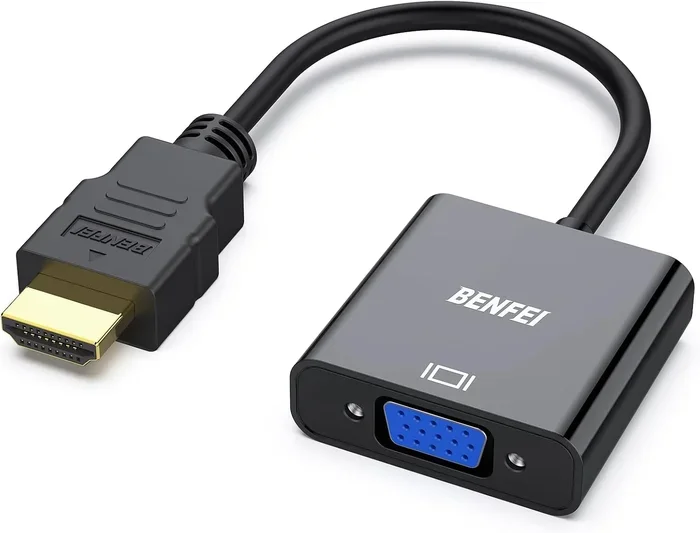
Some people try to use a passive HDMI to VGA cable and wonder why nothing happens. A passive cable has no conversion chip inside it. It cannot translate digital data into analog waves. So please do not waste your money on those. You need an active HDMI to VGA adapter that contains a built-in converter chip.
Why Signal Conversion Matters
The analog to digital conversion process happens inside the adapter. The adapter receives the digital HDMI signal, processes it through a converter chip, and outputs an analog VGA signal. This is why active adapters cost more than simple cables. That tiny chip inside does the heavy lifting of translating the signal in real time.
Without this conversion, your device might not even recognize the display. Some laptops will show a black screen. Others might display an error message about no signal. The signal converter is the key piece that makes the whole setup functional.
Types of HDMI to VGA Adapters
Not all adapters are the same. Understanding the different types helps you choose the right one for your setup. Here is what you will find on the market.
Active HDMI to VGA Adapters
These are the adapters you actually need. An active adapter has a built-in chip that converts the digital HDMI signal to an analog VGA signal. Most active adapters also include a USB port for power, because the conversion process needs extra energy.
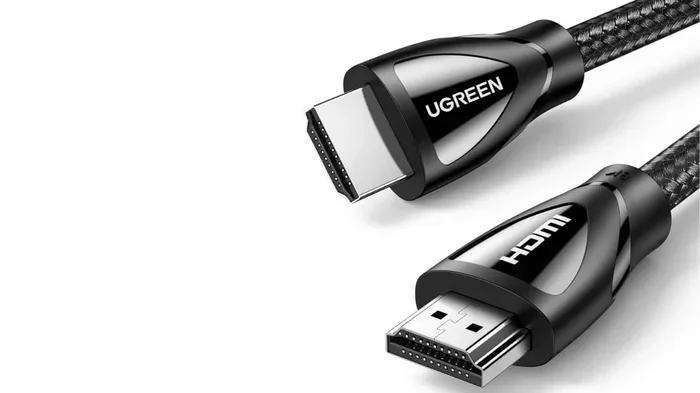
Look for adapters from reputable brands like Cable Matters, UGREEN, or StarTech. These tend to offer reliable conversion and good build quality. A quality active adapter usually costs between $15 and $40 depending on features.
HDMI to VGA Adapters with Audio
Since VGA does not carry audio, some adapters include a 3.5mm audio output jack. This lets you connect speakers or headphones separately. If you need sound along with your video, this is the type to buy. You will see these listed as HDMI to VGA adapters with audio extraction.
HDMI to VGA Converter Boxes
For permanent setups or professional use, a converter box works better than a small adapter. These boxes have multiple input and output options. They often include HDMI and VGA ports, plus audio jacks. A converter box sits on your desk and handles the conversion more reliably than a tiny dongle adapter.
Comparison Table
| Type | Converts Signal | Carries Audio | Needs Power | Best For |
|---|---|---|---|---|
| Active Adapter | Yes | Sometimes | Yes (USB) | Laptop to projector |
| Adapter with Audio | Yes | Yes (3.5mm) | Yes (USB) | Home theater setups |
| Converter Box | Yes | Yes | Yes (AC adapter) | Office or permanent setups |
| Passive Cable | No | No | No | Do not buy this |
How to Set Up Your HDMI to VGA Connection
Setting up an HDMI to VGA connection is straightforward once you have the right adapter. Follow these steps and you will be up and running in minutes.
Step 1: Check Your Devices
First, confirm that your source device has an HDMI output. Most laptops, tablets, and streaming devices do. Then check that your display has a VGA input. Look for the blue D-sub port on the back of your monitor or projector.
If your source device only has USB-C or DisplayPort, you will need a different adapter chain. For example, USB-C to HDMI to VGA. This adds complexity, so plan ahead before buying cables.
Step 2: Get the Right Adapter
Buy an active HDMI to VGA adapter from a trusted brand. Make sure it supports the resolution you need. Most adapters handle up to 1080p, which is fine for presentations and general use. If you need 4K, VGA will not support it, so adjust your expectations.
Quick tip: buy an adapter that includes a USB power cable. The extra power ensures stable signal conversion and prevents flickering.
Step 3: Connect Everything
Plug the HDMI end into your source device. Connect the VGA cable to the adapter and then to your monitor or projector. If your adapter has an audio out jack, connect it to your speakers. Finally, plug the USB power cable into the adapter and a USB port or wall charger.
Step 4: Configure Display Settings
Once connected, go to your device display settings. On Windows, right-click the desktop and select Display Settings. On a Mac, go to System Preferences and click Displays. Choose to extend or duplicate your screen depending on your needs.
If the screen is black, try changing the resolution. Set it to 1024×768 or 1920×1080, which are standard VGA resolutions. Sometimes the default HDMI resolution is too high for the VGA display to handle.
Common Problems and How to Fix Them
Even with the right adapter, you might run into issues. Here are the most common problems and their solutions.
No Signal on the Display
This is the most frequent issue. First, check that all cables are firmly connected. A loose connection at any point breaks the chain. Then try a different VGA cable, as faulty cables are a common culprit. Also make sure your adapter is receiving power through the USB cable.
If you still get no signal, restart your source device. Sometimes the graphics card needs a fresh start to recognize a new display output. On Windows, press Windows plus P to cycle through display modes.
Flickering or Distorted Image
A flickering screen usually means the signal is unstable. This often happens when the adapter does not get enough power. Try plugging the USB cable into a wall adapter instead of a computer USB port. Also check that your VGA cable is not too long. Cables over 15 feet can cause signal degradation.
No Audio Through VGA
Remember that VGA carries video only. If you need sound, you must connect audio separately through a 3.5mm cable or Bluetooth speakers. Some adapters have a dedicated audio output, which makes this easy. Check your adapter specifications to confirm whether it supports audio extraction.
Low Resolution or Blurry Picture
VGA has resolution limits. If your image looks blurry, try lowering the resolution in your display settings. Set it to 1024×768 for older projectors or 1920×1080 for newer VGA monitors. Also check that your VGA cable is not damaged. A worn-out cable will always produce a poor image.
Adapter Not Recognized by Device
Some devices, especially certain laptops, have trouble recognizing external adapters. Update your graphics drivers first. On Windows, go to Device Manager and check for display adapter updates. On Mac, check for system updates through Software Update. If the problem persists, try a different adapter, as some chips have better compatibility than others.
Can You Use HDMI to VGA for Gaming?
Technically yes, but the experience is not great. VGA is an analog connection, which means it introduces slight signal loss and lag. For casual gaming or older games, it works fine. For competitive or fast-paced gaming, the input lag and lower image quality make VGA a poor choice.
Also, VGA does not support high refresh rates. Most VGA connections max out at 60Hz, which feels sluggish compared to modern HDMI displays. If you are gaming, stick with HDMI or DisplayPort connections whenever possible.
HDMI to VGA in Everyday Use Cases
Despite its limitations, HDMI to VGA conversion remains useful in many situations. Here are some common scenarios where this setup works well.
Presentations in meeting rooms. Many conference rooms still have VGA projectors. An active adapter lets you connect your laptop and present without any hassle. This is one of the most popular use cases for HDMI to VGA adapters in the business world.
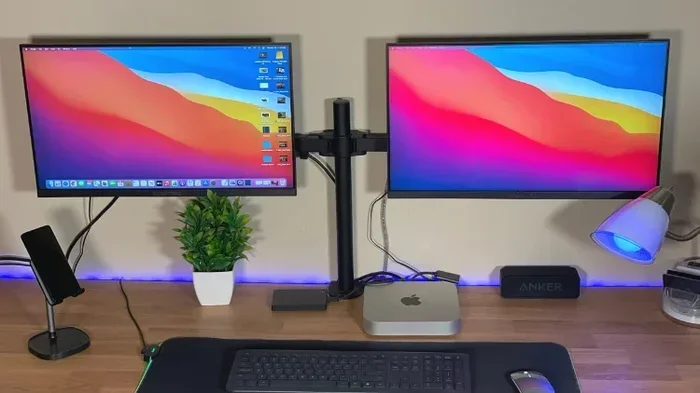
Using an old monitor as a second display. If you have an older VGA monitor sitting around, an adapter can turn it into a useful second screen. This is a great budget option for extending your workspace without buying a new monitor.
Classroom and educational settings. Many schools still use VGA projectors. Teachers and presenters rely on HDMI to VGA adapters daily to connect their laptops and share content with students.
Home entertainment with older TVs. Some older televisions only have VGA inputs. If you want to connect a streaming stick or gaming console, an HDMI to VGA adapter is your best option. Just remember that you will need separate audio.
Temporary setups and events. For trade shows, pop-up events, or temporary installations, VGA projectors are still common. Having a reliable HDMI to VGA adapter in your kit ensures you are always ready to connect.
Tips for Getting the Best Picture Quality
You can improve your VGA experience significantly with a few simple tips. Follow these and your display will look its best.
- Use a short VGA cable. Keep the cable under 10 feet for the clearest signal. Longer cables lose more signal quality.
- Set the correct resolution. Match your output resolution to the native resolution of your VGA display for the sharpest image.
- Use a powered adapter. Always use an adapter with USB power support. Unpowered adapters are more prone to signal issues.
- Check your cable quality. Gold-plated connectors and shielded cables reduce interference and improve signal clarity.
- Update your graphics drivers. Outdated drivers can cause display issues. Keep them up to date for the best performance.
- Reduce electromagnetic interference. Keep VGA cables away from power cables and wireless devices to minimize signal noise.
Quick tip: if you are using your setup in a bright room, the analog nature of VGA means the image might look washed out compared to HDMI. Consider adjusting your display brightness and contrast settings to compensate.
Expert Insights on HDMI to VGA Compatibility
According to display technology experts, the biggest mistake people make is buying a passive cable instead of an active adapter. Passive cables do not contain conversion chips, so they simply cannot bridge the gap between digital HDMI and analog VGA. Always verify that your adapter is labeled as active or includes a conversion chip.
Another expert recommendation is to test your setup before important presentations or events. Set up your adapter and display the night before. This gives you time to troubleshoot any issues without the pressure of a live audience or meeting. Having a backup plan, like bringing a spare adapter, also saves the day when things go wrong.
Some users also report that certain laptops, particularly newer ultrabooks, have trouble outputting video through adapters. In these cases, a powered USB hub connected to the adapter can resolve power delivery issues and stabilize the signal. This is a small trick that tech professionals use regularly.
Frequently Asked Questions
Do I need a special adapter to connect HDMI to VGA?
Yes, you need an active HDMI to VGA adapter. A simple cable will not work because HDMI carries a digital signal while VGA expects an analog signal. The adapter contains a converter chip that translates the signal between the two formats. Without this chip, your devices cannot communicate properly.
Will HDMI to VGA support audio?
Standard VGA cables carry video only, so you will not get audio through the VGA connection. However, many active adapters include a 3.5mm audio output jack that lets you connect speakers or headphones separately. Always check the adapter specifications to confirm whether it supports audio extraction.
What resolution can VGA support?
VGA supports resolutions up to 2048×1536 in theory, but practical limits are usually 1080p for most setups. The actual quality depends on your cable length, cable quality, and the adapter you use. For best results, stick to 1080p or lower when using VGA connections.
Can I connect an HDMI device to a VGA monitor without an adapter?
No, you cannot. HDMI and VGA use completely different signal types and connector designs. HDMI is digital and VGA is analog, so a direct connection is impossible. You must use an active adapter to bridge the gap between these two technologies.
Why does my HDMI to VGA adapter need USB power?
The adapter needs extra power to run the signal conversion chip inside it. The HDMI port on your device may not supply enough power for the conversion process. The USB connection provides the additional energy needed for stable signal translation and prevents flickering or signal loss.
Can I use HDMI to VGA for gaming?
You can, but it is not ideal for gaming. VGA is analog, which introduces slight lag and lower image quality compared to digital connections. VGA also caps out at 60Hz, which feels sluggish for fast-paced games. For casual or older games, it works fine, but competitive gamers should stick with HDMI or DisplayPort.
Final Thoughts
Using an HDMI to VGA cable setup is absolutely possible with the right equipment. The key is understanding that you need an active adapter with a built-in signal converter. Without it, the digital-to-analog conversion simply cannot happen, and your display will show nothing.
Remember that VGA has limitations. It carries video only, supports lower resolutions than HDMI, and can produce a slightly degraded image over long cable runs. But for presentations, older monitors, and classroom projectors, it remains a practical and reliable solution.
Invest in a quality adapter from a trusted brand. Follow the setup steps carefully. And always test your connection before you need it in a real situation. With the right approach, connecting your HDMI device to a VGA display becomes simple and frustration-free. This display cable knowledge will serve you well whether you are at work, at school, or setting up at home.
When you are shopping for tech accessories or looking for ways to simplify your setup, consider exploring helpful gadgets and tools that make device connections easier in everyday life. Sometimes the right accessory makes all the difference in how smoothly your technology works for you.