Can I Transfer From Sd Card To Usb Stick In Seconds
Yes, you can transfer from SD card to USB stick in seconds with the right tools and methods. Whether you want to move photos, videos, or documents, this guide shows you every simple way to get your data where it needs to go. We cover card readers, adapters, direct methods, and expert tips to make your SD card to USB transfer effortless.
Have you ever stared at your SD card full of photos and thought, “I wish I could just move this to my USB stick”? You are not alone. Millions of people face this simple problem every day. The good news is that transferring from SD card to USB stick is easier than you think. In most cases, you can do it in seconds.
This guide walks you through every method, tip, and trick you need. Whether you are a tech beginner or someone who just wants a faster way to move files, you will find exactly what you need here. Let us dive right in and make your SD card file transfer a breeze.
Key Takeaways
- Multiple Methods Available: You can transfer files using a card reader, USB adapter, or even directly through a computer or phone.
- Fast and Simple: Most transfers take just seconds when you use the right equipment and follow a few basic steps.
- No Special Software Needed: Many methods work with built-in tools on Windows, Mac, Android, and iPhone.
- Watch for Common Mistakes: Avoid data loss by safely ejecting devices and checking file formats before transferring.
- Useful Accessories Help: A good card reader or multi-device adapter makes the whole process much smoother.
📑 Table of Contents
- Why Transfer Files From SD Card to USB Stick?
- What You Need Before You Start
- Method 1: Transfer Using a Computer (The Most Common Way)
- Method 2: Direct Transfer Without a Computer
- Method 3: Using a Multi-Device Card Reader
- How to Transfer Specific File Types
- Common Mistakes to Avoid During SD Card Transfers
- Expert Tips for Faster and Safer Transfers
- Can You Transfer Directly From SD Card to USB Stick Without a Computer?
- How Long Does an SD Card to USB Transfer Take?
Why Transfer Files From SD Card to USB Stick?
There are many reasons people need to move files between these two portable storage devices. Understanding your “why” helps you pick the best method. Here are the most common reasons:
- Freeing up space: SD cards can fill up fast, especially with photos and videos. Moving them to a USB stick gives you breathing room.
- Sharing files: USB sticks are great for handing files to friends, coworkers, or family members.
- Backup purposes: Keeping a copy of your important documents and memories on a separate storage device keeps them safe.
- Device compatibility: Some devices only read USB sticks, not SD cards. Transferring lets you access your files anywhere.
- Organizing digital files: Consolidating files from multiple SD cards onto one USB stick keeps things tidy.
No matter your reason, the process is straightforward. You just need to know which method works best for your situation.
What You Need Before You Start
Before you begin any SD card transfer, gather a few things. Having the right tools saves time and prevents frustration. Here is your quick checklist:
- Your SD card with the files you want to move
- A USB flash drive with enough free space
- A computer with available USB ports
- A card reader (built-in or external)
- An SD card adapter (if your card is microSD)
Most modern computers come with built-in card readers. If yours does not, a simple external card reader costs just a few dollars. You can find one at any electronics store or online. For iPhone users, you might also want to check out adding prefixes to numbers on iPhone if you need to organize your files after transfer.
Choosing the Right USB Stick
Not all USB sticks are created equal. When picking one for your SD card to USB transfers, consider these factors:
- Storage capacity: Make sure your USB stick has enough space for all your files. A 32GB or 64GB stick handles most needs.
- Transfer speed: Look for USB 3.0 or higher for faster data transfer speeds. USB 2.0 works but takes longer.
- Durability: Some USB sticks are waterproof or shockproof. These are great for on-the-go use.
- Brand reputation: Stick with trusted brands like SanDisk, Samsung, or Kingston for reliability.
Method 1: Transfer Using a Computer (The Most Common Way)
This is the go-to method for most people. It works with both Windows and Mac computers. You need a card reader and a USB port. Here is how to do it step by step.
Step-by-Step Guide for Windows Users
Follow these simple steps to move your files on a Windows PC:
- Insert your SD card into your computer’s card reader slot. If you have a microSD card, use an SD card adapter first.
- Plug your USB stick into another USB port on the same computer.
- Open “This PC” or “My Computer” from your desktop or Start menu.
- You should see both your SD card and USB stick listed as removable drives.
- Open the SD card drive and browse to the folder with your files.
- Select the files you want to transfer. You can click and drag or use Ctrl+A to select all.
- Copy the files by right-clicking and choosing “Copy” or pressing Ctrl+C.
- Open your USB stick drive and right-click inside it.
- Choose “Paste” or press Ctrl+V to move the files.
- Wait for the transfer to finish. You will see a progress bar.
- Once done, safely eject both devices by clicking the eject icon next to them.
That is it! Your files are now on your USB stick. This method works for photos, documents, videos, and any other file type. The whole process usually takes just a few seconds for small files.
Step-by-Step Guide for Mac Users
Mac users follow a similar process:
- Insert your SD card into your Mac’s card reader or use an external adapter.
- Connect your USB stick to a USB port.
- Both drives will appear on your desktop and in Finder.
- Open the SD card in Finder and locate your files.
- Drag and drop the files from the SD card window to the USB stick window.
- Wait for the copy to complete.
- Eject both drives safely before removing them.
Mac computers make this process very visual and intuitive. The drag-and-drop method is one of the easiest ways to handle cross-device file transfer.
Method 2: Direct Transfer Without a Computer
Did you know you can transfer files without a computer? This method is perfect when you are on the go. You need a device that supports both SD cards and USB sticks directly.
Using an Android Phone or Tablet
Many Android devices have SD card slots and USB-C ports. Here is how to transfer directly:
- Insert your SD card into your Android device.
- Connect your USB stick to your phone using a USB-C OTG adapter.
- Open your file manager app (like Files or My Files).
- Navigate to the SD card and select your files.
- Choose “Move” or “Copy” and then navigate to your USB stick.
- Paste the files and wait for the transfer to complete.
This method is incredibly convenient. You do not need to carry a laptop everywhere. It is one of the fastest ways to handle direct SD card transfer when you are traveling or at work.
Using an iPhone with an Adapter
iPhones do not have SD card slots, but you can use Apple’s Lightning or USB-C adapter. Here is the process:
- Get a Lightning or USB-C to SD card reader adapter.
- Insert your SD card into the adapter and plug it into your iPhone.
- Open the Files app on your iPhone.
- Your SD card files should appear under “Locations.”
- Select the files and choose “Copy.”
- Connect your USB stick to your iPhone using an adapter.
- Paste the files onto the USB stick.
This method takes a few extra steps, but it works well. If you need help organizing files on your iPhone after transfer, you might find useful tips in our article on 10 gadgets to make moms life easier, which covers helpful accessories for file management.
Method 3: Using a Multi-Device Card Reader
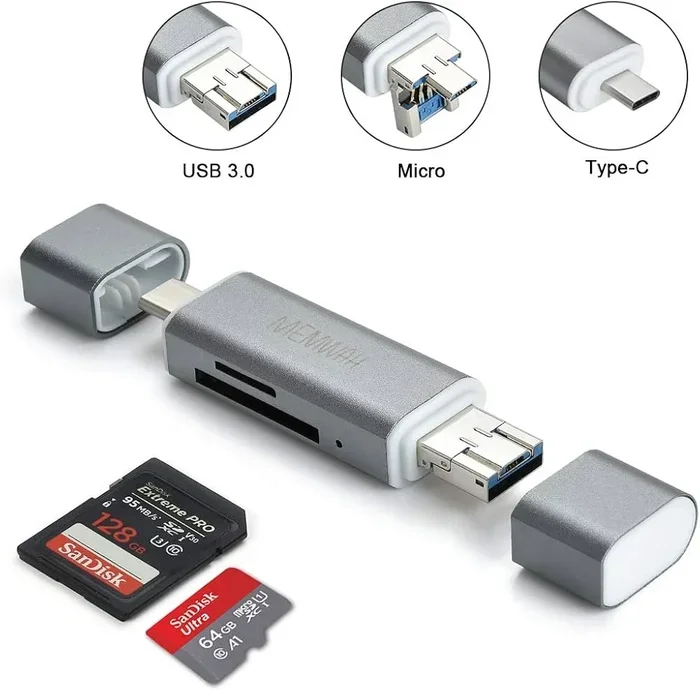
A multi-device card reader is a handy little gadget. It lets you plug in multiple cards and USB sticks at the same time. This is perfect if you work with different types of memory cards regularly.
Benefits of a Multi-Device Reader
- Speed: Transfer files directly between the SD card and USB stick without using a computer.
- Convenience: No need to plug and unplug cables. Just slot in both devices and copy.
- Portability: Most multi-card readers are small enough to fit in your pocket.
- Compatibility: They support SD, microSD, CompactFlash, and more.
To use one, simply insert both your SD card and USB stick into the reader. Your computer will recognize both drives. Then just drag and drop your files from one to the other. This is hands-down the fastest method for regular memory card reader transfers.
Popular Multi-Device Readers to Consider
| Reader | Supports | Speed | Price Range |
|---|---|---|---|
| Anker PowerExpand | SD, microSD, USB-C | USB 3.0 | $15-$25 |
| UGREEN Card Reader | SD, microSD, USB 3.0 | USB 3.0 | $10-$20 |
| Samsung EVO Plus Adapter | microSD, USB 3.0 | USB 3.1 | $20-$30 |
| Lexar JumpDrive | SD, microSD, USB 3.0 | USB 3.0 | $12-$22 |
These readers make your external storage setup much simpler. They are small investments that save a lot of time.
How to Transfer Specific File Types
Different file types sometimes need special attention. Here is how to handle the most common ones during your SD card to USB stick transfer.
Transferring Photos and Images
Photos are the most common files people move from SD cards. Here is what to keep in mind:
- JPEG and PNG files are small and transfer quickly.
- RAW photo files are large and take more time.
- Always check that all photos copied correctly by opening a few from the USB stick.
- Use folders to organize photos by date or event for easy access later.
Transferring Videos
Video files can be very large. Here are some tips:
- Make sure your USB stick has enough free space before starting.
- Use a USB 3.0 or higher stick for faster transfer speed with large video files.
- Consider compressing very large videos if you need to save space.
- Never pull out the USB stick while a video is still copying.
Transferring Documents
Documents are small and transfer almost instantly:
- PDF, Word, and Excel files are usually under 10MB each.
- You can transfer hundreds of documents in seconds.
- Organize them into labeled folders for easy finding later.
Common Mistakes to Avoid During SD Card Transfers
Even simple transfers can go wrong if you are not careful. Here are the most common mistakes people make and how to avoid them.
Not Safely Ejecting Devices
Always use the “Safely Remove Hardware” option before pulling out your SD card or USB stick. Removing them while data is still writing can corrupt your files. This is the number one cause of data loss during transfers.
Using a Full USB Stick
Check your USB stick’s free space before starting. If it is full, you will not be able to copy new files. Delete old files or use a larger USB stick to avoid this problem.
Ignoring File Format Compatibility
Most USB sticks use the FAT32 or exFAT file system. These work with almost all devices. However, some older devices may not support certain formats. If you run into issues, try reformatting your USB stick to FAT32 or exFAT.
Rushing the Process
Wait for the transfer to fully complete before removing any device. Even if the progress bar reaches 100%, give it a few extra seconds. Rushing leads to incomplete or corrupted files.
Expert Tips for Faster and Safer Transfers
Want to make your SD card to USB transfer even better? Here are some expert-level tips that make a huge difference.
- Use USB 3.0 or higher: The speed difference between USB 2.0 and USB 3.0 is massive. USB 3.0 can transfer files up to 10 times faster.
- Close other programs: Free up your computer’s resources by closing unnecessary apps during transfer.
- Check for errors: Run a quick check on your SD card and USB stick before transferring to make sure both are healthy.
- Organize before you transfer: Delete unwanted files from your SD card first. This saves time and space.
- Label your USB sticks: Use labels or color-coded caps to keep track of what is on each stick.
- Keep backups: Always keep a copy of important files in two places. Never rely on a single storage device.
Can You Transfer Directly From SD Card to USB Stick Without a Computer?
The short answer is yes, in some cases. Devices with dual slots, like certain cameras, tablets, and multi-card readers, allow direct transfer between an SD card and a USB stick. You simply insert both into the device and use its built-in copy function. This is one of the most convenient ways to handle SD card to USB transfers on the go.
Some modern cameras even have a built-in USB port that lets you connect a USB stick directly. You insert the SD card, plug in the USB stick, and the camera copies the files for you. No computer needed at all. This is a game-changer for photographers and videographers who need to back up files quickly in the field.
For everyday users, a multi-card reader is the best budget-friendly option. It costs less than a coffee and saves you tons of time. If you travel often or work in the field, consider keeping one in your bag at all times.
How Long Does an SD Card to USB Transfer Take?
The transfer time depends on a few factors. Here is a quick breakdown:
- Small files (documents, photos): A few seconds to a minute.
- Medium files (short videos): One to five minutes.
- Large files (long 4K videos): Five to fifteen minutes or more.
Your transfer speed also depends on your card reader, USB stick speed, and computer performance. Using a USB 3.0 connection and a fast SD card will give you the best results. In most cases, transferring from SD card to USB stick takes just seconds for everyday files.
Frequently Asked Questions
Can I transfer files from an SD card to a USB stick without a computer?
Yes, you can use a multi-device card reader or a compatible Android phone with an OTG adapter. Some cameras also support direct copying between an SD card and a USB stick. These methods let you skip the computer entirely and transfer your files quickly.
What is the fastest way to transfer from SD card to USB stick?
The fastest way is using a multi-device card reader with USB 3.0 support. This allows direct transfer between the SD card and USB stick at high speeds. Avoid using USB 2.0 connections when possible, as they are much slower.
Can I use a USB stick on my iPhone to transfer SD card files?
Yes, with Apple’s Lightning or USB-C adapter, you can connect both an SD card reader and a USB stick to your iPhone. Use the Files app to copy files between them. It takes a few extra steps but works well for on-the-go transfers.
Is it safe to transfer files from an SD card to a USB stick?
Absolutely. As long as you safely eject both devices after the transfer, your files will remain intact. Always wait for the transfer to fully complete before removing any device to avoid data corruption.
Why can’t my computer read my SD card?
Your computer may not have a built-in card reader. Try using an external USB card reader. Also, make sure your SD card is not damaged or locked. Cleaning the metal contacts gently with a soft cloth can sometimes help too.
Can I transfer files between two USB sticks using an SD card as a middle step?
Yes, you can copy files from the SD card to a USB stick and then move them to another USB stick. This works as a simple workaround when you only have one computer port available. Just make sure each device has enough free space.
=== CONCLUSION ===
Transferring from SD card to USB stick in seconds is not just possible, it is incredibly easy. Whether you use a computer, a phone, or a multi-device card reader, the process is simple and straightforward. You now know all the methods, tips, and tricks to make your SD card transfer fast and safe.
Remember to always safely eject your devices, check your free space, and use the right adapters. These small habits save you from headaches and data loss. With the right tools and a little practice, you will be moving files between your SD card and USB stick like a pro.
Start today. Pick your favorite method, gather your files, and give it a try. You will be surprised how quick and easy it really is. Happy transferring!