How Can I View My Iphone On My Tv With These Easy Methods
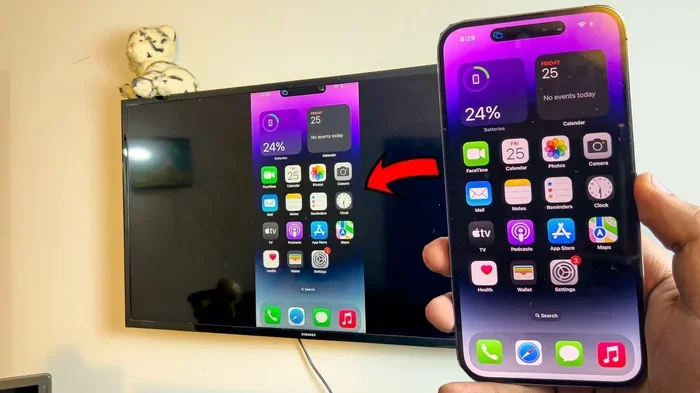
You can easily view your iPhone on your TV using several simple methods that work with almost any setup. Whether you own an Apple TV, a Smart TV, or just need a cable, there is a solution for every budget and preference. This guide covers AirPlay, HDMI adapters, casting apps, Chromecast, and built-in TV features so you can pick what works best. Each method is explained with clear steps and helpful tips. By the end, you will know exactly how to get your iPhone screen on your TV without any hassle.
Have you ever wanted to share something on your phone with a group of people on a bigger screen? Maybe you have photos from a recent trip or a funny video you want everyone to see. The good news is that you can easily view your iPhone on your TV without needing expensive equipment. There are several ways to do this, and most of them are simpler than you think.
Whether you want to watch movies, play games, or show off your vacation pictures, connecting your iPhone to your TV opens up a whole new world of possibilities. This guide walks you through every method step by step. You will learn about wireless options, wired connections, and apps that make the process even easier. By the time you finish reading, you will have everything you need to get your iPhone screen on your TV right away.
Key Takeaways
- AirPlay is the easiest wireless method if you have an Apple TV or a compatible Smart TV.
- HDMI adapters offer a reliable wired connection with no lag or Wi-Fi dependency.
- Third-party apps like Replica and AirScreen give you extra flexibility for screen mirroring.
- Chromecast works well for Android and iPhone users who want a budget-friendly option.
- Built-in Smart TV features like Samsung Smart View let you cast without extra hardware.
- Each method has pros and cons, so choose based on your TV setup and needs.
📑 Table of Contents
- Why Would You Want to View Your iPhone on Your TV?
- What Is Screen Mirroring and How Does It Work?
- Method 1: Use AirPlay to View Your iPhone on Your TV
- Method 2: Connect with an HDMI Adapter and Cable
- Method 3: Use Third-Party Casting Apps
- Method 4: Use Chromecast to Stream from Your iPhone
- Method 5: Use Built-In Smart TV Features
- Which Method Should You Choose?
- Common Mistakes to Avoid When Viewing Your iPhone on Your TV
- Expert Tips for the Best Viewing Experience
- Final Thoughts on Viewing Your iPhone on Your TV
Why Would You Want to View Your iPhone on Your TV?
There are many reasons people want to connect their iPhone to a TV screen. Sometimes a small phone screen just does not cut it. Other times, you want to share content with family or friends in a room. Let us look at some of the most common reasons people do this every day.
- Watching movies and shows on a bigger screen feels much better than staring at a tiny phone display.
- Sharing photos and videos with a group during gatherings or celebrations is so much fun on a large TV.
- Playing mobile games on a TV screen gives you a more immersive and enjoyable experience.
- Presenting slideshows or work content during meetings or family events becomes effortless.
- Using navigation apps on a TV screen while driving can make directions easier to follow.
No matter your reason, the methods below will help you get it done. Each one is designed to be simple and practical. You do not need to be a tech expert to make it work.
What Is Screen Mirroring and How Does It Work?
Before we dive into the methods, it helps to understand what screen mirroring actually means. Screen mirroring is the process of displaying your iPhone screen on another display, like your TV, in real time. Everything you do on your phone shows up on the TV screen instantly.
There are two main ways to mirror your screen. The first is wireless mirroring, which uses Wi-Fi or Bluetooth to send your screen to the TV. The second is wired mirroring, which uses a cable to connect your iPhone directly to the TV. Both methods work well, but they each have their own strengths.
Wireless mirroring is convenient because you do not need any cables. You just need a compatible TV or a streaming device. Wired mirroring gives you a stable connection with no lag. It is perfect for situations where you need a reliable display output every time.
Method 1: Use AirPlay to View Your iPhone on Your TV
AirPlay is Apple’s built-in wireless streaming technology. It lets you mirror your iPhone screen to compatible devices with just a few taps. This is the most popular way to view your iPhone on your TV if you are in the Apple ecosystem.
How to Set Up AirPlay with Apple TV
If you own an Apple TV, setting up AirPlay is incredibly easy. Both your iPhone and Apple TV need to be on the same Wi-Fi network. Once they are connected, follow these simple steps.
- Unlock your iPhone and open the Control Center. Swipe down from the top-right corner of your screen.
- Tap the Screen Mirroring button. It looks like two overlapping rectangles.
- A list of available devices will appear. Select your Apple TV from the list.
- Enter the code on your TV screen if prompted. This ensures a secure connection.
- Your iPhone screen is now showing on your TV. Enjoy!
That is all there is to it. AirPlay works with photos, videos, apps, and even games. The quality is smooth and the lag is minimal when both devices are on a strong Wi-Fi network.
Using AirPlay with Compatible Smart TVs
You do not need an Apple TV to use AirPlay. Many modern Smart TVs from Samsung, LG, Sony, and Vizio support AirPlay natively. If your TV was made in the last few years, check its settings menu for an AirPlay option.
To use AirPlay with a compatible Smart TV, make sure both your iPhone and the TV are on the same Wi-Fi network. Open your Control Center and tap Screen Mirroring. Your TV should appear in the list of available devices. Select it, and your screen will appear on the big display.
Quick Tip: If your TV does not show up, restart both your iPhone and your TV. This fixes most connection issues quickly and easily.
Tips for Smooth AirPlay Streaming
Sometimes AirPlay can lag or disconnect. Here are a few tips to keep your streaming smooth and hassle-free.
- Use a strong Wi-Fi connection. A slow network causes buffering and delay. Stay close to your router for the best results.
- Restart your devices. A quick restart of both your iPhone and TV can solve most minor glitches.
- Close background apps. Too many open apps can slow down your iPhone and affect mirroring performance.
- Keep your iPhone charged. Screen mirroring uses battery fast. Plug in your phone while streaming for long periods.
Method 2: Connect with an HDMI Adapter and Cable
If you prefer a wired connection, an HDMI adapter is your best friend. This method gives you a stable, lag-free connection every single time. You do not need Wi-Fi at all. Just plug in the cable and your iPhone screen appears on the TV.
Lightning to HDMI Adapters for Older iPhones
If you have an iPhone with a Lightning port, you will need a Lightning to HDMI adapter. Apple sells its own version, but many third-party options work just as well. Here is how to set it up.
- Plug the Lightning end of the adapter into your iPhone.
- Connect an HDMI cable to the adapter.
- Plug the other end of the HDMI cable into your TV.
- Switch your TV to the correct HDMI input using your remote.
- Your iPhone screen will now display on your TV.
This method works with all iPhone models that have a Lightning port. It is great for situations where Wi-Fi is weak or unavailable. The video quality is excellent and there is no delay at all.
USB-C to HDMI Adapters for Newer iPhones
iPhone 15 and newer models use USB-C instead of Lightning. You will need a USB-C to HDMI adapter for these phones. The setup process is the same as the Lightning method described above.
Make sure you buy a high-quality adapter that supports video output. Cheap adapters sometimes cause display issues or do not work at all. Look for adapters that are MFi certified for the best performance.
Quick Tip: Keep a spare adapter in your bag or car. You never know when you might need to quickly view your iPhone on your TV during a trip or event.
Method 3: Use Third-Party Casting Apps
Not all TVs support AirPlay or built-in mirroring. In these cases, third-party casting apps come to the rescue. These apps let you stream your iPhone screen to almost any TV with a smart feature or a connected streaming device.
Popular Apps for Wireless Casting
There are several great apps that make it easy to view your iPhone on your TV. Here are some of the most popular ones that people use every day.
- Replica Screen Mirroring – A simple app that mirrors your iPhone screen to most Smart TVs over Wi-Fi.
- AirScreen – Turns your TV into an AirPlay receiver even if it does not natively support it.
- LetsView – A free app that works with both iPhone and Android devices for screen casting.
- ApowerMirror – Offers high-quality screen mirroring with extra features like annotation tools.
Setting Up a Casting App
Setting up a casting app is usually very straightforward. Most apps follow a similar process that takes just a few minutes.
- Download the casting app from the App Store on your iPhone.
- Install the corresponding app on your Smart TV or streaming device if needed.
- Make sure both your iPhone and TV are on the same Wi-Fi network.
- Open the app on your iPhone and select your TV from the device list.
- Start mirroring your screen and enjoy your content on the big display.
These apps give you flexibility when your TV does not have native AirPlay support. They are especially useful for older Smart TVs or basic LED TVs with a streaming stick plugged in.
Method 4: Use Chromecast to Stream from Your iPhone
Google Chromecast is a popular and affordable streaming device. While it was designed for Android, it also works well with iPhones. You can cast content from supported apps directly to your TV.
To use Chromecast with your iPhone, you need the Google Home app. Download it from the App Store and set up your Chromecast device following the on-screen instructions. Once set up, you can cast content from apps like YouTube, Netflix, and Spotify directly to your TV.
Keep in mind that Chromecast does not mirror your entire iPhone screen the same way AirPlay does. It works best for casting individual pieces of content rather than your full display. If full screen mirroring is what you need, consider using an HDMI adapter instead.
Method 5: Use Built-In Smart TV Features
Most modern Smart TVs come with their own screen-sharing features. These built-in tools let you connect your iPhone without any extra devices or apps. Here are a few examples of how this works on popular TV brands.
Samsung Smart View
Samsung TVs have a feature called Smart View that lets you connect your iPhone wirelessly. Open your iPhone Control Center, tap Screen Mirroring, and look for your Samsung TV in the list. Select it, and your screen will appear on the TV instantly.
LG Screen Share
LG TVs use a feature called Screen Share. Make sure your LG TV and iPhone are on the same Wi-Fi network. Open your Control Center and tap Screen Mirroring. Your LG TV should appear as an available device. Select it to start streaming your iPhone content.
These built-in features work well for basic screen mirroring. They may not offer the same smooth experience as AirPlay with an Apple TV, but they get the job done for most everyday uses.
Which Method Should You Choose?
Choosing the right method depends on your TV, your budget, and what you want to do. Here is a quick comparison to help you decide.
| Method | Wired or Wireless | Cost | Best For |
|---|---|---|---|
| AirPlay | Wireless | Free | Apple TV and AirPlay-compatible Smart TVs |
| HDMI Adapter | Wired | $10-$30 | Stable, lag-free connections |
| Casting Apps | Wireless | Free or low cost | Older Smart TVs without AirPlay |
| Chromecast | Wireless | $30-$50 | Casting individual content pieces |
| Built-In TV Features | Wireless | Free | Samsung, LG, and other Smart TVs |
If you want the easiest and smoothest experience, AirPlay is the way to go. If you need a reliable connection with no Wi-Fi worries, grab an HDMI adapter. For budget-friendly options, casting apps and Chromecast are excellent choices.
Common Mistakes to Avoid When Viewing Your iPhone on Your TV
Even though these methods are simple, people sometimes run into issues. Here are a few common mistakes to watch out for so your experience goes smoothly.
- Not being on the same Wi-Fi network. This is the number one reason AirPlay and casting fail. Always double-check that both devices are connected to the same network.
- Using a low-quality cable or adapter. Cheap accessories can cause poor picture quality or connection drops. Invest in good-quality adapters and cables.
- Ignoring software updates. Make sure your iPhone and TV are running the latest software. Updates often fix bugs and improve compatibility.
- Overloading your Wi-Fi network. If too many devices are using your Wi-Fi, streaming quality drops. Disconnect devices you are not using for better performance.
Avoiding these simple mistakes will save you a lot of frustration. A little preparation goes a long way toward a great viewing experience.
Expert Tips for the Best Viewing Experience
Want to get the most out of your iPhone-to-TV setup? Here are some expert tips that make a real difference.
Turn on Do Not Disturb. This prevents notifications from popping up on your TV screen while you are watching something. It keeps the experience clean and uninterrupted.
Adjust your TV picture settings. Most TVs have picture modes like Vivid, Standard, and Cinema. Switching to Cinema or Movie mode gives you better colors and contrast for a more enjoyable viewing experience.
Use landscape mode on your iPhone. When you mirror your screen, turning your phone sideways often gives you a better fit on the TV screen. This simple trick can improve the display significantly.
Keep your iPhone close to the router. For wireless methods, proximity to your Wi-Fi router matters. The closer you are, the stronger and more stable your connection will be.
Final Thoughts on Viewing Your iPhone on Your TV
Viewing your iPhone on your TV is easier than most people think. Whether you choose AirPlay, an HDMI adapter, a casting app, Chromecast, or your TV’s built-in feature, you have options that fit every need and budget. The key is to pick the method that works best for your setup and your goals.
Start with the method that feels most natural to you. Experiment with different options if the first one does not work perfectly. With a little patience, you will be enjoying your iPhone content on the big screen in no time. So grab your iPhone, pick your favorite method, and start viewing your iPhone on your TV today.
Frequently Asked Questions
Can I view my iPhone on any TV?
You can view your iPhone on most TVs using one of the methods in this guide. Smart TVs support AirPlay or built-in casting features. Older TVs can use an HDMI adapter or a streaming device like Chromecast. Almost any TV can be connected with the right setup.
Is AirPlay free to use?
Yes, AirPlay is completely free. It is built into iPhones and supported by Apple TV and many Smart TVs. You do not need to pay for any apps or subscriptions to use AirPlay for screen mirroring.
Why is my iPhone screen lagging when mirrored to my TV?
Lag usually happens when your Wi-Fi connection is weak or slow. Make sure both your iPhone and TV are on the same network and close to your router. Using a wired HDMI connection eliminates lag entirely if wireless issues persist.
Do I need an Apple TV to mirror my iPhone?
No, you do not need an Apple TV. Many Smart TVs support AirPlay natively. You can also use HDMI adapters, casting apps, or Chromecast as alternatives. Apple TV just offers the smoothest AirPlay experience.
Can I watch Netflix on my TV from my iPhone using screen mirroring?
Yes, you can mirror Netflix from your iPhone to your TV. However, some streaming apps use DRM protection that may block full screen mirroring. In these cases, using the TV’s native Netflix app or an HDMI connection works better.
What is the best HDMI adapter for iPhone?
Apple’s official Lightning to HDMI adapter is the most reliable for older iPhones. For iPhone 15 and newer, Apple’s USB-C to Digital AV Adapter works great. MFi-certified third-party adapters from brands like Belkin and Anker are also excellent choices.
=== CONCLUSION ===
Now you know all the best ways to view your iPhone on your TV. From AirPlay to HDMI adapters, casting apps to Chromecast, you have plenty of options at your fingertips. Each method has its own advantages, so pick the one that fits your TV and your lifestyle best. Start with the method that feels easiest and explore from there. Sharing your iPhone screen on a bigger display is a simple joy that makes everyday moments more fun and memorable.