Can I Connect A Card Reader To Android Phone Easily
Yes, you can absolutely connect a card reader to your Android phone using an OTG adapter or a wireless Bluetooth card reader. Whether you need to transfer files from an SD card, manage external storage, or accept mobile payments, your Android device can handle it all. This guide covers every method, compatible devices, and practical tips to get you started right away.
Key Takeaways
- Multiple connection methods exist: USB OTG adapters, Bluetooth card readers, and direct SD card slots let you connect a card reader to Android phone devices easily.
- OTG adapters are the most popular option: They are affordable, widely available, and work with most Android phones that support USB On-The-Go.
- Wireless card readers offer convenience: Bluetooth-enabled readers let you accept payments or transfer data without plugging anything in.
- Not all phones are the same: Check your Android version and USB port type before buying a card reader to avoid compatibility issues.
- File management apps help: Apps like Files by Google make it simple to access, move, and organize data from your connected card reader.
- Security matters: Always use trusted card reader brands and keep your Android device updated to protect your data.
[FEATURED_IMAGE_PLACEHOLDER]
📑 Table of Contents
- What Is a Card Reader and Why Connect It to Your Android Phone?
- Types of Card Readers You Can Use with Android Phones
- How to Connect a Card Reader to Your Android Phone Step by Step
- Best Card Readers for Android Phones in 2024
- Common Mistakes to Avoid When Connecting a Card Reader to Android Phone
- Expert Tips for Getting the Most From Your Card Reader on Android
- How Card Readers Enhance Mobile Payments and Banking
- Conclusion
What Is a Card Reader and Why Connect It to Your Android Phone?
A card reader is a small device that reads data from memory cards, SIM cards, or payment cards. You have probably seen them in ATMs, point-of-sale terminals, or as tiny USB sticks. But can you use one with your Android phone? The answer is a confident yes.
Connecting a card reader to your Android phone opens up a world of possibilities. You can transfer photos from a memory card, read contactless payment cards, or even use your phone as a portable payment terminal. The process is simpler than most people think, and you do not need to be a tech expert.
Modern Android phones support a feature called USB On-The-Go (OTG). This allows your phone to act as a host device, meaning it can connect to and power external accessories like card readers. Some newer phones even have built-in SD card slots, making the process even easier.
Whether you are a small business owner, a freelancer, or someone who just wants to manage files more efficiently, a card reader adds serious versatility to your Android device. Let us explore exactly how this works.
Who Benefits From Connecting a Card Reader to Android?
Many different types of users can benefit from this setup. Small business owners can accept card payments on the go. Photographers can offload images directly from a memory card. Students can transfer documents between devices. And anyone who needs to access data stored on an SD card can do so without a computer.
Types of Card Readers You Can Use with Android Phones
Not all card readers are the same. Different types serve different purposes, and choosing the right one depends on what you want to accomplish. Here are the most common options available.
USB OTG Card Readers
A USB OTG card reader is the most popular option for Android users. These small adapters plug directly into your phone’s charging port and accept SD cards, microSD cards, or USB flash drives. They are inexpensive, usually costing between $5 and $20, and they work with the vast majority of Android devices.
The key requirement is that your phone must support USB On-The-Go. Most Android phones running version 6.0 or later support this feature. You can check by going to Settings and looking for the OTG option, or simply by trying to connect a device and seeing if your phone recognizes it.
Bluetooth Wireless Card Readers
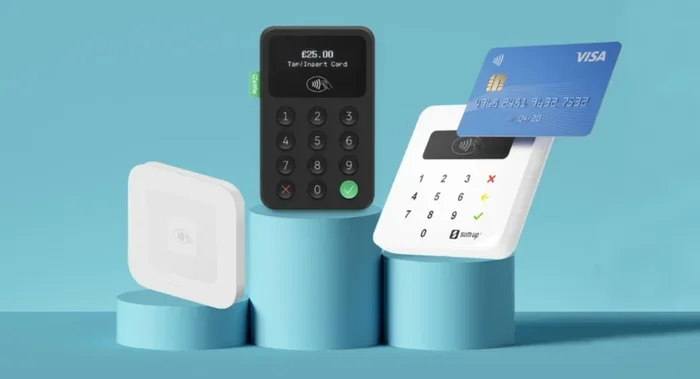
If you want to accept payments without any cables, a Bluetooth card reader is the way to go. These devices pair wirelessly with your Android phone and let you swipe, dip, or tap payment cards. Popular brands include Square, SumUp, and PayPal Here. They are especially useful for street vendors, delivery drivers, and mobile service providers.
Built-In SD Card Slots
Some Android phones still come with a dedicated microSD card slot. If your phone has one, you do not need any external reader at all. Simply insert the card into the slot, and your phone will detect it automatically. This is the easiest method, though fewer phones include this feature nowadays.
Smart Card Readers for Mobile Banking
Smart card readers are designed specifically for banking and authentication purposes. They connect to your Android phone and read chip-enabled bank cards. These are commonly used for mobile banking, two-factor authentication, and secure online transactions. Banks like HSBC, Barclays, and NatWest offer their own branded card readers for this purpose.
How to Connect a Card Reader to Your Android Phone Step by Step
Now that you know the types available, let us walk through the actual connection process. The steps vary slightly depending on the type of reader, but the general process is straightforward.
Step 1: Check Your Phone’s Compatibility
Before buying anything, verify that your Android phone supports external devices. Go to Settings, then look for “OTG” or “USB” settings. If your phone runs Android 6.0 or newer, it likely supports OTG. You can also search online for your specific phone model to confirm compatibility.
Step 2: Choose the Right Card Reader
Decide what you need the card reader for. If you want to transfer files from an SD card, a simple USB OTG adapter will work. If you need to accept payments, choose a Bluetooth payment reader. For banking, get a smart card reader that is compatible with your bank’s app.
Step 3: Connect the Reader to Your Phone
For a USB OTG reader, simply plug it into your phone’s USB-C or micro-USB port. Then insert your SD card or flash drive into the reader. Your phone should display a notification that a new device has been connected. For Bluetooth readers, go to Settings, then Bluetooth, and pair the device following the on-screen instructions.
Step 4: Access Your Files or Data
Once connected, open the Files by Google app or your preferred file manager. You should see the card reader listed as a storage device. Tap on it to browse, copy, move, or delete files. The process is very similar to using a USB drive on a computer.
Step 5: Safely Disconnect the Reader
When you are done, always eject the device properly. Go to Settings, then Storage, and look for the option to unmount or eject the external device. This prevents data corruption and keeps your files safe.
Best Card Readers for Android Phones in 2024
Choosing the right card reader can be confusing with so many options on the market. Here are some of the best choices based on different use cases and budgets.
| Card Reader | Type | Price Range | Best For |
|---|---|---|---|
| Anker USB-C OTG Adapter | Wired | $5 – $15 | File transfer from SD cards |
| Square Reader for Contactless | Bluetooth | $0 – $50 | Accepting card payments |
| SumUp Air Card Reader | Bluetooth | $20 – $40 | Small business payments |
| HSBC Smart Card Reader | USB | $15 – $30 | Mobile banking and auth |
| Samsung EVO Select microSD | Internal Slot | $10 – $25 | Expanding phone storage |
| Toshiba FlashAir Wi-Fi SD | Wireless | $25 – $45 | Wireless file sharing |
Each of these readers has strong reviews and reliable performance. The Anker OTG adapter is a great budget option for everyday file transfers. The Square reader is perfect if you need to accept payments on the go. And the HSBC reader is ideal for anyone who banks with that institution and wants a secure authentication method.
Quick Tips for Choosing the Right Reader
- Check that the reader supports your phone’s port type (USB-C or micro-USB).
- Look for readers that are compatible with your specific Android version.
- Read user reviews before purchasing to avoid compatibility issues.
- Consider whether you need a wired or wireless connection.
- Buy from reputable brands to ensure data security and reliability.
Common Mistakes to Avoid When Connecting a Card Reader to Android Phone
Even though the process is simple, people do make mistakes that can cause problems. Here are the most common ones and how to avoid them.
Buying an Incompatible Reader
Not every card reader works with every Android phone. Some readers are designed for iPhones and will not function with Android devices. Always check the product description for Android compatibility before purchasing. Look for keywords like “USB-C OTG” or “Android compatible” on the packaging.
Skipping the OTG Check
One of the biggest mistakes is assuming every Android phone supports OTG. Some budget phones do not. If your phone does not recognize the card reader, check your phone’s OTG support first. You can download a free OTG checker app from the Google Play Store to verify.
Forgetting to Format the Card
If your SD card was formatted for a different device or operating system, your Android phone might not read it correctly. Most cards work out of the box, but if you encounter issues, try formatting the card using your phone’s built-in storage settings. Remember that formatting erases all data, so back up your files first.
Removing the Reader Without Ejecting
Never pull out a card reader while data is still transferring. This can corrupt files on both the card and your phone. Always use the safe eject option in your phone’s settings before disconnecting the reader.
Using a Damaged or Low-Quality Reader
Cheap, unbranded card readers can be unreliable and even pose security risks. They may not provide stable connections, and some low-quality readers have been found to transmit data insecurely. Invest in a reputable brand to protect your data and ensure a smooth experience.
Expert Tips for Getting the Most From Your Card Reader on Android
Once you have your card reader connected, there are several ways to maximize its usefulness. These tips come from experienced users and tech professionals who use card readers with Android devices daily.
Use a Dedicated File Manager App
The default file manager on some Android phones is basic. Installing a powerful file manager app like Files by Google, Solid Explorer, or CX File Explorer gives you more control over your files. These apps let you sort, search, and organize files from your card reader with ease.
Keep Your Android Phone Updated
Software updates often include improvements to USB OTG support and external device compatibility. Keeping your phone updated ensures the best performance when connecting a card reader. Go to Settings, then Software Update, and install any available updates.
Use a High-Speed SD Card
If you are transferring large files like videos or photo libraries, a high-speed microSD card makes a big difference. Look for cards rated as UHS-I or UHS-II for faster read and write speeds. A Class 10 or U3 rated card will handle most tasks smoothly.
Enable Developer Options for Advanced Users
If you are comfortable with advanced settings, you can enable Developer Options on your Android phone. This gives you access to USB configuration settings that can improve how your phone communicates with external devices. Go to Settings, then About Phone, and tap the Build Number seven times to unlock Developer Options.
Consider a Multi-Port Hub
If you frequently connect multiple devices, a USB-C multi-port hub is a great investment. These hubs combine card reader slots, USB ports, HDMI outputs, and even Ethernet connections into one compact device. They turn your phone into a versatile workstation.
Backup Your Data Regularly
A card reader makes it easy to back up your phone’s data to an SD card or USB drive. Get into the habit of regularly backing up important files. This protects you from data loss if your phone is lost, damaged, or stolen.
Use NFC for Quick Pairing When Available
Some modern card readers support NFC (Near Field Communication) for quick pairing. Simply tap the reader against the back of your phone, and the devices connect instantly. This is especially useful for payment card readers that support NFC-enabled Android phones.
Understand Your Phone’s Storage Limits
Android phones have internal storage limits for external devices. Very large SD cards (512GB or 1TB) may not work properly on older phones. Check your phone’s specifications to understand the maximum supported storage capacity for external devices.
Clean Your Card Reader’s Contacts Regularly
Dust and debris can accumulate on the metal contacts of your card reader over time. This can cause intermittent connection problems. Gently clean the contacts with a soft, dry cloth or a cotton swab lightly dampened with isopropyl alcohol.
How Card Readers Enhance Mobile Payments and Banking
Beyond file transfer, card readers play a significant role in mobile payments and digital banking. The rise of contactless payment technology has made it easier than ever to use your Android phone for financial transactions.
When you connect a payment card reader to your Android phone, you essentially turn your device into a portable point-of-sale terminal. This is incredibly valuable for small businesses, freelancers, and anyone who needs to accept card payments in the field. Services like Square and SumUp make this process seamless, and their apps are available directly on the Google Play Store.
For personal banking, smart card readers add an extra layer of security. They generate one-time passcodes that you use to authenticate online transactions. This protects your accounts from unauthorized access and gives you peace of mind when managing your finances digitally.
The growing trend of cashless payments means that having the ability to accept cards on your phone is becoming essential. Even small vendors and service providers are adopting mobile payment solutions to meet customer demand. A card reader connected to your Android phone puts this capability right in your pocket.
The Future of Card Readers and Android Devices
Technology is evolving rapidly, and card readers are keeping pace. We are seeing the emergence of NFC-enabled readers that work without any physical connection. AI-powered fraud detection is being built into payment card readers. And cloud-based storage integration means that files from your card reader can be synced to the cloud automatically.
As Android devices become more powerful and versatile, the range of compatible card readers will continue to expand. The days of needing a laptop for every data task are fading fast. Your Android phone, paired with the right card reader, can handle an impressive array of tasks.
Conclusion
Connecting a card reader to Android phone is easy, affordable, and incredibly useful. Whether you need to transfer files, accept payments, or manage your banking, the right card reader transforms your phone into a powerful, versatile tool. The process is straightforward, and with so many options available, there is a solution for every need and budget.
Start by checking your phone’s compatibility, choose the right type of reader, and follow the simple connection steps outlined in this guide. Avoid common mistakes, follow the expert tips, and you will be up and running in no time. The ability to connect external storage and payment devices to your Android phone is one of the most underrated features of modern mobile technology.
Take action today. Pick up a card reader, connect it to your Android phone, and experience the convenience of having all your data and payment tools right at your fingertips. Once you start using a card reader with your phone, you will wonder how you ever managed without it.
Frequently Asked Questions
Can any Android phone connect to a card reader?
Most Android phones running version 6.0 or later support USB OTG and can connect to a card reader. However, some budget or older phones may not support this feature. Check your phone’s specifications or try a free OTG checker app from the Google Play Store to confirm compatibility.
Do I need any special app to use a card reader with my Android phone?
For basic file transfer, your phone’s built-in file manager should work fine. For payment card readers, you will need the corresponding app like Square or SumUp. For banking card readers, your bank will usually provide its own app. Most apps are free to download from the Google Play Store.
Is it safe to connect a card reader to my Android phone?
Yes, it is generally safe as long as you use a reputable brand and keep your phone updated. Avoid cheap, unbranded readers that may pose security risks. Always download payment and banking apps from official sources like the Google Play Store to protect your financial data.
Can I use a card reader to expand my Android phone’s storage?
Absolutely. If your phone has a microSD card slot or supports USB OTG, you can connect a card reader with an SD card or USB flash drive to expand your storage. This is a great way to store photos, videos, and documents without filling up your phone’s internal memory.
Why does my Android phone not recognize my card reader?
This can happen for several reasons. Your phone might not support OTG, the reader might be incompatible, or the SD card might need formatting. Try a different reader, check your OTG settings, and ensure your card is properly formatted. Restarting your phone can also help resolve connection issues.
Can I accept card payments using a card reader connected to my Android phone?
Yes, Bluetooth payment card readers like Square and SumUp let you accept card payments directly through your Android phone. These readers support contactless, chip, and swipe payments. You simply pair the reader with your phone, download the payment app, and start accepting transactions wherever you go.
=== META TITLE ===
Connect A Card Reader To Android Phone Easily
=== URL SLUG ===
/connect-card-reader-android-phone
=== SEO TITLE ===
Can I Connect A Card Reader To Android Phone Easily