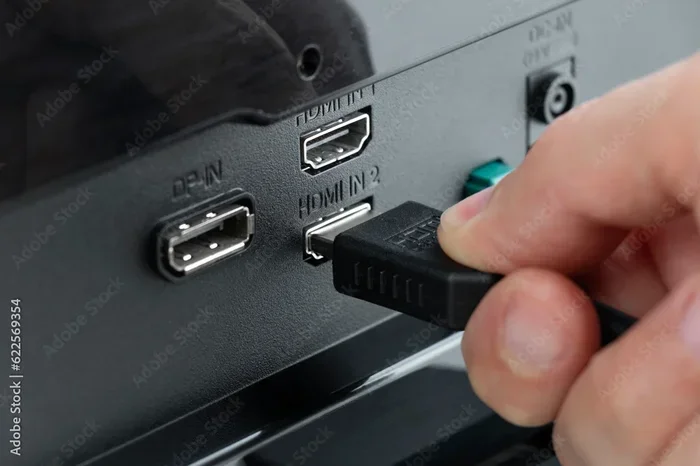
Can I Run Ethernet Through Hdmi And Why It Matters
Yes, you can run ethernet through HDMI using the HDMI Ethernet Channel feature built into many modern cables and devices. This lets a single HDMI cable carry both audio-video signals and internet data, simplifying your home setup. Understanding this technology helps you make smarter choices about your entertainment and networking gear.
Key Takeaways
- HDMI Ethernet Channel exists: Many HDMI cables and devices support passing internet data through a single HDMI cable.
- Not all HDMI cables have it: You need a cable specifically rated with HDMI Ethernet Channel support to use this feature.
- It simplifies your setup: Running ethernet through HDMI reduces cable clutter and the need for extra network hardware.
- Speed is limited: The HDMI Ethernet Channel offers modest speeds, typically around 100 Mbps, which works for basic streaming.
- Both devices must support it: Your source device and display both need HDMI Ethernet Channel compatibility for it to work.
- HDMI 2.1 does not add ethernet: The latest HDMI standard focuses on higher bandwidth for video, not network features.
- Alternatives exist: HDMI to ethernet converters and ARC/eARC ports offer other ways to network your devices.
📑 Table of Contents
- Can I Run Ethernet Through HDMI And Why It Matters
- What Is HDMI Ethernet Channel?
- Can You Actually Run Ethernet Through HDMI?
- How Does Ethernet Through HDMI Work?
- Benefits of Running Ethernet Through HDMI
- Common Devices That Support HDMI Ethernet Channel
- How to Set Up Ethernet Through HDMI
- Common Mistakes People Make With HDMI Ethernet
- When Ethernet Through HDMI Is Not Enough
- Conclusion
Can I Run Ethernet Through HDMI And Why It Matters
You have a tangle of cables behind your TV. You have an HDMI cable. You also have an ethernet cable. What if you could use just one? That is the promise behind the question can I run ethernet through HDMI. It sounds too good to be true, but it is actually a real feature. The HDMI Ethernet Channel lets a single HDMI cable carry both audio-video signals and internet data at the same time.
Why does this matter? Because it can clean up your entertainment setup. Fewer cables mean less mess. Fewer cables mean fewer devices to buy and manage. And for many people, it solves a real problem. Maybe you have a smart TV that needs internet. Maybe your streaming box sits far from your router. Maybe you just want a simpler life. Whatever your reason, understanding HDMI ethernet capability gives you more control over how you connect your devices.
In this article, we will break everything down. We will look at how HDMI Ethernet Channel works. We will check which devices support it. We will walk through setup steps. And we will answer the most common questions people ask. By the end, you will know exactly whether this feature fits your needs.
What Is HDMI Ethernet Channel?
The HDMI Ethernet Channel is a feature built into the HDMI specification. It allows an HDMI cable to transmit network data alongside audio and video signals. Think of it like a highway with multiple lanes. One lane carries your picture and sound. Another lane carries your internet data. Both travel through the same cable at the same time.
This feature was introduced in the HDMI 1.4 specification back in 2009. That is a long time ago in tech years. But many people still do not know it exists. The HDMI Ethernet Channel uses a dedicated wire pair inside the cable. It supports network speeds up to 100 Mbps. That is enough for HD streaming, web browsing, and basic online tasks. It is not fast enough for large file transfers or 4K streaming over network, but for most home uses, it works well.
Here are some key facts about the HDMI Ethernet Channel:
- It requires both devices to support it. Your TV and your streaming device both need HDMI Ethernet Channel capability.
- It requires a compatible HDMI cable. Not all HDMI cables have the ethernet wires inside. You must check the cable specifications.
- It uses the same network protocol as home ethernet. The data travels using standard IP networking. Your router treats it like any other connected device.
- It works bidirectionally. Data can flow in both directions through the cable. This means the TV can send data back to the source device too.
How HDMI Ethernet Channel Differs From Regular Ethernet
A standard ethernet cable uses RJ45 connectors. It plugs directly into your router or switch. It supports speeds from 100 Mbps to 10 Gbps depending on the cable category. An HDMI Ethernet Channel cable uses HDMI connectors on both ends. It carries the network signal inside the HDMI cable itself. The speed is capped at 100 Mbps. The biggest difference is convenience. You do not need a separate ethernet run to your TV or device. The HDMI cable handles both media and networking in one pass.
Can You Actually Run Ethernet Through HDMI?
The short answer is yes. But the full answer has some important details. You can only run ethernet through HDMI if three things are true. First, your HDMI cable must support the HDMI Ethernet Channel. Second, your source device must have HDMI Ethernet Channel capability. Third, your display device must also support it. If any one of these three pieces is missing, the ethernet feature will not work.
Let us talk about the cable first. Not every HDMI cable has ethernet wires inside. The cable must be specifically labeled as having HDMI Ethernet Channel support. Look for this on the packaging or product description. If the cable just says “High Speed HDMI” without mentioning ethernet, it probably does not have the feature. Many standard HDMI cables do not include the extra wire pair needed for network data.
Now let us talk about devices. Most modern smart TVs made after 2014 have HDMI Ethernet Channel support. Many streaming devices like Apple TV, Roku, and Chromecast also support it. But you should always check the specifications before assuming. Look at the product manual or the manufacturer website. Search for “HDMI Ethernet Channel” in the specs list. If it is not listed, the device likely does not support it.
Here is a quick checklist to verify your setup:
- Check your HDMI cable. Look for “HDMI Ethernet Channel” on the packaging or cable specs.
- Check your TV. Go to the TV settings or manual. Look for network features related to HDMI.
- Check your source device. Whether it is a streaming stick, game console, or Blu-ray player, confirm it supports HDMI ethernet.
- Use a direct connection. Plug the HDMI cable directly between the two devices. Do not use unnecessary adapters or extenders that might break the connection.
What If Your Cable Does Not Support Ethernet?
If your current HDMI cable does not have ethernet support, you have options. You can buy a new HDMI cable that includes the HDMI Ethernet Channel feature. These cables cost about the same as standard High Speed HDMI cables. You can also use an HDMI to ethernet converter. This device takes the network signal from an HDMI cable and converts it to a standard ethernet output. It is a handy workaround if you want to network a device that does not have built-in wifi.
How Does Ethernet Through HDMI Work?
Understanding how this works helps you troubleshoot problems. It also helps you decide if this feature is right for you. The HDMI Ethernet Channel uses a dedicated pin pair inside the HDMI connector. Pins 14 and 19 in the HDMI 1.4 specification carry the ethernet signal. These pins are not used for audio or video. They are reserved exclusively for network data.
When both devices detect that the connected HDMI cable supports ethernet, they establish a network link. This happens automatically during the HDMI handshake process. The handshake is the moment when your TV and source device “talk” to each other when you first plug them in. During this handshake, the devices agree on the resolution, refresh rate, and also whether they will share a network connection.
Once the connection is established, the HDMI cable acts like a very short ethernet cable. Your TV can access the internet through the source device. Or your source device can access the internet through the TV. The data flows back and forth seamlessly. You do not need to configure anything special in most cases. It just works.
The Role of HDMI ARC and eARC in Networking
You may have heard of HDMI ARC or eARC. These stand for Audio Return Channel and enhanced Audio Return Channel. They are different from the HDMI Ethernet Channel, but they share a similar concept. ARC uses a dedicated HDMI pin to send audio from your TV back to your soundbar or receiver. eARC does the same thing but with higher quality audio. Neither ARC nor eARC carries internet data. They are for audio signals only. Do not confuse these features with HDMI Ethernet Channel. They serve different purposes even though they use similar dedicated wire pathways inside the HDMI cable.
HDMI 2.1 and Ethernet Support
HDMI 2.1 is the latest HDMI standard. It supports much higher bandwidth for 4K and 8K video at high refresh rates. But HDMI 2.1 does not add new ethernet features. The HDMI Ethernet Channel remains the same as it was in HDMI 1.4. If you are buying an HDMI 2.1 cable for better video quality, do not assume it has better network capabilities. Check the ethernet specification separately. The two features are independent of each other.
Benefits of Running Ethernet Through HDMI
There are several real-world benefits to using HDMI Ethernet Channel. Let us look at why this feature matters for everyday users.
1. Fewer Cables, Cleaner Setup. The most obvious benefit is reducing cable clutter. Instead of running an HDMI cable and an ethernet cable to your TV, you use just one HDMI cable. This is especially helpful when your TV is mounted on a wall or tucked inside a cabinet. Fewer cables mean a cleaner look and less hassle.
2. No Need for Extra Networking Hardware. If you do not have an ethernet port near your TV, HDMI Ethernet Channel can save you from buying a network extender or powerline adapter. These devices cost money and add complexity. A single HDMI cable solves both your audio-video and network needs.
3. Simpler Device Setup. For streaming devices like Chromecast or Roku, HDMI Ethernet Channel means you can place the device anywhere with an HDMI port and still get internet access. You do not need to be near a router or have a wifi signal strong enough for reliable streaming.
4. Reliable Wired Connection. Wifi can be unreliable. Walls, distance, and interference can weaken your signal. A wired connection through HDMI gives you a stable, consistent network link. This is great for streaming in high quality without buffering.
5. Backward Compatibility. HDMI Ethernet Channel works with older HDMI standards too. If you have an HDMI 1.4 cable and devices, you can still use this feature. You do not need the latest gear to take advantage of it.
Common Devices That Support HDMI Ethernet Channel
Not all devices support this feature. Here is a breakdown of common device types and their typical HDMI Ethernet Channel support.
| Device Type | HDMI Ethernet Support | Notes |
|---|---|---|
| Smart TVs (2014+) | Most models support it | Check your TV manual for confirmation |
| Streaming Sticks (Roku, Chromecast) | Many models support it | Look for ethernet pin in specs |
| Game Consoles (PS4, PS5, Xbox) | Varies by model | Some use HDMI for network data |
| Blu-ray Players | Many newer models support it | Older models may not |
| AV Receivers | Often support it | Check the HDMI input specs |
| Laptops with HDMI Out | Rarely support it | Most laptops do not pass ethernet through HDMI |
Always double-check before buying cables or devices based on HDMI Ethernet Channel support. Manufacturers sometimes change features between model years. A quick search of the model number plus “HDMI Ethernet Channel” will tell you if your specific device has it.
How to Set Up Ethernet Through HDMI
Setting up ethernet through HDMI is straightforward in most cases. Follow these steps to get it working.
- Verify your cable supports HDMI Ethernet Channel. Check the packaging or product label. If it does not mention ethernet, you need a different cable.
- Connect the HDMI cable between your source device and TV. Plug it into the HDMI port on your streaming device, game console, or Blu-ray player. Then plug the other end into your TV.
- Go to your TV network settings. Navigate to Settings, then Network, then select the HDMI connection option. Your TV should detect the network link automatically.
- Test the connection. Open a web browser or streaming app on your TV. If it loads without issues, your HDMI ethernet connection is working.
- Troubleshoot if needed. If the connection does not work, try unplugging the HDMI cable and plugging it back in. Make sure both devices are powered on. Check that both devices list HDMI Ethernet Channel in their specifications.
Quick Tips for Best Results
- Use a high-quality HDMI cable. Cheap cables may not have proper ethernet wiring even if they claim to support it.
- Keep your HDMI cable under 15 feet. Longer cables can weaken the network signal along with the audio-video signal.
- Avoid using HDMI switches or splitters. These devices may not pass through the ethernet signal properly.
- Update your device firmware. Sometimes ethernet support is added or improved through software updates.
Common Mistakes People Make With HDMI Ethernet
Even though HDMI Ethernet Channel is simple, people still run into problems. Here are the most common mistakes and how to avoid them.
Assuming all HDMI cables have ethernet. This is the number one mistake. Most HDMI cables do not include the Ethernet Channel feature. Always check before you buy. If the packaging does not mention it, assume it is not there.
Using an HDMI extender or converter that strips the ethernet signal. Some cheap HDMI extenders only pass audio and video. They drop the network data entirely. If you need to extend your HDMI run, buy an extender that specifically supports HDMI Ethernet Channel.
Expecting gigabit speeds. The HDMI Ethernet Channel maxes out at 100 Mbps. This is fine for streaming HD content. But if you need faster speeds for gaming or large downloads, you will need a separate ethernet connection.
Confusing HDMI Ethernet Channel with HDMI-CEC. CEC stands for Consumer Electronics Control. It lets you control multiple devices with one remote. It has nothing to do with networking. These are two completely different HDMI features.
Not checking both devices. Even if your cable and TV support ethernet, your source device might not. You need all three pieces to work together. Check the specs for every device in your chain.
When Ethernet Through HDMI Is Not Enough
There are times when HDMI Ethernet Channel will not meet your needs. If you want to stream 4K content from a service that requires a fast, stable connection, 100 Mbps may not be enough. If you have multiple devices that need network access, one HDMI cable only serves one connection. In these cases, a traditional ethernet setup or a strong wifi network is a better choice.
Also, if your devices are older and do not support HDMI Ethernet Channel, you cannot add this feature with a new cable alone. Both the source and display must be compatible. There is no way to upgrade a device to support it through software.
For these situations, consider alternatives like a wifi mesh system, a powerline ethernet adapter, or running a standard ethernet cable alongside your HDMI cable. Each option has its pros and cons. But knowing what HDMI Ethernet Channel can and cannot do helps you pick the right solution.
Conclusion
So, can I run ethernet through HDMI? The answer is yes, with the right equipment and compatible devices. The HDMI Ethernet Channel is a useful feature that simplifies your home entertainment setup. It lets one cable carry both your audio-video signals and your internet connection. This means fewer cables, less clutter, and a cleaner entertainment area.
But it is not a magic solution for every situation. It works best for basic streaming and internet access. It has speed limits. And it requires all your devices and cables to support the feature. If you have modern equipment and just want to reduce cable mess, HDMI Ethernet Channel is a great option to explore.
Take a moment to check your current setup. Look at your HDMI cables. Check your TV and streaming device specifications. You might already have this feature working without even knowing it. And if you do not, upgrading to an HDMI cable with Ethernet Channel support is an easy and affordable way to improve your setup.
The world of HDMI accessories can feel overwhelming. But features like HDMI Ethernet Channel make it simpler. They solve real problems and make your devices work better together. Keep this knowledge in your toolkit the next time you set up a new TV, streaming device, or home theater system. You will be glad you did.
Frequently Asked Questions
Can any HDMI cable carry ethernet?
No, not every HDMI cable can carry ethernet. Only cables specifically rated with HDMI Ethernet Channel support have the internal wiring for network data. Check the cable packaging or specifications to confirm. Most standard High Speed HDMI cables do not include this feature.
What speed does HDMI Ethernet Channel provide?
HDMI Ethernet Channel supports speeds up to 100 Mbps. This is sufficient for HD streaming, web browsing, and basic online tasks. It is not fast enough for large file transfers or heavy downloads. For most home entertainment uses, 100 Mbps works perfectly fine.
Do I need a special router for HDMI ethernet?
No, you do not need a special router. The HDMI Ethernet Channel uses standard IP networking protocols. Your regular home router handles the connection just like any other ethernet device. The TV or source device simply connects to your existing network through the HDMI cable.
Can I use HDMI Ethernet Channel with an HDMI switch or splitter?
Most HDMI switches and splitters do not pass through the ethernet signal. They typically only carry audio and video. If you need to use a switch or splitter, look for one that specifically advertises HDMI Ethernet Channel support. Otherwise, the network connection will likely be lost.
Is HDMI Ethernet Channel the same as HDMI ARC?
No, they are completely different features. HDMI Ethernet Channel carries internet data. HDMI ARC carries audio signals from your TV back to a soundbar or receiver. They use different pins inside the HDMI cable and serve entirely different purposes. Do not mix them up when shopping for cables or devices.
Can I get internet through HDMI without wifi?
Yes, if your devices and cable support HDMI Ethernet Channel, you can get internet through HDMI without using wifi. This gives you a wired network connection without running a separate ethernet cable. It is a great option for smart TVs and streaming devices in areas with weak wifi signals.