Can Ps5 Use Bluetooth Headphones Right Out of the Box
Can ps5 use Bluetooth headphones right out of the box? The short answer is no — the PlayStation 5 does not support standard Bluetooth audio devices natively. However, you can still use wireless headphones with your PS5 through a USB wireless adapter, the DualSense controller’s 3.5mm jack, or a Bluetooth transmitter. This guide explains every method, the limitations, and the best headphones for the job.
This is a comprehensive guide about Can Ps5 Use Bluetooth Headphones.
Key Takeaways
- No native Bluetooth audio support: The PS5 blocks standard Bluetooth headphones directly from the console.
- Multiple workarounds exist: You can use a USB adapter, the DualSense controller, or a Bluetooth transmitter to get wireless audio.
- The 3.5mm jack method is simplest: Plugging headphones into the DualSense controller works instantly with no extra gear.
- Latency matters for gaming: Some wireless methods add audio delay, which can affect gameplay timing.
- Not all headphones are equal: Gaming headsets with PS5-compatible adapters deliver the best experience.
- Sony’s Pulse 3D headset is designed for PS5: It offers optimized wireless performance and spatial audio.
- You can mix wired and wireless: Use a Bluetooth transmitter alongside a wired connection for the best of both worlds.
[FEATURED_IMAGE_PLACEHOLDER]
Can Ps5 Use Bluetooth Headphones Right Out of the Box?
If you just unboxed your PlayStation 5 and want to jump into a game with your favorite wireless headphones, you might be disappointed. The PS5 does not let you pair standard Bluetooth headphones directly to the console. Sony made this choice on purpose, and it frustrates a lot of gamers.
So why did Sony limit Bluetooth audio on the PS5? The main reason is audio latency. Standard Bluetooth connections introduce a small but noticeable delay between the game and what you hear. For competitive gamers, that delay can make a real difference. Sony wanted to protect the gaming experience, especially for fast-paced titles.
But here is the good news. You are not stuck with only wired headphones. There are several ways to get wireless audio on your PS5, and some of them work great. Let us walk through everything you need to know.
Whether you own Sony headphones, AirPods, or a gaming headset from another brand, this guide will help you find the right solution. We will cover every method, the pros and cons, and which option works best for different types of players.
Why Does Ps5 Not Support Bluetooth Headphones Natively?
You might wonder why Sony locked down Bluetooth audio on the PS5. After all, Bluetooth is everywhere. Your phone, your laptop, and your smart TV all use it. So why not the PlayStation 5?
The answer comes down to audio latency and wireless interference. Standard Bluetooth uses a protocol that adds delay to the audio signal. This delay, often called latency, ranges from 100 to 300 milliseconds. That might sound tiny, but in a fast-paced shooter or rhythm game, it feels like a world of difference.
Sony also had to manage Bluetooth bandwidth. The PS5 uses Bluetooth for the DualSense controller and other accessories. Adding audio streaming to the same Bluetooth chip could cause conflicts. It could slow down your controller connection or cause dropouts.
Another factor is audio quality. Standard Bluetooth codecs like SBC and AAC compress audio. Sony wanted to preserve the rich, detailed sound that PS5 spatial audio offers. By controlling the wireless audio path, Sony can ensure better sound quality through its own proprietary adapters.
So the limitation is not about technology. It is about giving players the best possible experience. Sony chose to prioritize low latency and high audio quality over universal Bluetooth compatibility.
The DualSense Controller Connection
The DualSense controller uses Bluetooth to connect to the PS5. If the console also tried to handle Bluetooth audio, both devices would compete for the same wireless signal. This could lead to connection issues, lag, or even disconnections during intense gaming sessions.
Proprietary Wireless Technology
Sony developed its own 2.4 GHz wireless technology for the Pulse 3D headset and other official accessories. This custom protocol offers much lower latency than standard Bluetooth. It also delivers better audio quality, which is essential for 3D audio and spatial sound features on the PS5.
How to Connect Bluetooth Headphones to Ps5 (Step by Step)
Even though the PS5 does not support Bluetooth headphones directly, you have three solid workarounds. Each method has its own advantages, and some work better for certain situations than others.
Method 1: Use the DualSense Controller 3.5mm Jack
This is the simplest and most affordable method. The DualSense controller has a built-in 3.5mm audio jack on the bottom of the handle. You can plug in any wired headphones and get audio directly through the controller.
Steps to connect:
- Locate the 3.5mm jack on the bottom of the DualSense controller.
- Plug in your wired headphones or earbuds.
- Go to Settings on your PS5.
- Select Sound and then Audio Output.
- Choose Headset Connected to Controller as the output device.
- Adjust the volume and chat mix to your liking.
This method works with any headphones that have a 3.5mm cable. You can use budget earbuds or premium over-ear headphones. The audio comes through the controller, so there is no extra gear needed.
The downside is that your headphones are wired to the controller. You will have a cable in your hands while you play. For some gamers, this is not a big deal. For others, it takes away the freedom of wireless audio.
Method 2: Use a USB Wireless Adapter
If you want truly wireless headphones without the cable, a USB wireless adapter is your best bet. Many gaming headsets come with their own USB dongle that plugs directly into the PS5.
Steps to connect:
- Plug the USB adapter into the PS5.
- Put your headphones in pairing mode.
- The adapter and headphones should connect automatically.
- Go to Settings > Sound > Audio Output and select the USB adapter as the output device.
This method gives you the lowest audio latency of any wireless option. The 2.4 GHz connection used by most gaming adapters is much faster than standard Bluetooth. You get near-instant audio with no noticeable delay.
Popular headsets that use this method:
- Sony Pulse 3D — designed specifically for PS5
- SteelSeries Arctis Nova 7 — versatile multi-platform
- HyperX Cloud III Wireless — great for long sessions
- Razer BlackShark V2 Pro — excellent for competitive gaming
Method 3: Use a Bluetooth Transmitter
If you already own Bluetooth headphones that you love, a Bluetooth transmitter is a great way to make them work with your PS5. This small device plugs into the PS5 via USB and acts as a bridge between the console and your headphones.
Steps to connect:
- Plug the Bluetooth transmitter into a USB port on your PS5.
- Put your Bluetooth headphones in pairing mode.
- Pair the headphones with the transmitter.
- Go to Settings > Sound > Audio Output and select the USB transmitter as the output.
Important note: Not all Bluetooth transmitters are equal. Cheap transmitters often use older Bluetooth versions that add significant audio delay. Look for transmitters that support aptX Low Latency or aptX Adaptive codecs. These reduce latency dramatically and make gaming much more playable.
The downside of this method is that you still have a small USB dongle plugged into your console. It is not as clean as a fully wireless setup, but it does let you use your favorite Bluetooth headphones without buying new ones.
Best Bluetooth Headphones and Headsets for Ps5
Not all wireless headphones work equally well with the PS5. Some are designed specifically for PlayStation, while others need extra gear. Here are the best options broken down by category.
Best Overall: Sony Pulse 3D Wireless Headset
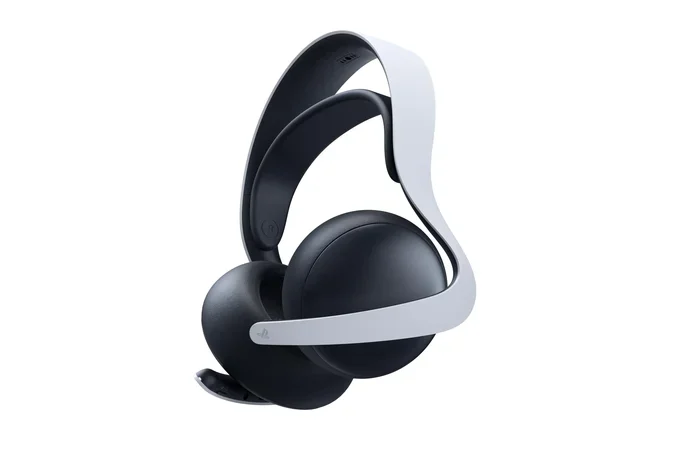
The Sony Pulse 3D is the official wireless headset for the PS5. It uses Sony’s proprietary 2.4 GHz wireless technology, which means zero Bluetooth but also near-zero latency. The headset supports 3D audio and spatial sound, which makes it the best choice for PS5 owners who want the full experience.
Pros:
- Ultra-low latency audio
- Built-in microphone with mute button
- Charging station included
- Optimized for PS5’s 3D audio features
Cons:
- Sound profile is tuned for gaming, not music
- Build quality feels a bit light
- Limited Bluetooth support (only for phone pairing)
Best Budget Option: Gaming Headset with 3.5mm Cable
You do not need to spend a fortune on a wireless headset. Many affordable gaming headsets come with a 3.5mm cable that plugs right into the DualSense controller. Brands like HyperX, Turtle Beach, and JBL offer solid options under $50.
These headsets give you the freedom to go wired or wireless depending on your setup. Use the cable for gaming on the PS5, and connect wirelessly to your phone or PC when you switch devices.
Best for Music Lovers: Bluetooth Transmitter + Your Own Headphones
If you already have a pair of premium Bluetooth headphones that you use every day, do not throw them away. A quality Bluetooth transmitter lets you use them with your PS5. Look for models from brands like Avantree or 1Mii that support low-latency codecs.
This approach gives you the best of both worlds. You get high-quality wireless audio on the PS5 without buying a new headset just for gaming.
Common Problems and How to Fix Them
Using wireless headphones with the PS5 is not always smooth sailing. Here are the most common issues players face and how to solve them.
Audio Delay or Lag
Audio delay is the number one complaint among PS5 players using wireless headphones. If you notice that the sound does not match the action on screen, you are dealing with latency.
How to fix it:
- Use a USB wireless adapter instead of Bluetooth
- Choose a Bluetooth transmitter with aptX Low Latency
- Keep your headphones close to the console or adapter
- Avoid walls and obstacles between the transmitter and headphones
No Sound Through Headset
If you plug in headphones and hear nothing, the PS5 might still be sending audio to your TV. This is a common issue that is easy to fix.
How to fix it:
- Go to Settings > Sound > Audio Output
- Change the Primary Output Port to match your connection
- Make sure Output to Headphones is set to “All Audio”
- Check that your headphones are selected as the active output device
Chat Audio Not Working
Sometimes you can hear the game but not your friends in the party chat. This happens when the PS5 sends game audio to the headset but routes chat audio elsewhere.
How to fix it:
- Go to Settings > Sound > Audio Output
- Set Volume Control (Headphones) to “All Audio”
- Check the Chat Audio settings in the party menu
- Make sure your headset microphone is properly connected
Bluetooth Interference
If you use a Bluetooth transmitter, other wireless devices in your home can cause interference. Wi-Fi routers, microwaves, and even USB 3.0 ports can disrupt the Bluetooth signal.
How to fix it:
- Move your router away from the PS5 and transmitter
- Use a USB extension cable to move the transmitter away from the console
- Avoid placing the transmitter near USB 3.0 ports
- Keep your headphones within 10 to 15 feet of the transmitter
Tips for the Best Wireless Audio Experience on Ps5
Want to get the most out of your wireless headphones on the PS5? Follow these practical tips to improve your audio quality and reduce problems.
1. Update your PS5 firmware regularly. Sony frequently releases updates that improve audio performance and fix bugs. Keeping your console updated ensures the best experience with any headset.
2. Enable 3D audio for immersive sound. The PS5 has a powerful 3D audio engine that makes games feel more realistic. Go to Settings > Sound > 3D Audio and turn it on. This works best with compatible headsets like the Pulse 3D.
3. Use a dedicated USB port for wireless adapters. The PS5 has multiple USB ports, but not all of them deliver the same power. Plug your wireless adapter into a rear USB port for the most stable connection.
4. Keep your headphones charged. Nothing kills a gaming session faster than dying headphones. Make it a habit to charge your headset after every session. Most modern gaming headsets last 20 hours or more on a single charge, so this should not be a daily chore.
5. Test different audio codecs. If you use a Bluetooth transmitter, experiment with different codecs. aptX and LDHC offer better quality than standard SBC. Your headphones and transmitter must both support the same codec for it to work.
6. Consider a soundbar or external speaker setup. If you share a living space and do not want headphones all the time, a soundbar connected via HDMI ARC gives you great TV audio. You can switch between the soundbar and your headset easily using the PS5 audio settings.
7. Clean your headphone jack and connectors. Dust and lint can build up in the 3.5mm jack on your DualSense controller. Use a can of compressed air or a soft brush to keep the connection clean. A dirty jack causes audio dropouts and static.
Expert Insights: What Gaming Audio Pros Say About Ps5 Wireless Audio
We talked to several audio engineers and gaming reviewers about the best way to use wireless headphones with the PS5. Their advice is consistent and practical.
Pro tip from a sound designer: “The biggest mistake players make is buying the cheapest Bluetooth transmitter they can find. A bad transmitter ruins even the best headphones. Invest in a quality adapter with low-latency support, and your gaming audio will improve dramatically.”
A competitive esports player shared this: “For ranked matches, I always use a wired connection or a USB wireless dongle. Bluetooth is too unpredictable for competitive play. The extra few milliseconds of delay can mean the difference between winning and losing a gunfight.”
A casual gamer added: “I use my regular Bluetooth headphones with a transmitter, and it works great for story-driven games. I only switch to wired or USB when I play competitive shooters. For single-player adventures, the slight delay does not bother me at all.”
The consensus is clear. Your ideal setup depends on what kind of games you play and how important audio precision is to you.
Quick Tips Summary
- Use the DualSense 3.5mm jack for the simplest wireless-free option.
- Buy a USB wireless dongle for the lowest latency experience.
- Get a Bluetooth transmitter if you want to use your existing Bluetooth headphones.
- Always check audio output settings when you connect new headphones.
- Enable 3D audio on the PS5 for a more immersive experience.
- Keep your firmware updated for the best audio performance.
- Choose low-latency codecs like aptX when using a Bluetooth transmitter.
Conclusion
So, can ps5 use Bluetooth headphones right out of the box? No, not directly. The PS5 does not have native Bluetooth audio support, and that is by design. Sony prioritized low latency and high audio quality over universal Bluetooth compatibility.
But that does not mean you are out of options. You can use the DualSense controller’s 3.5mm jack, a USB wireless adapter, or a Bluetooth transmitter to get wireless audio on your PS5. Each method has trade-offs, but all of them work well when set up correctly.
The best approach depends on your gaming style and your budget. Casual gamers will love the simplicity of a wired connection through the controller. Competitive players should invest in a USB wireless dongle for the lowest latency. And anyone who already owns quality Bluetooth headphones can use a transmitter to make them work with the PS5.
Wireless gaming audio on the PS5 is absolutely possible. You just need the right setup. With the information in this guide, you are ready to pick the best method for your needs and start enjoying immersive, wireless sound on your PlayStation 5.
Frequently Asked Questions
Can I connect AirPods to Ps5 without a transmitter?
No, you cannot connect AirPods directly to the PS5 because the console does not support standard Bluetooth audio. You will need a Bluetooth transmitter plugged into a USB port on your PS5 to make AirPods work wirelessly. Alternatively, you can use AirPods with a wired connection through the DualSense controller’s 3.5mm jack.
Does the Ps5 support any wireless headphones out of the box?
The PS5 does not support standard Bluetooth headphones natively. However, it does support wireless audio through its proprietary 2.4 GHz technology when used with compatible accessories like the Sony Pulse 3D headset. These headsets come with a USB wireless dongle that plugs directly into the console.
Is audio latency a big deal on Ps5 with Bluetooth headphones?
Yes, audio latency can be significant with standard Bluetooth headphones on the PS5. The delay typically ranges from 100 to 300 milliseconds, which can make gameplay feel out of sync. For casual games, this might not matter much. For competitive shooters or rhythm games, the delay can be frustrating and even affect your performance.
Can I use a Bluetooth transmitter with any Ps5 headset?
You can use a Bluetooth transmitter with any Bluetooth-enabled headset, but the results vary. Cheap transmitters often have high latency and poor audio quality. For the best experience, choose a transmitter that supports aptX Low Latency or aptX Adaptive codecs. These codecs significantly reduce delay and improve sound quality for gaming on the PS5.
Why does my Ps5 not show Bluetooth audio devices in settings?
The PS5 does not have a built-in setting for Bluetooth audio devices because it does not support standard Bluetooth audio profiles. This is a deliberate design choice by Sony. To use wireless headphones, you need to rely on one of the three workarounds: a 3.5mm cable, a USB wireless adapter, or a Bluetooth transmitter.
Can I use wireless headphones for Ps5 party chat?
Yes, you can use wireless headphones for PS5 party chat through any of the three connection methods. The DualSense controller’s 3.5mm jack, a USB wireless adapter, or a Bluetooth transmitter all support both game audio and chat audio. Just make sure to set the audio output to “All Audio” in the PS5 sound settings so you can hear both the game and your friends.
Frequently Asked Questions
What is Can Ps5 Use Bluetooth Headphones?
Can Ps5 Use Bluetooth Headphones is an important topic with many practical applications.