Can I Install Canon Printer Without Cd Complete Guide
Yes, you can absolutely install Canon printer without CD. Modern Canon printers support driver downloads from the official Canon website, USB setup, and wireless installation. This guide walks you through every method step by step, covering Windows, Mac, and wireless setups. You will also find quick tips, common mistakes to avoid, and expert insights to make your Canon printer setup smooth and hassle-free.
Have you just unboxed a brand new Canon printer and realized there is no CD in the box? You are not alone. Many people wonder whether they can still set up their printer without that little disc. The good news is that you absolutely can. In fact, installing a Canon printer without CD has become the standard way to get things running. This guide will show you exactly how to do it.
Canon stopped including CDs with most of their printers a few years ago. They now rely on digital downloads and automatic driver detection. This shift makes sense because it saves costs and keeps drivers up to date. Whether you use Windows, Mac, or want a wireless connection, you have several options at your fingertips. Let us walk through each one together.
Key Takeaways
- No CD Needed: You can download Canon printer drivers directly from the Canon website or use the included USB cable for automatic setup.
- Multiple Methods Available: Choose from USB installation, wireless setup, or manual driver download depending on your device and preference.
- Works on All Operating Systems: Canon supports driver downloads for Windows, Mac, and even some mobile devices.
- Quick and Easy: Most installations take less than 15 minutes when you follow the right steps.
- Troubleshooting Helps: Common issues like driver conflicts and connection errors have simple fixes.
- Keep Drivers Updated: Regular updates improve performance and prevent setup problems in the future.
📑 Table of Contents
Why You Don’t Need a CD Anymore
The days of popping a disc into your computer are fading fast. Canon recognized this shift early and adapted their setup process accordingly. Today, Canon printer setup relies on internet-based driver downloads and software packages. Here is why this change benefits you as a user.
Faster and More Convenient
Downloading a Canon printer driver takes just a few minutes. You do not need to hunt for a disc drive or worry about scratches on the CD. Everything is available online at the Canon support page. You simply visit the website, enter your printer model, and download the correct file.
Always Up to Date
When Canon ships a printer with a CD, the software on that disc can be outdated. By downloading drivers online, you always get the latest version. This means better compatibility with your operating system and fewer bugs during printer installation. Updated drivers also improve print quality and speed.
Environmentally Friendly
Skipping the CD reduces plastic waste and packaging material. It is a small change, but it adds up when millions of printers are sold each year. Many users appreciate that Canon has moved toward a more eco-friendly approach.
How to Install Canon Printer Without CD
There are three main ways to install your Canon printer without a CD. Each method works well for different situations. Let us explore all three so you can choose the one that fits your needs best.
Method 1: USB Connection and Automatic Setup
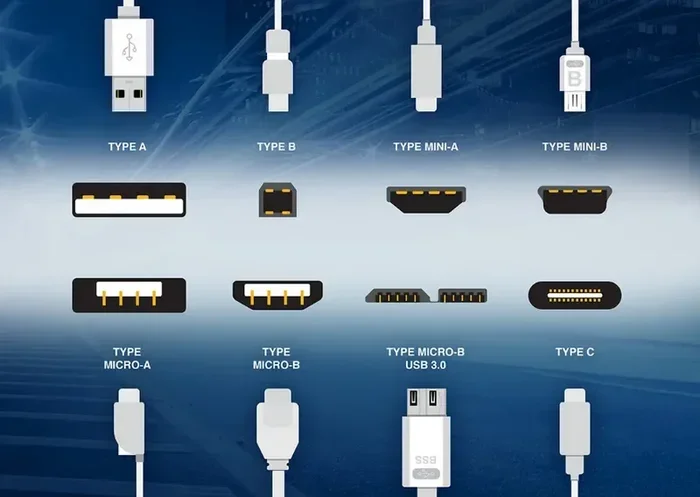
This is the easiest method for most users. You connect your printer to your computer using a USB cable, and the system detects the device automatically.
- Unbox your Canon printer and plug it into a power source.
- Install the ink cartridges and load paper into the tray.
- Turn on the printer and connect it to your computer using a USB cable.
- Go to the Canon official support website on your computer.
- Enter your printer model number in the search bar.
- Download the correct driver for your operating system.
- Run the installer and follow the on-screen prompts.
- Wait for the setup to complete and print a test page.
This method works great for both Windows and Mac users. The USB cable handles the communication between your printer and computer during the initial setup. Once the driver is installed, you can switch to wireless if you prefer.
Method 2: Download Drivers from the Canon Website
If you do not have a USB cable or prefer a wireless setup from the start, downloading drivers directly is your best bet.
- Find your Canon printer model number. It is usually printed on the front or back of the device.
- Visit canon.com and navigate to the Support section.
- Type your model number into the search field.
- Select your operating system from the dropdown menu.
- Download the full driver and software package.
- Open the downloaded file and follow the installation wizard.
- Choose your connection type (USB or wireless).
- Complete the setup and test your printer.
The Canon printer driver package includes everything you need. It contains the main driver, scanning software, and utility tools. This method gives you full control over what gets installed on your computer.
Method 3: Use the Canon Print App
For mobile users or those who want a quick setup, the Canon Print App is a great option. This app is available for both iOS and Android devices.
- Download the Canon Print App from the App Store or Google Play Store.
- Make sure your phone and printer are on the same Wi-Fi network.
- Open the app and select Add Printer.
- The app will search for available Canon devices.
- Select your printer and follow the pairing instructions.
- Start printing directly from your mobile device.
This method is perfect for users who primarily print from their phones or tablets. It also supports scanning and ink level monitoring right from your device.
Setting Up Canon Printer on Windows
Windows users have a straightforward path to get their Canon printer running. The operating system includes built-in tools that make printer installation smooth and painless. Let us walk through the process step by step.
Step-by-Step Windows Setup
- Visit the Canon support page and search for your printer model.
- Select Windows as your operating system.
- Download the Full Driver and Software Package.
- Open the downloaded file and click Run.
- Follow the on-screen instructions carefully.
- Choose your connection type when prompted.
- Allow Windows to complete the installation.
- Print a test page to confirm everything works.
Using Windows Device Manager
If the automatic setup does not work, you can try using Device Manager. This tool helps you manage hardware connections on your computer. Sometimes a driver conflict can prevent your printer from being recognized. Opening Device Manager and updating the driver manually often resolves these issues. Simply right-click the Start button, select Device Manager, and look for your printer under Print Queues.
Quick Tip: Always restart your computer after installing new drivers. This ensures all changes take effect properly and prevents connection issues later.
Setting Up Canon Printer on Mac
Mac users also have a simple and reliable way to install their Canon printer without a CD. Apple computers support wireless printer setup natively, which makes the process even easier. Here is how to get your Canon printer working on macOS.
Manual Driver Installation on Mac
- Go to canon.com and find your printer model.
- Select macOS as your operating system.
- Download the Mac-compatible driver package.
- Open the downloaded file and run the installer.
- Follow the prompts to complete the installation.
- Go to System Preferences and select Printers & Scanners.
- Click the Plus button to add your Canon printer.
- Select your printer from the list and click Add.
Using AirPrint for Wireless Setup
Many Canon printers support Apple AirPrint. This feature lets you print wirelessly from any Apple device without installing extra software. To use AirPrint, make sure your printer and Mac are connected to the same Wi-Fi network. Then, open any document, tap the Share button, and select Print. Your Canon printer should appear in the list of available printers.
Expert Insight: Apple devices automatically detect compatible printers on the same network. This means you often do not need to download any drivers at all. Just make sure your Canon printer firmware is up to date for the best AirPrint experience.
Wireless Setup Without a CD
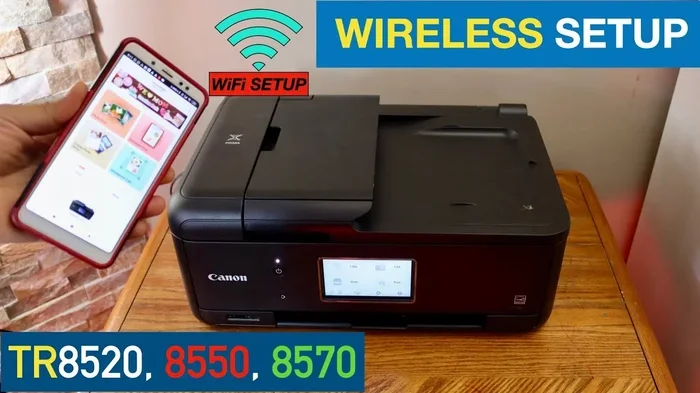
Setting up your Canon printer wirelessly is a great way to avoid cables altogether. Most modern Canon printers come with Wi-Fi built in. You can connect your printer to your home network and print from any device in your house. Here is how to do it without a CD.
Using the WPS Push Method
The WPS Push method is the fastest way to connect your Canon printer to Wi-Fi. You need a router that supports WPS (Wi-Fi Protected Setup).
- Turn on your Canon printer and press the Wi-Fi button.
- Wait for the wireless lamp to start blinking.
- Go to your router and press the WPS button.
- Wait about two minutes for the connection to establish.
- The Wi-Fi lamp on your printer will stop blinking when connected.
Using the Canon IJ Network Tool
The Canon IJ Network Tool helps you configure your printer’s network settings. You can download it from the Canon website alongside your printer driver. This tool is especially useful if you need to change your Wi-Fi password or troubleshoot connection problems. It provides a simple interface to manage all your network settings in one place.
Comparison: USB vs Wireless Setup
| Feature | USB Setup | Wireless Setup |
|---|---|---|
| Speed | Fast and stable | Convenient but depends on signal |
| Cable Required | Yes | No |
| Device Flexibility | One computer at a time | Multiple devices |
| Setup Complexity | Very simple | Moderate |
| Mobility | Limited | High |
Both methods work well for Canon printer setup. USB is ideal for single-computer setups and offers the most reliable connection. Wireless setup is better for households with multiple devices and users who want the freedom to print from anywhere.
Troubleshooting Common Installation Issues
Even with the simplest setup, you might run into occasional hiccups. Do not worry. Most common problems have easy solutions. Here are the issues you might face and how to fix them.
Printer Not Recognized by Computer
If your computer does not detect the printer, try these steps. First, check that the USB cable is securely connected. If you are using wireless, make sure both devices are on the same network. Restarting both the printer and the computer often resolves detection issues. You can also try uninstalling and reinstalling the Canon printer driver from scratch.
Driver Installation Fails
Driver installation failures are more common than you might think. They usually happen when an older driver version is already on your system. To fix this, go to your Control Panel or System Preferences and remove any old Canon printer entries. Then restart your computer and try the installation again. Downloading the latest driver from the Canon website also helps prevent this problem.
Wi-Fi Connection Keeps Dropping
Wireless connection drops can be frustrating. The most common cause is a weak Wi-Fi signal. Try moving your printer closer to the router. You should also check if your router’s firmware is up to date. Changing the Wi-Fi channel on your router can reduce interference from neighboring networks.
Common Mistakes to Avoid:
- Downloading the wrong driver for your operating system version.
- Skipping the restart after driver installation.
- Connecting the USB cable before running the installer.
- Ignoring firmware update notifications from Canon.
- Installing multiple driver versions that conflict with each other.
Expert Tips for Smooth Canon Printer Installation
A little preparation goes a long way when setting up a new printer. These expert tips will help you avoid common pitfalls and get your Canon printer setup done right the first time.
Check Your Internet Connection First
Before you start downloading drivers, make sure your internet connection is stable. A weak connection can cause incomplete downloads or corrupted files. If possible, use a wired connection during the download process. This ensures you get the full and correct driver package.
Keep Your Printer Model Number Handy
Every Canon printer has a unique model number. You will need this number to find the correct driver on the Canon website. Write it down or take a photo of it before you start. Searching for the wrong model can lead to downloading incompatible software.
Update Your Operating System
Running an outdated operating system can cause compatibility issues with new printers. Before you begin the printer installation, check for any available Windows or macOS updates. Installing these updates ensures your system can communicate properly with the latest Canon drivers.
Use the Canon Support Page, Not Third-Party Sites
Always download drivers from canon.com or the official Canon support page. Third-party websites may offer outdated or even malicious software. The official Canon site guarantees you get the correct and safest version of every driver.
Register Your Printer
After installation, consider registering your printer on the Canon website. This gives you access to warranty support, firmware updates, and exclusive offers. It also helps Canon provide better customer service if you ever need assistance.
Quick Tip: Bookmark the Canon support page after your first setup. You will need it again when updating drivers or downloading the Canon IJ Scan Utility and other helpful tools.
Final Thoughts
Installing a Canon printer without CD is simple, fast, and the recommended way to get started. Whether you choose USB setup, wireless configuration, or mobile printing, you have everything you need at your fingertips. The days of relying on a disc are over, and the digital approach is far better for everyone.
Remember to always download drivers from the official Canon website. Keep your printer firmware updated regularly. And do not hesitate to use the troubleshooting tips if something does not go as planned. With the right approach, your Canon printer setup will be up and running in no time.
Take a few minutes to explore all the features your new printer offers. From the Canon IJ Scan Utility to the Canon Print App, there is a lot of value waiting for you. Enjoy your new printer and happy printing!
Frequently Asked Questions
Can I install a Canon printer without using a CD or USB cable?
Yes, you can. If your Canon printer supports Wi-Fi, you can set it up wirelessly using the WPS method or the Canon IJ Network Tool. You simply need to download the driver from the Canon website and follow the wireless setup prompts. This method works best when both your printer and computer are on the same Wi-Fi network.
Where can I find the Canon printer driver for my model?
Go to canon.com and navigate to the Support section. Enter your printer model number in the search bar. Select your operating system from the dropdown menu. The site will display the correct driver and software package for your device. Always download from the official Canon website to ensure safety and compatibility.
What should I do if the Canon printer driver download fails?
First, check your internet connection and try again. If the download still fails, clear your browser cache and attempt a fresh download. You can also try using a different browser or downloading the file on a different device and transferring it via USB. Make sure you are selecting the correct driver for your specific operating system version.
Is it safe to download Canon printer software from the official website?
Absolutely. The Canon official website is the safest and most reliable source for printer drivers and software. Downloading from third-party sites can expose your computer to malware or outdated software. Canon’s support page guarantees authentic, virus-free drivers tailored to your specific printer model.
Can I use my Canon printer with both Windows and Mac computers?
Yes, Canon provides drivers for both Windows and Mac operating systems. You simply need to download the correct version for each computer from the Canon support page. The installation process is slightly different on each platform, but both are straightforward and well-documented on the Canon website.
How often should I update my Canon printer driver?
It is a good practice to check for driver updates every few months. Canon releases updates that fix bugs, improve performance, and add new features. You can set a reminder to visit the Canon support page quarterly. Updating your driver regularly keeps your printer running smoothly and prevents compatibility issues with new operating system updates.
=== CONCLUSION ===
Setting up a Canon printer without CD is easier than most people think. You have multiple paths to choose from, including USB setup, wireless configuration, and mobile printing. Each method is straightforward and well-supported by Canon’s online resources. By downloading the right driver from the official Canon website, you ensure a safe and up-to-date installation every time.
Remember the key steps: find your model number, download the correct driver, follow the installation prompts, and test your printer. Avoid common mistakes like skipping restarts or using third-party download sites. With a little patience, your Canon printer will be ready to go in just minutes. Apply what you learned from this guide, and enjoy a seamless Canon printer setup experience every time.