Can I Connect My Xbox 360 to My Laptop Through HDMI
Yes, you can connect your Xbox 360 to your laptop through HDMI, but it requires the right setup and a laptop with HDMI input capabilities. This guide walks you through every step, from checking your ports to troubleshooting common issues, so you can start gaming on a bigger screen without any hassle.
Key Takeaways
- HDMI Input Matters: Most laptops only have HDMI output, not input, so you may need a capture card or special adapter.
- Capture Cards Are Key: A USB capture card is the most reliable way to get your Xbox 360 display on a laptop screen.
- Check Your Ports First: Before buying any gear, confirm what ports your laptop and Xbox 360 actually have.
- Audio Works Too: HDMI carries both video and audio, so you get sound alongside your picture.
- Settings Need Tweaking: You will likely need to adjust your display and Xbox 360 resolution settings for the best experience.
- Quick Tips Save Time: Small prep steps like updating drivers and using the right cables prevent most common problems.
📑 Table of Contents
- Can I Connect My Xbox 360 to My Laptop Through HDMI?
- Understanding HDMI and How It Works
- What You Need Before You Start
- Method 1: Using a USB HDMI Capture Card
- Method 2: Using an HDMI Adapter or Converter
- Setting Up Your Display and Audio
- Common Problems and How to Fix Them
- Expert Tips for the Best Experience
- Is It Worth It? Pros and Cons
- Final Thoughts
Can I Connect My Xbox 360 to My Laptop Through HDMI?
So, you want to play your Xbox 360 on your laptop screen. Maybe your TV is taken, or you are traveling and want to game on the go. Whatever the reason, the question is simple: can I connect my Xbox 360 to my laptop through HDMI?
The short answer is yes, but there is a catch. Most laptops are designed to output video, not receive it. That means your standard HDMI port on a laptop sends a signal out to a monitor, not the other way around. However, there are workarounds, tools, and clever setups that make it totally possible. In this guide, we will walk you through everything you need to know, step by step.
We will cover what you need to check before you start, the best methods to make it work, common mistakes to avoid, and expert tips to get the smoothest experience. Whether you are a casual gamer or a dedicated Xbox fan, this guide has you covered.
Understanding HDMI and How It Works
Before you plug anything in, it helps to understand a little bit about how HDMI actually works. HDMI stands for High-Definition Multimedia Interface. It is a single cable that carries both high-quality video and audio from one device to another.
Here is the important part. HDMI signals travel in one direction. A device like a Blu-ray player or a gaming console sends a signal out. A device like a TV or monitor receives it. Your laptop, in most cases, is a sender, not a receiver. Its HDMI port pushes video out to a display, it does not pull video in from another device.
This is why simply plugging an HDMI cable from your Xbox 360 into your laptop will not work in most situations. You need a way to make your laptop accept an incoming HDMI signal. Let us look at how to do that.
HDMI Output vs. HDMI Input
Think of it like a water pipe. An HDMI output pushes water (video and audio) out. An HDMI input lets water flow in. Most laptops only have output pipes. A few specialized laptops, like certain Alienware or ROG models, actually have HDMI input ports built in. If you are lucky enough to own one of those, you are already halfway there.
To check if your laptop has an HDMI input, look at your owner’s manual or search online for your specific laptop model and specs. If it says HDMI input, you can connect directly. If it only says HDMI output, you will need a capture card or adapter.
What You Need Before You Start
Setting up your Xbox 360 with your laptop requires a few pieces of equipment. Let us go through the essentials so you are not stuck halfway through the process.
Step 1: Check Your Xbox 360 Ports
Your Xbox 360 has an HDMI output port on the back. This is where the signal comes from. Make sure you have the right HDMI cable. Most Xbox 360 S and E models come with an HDMI cable in the box. If yours does not, you can grab a standard HDMI cable from any electronics store.
Here is a quick checklist of what your Xbox 360 needs:
- HDMI output port on the console
- A working HDMI cable
- Power supply for the console
Step 2: Check Your Laptop Ports
Now, flip over your laptop. Look at the sides. Do you see an HDMI port? If so, is it labeled as input or output? Most of the time, it will just say HDMI without specifying direction.
If your laptop does not have an HDMI port at all, do not worry. You can still use a USB capture card, which we will cover in detail below. Some laptops also have DisplayPort or USB-C ports that can be adapted for this purpose.
Step 3: Gather Your Extras
Depending on your setup, you might need one or more of the following items:
- USB HDMI capture card (most common solution)
- HDMI adapter if your laptop uses a non-standard port
- External speakers or headphones if you want better audio
- A clean, flat workspace for a comfortable setup
Having all your gear ready before you start makes the process much smoother. It is like cooking, you want everything measured out before you turn on the stove.
Method 1: Using a USB HDMI Capture Card
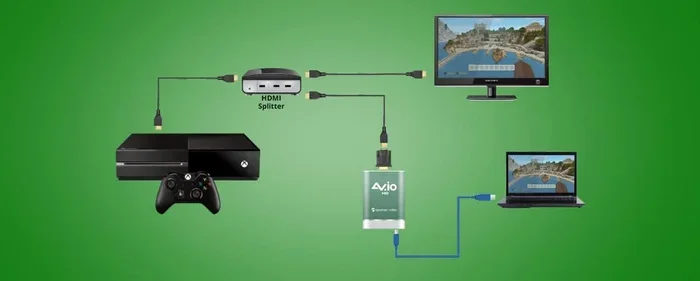
This is the most popular and reliable method for connecting an Xbox 360 to a laptop. A capture card acts as a bridge. It takes the HDMI signal from your console and converts it into a format your laptop can read through USB.
How a Capture Card Works
A capture card has an HDMI input side and a USB output side. You plug your Xbox 360’s HDMI cable into the capture card, and then plug the capture card into your laptop. The laptop sees the capture card as a video source, just like a webcam.
Popular capture cards include brands like Elgato, AVerMedia, and generic brands available on Amazon. You do not need an expensive one for basic gaming. A simple USB 3.0 capture card works great for Xbox 360 resolutions.
Step-by-Step Setup
Here is how to set it up in plain language:
- Plug the HDMI cable from your Xbox 360 into the HDMI input on the capture card.
- Connect the capture card to a USB port on your laptop.
- Turn on your Xbox 360.
- On your laptop, open your camera or capture software. Most laptops will recognize the capture card automatically.
- Adjust the display settings to see the Xbox 360 screen on your laptop.
That is it. You should now see your Xbox 360 home screen on your laptop. The picture quality depends on your capture card’s capabilities, but for casual gaming, it works wonderfully.
Choosing the Right Capture Card
Not all capture cards are created equal. Here are a few things to keep in mind when picking one:
- USB 3.0 or higher ensures smooth video without lag.
- 1080p support is plenty for Xbox 360, which maxes out at 1080p.
- Low latency means less delay between pressing a button and seeing the action.
- Good software that comes bundled makes setup easier.
One thing that really helps is keeping your laptop drivers updated. Outdated USB drivers can cause display issues or crashes. A quick update before you start can save you a lot of headaches.
Method 2: Using an HDMI Adapter or Converter
If you do not want to use a capture card, another option is an HDMI-to-USB adapter or an HDMI input converter. These devices work similarly but may be more compact or affordable.
Some adapters plug directly into your laptop’s USB port and provide an HDMI input. They are simple to use and do not require extra software in many cases. However, they may not offer the same video quality or low lag as a dedicated capture card.
Here is a quick comparison of the two methods:
| Feature | Capture Card | HDMI Adapter |
|---|---|---|
| Video Quality | High (1080p or better) | Good (varies by model) |
| Latency | Low to moderate | Moderate to high |
| Price Range | $20 to $150+ | $10 to $50 |
| Ease of Setup | Moderate | Easy |
| Audio Support | Yes, usually | Yes, usually |
| Software Needed | Sometimes | Rarely |
Both methods get the job done. If you want the best experience, go with a capture card. If you want a quick and cheap solution, try an HDMI adapter first.
Setting Up Your Display and Audio
Once your Xbox 360 is connected to your laptop, you need to adjust a few settings to get the best experience. This part is easier than it sounds, and we will walk you through it.
Adjusting Display Settings on Your Laptop
After connecting the capture card or adapter, your laptop should detect a new display source. Here is what to do:
- Right-click on your desktop and select Display Settings.
- Look for the new display option that appeared.
- Set it to Extend or Duplicate depending on your preference.
- Adjust the resolution to match your Xbox 360 output (720p or 1080p).
If the screen looks blurry or cut off, try changing the resolution in your Xbox 360 settings. Go to Settings > Display on your console and adjust from there.
Getting Audio Through HDMI
One of the great things about HDMI is that it carries audio too. Once connected, your laptop should output sound from the Xbox 360 through the same connection. Here is how to make sure it works:
- Right-click the speaker icon in your taskbar.
- Select Open Sound Settings.
- Under Output, choose the capture card or HDMI device.
- Adjust the volume as needed.
Some users find the audio slightly delayed compared to the video. If this happens, try adjusting the audio delay settings in your capture software. Most capture card programs have a built-in sync feature.
Common Problems and How to Fix Them
No tech setup is perfect on the first try. Here are the most common issues people run into and how to solve them.
No Signal on the Laptop Screen
If you see a black screen, do not panic. This is the most common issue. Try these fixes:
- Check that all HDMI cables are firmly plugged in.
- Make sure your Xbox 360 is turned on and showing a picture on another screen (if available).
- Restart your laptop and the capture card software.
- Try a different USB port on your laptop.
- Update your capture card drivers.
Lag or Delay in the Picture
Lag can ruin your gaming experience. Here is how to reduce it:
- Use a USB 3.0 port instead of USB 2.0.
- Close unnecessary programs running in the background.
- Lower the resolution in your Xbox 360 settings.
- Make sure your laptop is plugged in and not running on battery power.
No Sound
If the picture is clear but there is no audio, try this:
- Check your sound output settings and make sure the correct device is selected.
- Test your HDMI cable with another device to rule out a faulty cable.
- Update your audio drivers on your laptop.
Expert Tips for the Best Experience
We have gathered some pro tips that make a real difference when using your Xbox 360 with a laptop. These small changes can turn a frustrating setup into a smooth one.
First, keep your laptop plugged in while gaming. The extra power prevents throttling and keeps your system running smoothly. Second, elevate your laptop with a stand or cooling pad. Xbox 360 games can push your laptop hard, and good airflow prevents overheating.
Third, consider using a wireless controller. The Xbox 360 wireless adapter works great and keeps your setup clutter-free. If you are into handy gadgets that make tech setups easier, check out our guide on 10 Gadgets To Make Moms Life Easier for inspiration on organizing your tech space. Even if you are not a parent, the tips on cable management and device organization apply to any gaming setup.
Fourth, keep your capture card software updated. Manufacturers regularly release updates that improve compatibility and reduce lag. Finally, give your laptop some breathing room. Do not pile blankets or papers around the vents while you are gaming for long sessions.
Is It Worth It? Pros and Cons
Let us be honest. Connecting your Xbox 360 to your laptop through HDMI has some real benefits, but it also comes with trade-offs. Here is a balanced look:
- Pros: You can game anywhere without a TV. It saves space in small rooms. You can record or stream your gameplay directly. It is a great travel setup.
- Cons: Laptop screens are smaller than TVs. Some setups add input lag. Capture cards cost extra money. Your laptop may overheat during long sessions.
For many people, the convenience outweighs the downsides. If you are in a dorm room, a hotel, or just prefer the intimacy of a smaller screen, this setup works great.
Final Thoughts
So, can I connect my Xbox 360 to my laptop through HDMI? Absolutely. The key is understanding that most laptops need a little help in the form of a capture card or HDMI adapter. Once you have the right equipment and follow the setup steps, you will be gaming on your laptop screen in no time.
Remember to check your ports first, choose the right method for your needs, and troubleshoot patiently if something does not work right away. The tech community is always sharing fixes and tips, so do not hesitate to look up your specific laptop model online if you hit a roadblock.
Now that you know how to make this connection work, you can enjoy your favorite Xbox 360 games on a portable screen whenever and wherever you want. Happy gaming!
Also, if you love finding clever ways to use your tech gear, you might enjoy our article on 10 Gadgets To Make Moms Life Easier for more creative ideas on getting the most out of your devices. And for more tech tips and tricks, stay tuned to our site for regular updates.
Frequently Asked Questions
Can any laptop accept an HDMI input from an Xbox 360?
No, most laptops only have HDMI output ports. You will need a USB HDMI capture card or an HDMI input adapter to receive the signal from your Xbox 360 on a laptop screen.
Do I need a special HDMI cable to connect my Xbox 360 to my laptop?
No, a standard HDMI cable works fine. The Xbox 360 uses a regular HDMI output, and your capture card or adapter will handle the rest. Just make sure the cable is not damaged or frayed.
Will connecting my Xbox 360 to my laptop cause lag?
There may be slight input lag depending on your setup. Using a USB 3.0 capture card and closing background programs helps minimize lag significantly. A wired connection is always more stable than wireless for this purpose.
Can I use my Xbox 360 wireless controller with a laptop?
Yes, you can. You need the Xbox 360 wireless adapter for Windows, or you can use a USB cable to connect your controller directly to the laptop. Both methods work well for gaming on a laptop screen.
What resolution should I set my Xbox 360 to for laptop gaming?
Setting your Xbox 360 to 720p or 1080p works best for most laptop screens. Match the resolution to your laptop’s native display resolution for the clearest picture. You can change this in the Xbox 360 display settings.
Is it safe to run my Xbox 360 and laptop for long gaming sessions?
Yes, it is generally safe. Just make sure your laptop has good ventilation and is placed on a hard, flat surface. Using a cooling pad can help prevent overheating during extended play sessions.
=== CONCLUSION ===
Connecting your Xbox 360 to your laptop through HDMI is absolutely doable with the right tools and a little patience. Whether you choose a USB capture card or an HDMI adapter, the process is straightforward and opens up a world of portable gaming possibilities. Remember to check your ports, set up your display and audio correctly, and troubleshoot any issues that come up along the way. With the tips and guidance in this article, you are well on your way to enjoying your favorite Xbox 360 games on your laptop screen anytime you want. Happy gaming!