How Do I Access My Netgear Wifi Extender Settings Guide
Accessing your Netgear wifi extender settings is simple once you know the right method. You can log in through mywifiext, your browser’s address bar, or the Nighthawk app. This guide walks you through every step with clear instructions.
Have you ever set up a Netgear wifi extender and then wondered how to tweak its settings? Maybe your signal is still weak in certain rooms, or you want to change your network name. Whatever the reason, knowing how to access your extender settings gives you full control over your home network. This guide breaks down every method in simple, easy-to-follow steps.
A wifi range extender boosts your existing signal and sends it to areas with poor coverage. But to get the best results, you need to configure it properly. Whether you are a tech beginner or someone who just needs a quick refresher, you will find everything you need right here. Let us dive in.
Key Takeaways
- mywifiext.net is the easiest way to reach your Netgear extender settings page.
- Default gateway access works when mywifiext fails or isn’t available.
- The Netgear Nighthawk app lets you manage settings from your phone.
- Correct placement of your extender affects signal strength and settings performance.
- Updating extender firmware regularly keeps your network secure and fast.
- Common login issues like incorrect passwords can be fixed quickly.
📑 Table of Contents
- What Is a Netgear Wifi Extender and Why Access Its Settings?
- How to Access Netgear Extender Settings via mywifiext
- Accessing Settings Through the Default Gateway
- Using the Netgear Nighthawk App for Settings
- Common Issues When Accessing Netgear Extender Settings
- Optimizing Your Netgear Extender Settings for Best Performance
- When to Consider Alternatives to a Wifi Extender
- Final Thoughts on Accessing Your Netgear Wifi Extender Settings
What Is a Netgear Wifi Extender and Why Access Its Settings?
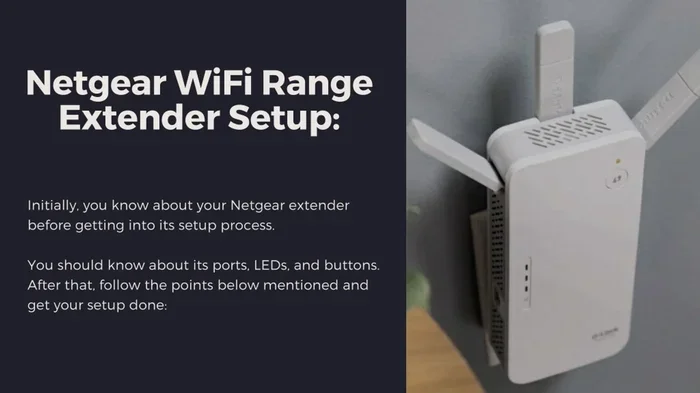
A Netgear wifi extender is a small device that receives your router’s signal and rebroadcasts it. Think of it as a messenger that carries your wifi signal to dead zones. These devices are affordable, easy to set up, and can make a huge difference in your home.
But here is the thing. Once you plug it in, the default settings may not be ideal for your home. You might need to change the network name, set a new wifi password, or adjust the channel. That is where accessing the settings comes in. Without logging in, you are stuck with whatever the factory defaults give you.
Accessing your extender settings also lets you update firmware. Firmware updates fix bugs, improve performance, and patch security holes. If you have ever noticed your extender acting weird, an outdated firmware could be the culprit. So, logging in regularly is a smart habit.
If you are also considering whether to use your own equipment, check out our guide on Can I Have My Own Personal Wifi Router to understand your options better.
How to Access Netgear Extender Settings via mywifiext
The most popular way to reach your Netgear extender settings is through mywifiext.net. This is a local web address that only works when your device is connected to the extender. It is fast, simple, and does not require any technical knowledge.
Step-by-Step Instructions
Follow these steps to log in using mywifiext:
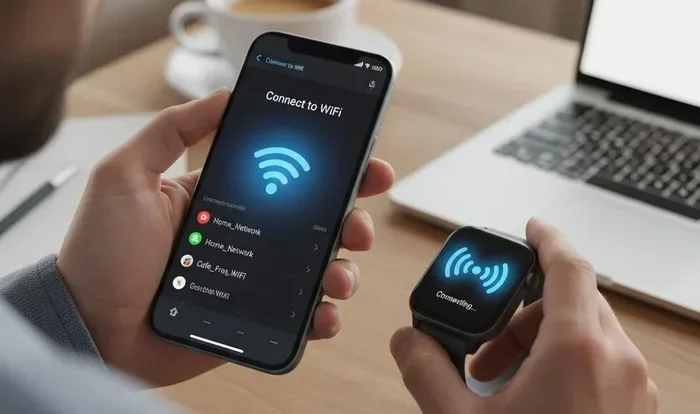
- Connect your device to the extender. You can do this through the default wifi network. Look for a network name that starts with “NETGEAR_EXT.”
- Open your web browser. Chrome, Firefox, Safari, or Edge all work fine.
- Type mywifiext.net into the address bar and press Enter.
- Wait for the login page to load. You should see the Netgear genie setup screen.
- Enter the default password. The default is usually “password” or “admin.” Check the label on the bottom of your extender if these do not work.
- Click Log In and you will be taken to the settings dashboard.
Once inside, you can change your wifi network name, set a new password, and adjust the signal strength. The interface is clean and beginner-friendly. You do not need to be a tech expert to navigate it.
One quick tip: if mywifiext.net does not load, do not panic. This happens more often than you think. Move to the next section for an alternative method.
Troubleshooting mywifiext Login Issues
Sometimes the mywifiext page refuses to load. Here are a few quick fixes:
- Check your connection. Make sure your device is actually connected to the extender’s network, not your router.
- Disable your VPN. VPNs can block local addresses like mywifiext.net.
- Clear your browser cache. Old cached data can interfere with the page loading.
- Try a different browser. Some browsers handle local addresses better than others.
- Restart the extender. Unplug it, wait 30 seconds, and plug it back in.
These simple steps solve the problem in most cases. If nothing works, the default gateway method is your next best option.
Accessing Settings Through the Default Gateway
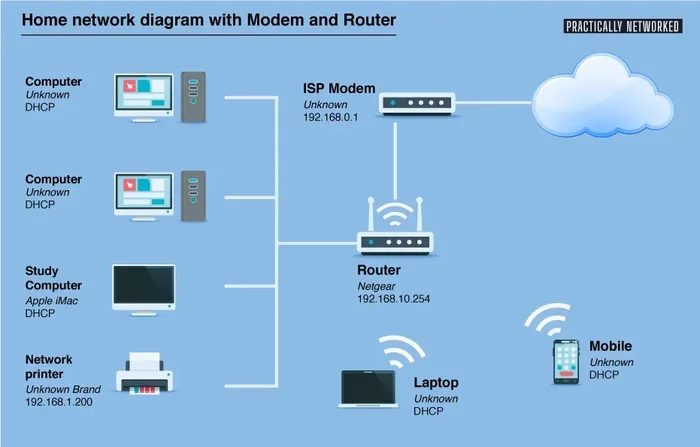
The default gateway method is a reliable backup. It uses your computer’s network settings to find the extender’s IP address. This works even when mywifiext.net fails.
Finding Your Extender’s IP Address
Here is how to find and use the default gateway:
- Connect your computer to the extender’s wifi network.
- Open Command Prompt on Windows or Terminal on Mac.
- Type “ipconfig” (Windows) or “netstat -nr” (Mac) and press Enter.
- Look for the Default Gateway address. It usually looks like 192.168.1.2 or 192.168.0.1.
- Type that IP address into your browser’s address bar.
- Log in with your admin credentials.
This method gives you direct access to the extender configuration page. From there, you can adjust all the same settings as with mywifiext. The only difference is the URL you use to get there.
One thing to keep in mind: every Netgear extender model has a slightly different default IP. Check your user manual or the sticker on the device to confirm. Writing it down for future reference is a great idea.
Why the Default Gateway Method Works
The default gateway is essentially the address your device uses to communicate with the extender. It is like a backdoor that always works, even when the mywifiext shortcut does not. This is especially helpful when you are setting up the extender for the first time and the default network name is not showing up.
Using the Netgear Nighthawk App for Settings
If you prefer managing your network from your phone, the Netgear Nighthawk app is a fantastic option. It works with most modern Netgear extenders and gives you full control from the palm of your hand.
Setting Up the App
Getting started is straightforward:
- Download the Nighthawk app from the App Store or Google Play.
- Open the app and create a Netgear account or sign in.
- Connect your phone to the extender’s wifi network.
- Tap “Add Device” and follow the on-screen prompts.
- Access your settings from the home dashboard.
The app lets you change your wifi network name, update passwords, run speed tests, and check firmware status. It also sends notifications when updates are available. This is especially useful for people who want to manage their network without sitting at a computer.
The Nighthawk app is particularly handy when you need to adjust settings on the fly. For example, if guests are coming over and you want to share your wifi password, you can do it right from your phone.
App vs Browser: Which Is Better?
Both methods give you the same core settings. The app is more convenient for quick changes, while the browser interface offers more detailed options. Power users tend to prefer the browser method because it shows advanced settings like channel selection and bandwidth configuration. Casual users will find the app more than enough for everyday needs.
For those exploring alternative ways to boost their home network, you might also want to read about Can I Add Mesh Wifi To Existing Router to see if a mesh system could complement your extender setup.
Common Issues When Accessing Netgear Extender Settings
Even with clear instructions, things can go wrong. Here are the most common problems people face and how to fix them.
Page Will Not Load
If mywifiext.net or your default gateway address will not load, the issue is usually one of these:
- Wrong network connection. Your device must be connected to the extender, not the router.
- Typo in the URL. Make sure you type mywifiext.net exactly as shown. No spaces or extra characters.
- Firewall blocking. Your computer’s firewall might block local addresses. Temporarily disable it to test.
- Extender is not ready. Wait 2-3 minutes after plugging in the extender before trying to access settings.
Forgot Password
If you changed the admin password and forgot it, do not worry. You can reset the extender to factory defaults. Simply press and hold the reset button on the back of the device for about 10 seconds. The lights will flash, and the extender will reboot. After that, you can log in with the default credentials again.
Keep in mind that a factory reset erases all your custom settings. You will need to set up the extender again from scratch. So only use this method as a last resort.
Slow Settings Page
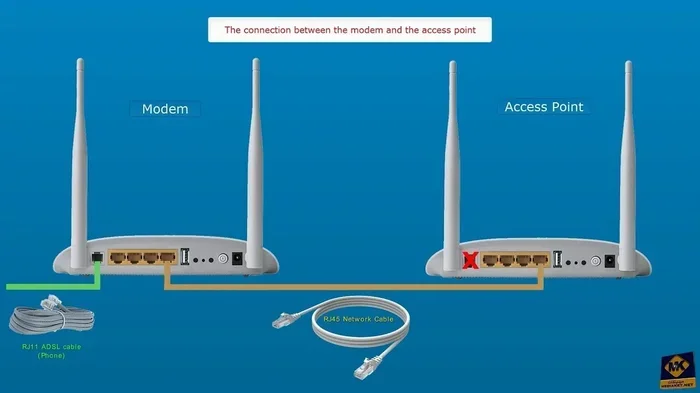
A slow-loading settings page is often caused by a weak connection between your device and the extender. Try moving closer to the extender or connecting via an ethernet cable for a more stable link. If you are interested in extending your network with a wired connection, check out our guide on Can I Extend Wifi With Ethernet Cable for detailed tips.
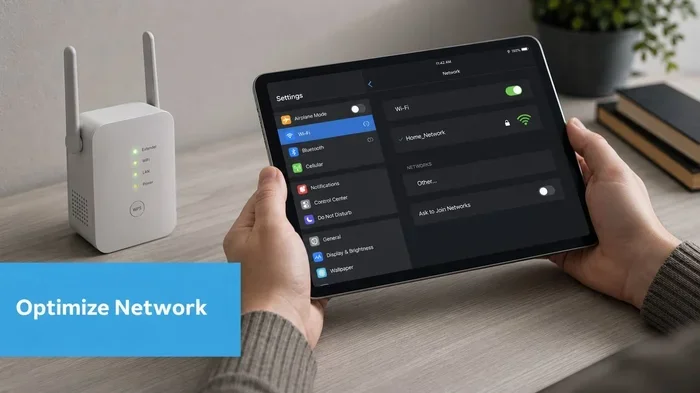
Optimizing Your Netgear Extender Settings for Best Performance
Once you are logged in, you can fine-tune your extender for the best possible performance. Here are the settings that matter most.
Change the Channel Bandwidth
Most extenders support both 2.4GHz and 5GHz bands. The 2.4GHz band covers a wider area but is slower. The 5GHz band is faster but has a shorter range. If your extender is close to your router, use the 5GHz band for maximum speed. If it is far away, stick with 2.4GHz for better coverage.
Update the Firmware
Firmware updates are critical. They fix bugs, improve stability, and close security gaps. To check for updates, log in to your settings and look for the “Firmware Update” section. If an update is available, download and install it. The process usually takes just a few minutes.
Set a Strong Admin Password
The default admin password is “password” or “admin.” This is well known and easy to guess. Change it to something strong and unique. A good password includes uppercase letters, lowercase letters, numbers, and symbols. This protects your network from unauthorized access.
Position Your Extender Correctly
Placement matters a lot. Put your extender halfway between your router and the dead zone. Do not place it in a closet, behind a wall, or near metal objects. The signal needs a clear path to reach both the router and the area you want to cover.
Use the Same Network Name
For the best user experience, set your extender’s network name to match your router’s. This way, your devices will seamlessly switch between the router and the extender as you move around your home. You can do this in the wireless settings section of the extender dashboard.
When to Consider Alternatives to a Wifi Extender
While Netgear extenders are great, they are not the only solution. Sometimes a different approach works better depending on your home layout and internet needs.
If you have a larger home with multiple dead zones, a mesh wifi system might be a better fit. Mesh systems use multiple nodes to create seamless coverage throughout your entire house. They are more expensive than extenders but offer a smoother experience.
Another option is to use your own equipment instead of renting from your internet provider. Having your own personal wifi router gives you more control and can save money in the long run. You can learn more about this in our guide on Can I Get Just Wi Fi At Home.
Ultimately, the right choice depends on your home size, budget, and internet usage. An extender is a great starting point for most households. But knowing your options helps you make the best decision.
Final Thoughts on Accessing Your Netgear Wifi Extender Settings
Accessing your Netgear wifi extender settings does not have to be complicated. Whether you use mywifiext.net, the default gateway, or the Nighthawk app, the process is straightforward once you know the steps. Regularly checking and updating your settings keeps your network running smoothly and securely.
Start by trying the mywifiext method. If that does not work, fall back to the default gateway. And for on-the-go management, the Nighthawk app is your best friend. With these tools in hand, you have full control over your home wifi network.
Take a few minutes today to log in and review your settings. Change your password, update your firmware, and check your channel. These small steps can make a big difference in your daily wifi experience. Your home network deserves the best, and now you have the knowledge to give it exactly that.
Frequently Asked Questions
What is mywifiext.net and why does it not work?
mywifiext.net is a local web address used to access Netgear extender settings. It only works when your device is connected to the extender’s network. If it does not load, try connecting to the extender wifi, clearing your browser cache, or using the default gateway method instead.
Can I access my Netgear extender settings from any device?
Yes, as long as the device is connected to the extender’s wifi network. You can use a phone, tablet, laptop, or desktop computer. Just open a browser and type mywifiext.net or the extender’s IP address to reach the settings page.
How do I reset my Netgear extender if I forgot the password?
Press and hold the reset button on the back of the extender for about 10 seconds. The device will reboot and restore factory defaults. After that, log in using the default password printed on the extender label.
Is it safe to update my extender firmware?
Absolutely. Firmware updates improve performance, fix bugs, and patch security vulnerabilities. Always check for updates regularly by logging into your extender settings and navigating to the firmware section.
What is the difference between my router settings and my extender settings?
Your router settings control the main network, including internet connection and overall security. Extender settings only affect the rebroadcast signal. You can change the extender’s network name, password, and channel without touching your router at all.
Do I need an ethernet cable to access extender settings?
No, you can access settings wirelessly by connecting to the extender’s default wifi network. However, using an ethernet cable provides a more stable connection, which is helpful when making detailed configuration changes.