Does Google Nest Have Its Own Wi Fi Connection Built In
Google Nest devices do not have their own standalone Wi-Fi connection built in. They rely on your home wireless network to function properly. You need a working Wi-Fi router and internet service for most Nest products to operate. Some Nest devices like the Nest Thermostat and Nest Hub use Wi-Fi to communicate, while others use Bluetooth or a separate hub.
When you bring a Google Nest device into your home, one of the first questions that comes up is whether it has its own Wi-Fi connection built right in. The short answer is no. Google Nest devices need your home wireless network to do their job. But there is a lot more to understand about how these smart devices actually connect and what that means for your setup.
Whether you are setting up a Nest Thermostat, a Nest Cam, or a Nest Hub, knowing how Wi-Fi connectivity works with these devices helps you avoid frustration. In this guide, we will walk through everything you need to know about Google Nest Wi-Fi requirements, setup steps, and common issues. Let us dive in.
Key Takeaways
- No Built-In Wi-Fi: Google Nest devices need an external Wi-Fi router to connect to the internet.
- Smart Home Hub Required: Some Nest devices work through a Google Home hub or Nest Hub that connects to your network.
- Setup Is Simple: You can connect Nest devices using the Google Home app in just a few steps.
- Dual-Band Support: Most Nest products support both 2.4GHz and 5GHz wireless frequencies for better performance.
- Offline Limitations: Without a Wi-Fi connection, many Nest features will not work or will have reduced functionality.
- Mesh Options Exist: Google offers Google Wi-Fi mesh systems that pair well with Nest devices for whole-home coverage.
📑 Table of Contents
- What Is Google Nest Wi-Fi?
- Does Google Nest Have Built-In Wi-Fi?
- How Does Google Nest Connect to Wi-Fi?
- Setting Up Wi-Fi for Your Google Nest
- Troubleshooting Google Nest Wi-Fi Issues
- Google Nest Wi-Fi vs Traditional Routers
- Can You Use Google Nest Without Wi-Fi?
- Expert Tips for a Strong Nest Wi-Fi Connection
- Final Thoughts
What Is Google Nest Wi-Fi?
Before we get into the details, it helps to understand what people mean when they say “Google Nest Wi-Fi.” There are actually two different things this phrase can refer to, and knowing the difference matters.
Google Nest Devices
Google Nest is a line of smart home products. These include thermostats, cameras, doorbells, speakers, and displays. None of these devices create their own Wi-Fi network. Instead, they connect to your existing home wireless network to access the internet and communicate with other devices.
For example, a Nest Thermostat uses your Wi-Fi signal to pull weather data and let you control the temperature from your phone. A Nest Cam streams video through your wireless connection to the cloud. Without a working Wi-Fi router, these devices lose their smart features.
Google Wi-Fi Mesh System
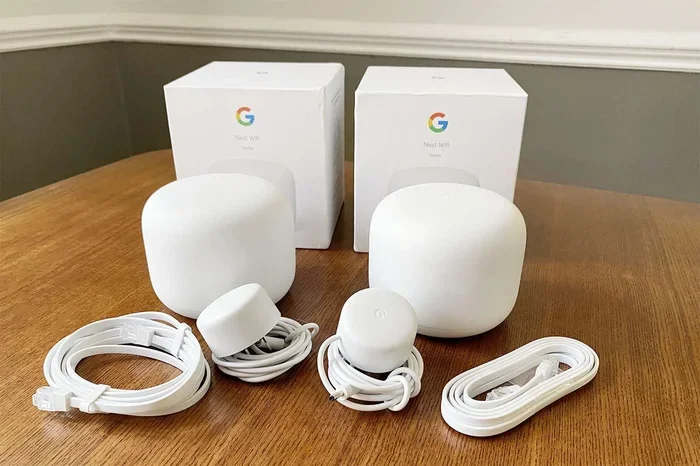
Google also makes a product called Google Wi-Fi, which is a mesh networking system. This is a separate product from the Nest line, but it works hand-in-hand with Nest devices. A Google Wi-Fi mesh system creates a strong, whole-home wireless network that your Nest devices can connect to.
If you want strong and reliable Wi-Fi coverage for your Nest devices, a mesh system like Google Wi-Fi is a great option. You can also check if Google Mesh works wirelessly to understand how these systems spread your signal throughout your home.
Does Google Nest Have Built-In Wi-Fi?
This is the big question, and the answer is clear. Google Nest devices do not have a built-in Wi-Fi chip that creates its own network. They are designed to connect to an existing wireless router in your home.
Here is what that means in simple terms. Your Nest device is like a phone. It needs a Wi-Fi network to connect to the internet. It cannot create its own network on its own. You must have a working Wi-Fi router and an active internet plan from an ISP (Internet Service Provider) for your Nest devices to work.
Some Nest devices use Bluetooth for short-range communication during setup. But for full functionality, they need a Wi-Fi connection. For instance, a Nest Doorbell needs Wi-Fi to send alerts and stream video to your phone. Without it, the doorbell still rings, but you lose all the smart features.
Which Nest Devices Need Wi-Fi?
Not all Nest devices use Wi-Fi in the same way. Here is a quick breakdown of popular Nest products and their connectivity needs:
- Nest Thermostat: Requires Wi-Fi for remote control, energy reports, and smart scheduling.
- Nest Cam (Indoor/Outdoor): Needs Wi-Fi for live streaming and cloud video storage.
- Nest Doorbell: Requires Wi-Fi for video streaming, alerts, and two-way talk.
- Nest Hub: Uses Wi-Fi for display content, voice queries, and smart home control.
- Nest Mini (Speaker): Needs Wi-Fi for voice assistant features and music streaming.
- Nest Protect (Smoke Alarm): Uses Wi-Fi for app alerts and self-testing features.
As you can see, almost every Nest device depends on a stable Wi-Fi connection. If your wireless signal is weak in certain areas of your home, your Nest devices may not perform well in those spots.
How Does Google Nest Connect to Wi-Fi?
Connecting a Nest device to your home Wi-Fi network is a straightforward process. Google designed the setup to be simple, even for people who are not tech-savvy. Here is how it works step by step.
Using the Google Home App
All Nest devices connect through the Google Home app. This free app is available for both Android and iOS devices. You use it to set up, manage, and troubleshoot your Nest products. Here is the basic setup flow:
- Plug in your Nest device and wait for it to power on.
- Open the Google Home app on your phone or tablet.
- Tap the “+” icon to add a new device.
- Follow the on-screen prompts to select your device type.
- Choose your Wi-Fi network from the list and enter your Wi-Fi password.
- Wait for the device to connect and finish setup.
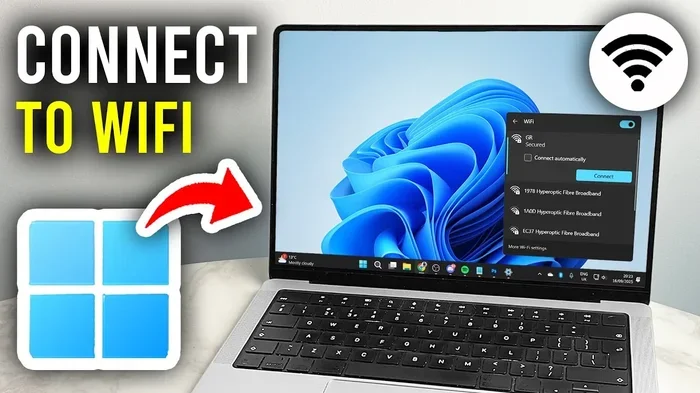
During setup, the Nest device uses Bluetooth to find your phone and guide you through the process. Once connected, it switches to Wi-Fi for all ongoing communication. If you are wondering about connecting without an ethernet cable, you can learn more about wireless connectivity options that may also apply to smart home devices.
Dual-Band Wi-Fi Support
Most modern Nest devices support dual-band Wi-Fi, which means they can connect to both 2.4GHz and 5GHz bands. The 2.4GHz band offers a wider range but slower speeds. The 5GHz band provides faster speeds but a shorter range.
For best results with your Nest devices, consider these tips:
- Place your Wi-Fi router in a central location in your home.
- Use the 2.4GHz band for devices that are farther from the router.
- Use the 5GHz band for devices close to the router that need higher speeds.
- If your router combines both bands under one name, your Nest device will choose the best one automatically.
Setting Up Wi-Fi for Your Google Nest
Getting your Wi-Fi network ready for Nest devices is an important step. A poorly set up network can cause connection drops, slow response times, and other frustrating issues. Here is how to make sure your network is Nest-ready.
Check Your Internet Speed
Most Nest devices do not need super-fast internet, but they do need a stable connection. A basic Wi-Fi plan with at least 5 Mbps download speed works fine for most Nest products. If you have multiple Nest cameras streaming video at the same time, you may want a faster plan.
Choose the Right Router
Your Wi-Fi router plays a big role in how well your Nest devices work. If your router is old or weak, your Nest devices may struggle to stay connected. Consider these factors when choosing or upgrading your router:
- Look for a router that supports dual-band or tri-band Wi-Fi.
- Make sure it covers the square footage of your home.
- If you have a large home, a mesh Wi-Fi system may be a better choice.
- Check that your router supports the latest Wi-Fi standards (Wi-Fi 5 or Wi-Fi 6).
If you are thinking about buying your own router or Wi-Fi box, you can explore options for purchasing your own Wi-Fi equipment and see what works best for your smart home setup.
Placement Matters
Where you place your Wi-Fi router affects how well your Nest devices connect. Walls, floors, and large furniture can block wireless signals. For the best Wi-Fi coverage, follow these tips:
- Place the router in a central, open area of your home.
- Keep it away from thick walls and metal objects.
- Elevate the router on a shelf or mount it on a wall.
- Avoid placing it near microwaves or other electronics that cause interference.
Troubleshooting Google Nest Wi-Fi Issues
Even with a great setup, you may run into Wi-Fi connection problems with your Nest devices. These issues are usually easy to fix. Here are some common problems and their solutions.
Nest Device Won’t Connect to Wi-Fi
If your Nest device fails to connect during setup, try these steps:
- Make sure your Wi-Fi network is working by testing another device.
- Check that you are entering the correct Wi-Fi password.
- Restart your Wi-Fi router and try again.
- Move the Nest device closer to the router during setup.
- Check if your router is using a 5GHz band that the Nest device may not support.
Frequent Disconnections
If your Nest device keeps losing its Wi-Fi connection, the problem is often signal strength. Try moving your router closer to the device or adding a Wi-Fi extender. You can also check if other devices on the same network are hogging bandwidth, which can slow down your wireless connection.
Slow Performance
Slow performance on Nest cameras or Nest Hubs is often caused by a weak Wi-Fi signal or network congestion. Here are some quick fixes:
- Reduce the number of devices connected to your network.
- Switch to a less crowded Wi-Fi channel in your router settings.
- Update your router firmware to the latest version.
- Consider upgrading to a mesh Wi-Fi system for better coverage.
Google Nest Wi-Fi vs Traditional Routers
It is easy to confuse Google Nest devices with Google Wi-Fi products, but they are quite different. Let us compare them side by side so you can understand what each one does.
| Feature | Google Nest Devices | Google Wi-Fi System |
|---|---|---|
| Creates Wi-Fi Network | No | Yes |
| Requires External Router | Yes | No (it is the router) |
| Smart Home Features | Yes | No (it is a networking device) |
| Needs Wi-Fi to Function | Yes | No (it provides Wi-Fi) |
| Setup Through App | Google Home App | Google Home App |
| Mesh Support | No | Yes |
The key takeaway is that Google Nest devices are smart home products that need a Wi-Fi network to work. The Google Wi-Fi system is a networking product that creates that network. They complement each other beautifully when used together.
If you want a simple home Wi-Fi setup for your Nest devices, you can start with a basic router and add a Google Wi-Fi mesh system later if you need better coverage. Some users also look into getting just Wi-Fi at home without a full cable package to save money while keeping their smart home devices running.
Can You Use Google Nest Without Wi-Fi?
The honest answer is: very limited functionality. Without a Wi-Fi connection, most Nest devices cannot perform their core smart features. Here is what happens when your Nest devices go offline:
- Nest Thermostat: It can still control your HVAC system using its built-in schedule, but you cannot adjust it remotely or access energy reports.
- Nest Cam: It will continue recording to a local SD card if one is inserted, but you lose live streaming and cloud alerts.
- Nest Doorbell: It will still ring when someone presses it, but you will not get phone notifications or video streaming.
- Nest Hub: It can still show the time and act as a basic clock, but smart displays and voice queries will not work.
- Nest Mini: It becomes a basic Bluetooth speaker and cannot respond to voice commands.
As you can see, Wi-Fi is essential for getting the full value out of your Google Nest devices. If you are in an area with unreliable internet, you may want to explore using a hotspot instead of traditional Wi-Fi as an alternative connectivity solution for your smart home.
Expert Tips for a Strong Nest Wi-Fi Connection
Getting the most out of your Google Nest devices means making sure your wireless network is strong and reliable. Here are some expert-backed tips to improve your setup.
Keep Your Router Firmware Updated
Router manufacturers regularly release firmware updates that fix bugs and improve performance. Check your router settings every few months and install any available updates. An outdated router can cause Wi-Fi dropouts and slow speeds that affect your Nest devices.
Use a Dedicated Smart Home Network
Some advanced routers let you create a separate Wi-Fi network just for smart home devices. This keeps your Nest devices on their own network, which can improve security and reduce interference from your phones and laptops.
Restart Devices Regularly
A simple restart can fix many Wi-Fi connection issues. If your Nest device is acting up, try unplugging it for 30 seconds and plugging it back in. The same goes for your Wi-Fi router. Regular restarts keep everything running smoothly.
Consider a Wi-Fi Extender
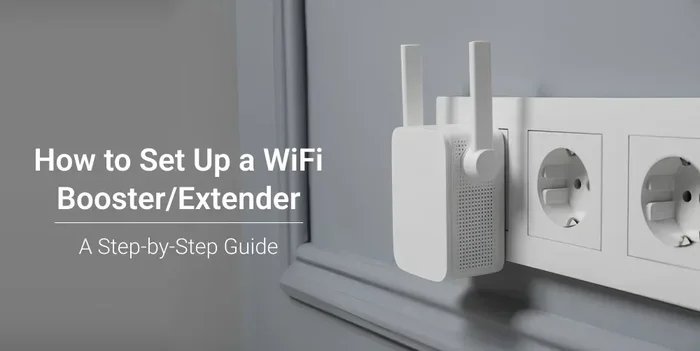
If your Nest devices are in a part of your home with a weak wireless signal, a Wi-Fi extender can boost the coverage. Place the extender halfway between your router and the area where your Nest device is located for the best results.
Final Thoughts
So, does Google Nest have its own Wi-Fi connection built in? No, it does not. Google Nest devices need your home wireless network to unlock their full potential. They connect through your Wi-Fi router using the Google Home app, and they rely on a stable internet connection for features like remote control, live streaming, and voice commands.
The good news is that setting up your Nest devices is easy, and keeping them connected does not have to be complicated. With a good Wi-Fi router, proper placement, and a little regular maintenance, your Nest devices will work reliably for years to come. If you ever run into issues, the troubleshooting steps in this guide should help you get back on track quickly.
Remember, your Nest devices are only as good as the Wi-Fi network they run on. Invest in a solid home wireless setup, and your smart home experience will be smooth and enjoyable every single day.
Frequently Asked Questions
Do Google Nest devices need Wi-Fi to work?
Yes, most Google Nest devices need a Wi-Fi connection to access their full features. Without Wi-Fi, devices like the Nest Cam and Nest Doorbell lose smart features like live streaming and alerts. Some basic functions may still work offline, but the smart capabilities require a wireless connection.
Can I use Google Nest with a mobile hotspot instead of home Wi-Fi?
Yes, you can connect some Nest devices to a mobile hotspot during setup. However, hotspots may not provide the stable, fast connection that Nest devices need for continuous operation. If you are exploring this option, you can learn more about using a hotspot instead of Wi-Fi for your smart home.
What Wi-Fi band do Google Nest devices use?
Most Google Nest devices support dual-band Wi-Fi, meaning they work on both 2.4GHz and 5GHz bands. The 2.4GHz band offers wider coverage, while the 5GHz band provides faster speeds. Your Nest device will typically connect to the best available band automatically.
Can I control my Nest Thermostat without Wi-Fi?
You can still control your Nest Thermostat manually at the device itself without Wi-Fi. However, you will lose remote control from your phone, smart scheduling, and energy reports. A Wi-Fi connection is needed for all the smart features that make the thermostat truly useful.
How many Nest devices can connect to one Wi-Fi network?
There is no strict limit, but most home routers can handle 10 to 15 connected devices comfortably. If you have many Nest devices plus phones, tablets, and computers all on the same network, your Wi-Fi router may slow down. Consider a mesh Wi-Fi system for better performance with multiple devices.
Do I need a Google Nest Wi-Fi router to use Nest devices?
No, you do not need a Google Nest Wi-Fi router. Any standard Wi-Fi router works with Google Nest devices. However, if you want stronger coverage, a Google Wi-Fi mesh system pairs perfectly with Nest devices and can improve your overall smart home experience.
=== CONCLUSION ===
Understanding how Google Nest Wi-Fi works is the first step to building a reliable smart home. Google Nest devices do not have a built-in Wi-Fi connection. They depend on your home wireless network for everything from remote control to live video streaming. By setting up a strong Wi-Fi router, placing it strategically, and keeping your network maintained, you can enjoy a seamless smart home experience with all your Nest devices working together in harmony.