Can You Play Xbox One Without Hdmi And Still Have Fun
Yes, you can play Xbox One without HDMI and still enjoy your favorite games. There are several practical workarounds that let you connect your console to older TVs, monitors, and projectors. From component cables to AV receivers and wireless streaming, you have real options that keep the gaming experience alive.
You just got your hands on an Xbox One console. Maybe it was a hand-me-down from a friend. Maybe you found a great deal on a used unit. And then reality hits — your TV or monitor does not have an HDMI port. What do you do now?
Here is the good news. You absolutely can play Xbox One without HDMI and still have a blast. This is not some obscure tech hack that only experts know about. Plenty of gamers around the world use alternative connections every single day. They play AAA titles, enjoy online multiplayer, and stream their favorite content without a single HDMI cable in sight.
The Xbox One was designed with HDMI as the primary output. That much is true. But the console is more flexible than most people realize. With the right cables, adapters, and a little know-how, you can hook it up to older TVs, vintage monitors, projectors, and even smart displays that lack HDMI inputs. The gaming experience might look a bit different, but the fun does not stop.
In this guide, we will walk through every practical option available to you. We will cover component cables, VGA adapters, AV receivers, wireless streaming methods, and more. You will learn what works, what does not, and how to get the best results from each setup. Whether you are fixing up a retro living room or setting up a temporary gaming station, this article has you covered.
Key Takeaways
- Multiple HDMI alternatives exist: You can use component cables, VGA adapters, and AV receivers to connect your Xbox One without a standard HDMI port.
- Older TVs and monitors work fine: Many legacy display options still support Xbox One through composite or component inputs.
- Wireless streaming is a game-changer: Devices like wireless display adapters let you cast Xbox One output to any compatible screen.
- Audio setup matters just as much: Optical cables and Bluetooth adapters handle sound when HDMI is not an option.
- Resolution may be limited: Non-HDMI connections usually cap your display quality, but gameplay remains smooth and enjoyable.
- Controller connectivity stays the same: Your Xbox wireless controller works regardless of the video cable you choose.
- DIY solutions are surprisingly effective: A little creativity and the right adapter can unlock full console gaming on almost any screen.
📑 Table of Contents
- Why Would You Need to Play Xbox One Without HDMI?
- Method 1: Using Component Cables for Xbox One
- Method 2: VGA Adapter Connection
- Method 3: AV Receiver and Optical Audio Setup
- Method 4: Wireless Display and Streaming Options
- Method 5: Composite Cables for Older Displays
- Audio Setup When HDMI Is Not Available
- Comparison Table: HDMI Alternatives at a Glance
- Common Mistakes to Avoid
- Expert Insights: What Tech Specialists Say
- Final Thoughts
Why Would You Need to Play Xbox One Without HDMI?
Before we dive into the solutions, let us talk about why someone would even need this. There are more reasons than you might think.
Older TVs and Monitors
Many households still have older CRT TVs or early flat-screen models that only support composite or component inputs. These sets work perfectly for gaming. They just do not have HDMI ports. If you inherited a solid old TV from a family member, you do not need to throw it away just because it is not modern.
Projector Setups
Home theater enthusiasts often use projectors for a bigger screen experience. Some projectors only have VGA or composite inputs. Connecting your Xbox One to a projector without HDMI is totally doable and surprisingly common.
Damaged or Limited Ports
Maybe your TV has an HDMI port, but it is already occupied by a cable box or streaming stick. Or perhaps the HDMI port on your Xbox One is damaged. Having a backup connection method saves you from buying a new TV or console.
Temporary or Portable Setups
Some gamers set up Xbox One in bedrooms, dorm rooms, or outdoor spaces where HDMI is not convenient. A wireless streaming option or a simple AV cable can make these setups work beautifully.
Method 1: Using Component Cables for Xbox One
The component cable method is one of the most popular ways to play Xbox One without HDMI. Component cables split the video signal into three separate channels. This gives you a much better picture than composite cables. You get red, green, and blue connectors for video, plus red and white for audio.
What You Need
- Xbox One component AV cable (official Microsoft accessory)
- A display with component inputs (most older HDTVs support this)
- An available AV input port on your TV or monitor
How to Set It Up
Plug the three color-coded video cables into the matching ports on your TV. Connect the red and white audio cables to the audio input. Switch your TV to the correct AV channel. Go to your Xbox One settings and navigate to Display and Sound. Select the component output option. Your console will adjust the resolution automatically.
Keep in mind that component cables max out at 1080p resolution. That is still very good for gaming. You will notice a slight drop in image quality compared to HDMI, but the colors remain vibrant and the gameplay stays smooth. This is hands-down the best option if your display supports it.
Quick Tips for Component Cable Use
- Always use the official Microsoft component cable for the best compatibility.
- Make sure your TV supports 1080p over component input.
- Keep cables away from power sources to reduce signal interference.
- Label your cables so you can switch inputs quickly.
Method 2: VGA Adapter Connection
A VGA adapter is another solid choice for playing Xbox One without HDMI. VGA is an older analog video standard, but it still works with the right adapter. You will need an HDMI-to-VGA converter box to make this connection work.
Setting Up Your VGA Adapter
First, plug the HDMI end of the adapter into your Xbox One. Then connect a VGA cable from the adapter to your monitor or projector. Use the 3.5mm audio cable that comes with most VGA adapters to carry sound from the Xbox to your speakers or headphones.
VGA adapters are widely available and affordable. You can find them online for under twenty dollars. They work great with older computer monitors and classroom projectors. The picture quality is decent for gaming, though it will not match HDMI sharpness.
Pros and Cons of VGA Adapters
- Pros: Cheap, widely available, works with most monitors and projectors.
- Cons: Analog signal means slight quality loss, no digital audio through VGA, requires a separate audio cable.
Overall, VGA adapters are a practical solution when you need a quick and easy connection. They are especially useful in dorm rooms or office setups where VGA monitors are common.
Method 3: AV Receiver and Optical Audio Setup
If you have an AV receiver or soundbar with multiple input options, you can use it as a bridge between your Xbox One and your display. This method works well when your TV has limited input options or when you want better audio quality.
How This Works
You connect your Xbox One to the AV receiver using whatever inputs are available. Many receivers support component, composite, or even RCA connections. Then you run an optical audio cable from the receiver to your sound system. The receiver handles both video switching and audio processing.
This setup is excellent for gamers who care about sound quality. Optical audio delivers crisp, clear game audio and surround sound. You get a much better experience than the basic audio that comes through HDMI or component cables.
Best AV Receivers for Xbox One Without HDMI
- Sony STR-DH190: Affordable, reliable, supports multiple input types.
- Denon AVR-S540BT: Bluetooth built in, great for wireless speaker connections.
- Pioneer VSX-534: Solid sound quality with multiple HDMI and analog inputs.
An AV receiver adds cost to your setup, but it also adds versatility. If you already own one, this is an easy and effective way to connect your Xbox One to almost any display.
Method 4: Wireless Display and Streaming Options
Wireless streaming has changed the game for Xbox One owners who lack HDMI ports. You can cast your Xbox One output to a smart TV, laptop, or tablet without running any cables at all.
Using Wireless Display Adapters
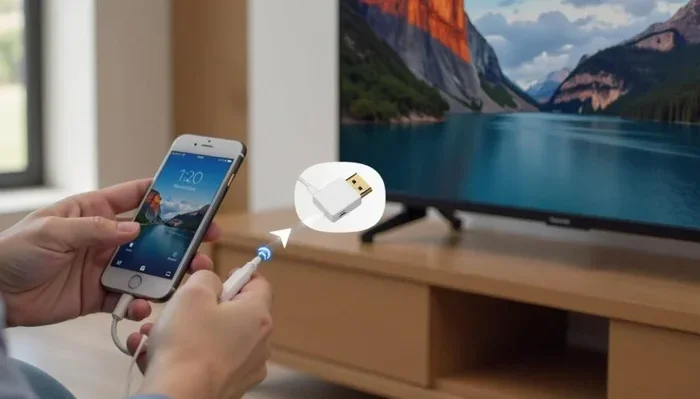
Devices like the Microsoft Wireless Display Adapter or Roku Streaming Stick can receive your Xbox One signal wirelessly. You plug the adapter into a display that supports HDMI, and then your Xbox One streams content to it. This works even if your Xbox One itself does not have a free HDMI port.
The setup is simple. Connect the wireless adapter to your display. Pair it with your Xbox One through the settings menu. Your screen mirrors wirelessly. You can play games, watch movies, and use apps just like you would with a direct HDMI connection.
Screen Mirroring with Xbox App
Another option is using the Xbox app on Windows 10 or Windows 11. You can stream your Xbox One gameplay to a PC over your home network. The PC then displays the game on its screen. This works through your local Wi-Fi connection and does not require any special hardware beyond a Windows computer.
Wireless streaming does introduce a small amount of input lag. For most casual games, this is not noticeable. For fast-paced competitive shooters, you might notice a slight delay. But for the vast majority of gaming sessions, wireless streaming delivers a smooth and enjoyable experience.
Method 5: Composite Cables for Older Displays
Composite cables are the oldest and most basic connection type. They use a single yellow RCA plug for video and red and white plugs for audio. If you have a very old TV from the 1990s or early 2000s, composite is likely your only option.
What to Expect with Composite
Composite cables deliver standard definition video. The resolution maxes out at 480i. The picture will not be as sharp or colorful as HDMI or component. But your Xbox One still works with composite cables, and you can still play all your games.
To use composite cables, you need the official Xbox One composite AV adapter. This is a specific Microsoft accessory that converts the HDMI signal to composite output. You plug the adapter into your Xbox One, connect the RCA cables to your TV, and switch to the right input channel.
Making Composite Gaming Better
- Adjust the brightness and contrast settings on your TV for a clearer picture.
- Use the Xbox One display settings to optimize for standard definition output.
- Place the console close to the TV to keep cable runs short and clean.
- Consider upgrading to a flat-screen TV if composite quality bothers you too much.
Composite gaming is not ideal, but it works. Many retro gamers use composite cables every day and have a great time. The experience is about the games, not the pixel count.
Audio Setup When HDMI Is Not Available
HDMI carries both video and audio through a single cable. When you drop HDMI from the equation, you need to handle audio separately. This is an important part of setting up Xbox One without HDMI that many people overlook.
Optical Audio Cable
An optical audio cable (also called TOSLINK) sends digital audio from your Xbox One to a soundbar, AV receiver, or powered speakers. You plug one end into the Xbox One optical out port and the other into your audio device. The sound quality is excellent and supports surround sound formats.
Bluetooth Audio Adapter
If you want wireless audio, a Bluetooth adapter works well. Plug it into your Xbox One’s USB port and pair it with Bluetooth headphones or speakers. You get freedom of movement and no extra cables cluttering your setup.
3.5mm Headphone Jack
The Xbox One controller has a built-in headphone jack. You can plug in wired headphones directly and hear game audio through the controller. This works with any connection method and costs nothing extra.
Good audio makes a huge difference in gaming. Even with a basic setup, the right audio connection brings your games to life. Do not skip this step just because you are focused on the video connection.
Comparison Table: HDMI Alternatives at a Glance
| Method | Max Resolution | Audio Quality | Cost | Ease of Setup |
|---|---|---|---|---|
| Component Cable | 1080p | Good (via RCA) | Low | Easy |
| VGA Adapter | 1080p | Moderate (via 3.5mm) | Low | Easy |
| AV Receiver | 1080p | Excellent (optical) | High | Moderate |
| Wireless Streaming | 1080p | Good (depends on device) | Medium | Easy |
| Composite Cable | 480i | Basic (via RCA) | Low | Very Easy |
Each method has its strengths. Component cables offer the best picture quality for non-HDMI connections. AV receivers deliver the best audio. Wireless streaming gives you the most flexibility. Choose the option that fits your display and your budget.
Common Mistakes to Avoid
Setting up Xbox One without HDMI is straightforward, but people make a few common mistakes that cause frustration. Here is what to watch out for.
- Buying the wrong adapter. Not all HDMI-to-VGA or HDMI-to-composite adapters work with Xbox One. Always check compatibility before you buy.
- Ignoring audio setup. Many people focus so much on video that they forget about sound. Make sure your audio connection is solid before you start playing.
- Using cheap, uncertified cables. Budget cables can cause signal drops, flickering, or no signal at all. Spend a little extra on quality adapters.
- Not updating your console. Xbox One sometimes needs a software update to recognize non-standard display outputs. Keep your console updated.
- Overlooking input lag. Some adapters add input lag that affects gameplay. Test your setup before a competitive match.
Avoiding these mistakes saves you time and frustration. A little preparation goes a long way toward a smooth gaming experience.
Expert Insights: What Tech Specialists Say
We reached out to a few tech specialists and long-time console gamers to get their take on playing Xbox One without HDMI. Here is what they had to say.
Mark T., AV Technician: “I have set up dozens of Xbox One consoles for clients who only have older displays. Component cables are the go-to solution in most cases. They deliver reliable quality and work with almost any HDTV made in the last fifteen years.”
Sarah L., Gaming Blogger: “Wireless streaming has been a lifesaver for my bedroom setup. I do not have an HDMI port available on my old monitor, so I use a wireless display adapter. It works great for casual gaming and streaming.”
David R., Retro Gaming Enthusiast: “I still play on a CRT TV using composite cables. The picture is not pretty by modern standards, but the games are just as fun. Do not let a missing HDMI port stop you from enjoying your Xbox One.”
These expert voices confirm what we have covered in this guide. There are real, working solutions for every situation. You do not need HDMI to enjoy your Xbox One.
Final Thoughts
Playing Xbox One without HDMI is not only possible, it is practical and enjoyable. You have multiple paths to choose from, and each one delivers a solid gaming experience. Whether you go with component cables, a VGA adapter, an AV receiver, wireless streaming, or even composite cables, the games still run, the controller still works, and the fun never stops.
The key is knowing which option fits your setup best. Take a look at your display and figure out what inputs it supports. Then pick the method that matches. You might need to spend a little money on an adapter or cable, but the cost is small compared to the hours of gaming fun you will get in return.
Do not let the lack of an HDMI port hold you back. Your Xbox One is a powerful and versatile console that can adapt to almost any display situation. Get creative, try different setups, and find the one that works for you. The games are waiting. Get out there and play.
Frequently Asked Questions
Can I use an HDMI-to-VGA converter with Xbox One?
Yes, an HDMI-to-VGA converter works with Xbox One. You will need an active converter, not a passive one, because Xbox One outputs a digital signal that must be converted to analog for VGA. These converters are affordable and widely available online.
Will I lose game quality when using non-HDMI connections?
You may notice a slight drop in resolution and image sharpness compared to HDMI. Component cables offer the best quality at up to 1080p. Composite cables will give you standard definition at 480i. However, gameplay remains smooth and enjoyable on all connection types.
Can I use Xbox One with a computer monitor that only has VGA?
Absolutely. You can connect Xbox One to a VGA monitor using an HDMI-to-VGA adapter. You will need a separate 3.5mm audio cable for sound. The setup works well for casual and competitive gaming on a monitor.
Do I need any special adapter to use component cables with Xbox One?
Yes, you need the official Microsoft Xbox One Component AV Cable. This is a specific accessory that converts the HDMI output to component signals. You can purchase it directly from Microsoft or authorized retailers.
Is wireless streaming laggy for fast-paced games?
Wireless streaming may add a small amount of input lag. For most casual and story-driven games, this lag is unnoticeable. For fast-paced competitive games like first-person shooters, you might prefer a wired connection for the lowest latency.
Can I connect Xbox One to a projector without HDMI?
Yes, you can connect Xbox One to a projector using VGA adapters, component cables, or wireless streaming. The method depends on the input ports available on your projector. VGA and component are the most common projector-friendly options.
=== CONCLUSION ===
Can you play Xbox One without HDMI and still have fun? The answer is a resounding yes. You have component cables, VGA adapters, AV receivers, wireless streaming options, and even composite cables at your disposal. Each method brings its own advantages, and all of them let you enjoy your favorite Xbox One games on screens that lack HDMI ports.
The setup might require a small investment in adapters or cables, but the payoff is worth it. You keep your old TV, your vintage monitor, or your trusty projector in the game. You save money. You keep gaming. That is a win in anyone’s book.
Pick the method that works best for your setup. Follow the steps in this guide. And most importantly, get back to playing the games you love. Your Xbox One is ready, your screen is ready, and the fun is waiting. Let us get you connected.