How Can I Check Why My Wi Fi Is Not Working Right Now
Finding out why your Wi-Fi is not working starts with a few simple checks you can do right now. This guide walks you through router resets, signal checks, and device troubleshooting to get your internet back up and running quickly.
There is nothing more frustrating than staring at a screen that says “No Internet” when you need to get things done. Whether you are working from home, streaming your favorite show, or just trying to browse the web, a broken Wi-Fi connection can ruin your entire day. The good news is that most Wi-Fi problems have simple fixes you can do yourself. In this guide, we will walk you through every step to check why your Wi-Fi is not working right now.
You do not need to be a tech expert to troubleshoot your wireless network. Most of the time, the fix takes just a few minutes. We will cover everything from basic router restarts to checking your device settings. By the end of this article, you will know exactly what to do and why it works. Let us get your internet back online.
Key Takeaways
- Restart Your Router First: A simple reboot solves most Wi-Fi issues in minutes.
- Check Your Device Settings: Your Wi-Fi adapter or network settings are often the real culprit.
- Look for Interference: Physical obstacles and other electronics can weaken your signal significantly.
- Update Your Firmware: Outdated router software causes many common connection problems.
- Contact Your ISP When Needed: Sometimes the problem is outside your home and needs professional help.
📑 Table of Contents
Why Is My Wi-Fi Not Working? Common Causes
Before you start fixing anything, it helps to understand what might be causing the problem. Wi-Fi issues usually fall into a few broad categories. Once you know the category, finding the fix becomes much easier.
Router or Modem Problems
Your router and modem are the heart of your home network. When either one has a glitch, your Wi-Fi goes down. This can happen after a power outage, a firmware crash, or simply because the device has been running too long without a break. Overheating is another common cause. Routers need good airflow to work properly, and when they get too hot, they start dropping connections.
Device-Side Issues
Sometimes the problem is not your router at all. Your phone, laptop, or tablet might have a setting that is blocking the Wi-Fi connection. A disabled network adapter, outdated drivers, or incorrect Wi-Fi passwords can all cause this. If only one device cannot connect while others work fine, the issue is almost certainly on that device.
Signal and Interference Problems
Wi-Fi signals travel through the air, and many things can weaken them. Thick walls, large metal objects, and even microwaves can interfere with your wireless signal. If you are far from your router, the signal may be too weak to maintain a stable connection. This is especially common in larger homes or apartments with many walls between you and the router.
Internet Service Provider Outages
Sometimes the problem is completely outside your control. Your ISP might be experiencing an outage in your area. Storms, construction work, or equipment failures at the provider’s end can all knock out your internet. Before you spend hours troubleshooting, it is worth checking if others in your area are having the same problem.
Step-by-Step Troubleshooting Guide
Now that you know the common causes, let us walk through the actual steps to fix your Wi-Fi. Follow these in order, and test your connection after each step.
Step 1: Check if Your Wi-Fi Is Turned On
It sounds silly, but many people skip this step. Make sure the Wi-Fi toggle on your device is actually turned on. On most phones and laptops, you can swipe down from the top of the screen to see quick settings. Look for the Wi-Fi icon and make sure it is highlighted or active. On a laptop, check the network settings in your taskbar or system menu.
Also, make sure you are not in Airplane Mode. Airplane Mode disables all wireless connections, including Wi-Fi. If this setting is on, simply turn it off and wait a few seconds for your device to reconnect.
Step 2: Restart Your Router and Modem
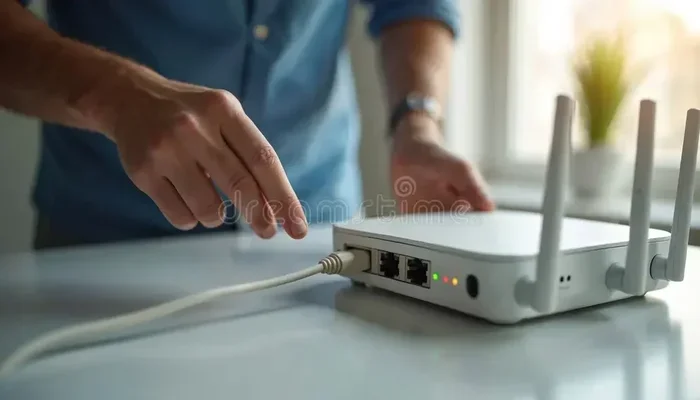
This is the single most effective fix for Wi-Fi problems. Unplug both your router and modem from the power outlet. Wait at least 30 seconds. Then plug the modem back in first and wait for it to fully start up. After that, plug in the router and wait another minute or two.
This process clears the temporary memory in your devices and forces them to establish a fresh connection. Many people do not wait long enough, so be patient. You want to see steady lights on both devices before testing your connection.
If you have ever wondered whether you can add Wi-Fi to a device that does not have it built in, check out our guide on adding Wi-Fi to your PC. This can be helpful if your computer lacks wireless capability.
Step 3: Check Other Devices
Try connecting another device to the same Wi-Fi network. If your phone works but your laptop does not, the problem is likely with the laptop. If no devices can connect, the problem is with your router or internet service.
This simple test saves you a lot of time. It tells you exactly where to focus your efforts. Make sure to try both Wi-Fi and mobile data on your phone to rule out a broader internet outage.
Step 4: Run a Speed Test
Go to a speed test website on your phone or computer. Even if you have a connection, slow speeds can feel like no connection at all. A speed test tells you exactly how much bandwidth you are getting and whether your connection is truly broken or just slow.
If your speed is very low, try moving closer to your router. Walls and distance reduce signal strength significantly. You can also check if anyone else in your household is using heavy bandwidth, like streaming 4K video or downloading large files.
Step 5: Forget and Reconnect to the Network
Sometimes your device saves a bad network configuration. Go to your Wi-Fi settings, find your network, and select “Forget Network.” Then reconnect by entering your password again. This forces your device to create a fresh connection profile.
This trick works especially well when you have recently changed your Wi-Fi password or moved to a new router. It clears any old settings that might be causing conflicts.
Step 6: Check for IP Conflicts and DNS Issues
Every device on your network needs a unique IP address. Sometimes two devices end up with the same address, which causes connection problems. You can fix this by releasing and renewing your IP address through your device’s network settings.
DNS issues are another hidden cause. DNS is the system that translates website names into IP addresses. If your DNS server is not responding, you might see the “Connected, No Internet” message. Switching to a public DNS like Google’s (8.8.8.8) or Cloudflare’s (1.1.1.1) often solves this instantly.
When to Check Your Router Settings
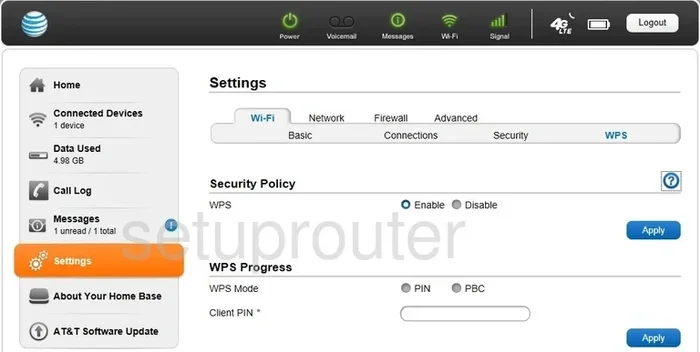
If the basic steps above did not fix your problem, it is time to dig deeper into your router settings. You do not need to be an expert, but you do need to know where to look.
Accessing Your Router Admin Panel
Open a web browser and type your router’s IP address into the address bar. This is usually 192.168.1.1 or 192.168.0.1. Check the label on the bottom of your router if you are not sure. Log in with your admin credentials, which are also often printed on the router itself.
Once inside, look at the status page. It will show you whether your modem is connected to the internet and whether your router is broadcasting a signal. These indicators give you immediate clues about where the problem lies.
Checking Your Wi-Fi Channel
Your router broadcasts on a specific channel, and if your neighbors are using the same channel, interference can cause problems. Most modern routers can auto-select the best channel, but sometimes this feature does not work well. You can manually change the channel in your router settings and see if your connection improves.
Tools like Wi-Fi analyzer apps can show you which channels are crowded in your area. Picking a less congested channel can make a big difference in your signal quality and speed.
Updating Router Firmware
Router manufacturers release firmware updates that fix bugs and improve performance. If your router has not been updated in a while, outdated firmware could be causing your connection issues. Check the administration or update section of your router’s settings panel.
Many newer routers update automatically, but older models require manual updates. If you are unsure how to do this, check the manufacturer’s website for instructions specific to your model.
Physical and Environmental Factors
Your Wi-Fi signal is affected by the physical world around you. Small changes in your setup can lead to big improvements in connection quality.
Router Placement Matters
Where you place your router has a huge impact on your Wi-Fi performance. Keep it in a central location in your home. Elevate it on a shelf or mount it on a wall. Avoid hiding it inside a closet or behind a TV, as these block the signal.
Water and metal are the enemies of Wi-Fi signals. Keep your router away from fish tanks, metal appliances, and large mirrors. These objects absorb or reflect wireless signals and reduce coverage.
Wi-Fi Extenders and Mesh Systems
If your home is large or has multiple floors, a single router might not be enough. Wi-Fi extenders boost your existing signal to reach farther areas. Mesh systems replace your router with multiple nodes that create seamless coverage throughout your home.
If you are using a Wi-Fi extender, make sure it is placed halfway between your router and the area with weak signal. Extenders placed too far from the router will only repeat a weak signal, making things worse.
When Your Device Cannot Connect at All
Sometimes the problem is specific to one device that simply will not connect. Here is what to check in that situation.
Network Adapter Troubleshooting
On a Windows computer, go to Device Manager and look for your network adapter. If there is a yellow warning icon, the driver might be corrupted or outdated. Right-click the adapter and select “Update Driver.” You can also try disabling and re-enabling the adapter to refresh the connection.
On a Mac, you can reset the network settings from the System Preferences menu. This clears all saved Wi-Fi networks and starts fresh. Make sure you know your passwords before doing this.
Checking for Software Conflicts
Some software can interfere with your Wi-Fi connection. VPN apps, firewall programs, and even antivirus software can block network access. Try temporarily disabling these to see if your connection comes back. If it does, you know exactly what the problem is.
Also, check if your device has a “Metered Connection” setting turned on. This limits background data and can sometimes cause apps to fail to connect properly.
How to Prevent Wi-Fi Problems in the Future
Once you get your Wi-Fi working again, you want to keep it that way. A few simple habits can prevent most problems from coming back.
- Restart your router regularly. Once a month is usually enough to clear temporary glitches.
- Keep your router firmware updated. Enable automatic updates if your router supports them.
- Use a strong, unique Wi-Fi password. This prevents unauthorized users from slowing down your network.
- Monitor connected devices. If too many devices are on your network, performance drops. Check your router settings to see what is connected.
- Place your router wisely. Central location, elevated position, and away from obstructions make a big difference.
- Consider your internet plan. If you consistently need more bandwidth, talk to your ISP about upgrading your plan.
If you are dealing with a specific situation where you need Wi-Fi but do not have a traditional setup, you might want to explore options like getting just Wi-Fi at home without a full cable package. This can simplify your setup and reduce potential points of failure.
When to Call for Help
Most Wi-Fi problems can be fixed at home with the steps above. But sometimes you need professional help. Call your ISP if you have tried everything and still have no connection. They can run remote diagnostics on your line and equipment. If they confirm the issue is on their end, they will send a technician or replace your equipment at no cost.
You should also consider calling a professional if you have an older router that cannot be updated or if your home has unusual wiring that causes signal problems. A networking expert can assess your setup and recommend the best solution for your specific situation.
Remember, connecting your PC to Wi-Fi without Ethernet should be straightforward. If it is not, the troubleshooting steps above will help you find the root cause and fix it.
Final Thoughts
Dealing with a Wi-Fi that is not working is stressful, but it is almost always fixable. Start with the simple stuff: restart your router, check your device settings, and test other devices. If those do not work, move on to router settings, firmware updates, and signal optimization. Most of the time, your internet will be back up within 15 minutes.
The key is to be patient and methodical. Do not skip steps or assume the problem is bigger than it is. Follow the guide above, and you will have a clear picture of what is wrong and how to fix it. Your Wi-Fi connection is the backbone of your modern life, and keeping it running smoothly is worth the small effort it takes to troubleshoot.
Keep this guide bookmarked for the next time your Wi-Fi acts up. Share it with family members who might be struggling with their own connection issues. And remember, a little regular maintenance goes a long way toward keeping your wireless network fast and reliable.
Frequently Asked Questions
Why did my Wi-Fi stop working all of a sudden?
Sudden Wi-Fi failures are usually caused by router glitches, power outages, or firmware crashes. The first thing to try is unplugging your router and modem for 30 seconds, then plugging them back in. This simple reset fixes the majority of sudden Wi-Fi problems.
How do I know if the problem is my router or my internet provider?
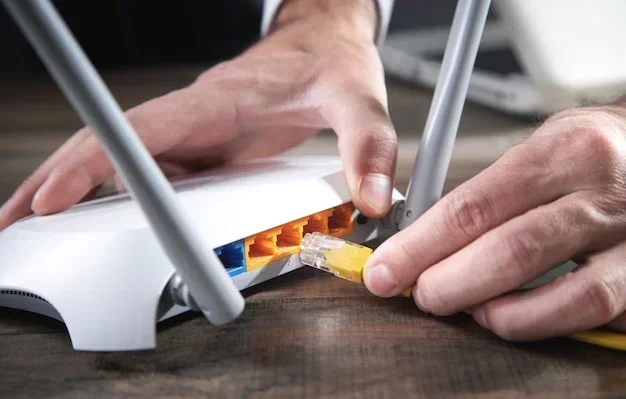
Check if other devices can connect to your Wi-Fi. If no devices can connect, the issue is likely your router or ISP. Try connecting a device directly to your modem with an Ethernet cable. If that works, your router is the problem. If it does not work either, contact your ISP.
Can Wi-Fi interference from neighbors cause my connection to fail?
Yes, absolutely. Neighboring Wi-Fi networks on the same channel can cause interference and slow down or disrupt your connection. Using a Wi-Fi analyzer app can help you find a less crowded channel. Changing your router’s channel through the admin panel often fixes this issue quickly.
How often should I restart my router to prevent problems?
Restarting your router once a month is a good routine to keep things running smoothly. However, if you notice frequent disconnections, try restarting it weekly. Many people also use smart plugs to schedule automatic router restarts for convenience.
What should I do if my Wi-Fi shows as connected but there is no internet?
This usually means your router is connected to the modem but the modem is not getting an internet signal from your ISP. Try restarting your modem first, then your router. If the problem persists, contact your ISP to check for outages or account issues.
Is it safe to update my router firmware myself?
Yes, it is completely safe and highly recommended. Firmware updates fix bugs, improve security, and boost performance. Always download updates directly from your router manufacturer’s official website. Avoid third-party sources to prevent security risks.