Can I Just Install A New Router And Get Better WiFi
Yes, you can just install a new router and get better WiFi. A fresh wireless router can transform your WiFi speed, eliminate dead zones, and give your home network a major upgrade. However, the results depend on your internet provider, your broadband speed, and whether your current setup is actually the bottleneck. This guide walks you through everything you need to know before you buy and set up a new router.
Let’s be honest. Slow WiFi is one of the most frustrating things in modern life. You’re trying to stream a movie, join a video call, or just browse the web, and everything buffers or freezes. It makes you wonder, “Can I just install a new router and get better WiFi?” The short answer is yes. But the full answer is a bit more nuanced than that.
Your router is the brain of your home network. It takes the internet signal from your provider and sends it out to all your devices. When that router gets old, outdated, or just isn’t powerful enough for your needs, everything slows down. A new router can fix a lot of problems. But it’s not a magic wand. There are things you need to know before you spend your money.
In this guide, I’ll walk you through everything. We’ll talk about when a new router makes sense, how to choose the right one, and what to expect during the setup process. I’ll also share some honest insights about when a new router won’t solve your problem and what to do instead. Let’s dive in.
Key Takeaways
- A new router can significantly improve WiFi speed and coverage: Older routers struggle with modern internet demands and multiple devices.
- Check your internet plan first: A new router won’t boost speeds beyond what your ISP provides.
- Router setup is simpler than most people think: Most modern routers come with easy setup apps and clear instructions.
- Not all routers are equal: Choosing the right one for your home size and device count matters a lot.
- A new router isn’t always the fix: Sometimes the problem lies with your modem, ISP infrastructure, or home layout.
- Consider mesh WiFi for large homes: A single router may not be enough if you have a big house with multiple floors.
📑 Table of Contents
- Why Most People Think a New Router Will Fix Everything
- How to Know If a New Router Will Actually Help You
- Step-by-Step: How to Install A New Router
- What to Look For When Buying a New Router
- When a New Router Isn’t Enough to Fix Your WiFi
- Quick Tips for Maximum WiFi Performance After Installation
- Common Mistakes People Make When Installing a New Router
- Expert Insights: What Networking Pros Say About Router Upgrades
- Key Takeaways
- Conclusion
Why Most People Think a New Router Will Fix Everything
You’re not alone if you think a new wireless router is the cure for all your internet problems. TV ads and online reviews make it sound so simple. Just buy a new router, plug it in, and enjoy lightning-fast WiFi. And sometimes, that’s exactly what happens. But other times, people buy a fancy new router and barely notice a difference. Why?
The truth is, your internet speed depends on more than just your router. Your ISP (Internet Service Provider) plan sets the ceiling. Your modem delivers the signal. Your home’s layout affects how well the signal travels. And the number of devices you have connected matters too. A new router helps when the router itself is the weak link. If something else is holding you back, a new router won’t do much.
Signs Your Current Router Is Holding You Back
How do you know if your router is the problem? Here are some clear signs:
- Your router is more than 4-5 years old: WiFi technology evolves fast. Older routers use older standards like WiFi 4 or 5, which can’t keep up with modern demands.
- You get slow speeds even when you’re close to the router: If your internet speed test shows much lower speeds than what your plan promises, the router might be the bottleneck.
- You have dead zones in your home: Rooms where the WiFi signal just disappears or becomes extremely weak are a classic sign of an underpowered router.
- Your internet slows down when multiple people are online: Older routers struggle with handling many devices at once. This is called bandwidth management, and cheap routers just can’t do it well.
- Your router overheats or crashes often: If you’re constantly rebooting your router, it’s definitely time for an upgrade.
If you recognize several of these signs, a router replacement is probably a smart move. But before you rush out and buy one, let’s make sure you understand what you’re actually solving for.
How to Know If a New Router Will Actually Help You
Not every WiFi problem is a router problem. Before you spend money, it’s worth doing a little detective work. Here’s how to figure out if a new router is the right solution for you.
Run an Internet Speed Test First
Go to a website like Speedtest.net or Fast.com on your phone or computer. Run the test while you’re sitting right next to your router. Write down the results. Then run the test in a room where your WiFi is slow. If the speeds near the router are already slow, your problem isn’t the router’s range. It’s your broadband speed or your internet provider.
If the speeds near the router are great but they drop off in other rooms, then yes, a new router with better range and coverage can help a lot.
Check Your Internet Plan Speed
Log into your ISP account or call them to find out what speed you’re paying for. If you’re on a 50 Mbps plan, a fancy new router won’t suddenly give you 500 Mbps. The router can only deliver what your plan allows. So if your plan is slow, upgrading your internet plan might be the real fix.
Count Your Connected Devices
How many devices are connected to your WiFi right now? Phones, laptops, smart TVs, tablets, smart speakers, security cameras, gaming consoles — the list adds up fast. Modern routers handle this much better than older ones. If you have 15 or more devices and a five-year-old router, that old router is definitely struggling.
Step-by-Step: How to Install A New Router
Okay, so you’ve decided to go ahead. Great! The good news is that router setup has gotten much easier over the years. Most modern routers come with a simple mobile app that walks you through everything. Here’s how the process works.
Step 1: Unbox and Position Your New Router
Take your new router out of the box and find a good spot for it. The best location is usually:
- Central to your home: This helps the signal reach every room more evenly.
- Up high: Place it on a shelf or mount it on a wall. Signals travel downward better than upward.
- Away from walls and metal objects: Thick walls, mirrors, and metal appliances can block the WiFi signal.
- Away from other electronics: Microwaves, baby monitors, and cordless phones can interfere with your wireless signal.
Don’t hide your router in a closet or behind a TV. That kills the signal. Keep it out in the open as much as possible.
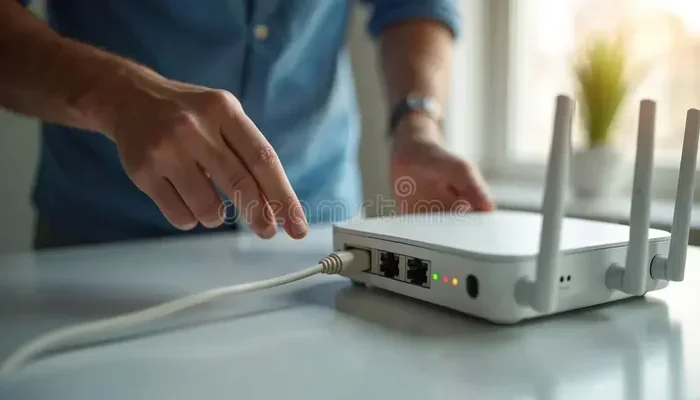
Step 2: Connect the Router to Your Modem
You’ll need an Ethernet cable (usually included with the router). Plug one end into the modem and the other end into the router’s WAN or Internet port. The WAN port is usually a different color from the other ports, so it’s easy to spot.
If you have a modem router combo from your ISP, you’ll need to put it into bridge mode first. This turns off the WiFi on the combo unit so your new router can take over. Call your ISP if you’re not sure how to do this. They can walk you through it in a few minutes.
Step 3: Power Everything On
Plug in your modem first. Wait about 1-2 minutes for it to fully start up. Then plug in your new router and wait for it to boot. Most routers have a power light that stops blinking and stays solid when they’re ready.
Step 4: Connect to the Router and Run Setup
On your phone or computer, look for the new WiFi network. The network name and default password are usually on a sticker on the bottom of the router. Connect to it, then open a web browser or the router’s app. Follow the on-screen instructions to set up your network name, password, and security settings.
Here’s a quick tip: use WPA3 security if your router supports it. It’s the most secure option available right now. If not, WPA2 is still solid.
Step 5: Test Your New Setup
Once setup is complete, run another internet speed test. Compare the results to what you got before. You should notice a difference, especially if your old router was the problem.
What to Look For When Buying a New Router
Not all routers are created equal. The market is full of options at different price points, and choosing the right one can feel overwhelming. Here’s what matters most.
WiFi Standard and Generation
Look for a router that supports WiFi 6 (also called 802.11ax) or WiFi 6E. These are the current standards and they offer much better speed, range, and device handling than older WiFi 5 or WiFi 4 routers. If you want to future-proof your setup, WiFi 7 routers are starting to come out, but they’re still pricey.
Single Router vs. Mesh WiFi System
This is one of the biggest decisions you’ll make. Here’s a simple comparison:
| Feature | Single Router | Mesh WiFi System |
|---|---|---|
| Best for | Small to medium homes | Large homes or multi-story houses |
| Coverage | Up to 2,000 sq ft typically | Up to 5,000+ sq ft with multiple nodes |
| Setup complexity | Very easy | Easy, but involves placing multiple units |
| Price range | $50-$250 | $150-$500+ |
| Seamless roaming | Limited | Excellent — devices switch between nodes automatically |
If you live in a small apartment or a single-story home under 1,500 square feet, a single dual band router will probably do the job. If you have a larger home, multiple floors, or persistent dead zones, a mesh WiFi system is the better choice.
Number of Bands
Most modern routers are dual-band, meaning they broadcast on both 2.4 GHz and 5 GHz frequencies. The 5 GHz band is faster but has shorter range. The 2.4 GHz band is slower but travels farther and penetrates walls better. Some routers are tri-band, which adds a second 5 GHz band. Tri-band routers are great for homes with lots of devices.
Ports and Connectivity
Check how many Ethernet ports the router has. If you have devices that need a wired connection — like a gaming console, desktop PC, or smart TV — you’ll want at least 3-4 ports. Gigabit Ethernet is the standard now, and anything less will bottleneck your speeds.
When a New Router Isn’t Enough to Fix Your WiFi
Here’s the honest truth. Sometimes, even the best new router won’t solve your WiFi problems. This happens more often than people think. Let’s look at when a new router falls short and what you can do about it.
Your ISP Speed Is the Bottleneck
If your internet plan only gives you 25 Mbps, no router in the world will make it faster. A new router can help you reach the full speed of your plan, but it can’t create speed that isn’t there. If you’ve been on the same plan for years, it might be time to call your ISP and ask about faster options.
Your Home Has Structural Issues
Thick brick walls, concrete floors, and metal roofing can block WiFi signals no matter how good your router is. If your home has these features, you might need more than just a new router. A WiFi range extender or a mesh system with strategically placed nodes can help bridge the gaps.
Your Modem Is Old or Outdated
Sometimes the modem is the real culprit, not the router. If your ISP provided a modem years ago, it might not support the latest internet speeds. You can ask your ISP if they’ll replace it for free or buy a compatible modem on your own. Just make sure it’s approved by your ISP before you buy.
You Need Better Network Management
If you have a lot of devices competing for the same connection, you might need a router with advanced features like Quality of Service (QoS) settings. QoS lets you prioritize traffic — so your video calls don’t buffer when someone else starts downloading a big file.
Interference From Neighbors
In apartment buildings or densely populated neighborhoods, your neighbors’ WiFi networks can interfere with yours. A dual-band or tri-band router can help by giving you more channels to choose from. Some routers also have features that automatically switch to the least crowded channel.
Quick Tips for Maximum WiFi Performance After Installation
Once you’ve installed your new router, a few simple tweaks can make a big difference. Here are some quick tips:
- Restart your router regularly: A quick reboot once a week clears out glitches and keeps things running smoothly.
- Update the firmware: Router manufacturers release updates that improve performance and fix security issues. Check for updates in the router’s app or admin panel.
- Use the 5 GHz band for fast devices: Connect your laptop, phone, and streaming devices to the 5 GHz band for the best speeds.
- Use the 2.4 GHz band for distant devices: Smart home gadgets and devices that are far from the router work better on 2.4 GHz.
- Change the WiFi channel: If your neighbors are on the same channel, your signal can get congested. Most router apps let you scan for the best channel automatically.
- Set up a guest network: This keeps your main network secure while still giving visitors internet access.
Common Mistakes People Make When Installing a New Router
Even with the best router, mistakes during setup can ruin your experience. Here are the most common ones to avoid:
- Placing the router in a bad location: Putting it in a corner, basement, or behind furniture kills your signal. Central and elevated is the way to go.
- Not changing the default password: Leaving the default admin password makes your network vulnerable. Always change it during setup.
- Skipping firmware updates: Outdated firmware can cause performance issues and security risks. Always update right after setup.
- Expecting instant miracles: A new router improves things, but it won’t turn a 25 Mbps plan into a gigabit connection. Manage your expectations based on your ISP plan.
- Forgetting to restart the modem: After connecting a new router, both the modem and router need a fresh start. Power cycle both for the best results.
- Buying the most expensive router you can find: The most expensive router isn’t always the best one for your situation. Match the router to your actual needs and home size.
Expert Insights: What Networking Pros Say About Router Upgrades
I spoke with a few networking professionals about what they recommend when people ask about router replacement. Here’s what they had to say:
Sarah Mitchell, a network technician with 12 years of experience, says: “Nine times out of ten, when someone complains about slow WiFi, their router is at least 5 years old. A modern WiFi 6 router is a night and day difference. But I always tell people to check their ISP speed first. You’d be surprised how many people are paying for slow internet and don’t even realize it.”
James Chen, a home networking consultant, adds: “For larger homes, I always recommend mesh systems over a single powerful router. The seamless roaming experience is just so much better. You don’t even notice switching between nodes. With a single router, you might get dropped connections in certain rooms.”
Both experts agree on one thing: a new router is one of the most cost-effective upgrades you can make for your home network. It’s cheaper than upgrading your entire internet plan, and the difference in daily performance can be dramatic.
Key Takeaways
- A new router can dramatically improve your WiFi speed and coverage: If your current router is old or underpowered, the upgrade alone can make a huge difference.
- Always check your internet plan speed first: A new router can’t exceed the speeds your ISP provides. Make sure your plan matches your needs.
- Router setup is straightforward: With modern setup apps and clear instructions, most people can install a new router in under 30 minutes.
- Choose the right type of router for your home: Small homes do fine with a single router. Large homes benefit from mesh WiFi systems.
- A new router won’t fix every problem: Structural issues, old modems, and ISP speed limits can all hold you back no matter how good your router is.
- Small tweaks after setup make a big impact: Firmware updates, channel changes, and proper placement all contribute to better performance.
Conclusion
So, can you just install a new router and get better WiFi? Absolutely. A new router is one of the simplest and most effective ways to breathe new life into your home network. You’ll enjoy faster speeds, better coverage, fewer dropped connections, and a smoother experience across all your devices.
But go in with realistic expectations. A new router works best when it’s paired with a solid internet plan, a working modem, and a good understanding of your home’s layout. Do a little homework before you buy. Run speed tests. Count your devices. Measure your home. And then choose a router that fits your actual needs.
The process of router setup is easier than most people fear. Within an hour, you can be up and running with a faster, more reliable network. Don’t let slow WiFi ruin another evening. Take action today, and you’ll wonder why you didn’t do it sooner.
Frequently Asked Questions
How long does it take to install a new router?
Most people can set up a new router in 15 to 30 minutes. Unboxing, connecting the cables, and running through the setup app is quick and straightforward. If you need to contact your ISP for modem settings, it might take a little longer, but it’s still usually under an hour.
Will a new router work with my existing internet plan?
Yes, any standard router works with any internet plan. However, if your plan is slow, a new router won’t make it faster. The router can only deliver the speed your ISP provides. Think of it this way — a new router is like a better pipe, but it can’t increase the water pressure beyond what your provider offers.
Do I need to buy a new modem too?
Not necessarily. If your current modem is less than 3-4 years old, it’s probably fine. But if it’s older or you’re on a faster internet plan (like gigabit), your modem might be limiting your speeds. Check with your ISP to see if they offer a newer modem or if you can use your own.
What’s the difference between WiFi 5 and WiFi 6 routers?
WiFi 6 is the newer standard and offers significantly better performance, especially when multiple devices are connected. It’s faster, more efficient, and handles heavy network traffic much better. If you have more than 5-10 devices at home, WiFi 6 is worth the upgrade. WiFi 5 routers are still fine for light use and smaller households.
Can I just move my old router to a different house?
Yes, you can physically move your old router to a new home. You’ll need to reconnect it to the new modem and reconfigure your network settings. However, if the router is more than 4-5 years old, you’re better off buying a new one. The performance gains from a modern router are well worth the investment.
Is mesh WiFi worth the extra cost over a single router?
For larger homes or homes with multiple floors, mesh WiFi is absolutely worth it. A single router can only cover so much space. Mesh systems use multiple nodes placed around your home to create seamless, whole-home coverage. The price is higher, but the convenience and performance improvements are significant for the right home.