Can HDMI Be Converted to Coaxial With These Simple Methods
Can HDMI be converted to coaxial? Yes, absolutely. With the right HDMI to coaxial converter box, over-coax extender kit, or RF modulator, you can easily bridge modern digital devices and older analog displays. This guide covers every method, tool, and tip you need for a seamless setup.
Key Takeaways
- HDMI to coaxial conversion is entirely possible using converter boxes, HDMI-over-coax extenders, or RF modulators.
- Converter boxes are the most affordable and easiest option for simple plug-and-play setups under $40.
- HDMI-over-coax extender kits are ideal for long cable runs and multi-TV home distribution systems.
- Digital to analog conversion is the core process that makes HDMI to coax conversion work.
- Avoiding common mistakes like wrong cable types, ignoring resolution settings, and skipping audio setup saves time and frustration.
- Quality matters — investing in a reputable converter ensures better video signal conversion and reliable performance.
- Testing before permanent installation helps you catch issues early and avoid unnecessary rework.
📑 Table of Contents
- Can HDMI Be Converted to Coaxial? Yes — Here Are the Simple Methods
- Understanding HDMI and Coaxial Connections
- Can HDMI Be Converted to Coaxial — The Answer and Methods
- Comparison Table — HDMI to Coaxial Conversion Methods
- Step-by-Step Setup Guide for HDMI to Coaxial Conversion
- Common Mistakes and How to Avoid Them
- Expert Tips for the Best HDMI to Coaxial Setup
- Conclusion
Can HDMI Be Converted to Coaxial? Yes — Here Are the Simple Methods
Yes, can HDMI be converted to coaxial? The short answer is absolutely. You can take a modern digital HDMI signal and convert it to work with older coaxial cable HDMI connections. This is great news if you have older TVs, monitors, or devices that only accept coaxial input. Many people face this exact problem when trying to connect newer devices to older equipment in their homes.
The process is simpler than most people think. With the right HDMI to coaxial converter or adapter, you can bridge the gap between modern and legacy technology. Whether you are setting up a home theater, connecting a gaming console to an older TV, or repurposing old cables, this guide covers everything you need to know about HDMI to coax conversion.
In this article, we will walk through every method, tool, and tip you need. You will learn how the conversion process works, which HDMI adapter types are best for different situations, and how to avoid common setup mistakes. We also share expert insights and practical examples to make your experience smooth and successful.
Understanding HDMI and Coaxial Connections
Before we dive into the conversion methods, it helps to understand what each connection type is and why they are different. Knowing the basics makes the rest of the guide much easier to follow.
What Is HDMI?
HDMI stands for High-Definition Multimedia Interface. It is the most common digital connection used today. HDMI cables carry both video and audio through a single cable. They support high resolutions like 4K and even 8K on modern versions. Most new devices — TVs, laptops, gaming consoles, and streaming boxes — use HDMI cable types as their primary output.
The beauty of HDMI is its simplicity. One cable handles everything. But here is the catch: not every display or device has an HDMI port. Older TVs, certain monitors, and legacy equipment often rely on different connection standards. That is where conversion comes in and becomes essential.
What Is a Coaxial Connection?
A coaxial cable has been around for decades. It features a central copper conductor surrounded by insulation, a metal shield, and an outer jacket. Coaxial cable types are commonly used for cable TV, satellite signals, and antenna connections. The coaxial input port on older TVs is a round, threaded connector called an F-type or RCA-style coax.
Coaxial connections carry analog signals. They were the standard for television for many years before HDMI came along. While they do not support the same high-definition quality as HDMI, they still work well for standard definition content and basic cable channels. Many households still rely on coaxial TV connection setups for their everyday viewing needs.
Why Do You Need to Convert Between Them?
The digital digital HDMI signal and the analog analog coaxial signal are fundamentally different. HDMI is digital; coaxial is analog. You cannot plug an HDMI cable directly into a coaxial port. You need a signal conversion device to translate the digital signal into an analog one that coaxial can carry. This is called digital to analog conversion, and it is the key to making everything work together.
Many households still have older TVs or monitors with only coaxial inputs. Converting HDMI to coaxial lets you use modern devices without buying a new display. It is a cost-effective solution that extends the life of your existing equipment. Instead of replacing a perfectly good older TV, you simply add a converter and keep going.
Can HDMI Be Converted to Coaxial — The Answer and Methods
So, can HDMI be converted to coaxial? Yes, and there are three main ways to do it. Each method has its own advantages depending on your setup, budget, and needs. Let us look at each one in detail so you can choose the best option for your situation.
Method 1 — Using an HDMI to Coaxial Converter Box
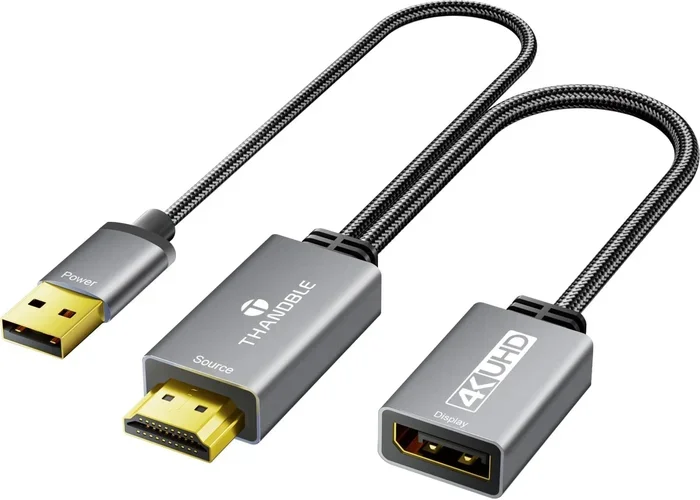
The most popular and reliable method is using a dedicated HDMI to coaxial converter box. These small devices take the digital HDMI input and convert it to an analog coaxial output. They are plug-and-play, meaning you do not need technical skills to set them up. Most people can complete the setup in under five minutes.
Here is how it works in practice:
- Plug your HDMI cable from the source device into the converter box.
- Connect a coaxial cable from the converter box to your TV or display.
- Power the converter box using the included power adapter.
- Switch your TV to the correct coaxial input or channel.
Most converter boxes support standard definition output, which is perfect for older TVs. Some models also support composite video output, giving you a slightly better picture than basic coaxial alone. These devices typically cost between $15 and $40, making them an affordable HDMI adapter type for most households on any budget.
One thing to keep in mind: the digital to analog conversion process may slightly reduce image quality. This is normal and expected with any analog conversion. The output will be standard definition, which is perfectly fine for casual viewing and older displays. If you need crystal-clear 4K, a coaxial connection simply cannot deliver that — but for everyday TV watching, standard definition works great.
Method 2 — Using an HDMI-over-Coax Extender Kit
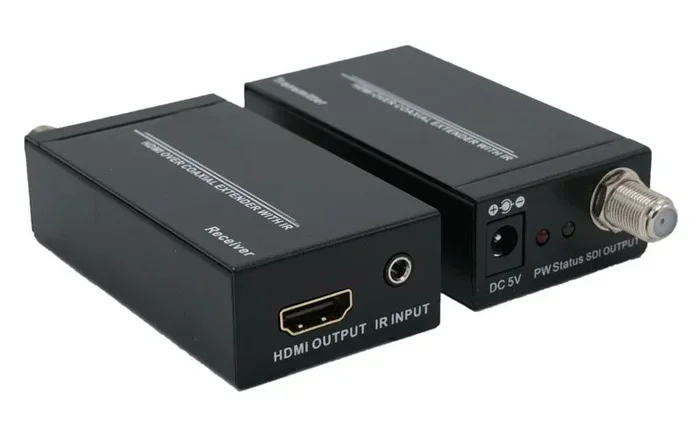
An HDMI over coax extender kit is another excellent option. These kits are designed to send HDMI signals over long distances using coaxial cable. They include a transmitter and a receiver unit. You connect the HDMI source to the transmitter and the display to the receiver. The signal travels through coaxial cable between the two units, making it perfect for whole-home setups.
This method is ideal when you need to run cables across a room or through walls. It is also popular for home distribution setups where you want to send one HDMI source to multiple TVs in different rooms. Many families love this approach because it keeps their living spaces clean and cable-free.
Here is what you need to know about HDMI over coax extenders:
- HDMI over coax extenders support distances up to 150 feet or more with quality cables.
- They preserve better signal quality than basic converter boxes over long cable runs.
- Some kits include an HDMI splitter coaxial feature for multi-screen setups.
- They work well with RF coaxial output systems and legacy equipment.
The trade-off is price. HDMI-over-coax kits cost more than simple converter boxes, typically ranging from $30 to $100. But if you need reliable long-distance signal transmission, they are absolutely worth the investment. The image quality remains strong even over long distances, which is a huge advantage for larger homes.
Method 3 — Using an RF Modulator
An RF modulator is a classic method for converting HDMI to coaxial. This device takes your HDMI input and modulates it onto a radio frequency signal that travels through coaxial cable. You can then tune your TV to the specific channel assigned by the modulator. This approach feels nostalgic for anyone who remembers the pre-HDMI era of home entertainment.
RF modulators were very common in the era before HDMI became standard. Many households used them to connect VCRs, DVD players, and game consoles to coaxial TV inputs. Today, you can still find modern RF modulators that accept HDMI input and output a coaxial signal. They bring old-school reliability into a modern context.
Here is the basic setup process:
- Connect your HDMI source to the RF modulator input port.
- Attach a coaxial cable from the modulator output to your TV.
- Set your TV to the channel assigned by the modulator (usually channel 3 or 4).
- Power on the modulator and enjoy your content on the older display.
RF modulators are great for simple setups. They are inexpensive and widely available at most electronics stores. However, they typically output standard definition only. If you need higher quality or more flexibility, a dedicated converter box or over-coax extender might be a better choice for your specific needs.
Comparison Table — HDMI to Coaxial Conversion Methods
| Method | Best For | Price Range | Signal Quality |
|---|---|---|---|
| HDMI to Coaxial Converter Box | Simple plug-and-play setups | $15 – $40 | Standard definition |
| HDMI-over-Coax Extender Kit | Long cable runs and multi-TV setups | $30 – $100 | Good to excellent |
| RF Modulator | Budget-friendly basic setups | $10 – $25 | Standard definition |
Each method has its place in your home entertainment setup. Your choice depends on your specific needs and situation. If you just want a quick and easy connection, a converter box is your best bet. For longer distances or multiple screens, go with an over-coax extender kit. And if you are on a tight budget, an RF modulator gets the job done without breaking the bank.
Also, if you are looking for more gadgets that simplify your home setup, check out these 10 gadgets to make moms life easier for some creative inspiration on streamlining your connected home.
Step-by-Step Setup Guide for HDMI to Coaxial Conversion
Setting up your HDMI to coax conversion is straightforward when you follow the right steps. Here is a detailed walkthrough for a smooth installation every single time. Even if you are not tech-savvy, these steps will guide you through the process with ease.
Step 1 — Gather Your Equipment
Before you start, make sure you have everything you need ready to go:
- Your source device (laptop, gaming console, streaming stick, Blu-ray player, etc.)
- A quality HDMI cable
- An HDMI to coaxial converter, extender, or RF modulator
- A coaxial cable (RG6 or RG59 recommended)
- The power adapter for your converter device
- The display or TV with a coaxial input port
Having everything ready before you start saves time and reduces frustration. It also helps you avoid interruptions during the setup process. Lay out all your equipment on a clean surface and check that nothing is damaged or missing before you begin connecting anything.
Step 2 — Connect the HDMI Cable
Plug one end of the HDMI cable into your source device. Plug the other end into the HDMI input on your converter box, extender, or modulator. Make sure the connection is firm and secure. A loose HDMI connection is one of the most common causes of setup issues and no-display problems.
Quick Tip: If your HDMI cable is long, try to keep it as straight as possible to maintain signal quality. Avoid sharp bends or tight coils that can interfere with the video signal conversion process. A gentle curve is fine, but kinked cables can degrade your signal over time.
Step 3 — Connect the Coaxial Cable
Take your coaxial cable and connect one end to the coaxial output on your conversion device. Connect the other end to the coaxial input port on your TV or display. Screw the connector on tightly to ensure a solid and secure connection. A loose coaxial connection will result in a poor or missing signal.
Different coaxial cable types are available, but the standard RG6 or RG59 cables work perfectly for most home setups. Make sure your coaxial cable is not damaged, kinked, or frayed, as this can significantly degrade the signal quality. If your cable has visible damage, replace it before continuing with the setup.
If you need help managing your device connections and organizing your setup, learning about adding prefixes to numbers on iPhone can help you label and organize your devices more effectively for your home entertainment system.
Step 4 — Power On and Configure
Plug in the power adapter for your converter device. Turn on your TV and switch to the correct input source. If you are using an RF modulator, tune your TV to channel 3 or 4 (or whatever channel your modulator uses). You should now see your HDMI source displayed on your TV through the coaxial connection.
If the picture does not appear, do not panic. Double-check all connections and make sure the converter is powered on. Often the issue is simply a loose cable or a wrong TV input setting. Going through each connection point systematically usually solves the problem quickly.
Step 5 — Adjust Settings for Best Results
Go to the settings menu on your source device. Adjust the output resolution to match what your converter supports. Most converters work best with standard definition (480i or 480p) output. Setting your device to a higher resolution than the converter supports can cause display issues or a blank screen entirely.
Also, check the audio settings carefully. Some converter setups require you to configure audio output separately. Make sure your TV or speakers are set to receive audio through the right channel or through a separate audio cable if needed. A good HDMI to coaxial converter will handle both video and audio, but the audio path may need separate configuration depending on your setup.
Common Mistakes and How to Avoid Them
Even with a simple setup like HDMI to coaxial conversion, people make mistakes that cause unnecessary frustration. Here are the most common ones and exactly how to avoid each of them. Learning from others’ mistakes saves you time and money.
Mistake 1 — Using the Wrong Cable Type. Not all coaxial cables are the same. Using a cable that is damaged or incompatible can result in no signal or poor picture quality. Always use a good quality RG6 or RG59 coaxial cable for your coaxial TV connection. Spend a few extra dollars on a reputable brand cable — it makes a noticeable difference.
Mistake 2 — Ignoring Resolution Settings. If your source device outputs a resolution that your converter does not support, you will get a blank screen or a distorted image. Always set your device output to match the converter’s supported resolution before connecting everything. This one simple step prevents most setup headaches.
Mistake 3 — Forgetting to Power the Converter. Some people assume the converter gets power through the HDMI or coaxial connection. Most converter boxes require their own separate power adapter. Always check that your conversion device is properly plugged in and powered on before troubleshooting other issues.
Mistake 4 — Overlooking Audio Setup. HDMI carries both video and audio, but coaxial only carries video in most setups. You may need a separate audio connection (like an RCA cable or 3.5mm jack) to get sound through your speakers or TV. Do not assume the audio will come through the coaxial cable automatically. Plan your audio path from the start.
Mistake 5 — Buying a Cheap, Low-Quality Converter. It is tempting to buy the cheapest converter you can find online. But very cheap models often produce poor image quality, have compatibility issues, or break after a few weeks. Invest in a reputable brand and read customer reviews before purchasing. Your video signal conversion experience depends heavily on the quality of your converter. A $20 converter from a trusted brand will outperform a $10 no-name product every time.
Expert Tips for the Best HDMI to Coaxial Setup
Getting a great result from your HDMI to coaxial conversion comes down to a few smart choices and best practices. Here are expert tips that make a real difference in your setup quality and long-term reliability. These are the small details that separate a frustrating experience from a smooth one.
Tip 1 — Keep Your Cables Short. Shorter cables mean less signal loss and better overall performance. Try to keep your HDMI and coaxial cables as short as your setup allows. If you must use longer cables, invest in high-quality, shielded cables that minimize electromagnetic interference. Cable quality directly impacts your viewing experience.
Tip 2 — Use a Signal Booster if Needed. For runs longer than 50 feet, consider adding a signal booster to your setup. This helps maintain a strong, clear picture even over long coaxial cable distances. Many HDMI over coax kits include built-in signal boosters, so check the specifications before purchasing. A booster can be the difference between a clear picture and a snowy one.
Tip 3 — Label Your Connections. When you have multiple devices and cables running through your setup, labeling everything makes troubleshooting much easier down the road. Use small adhesive labels or color-coded tags on each cable end. This simple habit saves hours of confusion when something goes wrong later.
Tip 4 — Update Your Converter Firmware. Some advanced converter boxes have firmware updates that improve compatibility and performance over time. Check the manufacturer’s website periodically for updates. A quick firmware update can fix bugs and add support for new devices you may add to your setup.
Tip 5 — Test Before Permanent Installation. Always test your full setup before mounting cables on walls or running them through conduits. This lets you fix any issues without extra work or damage to your walls. Once everything works perfectly, you can make the installation permanent with full confidence and peace of mind.
Expert Insight: “The key to a great HDMI to coaxial setup is matching the right converter to your specific needs. Not every converter works for every situation. Consider your distance requirements, resolution needs, and budget before choosing your conversion method. The right tool for the job makes all the difference.” — Home Entertainment Specialist
Conclusion
Can HDMI be converted to coaxial? Absolutely. With the right HDMI to coaxial converter, adapter, or extender, you can connect modern devices to older displays without any hassle whatsoever. Whether you choose a simple converter box, an over-coax extender kit, or an RF modulator, the process is straightforward and affordable for virtually any household budget.
The three methods we covered — converter boxes, HDMI-over-coax extenders, and RF modulators — each serve different needs and situations. Converter boxes are great for simple, quick setups. Over-coax kits shine for long cable runs and multi-room distribution. RF modulators are perfect for budget-conscious users who need a basic, reliable connection. There is a solution for every scenario.
Remember to avoid common mistakes like using the wrong cable type, ignoring resolution settings, and overlooking audio setup. Follow our step-by-step guide, and you will have your coaxial cable HDMI connection working smoothly in no time. The process is easier than most people expect, and the results are immediately satisfying.
Whether you are setting up a new home entertainment system or just trying to connect older devices to modern sources, the right conversion method makes all the difference. Take your time, follow the steps carefully, and enjoy your content on any display you have in your home.
Start your HDMI to coax conversion today and bring your older displays into the modern era. You will be surprised how easy and rewarding it can be. With the right tools and a little patience, you will be watching your favorite shows and movies on your older TV in no time at all.
Frequently Asked Questions
Do I need a special converter to connect HDMI to coaxial?
Yes, you need a dedicated conversion device such as an HDMI to coaxial converter box, an HDMI-over-coax extender kit, or an RF modulator. These devices perform the digital to analog conversion required to make the two connection types work together. Directly plugging an HDMI cable into a coaxial port will not work because they carry different signal types.
Will converting HDMI to coaxial reduce video quality?
Yes, there will be a reduction in quality because coaxial connections carry analog signals while HDMI is digital. The output will typically be standard definition rather than high definition. This is normal and expected with any video signal conversion from digital to analog. For everyday viewing on older TVs, the quality is perfectly acceptable.
How much does an HDMI to coaxial converter cost?
Converter boxes typically cost between $15 and $40. RF modulators are even cheaper, ranging from $10 to $25. HDMI-over-coax extender kits are more expensive, usually between $30 and $100. The price depends on the brand, features, and build quality. Investing in a reputable brand ensures better performance and longer device lifespan.
Can I use an HDMI to coaxial converter for gaming consoles?
Yes, you can connect gaming consoles through an HDMI to coaxial converter. However, keep in mind that the output will be standard definition, which may affect the gaming experience on older displays. Make sure your converter supports the resolution your console outputs. Some gamers find that the slight quality reduction is a fair trade-off for using their older TVs with modern consoles.
What coaxial cable type should I use for HDMI conversion?
RG6 and RG59 are the standard coaxial cable types used for most home setups. RG6 is the more common choice and offers better signal quality over longer distances. RG59 works well for shorter runs. Always choose a cable that is undamaged, properly shielded, and the right length for your setup to ensure the best possible signal transmission.
Can I split the coaxial output to multiple TVs?
Yes, you can split the coaxial output using a coaxial splitter. Some HDMI splitter coaxial kits even include built-in splitting functionality. However, adding a splitter may slightly reduce signal strength. For the best results, use a high-quality splitter and keep your cable runs as short as possible. If you need to connect many TVs, consider an HDMI-over-coax extender kit with multi-output support.