Can I Extend Hdmi To Two Monitors Without Extra Hardware
Yes, you can extend HDMI to two monitors without buying extra hardware in many cases. Most modern laptops and desktops come with multiple video outputs or support USB-C adapters that make dual monitor setups simple. This guide walks you through every method, from built-in ports to display settings, so you can get both screens running without spending a dime on splitters or switches.
Key Takeaways
- Built-in dual outputs: Many computers already have two video ports, making extension effortless.
- USB-C and Thunderbolt: These versatile ports can carry video signals to external displays without extra hardware.
- Display settings matter: Windows and Mac both offer easy ways to extend your screen at no cost.
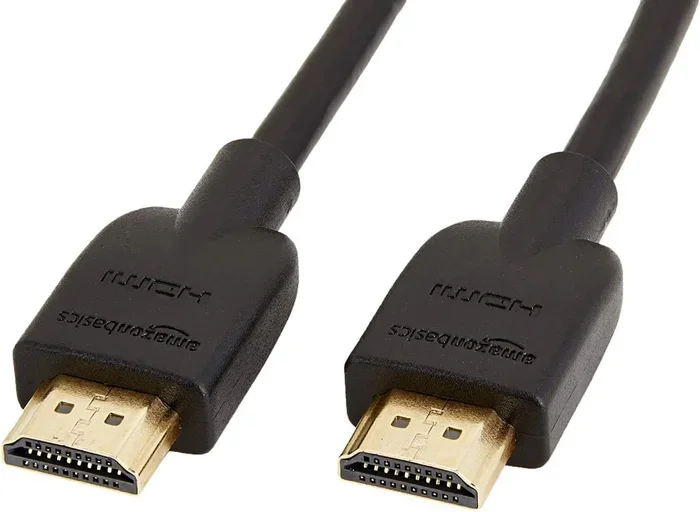
- Cable quality counts: Using the right HDMI cable ensures stable performance on both monitors.
- Not all setups work wirelessly: Some methods require specific ports or adapters already built into your device.
- Resolution and refresh rate: Extending HDMI affects how each display performs, so check your specs first.
📑 Table of Contents
- Can You Really Extend HDMI to Two Monitors Without Extra Hardware?
- How HDMI Extension Works on Your Computer
- Methods to Extend HDMI to Two Monitors Without Extra Hardware
- Setting Up Extended Display on Windows
- Setting Up Extended Display on Mac
- Common Challenges When Extending HDMI Without Extra Hardware
- Labeling and Organizing Your Multi-Monitor Setup
- When You Might Actually Need Extra Hardware
- Expert Insights on Dual Monitor HDMI Setups
- Key Takeaways
- Conclusion
Can You Really Extend HDMI to Two Monitors Without Extra Hardware?
If you have ever stared at a single monitor and wished you had more screen space, you are not alone. Many people want a dual monitor setup but worry about the cost. The good news is that extending HDMI to two monitors without extra hardware is possible in many situations.
The answer depends on your computer, its ports, and the type of graphics card or chip it uses. Some devices come with two HDMI outputs built right in. Others use USB-C or Thunderbolt to push video to a second display. You do not always need to buy an HDMI splitter or a fancy docking station.
In this guide, we will walk you through every method step by step. We will cover Windows and Mac systems, built-in ports, and common troubleshooting tips. By the end, you will know exactly how to extend your HDMI to two monitors without spending extra money.
Let us dive in and explore the simplest ways to get that extended display working for you today.
How HDMI Extension Works on Your Computer
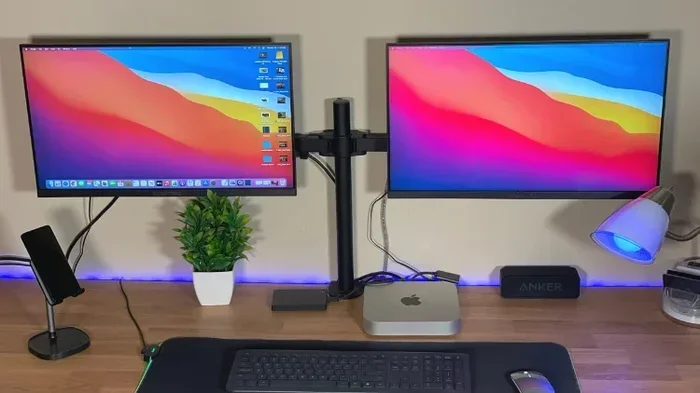
Before we get into the methods, it helps to understand what HDMI extension actually does. When you extend a display, your desktop spans across two or more screens. Each monitor shows different content. You can drag windows from one screen to the other. This is different from mirroring, which shows the same image on both displays.
HDMI carries both video and audio through a single cable. This makes it one of the most popular choices for connecting monitors. However, HDMI has limits. The version of HDMI your computer supports affects the maximum resolution and refresh rate you can achieve on each display.
Understanding HDMI Versions and Their Capabilities
Not all HDMI cables are the same. Here is a quick look at the main versions and what they support:
- HDMI 1.4: Supports up to 4K at 30Hz. Good for basic office work and browsing.
- HDMI 2.0: Supports up to 4K at 60Hz. Great for smoother visuals and video editing.
- HDMI 2.1: Supports up to 8K at 60Hz or 4K at 120Hz. Best for gaming and high-performance tasks.
When extending HDMI to two monitors, both screens share the bandwidth from your computer’s graphics output. This means each monitor might not get the full 4K 60Hz experience if your system only supports HDMI 1.4. Always check your hardware specs before setting up a dual monitor configuration.
Methods to Extend HDMI to Two Monitors Without Extra Hardware
There are several ways to extend your HDMI signal to two monitors without buying additional hardware. The method that works best depends on your computer’s available ports and its operating system.
Method 1: Use Two Built-in Video Ports
Many desktop computers and some laptops come with two or more video output ports. These might include HDMI, DisplayPort, VGA, or DVI. If your computer has at least two of these ports, you can connect two monitors directly without any extra hardware.
Here is how to do it:
- Check the back of your computer for available video ports.
- Plug one HDMI cable into the HDMI port on your computer.
- Plug a second HDMI cable into another video port (such as DisplayPort with an adapter, or a second HDMI port if available).
- Connect each cable to a separate monitor.
- Go to your display settings and choose “Extend these displays.”
This is the easiest and most reliable method. It requires no adapters, no splitters, and no additional cost. If your computer has the ports, this is the way to go.
Method 2: Use USB-C or Thunderbolt for the Second Monitor
Modern laptops often have USB-C or Thunderbolt ports that can carry video signals. These ports support DisplayPort Alt Mode, which means they can output video to an external monitor. You can use a USB-C to HDMI adapter or cable to connect your second display.
This method does not require any extra hardware beyond a simple adapter cable. Many people already have these cables lying around. Here is what to do:
- Connect your first monitor using the HDMI port on your laptop.
- Use a USB-C to HDMI cable or adapter for the second monitor.
- Open your display settings and extend the desktop.
Keep in mind that Thunderbolt 3 and Thunderbolt 4 ports offer the best performance. They support higher resolutions and can even daisy-chain multiple displays from a single port. If your laptop has Thunderbolt, you are in great shape for a multi-monitor setup.
Method 3: Use Your Graphics Card’s Multiple Outputs
If you have a desktop PC with a dedicated graphics card, check the back panel for multiple output options. Most modern GPUs come with at least two or three video outputs. You might find a mix of HDMI and DisplayPort connectors.
You can connect one monitor via HDMI and the other via DisplayPort. The operating system treats both as separate displays. No extra hardware is needed. This is a popular choice for gamers and professionals who need a wide workspace for multitasking.
Some older graphics cards only have one HDMI port. In those cases, you might need a DisplayPort-to-HDMI adapter, which is very inexpensive and widely available. This is not really “extra hardware” in the traditional sense since adapters cost just a few dollars.
Setting Up Extended Display on Windows
Windows makes it easy to extend your desktop across multiple monitors. Here is the step-by-step process for Windows 10 and Windows 11:
- Connect both monitors to your computer using HDMI cables or adapters.
- Right-click on your desktop and select “Display settings.”
- You will see two rectangles representing your monitors. If you do not see them, click “Detect.”
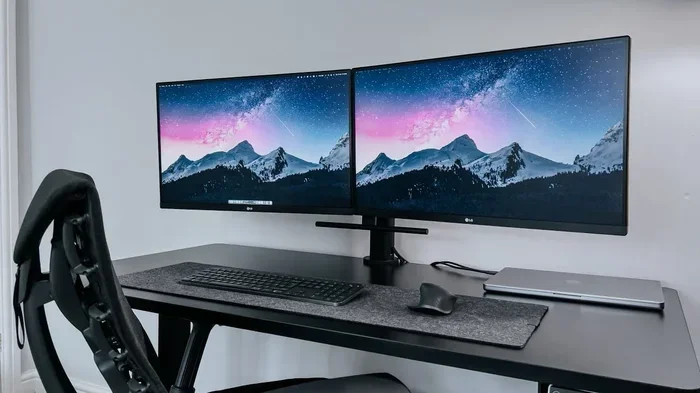
- Under the “Multiple displays” dropdown, select “Extend these displays.”
- Drag the rectangles to match the physical arrangement of your monitors on your desk.
- Click “Apply” and then “Keep changes.”
Once you have extended your display, you can customize each monitor’s resolution, refresh rate, and scaling. Right-click on a specific monitor rectangle in the display settings to adjust its individual properties. This gives you full control over how your extended desktop looks and feels.
Quick Tips for Windows Display Settings
- Set the primary monitor: The monitor where your taskbar and Start menu appear. Click “Make this my main display.”
- Match resolutions: Use the same resolution on both monitors for a consistent viewing experience.
- Adjust scaling: If text looks too small or too large on one monitor, change the scaling percentage in settings.
- Check refresh rates: Higher refresh rates reduce eye strain and make animations smoother.
For more tips on setting up your tech workspace, check out these 10 Gadgets To Make Moms Life Easier that can improve any home office setup.
Setting Up Extended Display on Mac
Mac users can also extend their display to two monitors without extra hardware. Apple’s macOS supports external displays through HDMI, Thunderbolt, and USB-C connections. Here is how to set it up:
- Connect your first monitor using an HDMI cable or a Thunderbolt/USB-C cable.
- Connect your second monitor using another available port on your Mac.
- Open “System Settings” (or “System Preferences” on older Macs).
- Click on “Displays.”
- Your connected monitors will appear. Arrange them by dragging the rectangles to match their physical positions.
- The monitor with the white bar at the top is your primary display.
MacBooks with Apple Silicon (M1, M2, M3 chips) can support external displays, but the number varies by model. The MacBook Pro with M2 Pro or M2 Max chips can drive up to four external displays. Check your specific Mac model to confirm its display capabilities.
Common Challenges When Extending HDMI Without Extra Hardware
While extending HDMI to two monitors without extra hardware is doable, you might run into a few challenges. Here are the most common issues and how to solve them.
Monitor Not Detected by the Computer
If one or both monitors do not appear in your display settings, try these steps:
- Check that both HDMI cables are firmly plugged in.
- Try a different HDMI cable. Faulty cables are a common culprit.
- Restart your computer with both monitors connected and powered on.
- Update your graphics drivers. Outdated drivers often cause detection issues.
- On Windows, press Windows key + P to quickly cycle through display modes.
Low Resolution or Blurry Text on Second Monitor
This usually happens when the second monitor has a different native resolution than the first. To fix it:
- Go to Display Settings on Windows or System Settings on Mac.
- Select the second monitor.
- Set the resolution to the monitor’s native resolution.
- Adjust the scale and layout if text still looks too small or too large.
Refresh Rate Drops on Extended Display
When you extend your display, the refresh rate might drop on one or both monitors. This is because the graphics card shares its output across multiple displays. To maintain the best refresh rate:
- Make sure both monitors support the same refresh rate.
- Use high-quality HDMI cables rated for the bandwidth you need.
- Lower the resolution on one monitor if needed to maintain smooth performance.
Labeling and Organizing Your Multi-Monitor Setup
Once you have two monitors running, keeping your setup organized helps a lot. You might want to label your cables or keep track of which monitor is which. Simple organization habits make a big difference in your daily workflow.
If you ever need to label or number your devices for easier identification, you can use simple methods to keep everything straight. For helpful tips on organizing your tech setup, you might want to look into Adding Prefixes To Numbers On Iphone for ideas on how to stay organized with your devices.
Cable Management Tips
- Use cable ties or Velcro straps to bundle HDMI cables together.
- Label each cable with a small piece of tape so you know which monitor it belongs to.
- Route cables behind your desk to keep your workspace clean.
- Consider a cable management box to hide excess cord length.
Monitor Placement Best Practices
- Place your primary monitor directly in front of you at eye level.
- Position the second monitor at a slight angle to reduce neck strain.
- Keep both monitors at roughly the same distance from your eyes.
- Use a monitor stand or arm to adjust height and angle easily.
When You Might Actually Need Extra Hardware
While this guide focuses on extending HDMI without extra hardware, there are times when you might need to invest in a small piece of equipment. Here are some situations where extra hardware becomes necessary:
- Your computer has only one video output: You will need an HDMI splitter or a USB-C hub with video output.
- Both monitors only have HDMI inputs: If your graphics card only has DisplayPort outputs, you need DisplayPort-to-HDMI adapters.
- You need more than two monitors: Extending to three or more screens usually requires a multi-output graphics card or a docking station.
- You want wireless extension: Wireless HDMI kits or casting devices let you send your display to a second screen without cables.
In these cases, the extra hardware is a small investment that pays off in productivity and convenience. But for most people with modern computers, extending HDMI to two monitors is completely free and straightforward.
Expert Insights on Dual Monitor HDMI Setups
Setting up a dual monitor configuration can transform the way you work and play. Here are some expert tips to get the most out of your setup:
- Match your monitors: Using two identical monitors creates a seamless visual experience with consistent color and brightness.
- Use high-quality cables: Cheap HDMI cables can cause signal loss, especially at higher resolutions. Invest in certified cables.
- Keep your drivers updated: Graphics driver updates often improve multi-monitor support and fix common bugs.
- Test before mounting: Set up both monitors on your desk first to make sure everything works before mounting them on walls or arms.
- Consider your workflow: Place your primary monitor directly in front of you and the secondary monitor to the side you use most often.
These simple steps ensure your extended HDMI setup runs smoothly and delivers a great experience every time you sit down at your desk.
Key Takeaways
- Check your ports first: Most modern computers have at least two video outputs that support HDMI extension without extra hardware.
- USB-C and Thunderbolt are game-changers: These ports can output video to a second monitor using simple adapter cables you may already own.
- Windows and Mac both support display extension natively: You do not need third-party software to span your desktop across two screens.
- Common issues are easy to fix: Most problems with undetected monitors or low resolution have simple solutions.
- Cable management matters: Keeping your setup organized improves both aesthetics and daily productivity.
- Extra hardware is not always necessary: Many computers can extend HDMI to two monitors using built-in ports and existing cables.
Conclusion
Extending HDMI to two monitors without extra hardware is entirely achievable for most users today. Whether you use a desktop PC with multiple video outputs or a modern laptop with USB-C and Thunderbolt ports, the tools you need are likely already at hand. You just need to know where to look and how to set things up.
The key is to check your computer’s available ports first, then follow the display settings steps for your operating system. With the right cables and a few minutes of setup time, you can enjoy a spacious dual monitor workspace without spending a single extra dollar.
Remember to keep your cables organized, your drivers updated, and your monitors positioned for comfort. A well-set-up dual display makes a real difference in productivity and everyday computing. Start exploring your options today and see how much easier your workflow becomes with two screens instead of one.
Take a moment to review the tips in this guide. Apply the methods that match your setup. You will be working across two monitors in no time, enjoying the extra screen space and improved multitasking that a dual monitor configuration provides.
Frequently Asked Questions
Can I extend HDMI to two monitors using a splitter?
An HDMI splitter mirrors the same image on both monitors rather than extending your desktop. If you want true extension where each screen shows different content, a splitter will not work. You need a computer with multiple video outputs or a USB-C to HDMI adapter instead.
Do I need a special HDMI cable to extend to two monitors?
No special HDMI cable is required. Any standard HDMI cable will work for extending your display. However, using high-quality, certified cables ensures stable signal transmission, especially at higher resolutions like 4K or when running at 60Hz refresh rates.
Can I extend my display if my laptop has only one HDMI port?
Yes, you can. If your laptop has one HDMI port and a USB-C or Thunderbolt port, you can connect one monitor via HDMI and the second monitor via a USB-C to HDMI adapter. This requires no extra hardware beyond the adapter cable, which many laptops come with.
Will extending HDMI to two monitors reduce performance?
Extending your display can slightly reduce performance because your graphics card must render content on two screens. For everyday tasks like browsing, word processing, and video calls, the impact is minimal. For demanding tasks like gaming or video editing, you may notice a drop in frame rate or resolution.
Can I extend HDMI to two monitors on a Mac?
Yes, Mac computers support extending their display to external monitors through HDMI, Thunderbolt, or USB-C connections. The process is simple through System Settings. Just make sure your Mac model supports multiple external displays, as this capability varies across different Mac models and chip generations.
Is it better to extend or mirror my HDMI display?
It depends on your needs. Extending gives you more workspace by spreading your desktop across two screens, which is great for multitasking. Mirroring shows the same image on both screens, which is useful for presentations or sharing content with a group. Most users find extending more practical for daily work.