Does Your Printer Use Wi Fi Or Bluetooth To Connect
Most modern printers use Wi-Fi as their primary wireless connection method, but many also support Bluetooth for quick, short-range printing. Understanding the difference between Wi-Fi printing and Bluetooth connectivity helps you set up your wireless printer the right way. This guide breaks down everything you need to know about printer connection options, setup steps, and troubleshooting tips.
Let’s face it. Technology moves fast. And when you buy a new printer, the first question that pops into your head is simple: does printer use Wi-Fi or Bluetooth? You just want to print your document without fuss. But the world of wireless printing can feel confusing. There are cables, Wi-Fi networks, Bluetooth signals, and apps everywhere. It is enough to make anyone want to give up and go back to USB cables.
Here is the good news. Understanding how your wireless printer connects is not as hard as it seems. In this guide, we will break it all down. You will learn exactly what Wi-Fi printing means, how Bluetooth connectivity works in printers, and which option fits your life best. By the end, you will feel confident setting up your printer without calling tech support.
Whether you are printing homework from your laptop, scanning documents at the office, or grabbing photos from your phone, the right connection matters. Let us dive in and make sense of it all.
Key Takeaways
- Wi-Fi is the most common wireless connection for printers: It offers longer range, faster speeds, and multi-device support.
- Bluetooth works for short-range printing: It is great for quick jobs but has limitations on range and file size.
- Many printers support both Wi-Fi and Bluetooth: This gives you flexibility depending on your needs and setup.
- Setting up wireless printing is straightforward: Most modern printers have simple step-by-step setup wizards.
- Common issues include signal interference and compatibility problems: Most can be fixed with simple troubleshooting steps.
- Your choice depends on your use case: Home users may prefer Bluetooth while offices benefit from Wi-Fi.
📑 Table of Contents
How Printers Connect Wirelessly
Before we pick sides between Wi-Fi and Bluetooth, let us understand what each one does. Both are wireless technologies, but they work very differently. Think of them like two different roads leading to the same destination. Both get you there, but the journey is different.
What Is Wi-Fi Printing?
Wi-Fi printing means your printer connects to your home or office network. Once connected, any device on that same network can send print jobs. This includes your laptop, phone, tablet, and even smart home devices.
Here is how it typically works. Your printer joins your wireless network using a password. Once it is on the network, it gets its own IP address. Your phone or computer finds the printer through that address. Then you send the document, and the printer prints it. Easy, right?
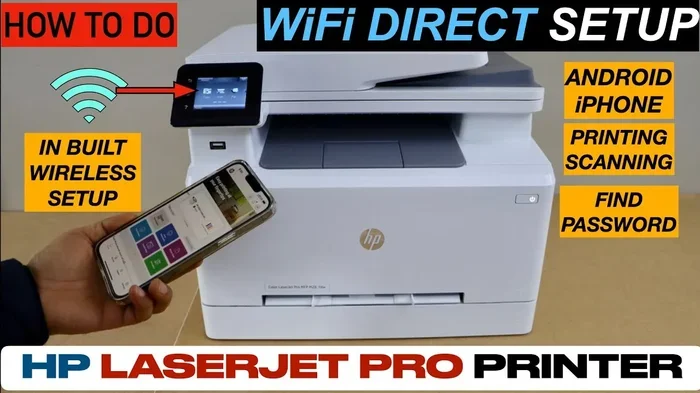
Most people set up their printer using the Wi-Fi setup wizard on the printer’s display screen. Some printers also let you use a smartphone app to walk you through the process. For example, if you have an iPhone, you might check out our guide on connecting a Wi-Fi printer to your iPhone for step-by-step help.
What Is Bluetooth Printing?
Bluetooth printing works differently. Instead of joining a network, your printer connects directly to your device. It is a one-to-one connection. Think of it like a walkie-talkie. Your phone talks directly to the printer without needing a router in the middle.
Bluetooth has a shorter range than Wi-Fi. You typically need to be within 30 feet of the printer. But the setup is often faster. You do not need to know your network password. You just pair the devices and print.
Bluetooth is handy for quick jobs. You are at a friend’s house and need to print a boarding pass. Your phone connects directly to a compatible printer. No network needed. That is the beauty of Bluetooth connectivity in printers.
Wi-Fi vs Bluetooth for Printers
Now let us compare the two. Both have strengths and weaknesses. Your best choice depends on what you print and how you live.
Range and Coverage
Wi-Fi has a much longer range. It can reach throughout your entire house or office. As long as your printer is on the same network, you can print from any room. Some wireless printers even support mesh networks, which extend the range further.
Bluetooth has a limited range of about 30 feet. If you are in the next room, you might lose the connection. This makes Bluetooth better for small spaces or single-room setups.
Speed and File Size
Wi-Fi handles large files much better. You can send high-resolution photos, big PDF documents, and multi-page reports without any lag. Modern Wi-Fi standards like Wi-Fi 5 and Wi-Fi 6 offer excellent speeds for printing. In fact, many people upgrade their router to improve their overall wireless signal, which benefits printing too.
Bluetooth is slower. It works fine for text documents and short photos. But large files can take longer or fail to transfer. If you regularly print big files, Wi-Fi is the clear winner.
Number of Devices
This is a big one. Wi-Fi printers can serve multiple devices at once. Your family can all print from their own phones and laptops. Everyone shares the same printer on the network.
Bluetooth printers usually connect to one device at a time. If your kid wants to print something while you are mid-job, they need to wait or disconnect your device first. For a household with many users, Wi-Fi is far more practical.
Security
Wi-Fi printing can be more secure when set up correctly. You can use encryption and password protection on your network. Some printers also support guest networks, keeping your printing isolated.
Bluetooth is generally secure because it is a direct connection. But it can be vulnerable if someone nearby tries to pair with your printer without permission. Most modern printers have pairing locks to prevent this.
Quick Comparison Table
| Feature | Wi-Fi | Bluetooth |
|---|---|---|
| Range | Whole house/office | ~30 feet |
| Speed | Fast | Moderate |
| Multiple Devices | Yes | One at a time |
| Setup Complexity | Moderate | Simple |
| Best For | Home offices, families | Quick single jobs |
| File Size Handling | Large files | Small to medium files |
| Security | Network-based encryption | Direct pairing lock |
If you are curious about upgrading your network to support better printing, you might want to read about whether Wi-Fi 5 can be upgraded to Wi-Fi 6 for better performance.
Setting Up Wireless Printing at Home
Setting up your printer does not have to be scary. Most modern printers guide you through the process. Here is a simple walkthrough for both connection types.
Setting Up Wi-Fi Printing
- Plug in your printer and turn it on.
- Go to the printer’s menu and find the Wi-Fi or Network settings.
- Select your home network from the list.
- Enter your Wi-Fi password using the printer’s screen or keypad.
- Wait for the connection to confirm. You will usually see a Wi-Fi icon on the display.
- Install the printer software on your computer or phone. Most brands offer free apps.
- Test a print job to make sure everything works.
Once your printer is on the network, you can print from any device that shares the same Wi-Fi. This is incredibly convenient for families and office environments.
Setting Up Bluetooth Printing
- Turn on Bluetooth on your phone or computer.
- Put your printer in pairing mode (check your printer manual for the exact steps).
- Search for available devices on your phone or computer.
- Select your printer from the list.
- Confirm the pairing if a code appears on either screen.
- Send a test print job to confirm the connection.
Bluetooth setup is usually faster. But remember, you need to be close to the printer. If you move too far away, the connection drops.
Common Wireless Printer Problems and Fixes
Even the best wireless printers run into issues sometimes. Here are the most common problems and how to fix them.
Printer Not Showing Up on the Network
This is the number one complaint. Your phone or computer cannot find the printer. First, check that the printer is connected to Wi-Fi. Look for the Wi-Fi icon on the printer’s display. If it is not there, restart the printer and run the Wi-Fi setup again.
Next, make sure your phone or computer is on the same network. Sometimes we connect to a guest network without realizing it. Also, restart your router if needed. A quick router reboot fixes many connection issues.
Slow Printing Over Wi-Fi
Slow printing can be frustrating. The most common cause is a weak wireless signal. If your printer is far from your router, move it closer. Walls, microwaves, and other electronics can interfere with the wireless signal.
You can also try changing the Wi-Fi channel on your router. Some channels are less crowded and perform better. If you have an older router, consider upgrading. Better wireless technology means faster printing.
Bluetooth Pairing Failures
If your printer will not pair with your device, try turning Bluetooth off and back on. Remove the printer from your device’s Bluetooth list and re-pair it. Make sure no other devices are connected to the printer at the same time.
Distance also matters. Move your device closer to the printer and try again. Some older devices have weaker Bluetooth chips that struggle with certain printers.
Which Connection Type Is Right for You?
The answer depends on your situation. Let us look at a few scenarios to help you decide.
Choose Wi-Fi If…
- You have a family or office with multiple users
- You want to print from any room in the house
- You regularly print large documents or high-quality photos
- You want hands-free printing from smart devices
- You plan to use your printer for years and need reliable connectivity
Choose Bluetooth If…
- You only need to print from one device
- You are in a small space like a dorm room or studio apartment
- You want a quick setup without dealing with network passwords
- You need to print occasionally and do not want to configure a network
- You are traveling and need a portable printer
Many modern printers support both Wi-Fi and Bluetooth. This gives you the best of both worlds. You can use Wi-Fi for everyday printing and Bluetooth for quick, on-the-go jobs. When shopping for a new printer, look for dual connectivity options.
For those who want to share their internet connection with a printer, you might find our article on sharing Wi-Fi through a laptop helpful for understanding network sharing options.
Expert Tips for Better Wireless Printing
Here are some pro tips that make a big difference in your daily printing experience.
Keep Your Printer Firmware Updated
Printer manufacturers release firmware updates regularly. These updates fix bugs, improve wireless connectivity, and add new features. Check your printer app or display screen for updates once a month. It takes just a few minutes and keeps everything running smoothly.
Place Your Printer in a Central Location
If you use Wi-Fi, placement matters. Put your printer in a central spot in your home or office. Avoid closets and cabinets that block the signal. The closer your printer is to the router, the stronger and more stable the connection will be.
Use the Manufacturer’s App
Most printer brands offer free apps for phones and tablets. These apps make setup easier and give you more control. You can check ink levels, order supplies, and troubleshoot problems right from your phone. It is a great way to stay on top of your printer setup.
Secure Your Printer Network
Just like your home network, your printer needs protection. Use a strong Wi-Fi password. Enable WPA3 encryption if your router supports it. Some printers also let you create a separate network just for printing. This keeps your printing traffic isolated and safe.
Consider a Wi-Fi Extender if Needed
If your printer is far from the router, a Wi-Fi extender can help. These small devices boost your wireless signal to areas with weak coverage. They are affordable and easy to set up. This is especially useful in larger homes or offices with thick walls.
The Future of Printer Connectivity
Wireless technology keeps evolving. Printers are getting smarter every year. Here is what we can expect in the near future.
Wi-Fi 6 and beyond are already making their way into printers. These newer standards offer faster speeds, better battery efficiency, and improved handling of multiple devices. If you are wondering whether your current setup can be upgraded, check out our guide on upgrading from Wi-Fi 5 to Wi-Fi 6 for more details.
We are also seeing more printers support Bluetooth Low Energy (BLE). This uses less power and extends battery life for portable printers. Some printers now even support both Wi-Fi and Bluetooth simultaneously, switching between them automatically based on what you need.
Voice-activated printing is another exciting development. You can soon tell your smart speaker to print a document, and it will happen. Mobile printing is becoming more seamless too. You will be able to print from anywhere using cloud-based services.
The bottom line is that wireless printing is only getting better. Whether you choose Wi-Fi, Bluetooth, or both, your printing experience will continue to improve with each new technology generation.
Remember, the best connection is the one that fits your life. Take a few minutes to understand your needs. Then set up your printer accordingly. You will save time, reduce frustration, and enjoy a much smoother printing experience every single day.
If you are dealing with connectivity challenges in specific spaces, you might want to explore options like blocking Wi-Fi in a room to reduce interference, or learn more about temporary connectivity solutions with temporary Wi-Fi options for guest printing situations.
Frequently Asked Questions
Can I use both Wi-Fi and Bluetooth on my printer at the same time?
Yes, many modern printers support both connections simultaneously. You can print over Wi-Fi from your computer while your phone connects via Bluetooth for quick jobs. Check your printer’s manual to confirm dual connectivity support.
Is Wi-Fi or Bluetooth better for printing photos?
Wi-Fi is generally better for printing photos. It handles larger file sizes faster and maintains better image quality during transfer. Bluetooth can work for photos but may take longer and occasionally compress files.
Do I need an internet connection to use Wi-Fi printing?
No, you do not need internet access for Wi-Fi printing. Your printer and devices just need to be on the same local network. The router handles the connection without requiring an active internet connection.
Can I print from my phone using Bluetooth without Wi-Fi?
Yes, Bluetooth printing works independently of Wi-Fi. As long as your phone and printer have Bluetooth enabled and are paired, you can print directly without needing a wireless network or internet connection.
Why is my wireless printer not showing up when I try to print?
This usually happens when the printer is not connected to the same network as your device. Check the Wi-Fi icon on your printer and make sure it is on. Restarting both the printer and your router often fixes this issue quickly.
Is Bluetooth printing secure enough for sensitive documents?
Bluetooth printing is generally secure for everyday use. The direct pairing connection makes it harder for others to intercept. However, for highly sensitive documents, Wi-Fi with encryption and a secure network is the safer option.
=== CONCLUSION ===
So, does your printer use Wi-Fi or Bluetooth? The answer is, it can use either or both. Wi-Fi gives you range, speed, and multi-device support. It is the go-to choice for most homes and offices. Bluetooth offers simplicity and quick setup for short-range jobs. It is perfect for on-the-go printing and single-device setups.
Understanding your printer connection options puts you in control. You no longer have to guess or struggle when setting up a new printer. You can make informed decisions about what works best for your lifestyle and needs.
Take a few minutes today to check your printer’s connectivity options. Set up your wireless printer properly, and you will enjoy hassle-free printing for years to come. The technology is there to make your life easier. All you have to do is use it.