How Do I Restore Chromecast Settings to Factory Defaults
Restoring Chromecast settings to factory defaults is the fastest way to fix streaming problems, connection errors, and setup issues. Whether you use the Google Home app or the device button, this guide walks you through every method. You will also learn what happens after a reset, how to reconfigure your device, and expert tips to prevent future issues.
Have you ever stared at your TV screen, watching the spinning Chromecast icon go round and round, and thought, “I just want this to work”? You are not alone. Millions of people use Google Chromecast devices every day to stream movies, music, and shows. But like any tech gadget, these streaming devices can hit a wall. Sometimes the answer is simpler than you think. A factory reset can bring your device back to life and solve a surprising number of problems.
In this guide, we will walk you through exactly how to restore Chromecast settings to factory defaults. We will cover every method, explain what happens during a reset, and share tips to get your device running smoothly again. Whether you have a Chromecast with Google TV or an older Chromecast Audio, this article has you covered. Let us dive in and get your streaming setup working perfectly.
Key Takeaways
- Easy Reset Options: You can restore Chromecast settings using the Google Home app, the physical reset button, or a manual button press sequence.
- No Data Loss Worries: A factory reset erases Wi-Fi passwords and device preferences but does not harm your TV or streaming accounts.
- Quick Reconfiguration: After a reset, setting up your Chromecast again takes only a few minutes through the Google Home app.
- Troubleshooting Power: Factory resetting solves most common Chromecast issues like freezing, buffering, and connection drops.
- Prevent Future Problems: Simple habits like restarting your device and keeping firmware updated reduce the need for frequent resets.
📑 Table of Contents
- What Happens When You Restore Chromecast Settings
- How to Restore Chromecast Settings Using the Google Home App
- How to Factory Reset Chromecast Without the App
- How to Reset Chromecast Audio Devices
- Common Problems After Restoring Chromecast Settings
- Tips to Avoid Future Chromecast Issues
- When to Contact Google Support
- Final Thoughts
What Happens When You Restore Chromecast Settings
Before you press any buttons, it helps to understand what a factory reset actually does. Many people worry that resetting their device will break something or delete important data. The good news is that a reset is safe and reversible.
What Gets Erased
When you restore Chromecast settings, the device goes back to the exact state it was in when you first took it out of the box. Here is what gets wiped clean:
- Wi-Fi network passwords and saved network connections
- Google account links and pairing information
- Custom display settings like resolution and screen mirroring preferences
- App preferences and any pinned streaming services
- Device name and any custom nicknames you set up
What Stays the Same
On the flip side, a factory reset does not harm your TV or your streaming subscriptions. Your Netflix, YouTube, Spotify, and other app accounts remain safe on the cloud. The reset only affects the local settings stored on the Chromecast device itself. Your HDMI port and TV input settings stay untouched too.
Why People Choose to Reset
There are many reasons someone might want to restore Chromecast settings. The most common ones include:
- The device freezes or becomes unresponsive during streaming
- You are troubleshooting connection problems with your Wi-Fi network
- You are selling or giving away the device and want to wipe personal data
- You need to reconfigure the device for a new home or user
- Firmware updates have caused unexpected behavior
Understanding these reasons helps you feel confident that a reset is the right move. It is not something to fear. Think of it as a fresh start for your streaming device.
How to Restore Chromecast Settings Using the Google Home App
The Google Home app is the easiest and most common way to reset your Chromecast. If you have a smartphone or tablet nearby, this method takes less than two minutes. Here is exactly how to do it.
Step-by-Step Guide
Follow these steps carefully to ensure a smooth reset process:
- Open the Google Home app on your phone or tablet. Make sure you are connected to the same Wi-Fi network as your Chromecast device.
- Find your Chromecast device on the home screen. Tap on it to open the device settings page.
- Tap the gear icon in the top right corner to access Settings.
- Scroll down and tap “Reset.” You will see this option near the bottom of the settings menu.
- Choose “Restore factory defaults.” The app will ask you to confirm. Tap “Reset” again to proceed.
- Wait for the process to finish. Your Chromecast will restart automatically. The LED light will blink during the reset.
Once the reset is complete, your Chromecast will reboot and display the setup screen. You can now go through the Chromecast setup process again as if it were a brand new device.
Tips for Using the Google Home App Method
- Make sure your phone is connected to the same Wi-Fi network as the Chromecast before you start
- If the app does not find your device, try restarting your router first
- Keep your phone within close range of the Chromecast device during the reset
- Update the Google Home app to the latest version before attempting a reset
How to Factory Reset Chromecast Without the App
What if your Chromecast is not connecting to Wi-Fi anymore? What if the Google Home app cannot find your device? Do not worry. You can still restore Chromecast settings using the physical buttons on the device itself. This method works even when your device seems stuck or unresponsive.
Method 1: The Button Press Technique
This is the most reliable way to reset a Chromecast without using any app. Here is what to do:
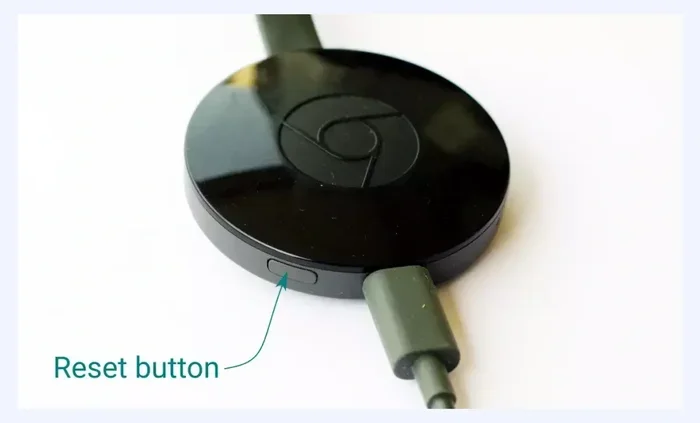
- Locate the reset button on your Chromecast device. On most models, it is a small button on the back or side.
- Press and hold the button for about 25 seconds. Use a paperclip or a thin pin if the button is small.
- Watch the LED light. When it starts flashing, let go of the button.
- Wait for the device to restart. The Chromecast will reboot and return to factory default settings.
This method works for most Chromecast models, including the original Chromecast and the Chromecast Ultra. It is a great Chromecast troubleshooting trick to keep in your back pocket.
Method 2: The Power Cycle Reset
Sometimes a simple power cycle can do the trick. This method is especially helpful if your device is experiencing minor glitches:
- Unplug the Chromecast from the power source
- Wait for 30 seconds to let the device fully power down
- Plug it back in and wait for it to boot up
- Check if the issue is resolved before trying a full factory reset
A power cycle does not erase your settings like a factory reset does. But it can fix many common problems. Think of it as a quick refresh before going for the full reset.
How to Reset Chromecast Audio Devices
Not all Chromecast devices look the same. If you have a Chromecast Audio or a Google Nest speaker, the reset process is slightly different. These audio devices are popular for streaming music to speakers and sound systems.
Resetting Chromecast Audio
To restore Chromecast Audio settings, follow these steps:
- Plug in your Chromecast Audio and make sure the LED light is on
- Press and hold the reset button on the back of the device for 25 seconds
- Listen for a chime sound that confirms the reset has started
- Wait for the device to reboot and enter setup mode
Resetting Google Nest and Google Home Speakers
If you have a Google Nest or Google Home speaker, the process is similar but uses the volume and microphone buttons:
- Unplug the speaker from power
- Press and hold the volume down button and the top button at the same time
- While holding both buttons, plug the speaker back in
- Continue holding for about 15 seconds until you hear a sound
These audio devices serve as a streaming device for music and podcasts. Resetting them follows the same general principles as resetting a video Chromecast. The key is to be patient and hold the buttons long enough for the device to register the command.
Common Problems After Restoring Chromecast Settings
After you restore Chromecast settings, you may run into a few hiccups. This is completely normal. Your device has just been wiped clean and needs to be set up again. Here are the most common issues and how to fix them.
Chromecast Not Connecting to Wi-Fi
If your device cannot connect to your wireless network after a reset, try these steps:
- Make sure you are entering the correct Wi-Fi password
- Move your Chromecast closer to your router to improve signal strength
- Restart your router by unplugging it for 30 seconds
- Check that your router is using a 2.4 GHz band, which Chromecast supports best
Device Shows “No Signal” on TV
A “no signal” message usually means there is a connection issue between your Chromecast and TV. Try this:
- Unplug the HDMI cable from both the TV and the Chromecast
- Check for any visible damage on the cable
- Try a different HDMI port on your TV
- Reconnect and restart your TV and Chromecast
Setup Process Gets Stuck
Sometimes the setup process hangs or freezes. This can happen if your phone and Chromecast are on different networks. Make sure both devices are on the same Wi-Fi network. If the problem persists, try closing the Google Home app and reopening it. You can also restart your phone to clear any temporary glitches.
Tips to Avoid Future Chromecast Issues
Once you have successfully restored your Chromecast settings, you probably want to avoid needing another reset anytime soon. The good news is that a few simple habits can keep your device running smoothly for a long time.
Keep Your Firmware Updated
Google regularly releases firmware updates for Chromecast devices. These updates fix bugs, improve performance, and add new features. To check for updates:
- Open the Google Home app
- Go to your device settings
- Look for any available software updates
- Install them when prompted
Restart Your Device Regularly
Just like your phone or computer, your Chromecast benefits from an occasional restart. A simple restart clears temporary files and refreshes the connection. Try restarting your device once a week to keep things running smoothly.
Use a Stable Power Source
Power fluctuations can cause all sorts of streaming problems. Always plug your Chromecast into a reliable power outlet. If you are using a USB port on your TV, make sure it provides enough power. Some TVs have USB ports that do not supply sufficient power, which can lead to intermittent issues.
Manage Your Network Wisely
Your Wi-Fi network plays a huge role in how well your Chromecast performs. Here are some network tips:
- Place your router in a central location in your home
- Avoid placing your router near microwaves or other electronics that cause interference
- Use a dual-band router that supports both 2.4 GHz and 5 GHz frequencies
- Limit the number of devices connected to your network during streaming hours
Do Not Overload Your Device
While Chromecast devices are designed for streaming, they still have limits. Avoid installing too many apps or casting extremely high-resolution content if your internet connection is slow. Keeping your usage moderate helps prevent slowdowns and crashes.
When to Contact Google Support
Most Chromecast issues can be resolved with a simple factory reset. But sometimes, problems persist even after you try everything. In those cases, it is time to reach out to Google Support for help. Here are some signs that you need professional assistance:
- Your device will not power on at all, even after multiple reset attempts
- You experience persistent hardware issues like a broken HDMI connector
- The LED light does not blink during the reset process
- You have tried all methods and your Chromecast still will not connect
Google Support can walk you through advanced troubleshooting steps. They can also help with warranty claims if your device is still under warranty. Visit the official Google Help Center or contact them through the Google Home app for personalized support.
Final Thoughts
Restoring Chromecast settings to factory defaults is one of the most effective ways to troubleshoot and fix streaming problems. Whether you use the Google Home app or the physical reset button, the process is straightforward and safe. Your data stays protected, and your device gets a fresh start in just a few minutes.
Remember that a reset is not something to be afraid of. It is a powerful tool that gives your device a clean slate. After reading this guide, you now know all the methods, what to expect after a reset, and how to prevent future issues. The next time your Chromecast acts up, you will know exactly what to do.
Take a few minutes today to bookmark this guide. Share it with friends and family who might be struggling with their streaming device. A little knowledge goes a long way in keeping your home entertainment setup running smoothly. Happy streaming!
Frequently Asked Questions
How long does it take to restore Chromecast settings to factory defaults?
The reset process usually takes about 2 to 3 minutes. The device will restart automatically once the reset is complete. You will see the LED light blink during the process, and the setup screen will appear when it is done.
Will I lose my Netflix and YouTube accounts after a reset?
No, your streaming accounts are safe. A factory reset only removes local device settings like Wi-Fi passwords and device preferences. Your Netflix, YouTube, and other app accounts remain linked to your Google account in the cloud.
Can I restore Chromecast settings without the Google Home app?
Yes, you can. You can use the physical reset button on the back of the device. Simply press and hold the button for 25 seconds, and the device will reset to factory defaults. This method works even when the app cannot find your device.
What should I do if my Chromecast will not reset?
If the reset is not working, try unplugging the device from power for 30 seconds. Then plug it back in and try the reset again. Make sure you are using the correct button and holding it long enough. If the problem continues, contact Google Support for further assistance.
How often should I reset my Chromecast device?
You should only reset your Chromecast when you are experiencing persistent issues. Regular resets are not necessary. Instead, try restarting your device weekly and keeping the firmware updated to maintain smooth performance.
Is it safe to sell a Chromecast after factory resetting it?
Yes, it is completely safe. A factory reset wipes all personal settings and device data. After the reset, your Chromecast will be in the same state as when you first bought it, making it ready for a new owner to set up.