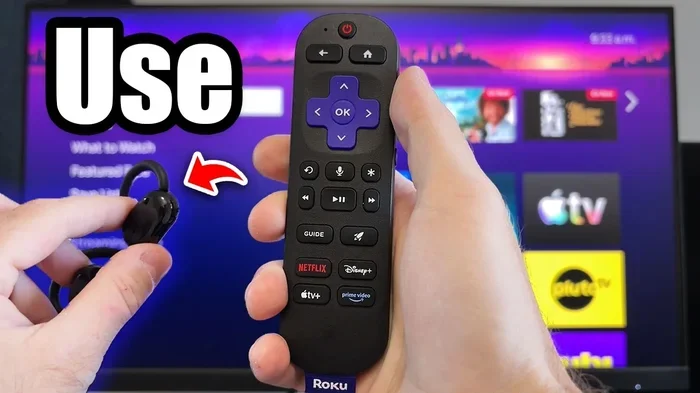
Does A Roku Tv Have Bluetooth Heres What You Need To Know
Does a Roku TV have Bluetooth? The answer depends on your specific model. Many modern Roku TVs include built-in Bluetooth for wireless audio streaming, but not all of them do. In this guide, we walk you through everything you need to know about Roku TV Bluetooth support, from pairing your favorite headphones to troubleshooting common connection problems.
If you own a Roku TV and want to go wireless with your audio, you might be asking one simple question: does a Roku TV have Bluetooth? It is a fair question, and the answer is not as straightforward as you might think. Some Roku TV models come with built-in Bluetooth support, while others do not. This can make buying wireless headphones or speakers a frustrating experience if you do not know what to look for.
In this guide, we break down everything you need to know about Roku TV Bluetooth capability. We cover which models support it, how to connect your devices, and what to do if your TV does not have Bluetooth built in. Whether you want to listen through wireless headphones late at night or stream music to a Bluetooth speaker, we have you covered.
We also share practical tips, common mistakes to avoid, and expert insights that will help you get the best wireless audio experience from your Roku TV. Let us dive right in.
Key Takeaways
- Not all Roku TVs have Bluetooth: Some models include built-in Bluetooth, while others require a workaround or external adapter.
- Bluetooth audio streaming works great: You can connect wireless headphones, speakers, and soundbars to most supported Roku TV models.
- The Roku mobile app helps: It acts as a remote and can also help with Bluetooth audio routing on compatible devices.
- Troubleshooting is simple: Most Bluetooth issues on Roku TV can be fixed with a quick reset or firmware update.
- Bluetooth transmitters are a solid backup: If your Roku TV lacks Bluetooth, a cheap transmitter can add wireless audio capability.
- Check your model first: Always verify your specific Roku TV model before buying Bluetooth accessories.
- Audio latency can be an issue: Some Bluetooth connections may have a slight delay, especially with older Roku models.
📑 Table of Contents
- Does A Roku Tv Have Bluetooth
- How To Connect Bluetooth Devices To Your Roku TV
- What Bluetooth Devices Work Best With Roku TV
- Troubleshooting Bluetooth Problems On Roku TV
- Alternatives To Built In Bluetooth On Roku TV
- Expert Tips For The Best Bluetooth Experience On Roku TV
- Common Mistakes To Avoid With Roku TV Bluetooth
- Final Thoughts On Roku TV Bluetooth
Does A Roku Tv Have Bluetooth
The short answer is: it depends on the model. Does a Roku TV have Bluetooth? Many newer Roku TV models do include built-in Bluetooth, especially those released in the last few years. However, older models and some budget options may not have this feature at all. This is something Roku does not always make obvious on the product box, which is why so many people end up confused.
Roku TVs come in a wide range of sizes and price points. The company partners with different manufacturers like TCL, Hisense, and Sharp to sell Roku-powered televisions. Each manufacturer may handle Bluetooth differently. Some include it as a standard feature, while others leave it out to keep costs down. This means you cannot assume every Roku TV has Bluetooth just because the brand is Roku.
Understanding Roku TV Bluetooth Support
When a Roku TV does have Bluetooth, it typically supports Bluetooth 4.0 or higher. This allows you to connect wireless headphones, speakers, and even keyboards. The Bluetooth feature on Roku TV is primarily designed for audio output. You can stream sound to a wireless speaker or headphones without needing cables. This is incredibly useful for late-night watching or when you do not want to disturb others in your home.
It is important to note that Roku TV Bluetooth is not the same as Bluetooth on a smartphone. On a phone, Bluetooth handles file transfers, calls, and many other functions. On a Roku TV, Bluetooth is focused almost entirely on audio output. You will not be able to transfer files or use your TV as a Bluetooth source for other devices.
Which Roku TV Models Support Bluetooth
Here is a general breakdown of which Roku TV models tend to include Bluetooth support:
- Roku TV models from 2018 and newer: Most of these include built-in Bluetooth.
- Mid-range and premium Roku TVs: Models in the $400+ range almost always have Bluetooth.
- Budget Roku TVs: Some lower-priced models may skip Bluetooth to reduce costs.
- Roku TV models sold by TCL and Hisense: These vary widely. Check the specific model number.
If you are unsure whether your TV has Bluetooth, go to Settings > System > About on your Roku TV. Look for Bluetooth in the list of features. You can also check your user manual or search for your exact model number online.
How To Connect Bluetooth Devices To Your Roku TV
If your Roku TV does have Bluetooth, connecting a device is usually straightforward. Here is how to do it step by step.
Step By Step Pairing Process
- Turn on your Roku TV and press the Home button on your remote.
- Navigate to Settings and select System.
- Choose Bluetooth and then select Pair new device.
- Put your Bluetooth headphones or speaker into pairing mode.
- Select your device from the list on the TV screen.
- Wait for the connection to complete. You should hear a confirmation sound.
Once paired, your Roku TV will remember the device. The next time you turn on both devices, they should connect automatically. This makes the process quick and convenient for daily use.
Using The Roku Mobile App For Bluetooth
The Roku mobile app is a great tool that adds extra functionality to your Roku TV experience. It works as a remote control and also helps with audio settings. In some cases, the app can help you route audio to Bluetooth devices more easily. You can download the app for free on both iOS and Android devices.
If you are also looking to use your phone as a speaker for other purposes, you might want to check out how to turn your phone into a Bluetooth speaker for additional wireless audio options around your home.
What Bluetooth Devices Work Best With Roku TV
Not all Bluetooth devices are created equal when it comes to Roku TV compatibility. Here is a look at the devices that work best and what to expect.
Bluetooth Speakers And Headphones
Wireless headphones and speakers are the most common devices people connect to Roku TV. Most standard Bluetooth headphones work without any issues. Whether you use over-ear headphones, in-ear earbuds, or a portable Bluetooth speaker, the connection process is the same.
For those looking to boost their audio setup, a Bluetooth speaker can be a great addition. If you want to amplify your voice or use a speaker for presentations, consider checking out what options are available for using a Bluetooth speaker to amplify your voice as it can help you understand the full range of Bluetooth speaker capabilities.
Soundbars With Bluetooth
Many modern soundbars include Bluetooth connectivity. If you want better audio quality than headphones or a small portable speaker can provide, a Bluetooth soundbar is an excellent choice. You can stream music, watch movies, and listen to podcasts all through your soundbar. Just make sure your soundbar is compatible with Roku TV before purchasing.
Keyboards And Remotes
Some Bluetooth keyboards and mice work with Roku TV. This can be helpful if you use your TV for browsing or typing. A wireless keyboard makes searching for content much faster than using the on-screen remote. Just keep in mind that not all Roku TV models support Bluetooth input devices, so check compatibility first.
Troubleshooting Bluetooth Problems On Roku TV
Bluetooth connections are not always perfect. If you are having trouble connecting your devices to your Roku TV, you are not alone. Here are the most common issues and how to fix them.
Common Issues And Solutions
- Device not showing up in the list: Make sure your Bluetooth device is in pairing mode and within close range of the TV. Move closer and try again.
- Audio cuts out or stutters: This is often caused by interference from other wireless devices. Move your router or other Bluetooth devices away from the TV.
- Paired but no sound: Go to Settings > Audio > Audio Output and make sure Bluetooth is selected as the output device.
- Connection keeps dropping: Your Bluetooth device may be low on battery. Charge it fully and try reconnecting.
- Pairing mode will not start: Reset your Bluetooth device by turning it off and back on, then try again.
When Bluetooth Is Not Available
If your Roku TV does not have built-in Bluetooth, do not worry. There are several workarounds that can add wireless audio capability. One popular option is using a Bluetooth transmitter. This small device plugs into your TV’s audio output and sends audio wirelessly to your Bluetooth headphones or speakers. Another option is using an HDMI audio extractor with Bluetooth built in. These devices extract audio from your HDMI cable and transmit it wirelessly.
If you are exploring other ways to connect devices to your TV wirelessly, you might also want to learn about using HDMI for video and Bluetooth for audio as a combined solution for your entertainment setup.
Alternatives To Built In Bluetooth On Roku TV
For those whose Roku TV does not have Bluetooth, there are several effective alternatives. These options let you enjoy wireless audio without needing to buy a new TV.
Using A Bluetooth Transmitter
A Bluetooth transmitter is one of the easiest and most affordable ways to add Bluetooth to any Roku TV. These devices plug into your TV’s audio output, which could be a 3.5mm headphone jack, an optical port, or an RCA connection. The transmitter then pairs with your Bluetooth headphones or speakers just like built-in Bluetooth would.
Bluetooth transmitters range from about $15 to $50 depending on the brand and features. Some models support aptX or aptX HD codecs, which deliver better audio quality. Look for a transmitter that supports low-latency audio if you plan to watch videos, as this reduces the annoying lip-sync delay.
Using A Smart Speaker As A Bluetooth Receiver
Smart speakers like Amazon Echo or Google Nest can act as Bluetooth receivers in some cases. You can pair your Roku TV with the smart speaker and use it as your audio output. This is a great option if you already own a smart speaker and want to avoid buying extra hardware.
If you are interested in using voice assistants with your Bluetooth speaker setup, check out how Alexa can work as a Bluetooth speaker for more ideas on integrating smart home audio with your entertainment system.
Using A Bluetooth Adapter For Your Roku TV
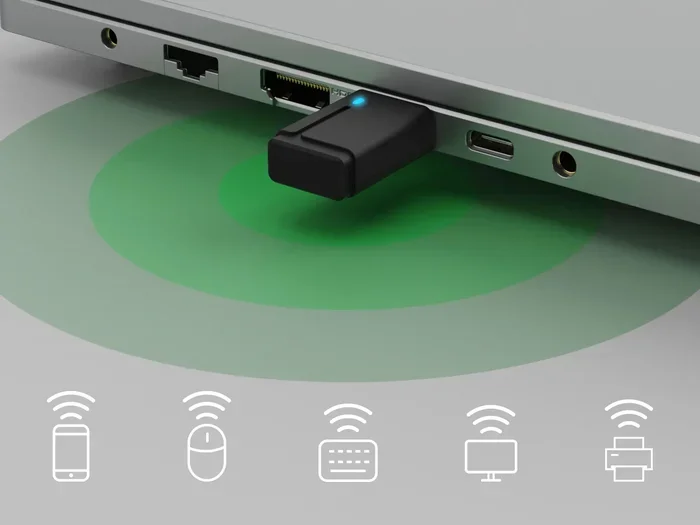
Some Roku TV models have USB ports that can support Bluetooth adapters. These small USB dongles plug directly into your TV and add Bluetooth functionality. They are a clean solution because they stay hidden inside the TV and do not require extra cables. Make sure the adapter is compatible with your specific Roku TV model before purchasing.
Expert Tips For The Best Bluetooth Experience On Roku TV
Getting the most out of your Roku TV Bluetooth connection is all about a few simple best practices. Follow these tips for a smooth and reliable wireless audio experience.
Optimizing Your Connection
- Keep devices close: Bluetooth works best within about 10 feet of your TV. If your speaker or headphones are too far away, the signal may weaken.
- Reduce wireless interference: Wi-Fi routers, microwaves, and other Bluetooth devices can cause interference. Keep your Roku TV away from these sources.
- Update your firmware: Roku regularly releases software updates that improve Bluetooth performance. Go to Settings > System > System Update to check for the latest version.
- Use low-latency codecs: If your Bluetooth device supports aptX Low Latency, enable it for a better sync between video and audio.
Keeping Your Devices Updated
Both your Roku TV and your Bluetooth devices benefit from regular updates. On your Roku TV, go to Settings > System > System Update and select Check Now. On your Bluetooth headphones or speakers, check the manufacturer’s app for firmware updates. Updated devices tend to have better connectivity and fewer bugs.
Managing Multiple Bluetooth Devices
Roku TV typically connects to one Bluetooth audio device at a time. If you want to switch between devices, you will need to disconnect the current one first. Some newer Roku TV models support multiple paired devices, but you can only stream audio to one at a time. Keep this in mind if you share your TV with family members who each have their own wireless headphones.
For those who also need to connect other devices to their TV setup, consider how you can connect your iPad to your TV with a USB cable for a wired alternative when Bluetooth is not working or when you need a more stable connection.
Common Mistakes To Avoid With Roku TV Bluetooth
There are a few common mistakes that people make when using Bluetooth with their Roku TV. Avoiding these can save you a lot of frustration.
- Assuming all Roku TVs have Bluetooth: Always check your specific model before buying Bluetooth accessories.
- Not checking audio output settings: If you connect Bluetooth headphones but still hear sound from the TV speakers, you need to change the audio output in Settings.
- Ignoring firmware updates: Outdated software can cause Bluetooth problems that are easily fixed with a simple update.
- Placing the TV near interference sources: Wi-Fi routers and microwaves can weaken your Bluetooth signal significantly.
- Using low-quality Bluetooth transmitters: Cheap transmitters often have high latency and poor audio quality. Invest in a reputable brand.
Final Thoughts On Roku TV Bluetooth
So, does a Roku TV have Bluetooth? The answer is that many modern Roku TVs do, but not all of them. Before you buy wireless headphones or a Bluetooth speaker for your Roku TV, take a moment to check your specific model. If your TV does not have built-in Bluetooth, a Bluetooth transmitter or adapter is an affordable and effective workaround.
Wireless audio on a Roku TV opens up a lot of convenience. You can watch movies late at night with headphones, stream music to a speaker, or even connect a soundbar without running cables across your room. Once you set up your Bluetooth connection, it becomes second nature.
Follow the tips in this guide, keep your devices updated, and troubleshoot issues early. With the right setup, your Roku TV can deliver excellent wireless audio that enhances your entire entertainment experience. Take the time to explore your options, and you will enjoy a cleaner, more flexible setup in no time.
Frequently Asked Questions
Can I connect any Bluetooth headphones to a Roku TV?
Most standard Bluetooth headphones will work with a Roku TV that has built-in Bluetooth. However, some headphones with proprietary connections may not be compatible. If your headphones support standard Bluetooth protocols, they should pair without issues.
Why is my Bluetooth not showing up on my Roku TV?
If Bluetooth is not appearing in your Roku TV settings, your specific model may not have built-in Bluetooth. You can also try restarting your TV or checking for a system update. If the option is completely missing, your TV likely does not support Bluetooth natively.
Does every Roku TV model have Bluetooth?
No, not every Roku TV model has Bluetooth. Newer and mid-range models are more likely to include it, but some budget models do not. Always check your specific model’s specifications before assuming Bluetooth is available.
Can I use Bluetooth on my Roku TV for screen mirroring?
Roku TV Bluetooth is designed for audio output only. It does not support screen mirroring or video transmission. For screen mirroring, you would need to use a Wi-Fi-based solution like the Roku app or a Chromecast device.
Is there a way to add Bluetooth to a Roku TV that does not have it?
Yes, you can add Bluetooth to any Roku TV using a Bluetooth transmitter. These devices plug into your TV’s audio output and send audio wirelessly to Bluetooth headphones or speakers. They are affordable and easy to set up.
Does Bluetooth on Roku TV affect audio quality?
Bluetooth audio quality depends on the codec your devices support. Standard Bluetooth delivers decent quality, but devices that support aptX or aptX HD codecs offer noticeably better sound. Most users will find the audio quality perfectly acceptable for everyday watching.