How Do I Force My Android To Use A Hotspot Right Now
Forcing your Android to use a hotspot is simpler than you think, and this guide walks you through every method, setting, and fix you need right now. Whether your hotspot is stuck, not connecting, or you just need to force it on quickly, we cover all the practical steps. You will learn how to enable android hotspot settings, troubleshoot common issues, and share your mobile data with any device in minutes.
Have you ever been in a situation where you desperately need internet on your laptop, tablet, or another device, and the only option is your phone? That is where how do I force my Android to use a hotspot becomes the most important question you can ask. A mobile hotspot turns your phone into a portable wifi router, sharing your cellular data with any device nearby. But sometimes, getting it to work feels impossible. The settings hide in weird menus, the connection drops, or your phone simply refuses to cooperate.
This guide gives you every method, tip, and fix you need to force your Android hotspot on right now. We keep things simple, practical, and straight to the point. No fluff. No confusing jargon. Just clear steps that work. Whether you are a tech beginner or someone who just forgot the process, you will find exactly what you need here.
Sharing internet sharing through your phone is one of the most useful features on any Android device. People use it for work, travel, emergencies, and everyday convenience. But knowing how to enable hotspot settings and troubleshoot problems makes all the difference. Let us dive in and get your wifi hotspot running.
Key Takeaways
- Easy Enablement: You can turn on your Android hotspot in just a few taps through Quick Settings or the main Settings menu.
- Forced Hotspot Methods: There are multiple ways to force your Android to use a hotspot, including ADB commands, third-party apps, and network reset tricks.
- Troubleshooting Is Key: Most hotspot problems come from simple fixes like restarting your phone, toggling mobile data, or resetting network settings.
- Security Matters: Always set a strong hotspot password and use WPA2 encryption to keep your connection safe.
- Works With Any Device: Once your android hotspot is active, you can connect laptops, tablets, gaming consoles, and more.
- Data Awareness: Using your phone as a wifi hotspot consumes significant data, so monitor your usage carefully.
📑 Table of Contents
- What Is an Android Hotspot and Why Force It On?
- How to Enable Your Android Hotspot the Simple Way
- How Do I Force My Android to Use a Hotspot When It Won’t Work
- Advanced Methods to Force Your Android Hotspot On
- Troubleshooting Common Hotspot Problems
- Tips for Using Your Android Hotspot Safely and Efficiently
- Comparison: Different Ways to Force Android Hotspot
- Expert Insights on Android Hotspot Performance
- Key Takeaways
What Is an Android Hotspot and Why Force It On?
A portable hotspot is a feature built into every Android phone. It lets you broadcast a wifi signal from your device. Other gadgets can connect to this signal and access the internet through your phone’s mobile data connection. Think of it as a tiny, pocket-sized wifi router.
You might need to force your hotspot on for several reasons. Maybe the automatic settings are not triggering. Perhaps your phone keeps turning the hotspot off by itself. Or you might be dealing with a device that refuses to recognize the hotspot. Whatever the reason, understanding the basics of android hotspot functionality helps you solve the problem faster.
How Hotspot Tethering Works
Wifi tethering is the technical term for using your phone as a hotspot. Your phone takes the cellular data connection from your carrier and converts it into a wifi signal. Devices around you can then connect just like they would to a regular router. The process uses your phone’s hotspot configuration settings to define the network name, password, and security type.
There are different forms of tethering too. You can use usb tethering, which connects your phone to a computer with a cable. Bluetooth tethering shares data through a Bluetooth connection. But wifi hotspot remains the most popular because it is wireless and fast. When people ask how do I force my Android to use a hotspot, they usually mean the wifi method.
How to Enable Your Android Hotspot the Simple Way
Before we get into forcing the hotspot on, let us cover the basics. Most people can turn on their hotspot with just a few quick steps. This is the standard method that works on nearly every Android phone.
Method 1: Quick Settings Panel
The fastest way to activate your android hotspot is through the Quick Settings panel. Here is what to do:
- Swipe down from the top of your screen to open the Quick Settings panel.
- Look for the Hotspot or Mobile Hotspot icon. It usually looks like two arrows pointing up and down or a signal tower symbol.
- Tap the icon once to turn it on.
- If you do not see the icon, tap the pencil icon to edit your Quick Settings and add it.
That is it. Your phone should now broadcast a wifi hotspot signal. Other devices can search for your network name and connect using the password shown on your screen.
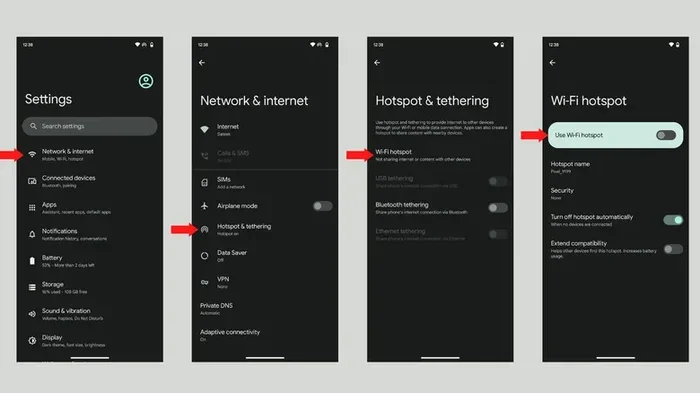
Method 2: Through the Settings Menu
If the Quick Settings method does not work, you can always go through the full Settings menu. This gives you access to more options too:
- Open the Settings app on your Android phone.
- Tap on Network & Internet or Connections, depending on your phone brand.
- Select Hotspot & Tethering or Mobile Hotspot.
- Toggle the Mobile Hotspot switch to ON.
- Tap on the hotspot name to customize your network name and password.
Once you complete these steps, your phone starts broadcasting the wifi hotspot signal immediately. You can now connect any nearby device. This is the go-to method for most people, and it works reliably on phones from Samsung, Google Pixel, OnePlus, Xiaomi, and many other brands.
Sometimes, even after following these steps, the hotspot might not appear or connect properly. That is when you need to force the issue, which brings us to the next section.
How Do I Force My Android to Use a Hotspot When It Won’t Work
Forcing your Android to use a hotspot means going beyond the basic steps. When the normal methods fail, you need deeper solutions. This section covers the most effective ways to force your android hotspot on and keep it running.
Restart Your Phone First
This sounds too simple, but restarting your phone fixes more hotspot problems than any other trick. A restart clears temporary software glitches, refreshes network connections, and resets background processes that might be blocking the hotspot. Hold down your power button, tap Restart, and wait for your phone to fully boot back up. Then try enabling the hotspot again.
Toggle Mobile Data Off and On
Your hotspot depends entirely on your mobile data connection. If mobile data is glitchy or stuck, the hotspot will not work either. Here is the trick:
- Swipe down from the top of your screen and tap the Mobile Data icon to turn it off.
- Wait about 10 seconds.
- Tap it again to turn it back on.
- Now try enabling the hotspot.
This simple refresh often solves the problem instantly. It forces your phone to re-establish the data connection, which the hotspot needs to function.
Check for Airplane Mode Interference
Airplane Mode disables all wireless connections on your phone, including the hotspot. Sometimes Airplane Mode turns on accidentally, or it does not fully turn off after you disable it. Make sure Airplane Mode is completely off before trying to use your hotspot. Swipe down from the top of your screen and check if the airplane icon is highlighted. If it is, tap it to turn it off.
Reset Network Settings
If none of the simple fixes work, resetting your network settings can help. This clears all saved wifi networks, Bluetooth pairings, and hotspot configurations. It does not delete your personal data, but you will need to reconnect to your wifi networks afterward.
- Go to Settings > System > Reset Options.
- Tap Reset Wi-Fi, Mobile & Bluetooth.
- Confirm the reset.
- Restart your phone.
- Re-enable your hotspot.
After the reset, your phone starts fresh with all network connections. This often fixes deep-rooted hotspot troubleshooting issues that basic methods cannot address.
Advanced Methods to Force Your Android Hotspot On
When the basic and intermediate methods fail, you need more advanced approaches. These techniques dig deeper into your phone’s system to force the hotspot to activate and stay active.
Use ADB Commands to Force Hotspot Activation
Android Debug Bridge (ADB) is a powerful tool that lets you control your phone from a computer. Using ADB commands, you can force your hotspot to turn on even when the normal settings fail. This method requires a computer and a USB cable.
First, enable Developer Options on your phone by going to Settings > About Phone and tapping Build Number seven times. Then enable USB Debugging in the Developer Options menu. Connect your phone to your computer, open a command prompt or terminal, and enter the following command:
adb shell svc wifi enable
Then use the command to start the hotspot:
adb shell svc wifi start-softap
These commands directly control your phone’s wifi service and force the hotspot to activate. This method works when the normal toggle is unresponsive or when a software bug blocks the hotspot settings. It is one of the most reliable ways to force android hotspot activation on stubborn devices.
Install Third-Party Hotspot Apps
Some third-party apps can force your Android hotspot to work when the built-in settings fail. Apps like Portable Hotspot or Wifi Hotspot Manager give you more control over your hotspot settings. They bypass system limitations and let you configure the hotspot in ways the default settings do not allow.
Before installing any app, make sure you download it from the Google Play Store and check the reviews. Some apps require root access, which can void your warranty or create security risks. Stick to well-reviewed, trusted apps for the best results. These apps are especially helpful when your phone’s built-in hotspot keeps turning off automatically or refuses to start.
Disable Battery Optimization for Hotspot Apps
Android’s battery optimization features sometimes shut down background processes, including the hotspot. This causes the hotspot to turn off unexpectedly or fail to start. To prevent this, you need to disable battery optimization for the hotspot service:
- Go to Settings > Apps.
- Find your phone’s default hotspot or tethering app.
- Tap on Battery.
- Select Unrestricted or Don’t Optimize.
This keeps the hotspot running in the background without being killed by the system. It is a simple but effective fix for people who experience hotspot not working issues after a few minutes of use.
Troubleshooting Common Hotspot Problems
Even after forcing your hotspot on, you might run into issues. Let us cover the most common problems and their solutions.
Hotspot Shows But Devices Cannot Connect
This is a very common issue. Your phone broadcasts the hotspot, but when other devices try to connect, they fail. The most common cause is an incorrect password or a compatibility issue. Double-check the password you set in the hotspot settings. Make sure it is simple enough for the connecting device to type correctly. Also, try changing the security type from WPA3 to WPA2, as some older devices do not support WPA3.
Hotspot Disconnects Frequently
If your wifi hotspot keeps disconnecting, the problem is usually related to battery optimization or signal strength. Disable battery optimization for the hotspot as described above. Also, check if your phone is low on battery, as some phones automatically turn off the hotspot to save power. Keep your phone plugged in or at a high battery level when using it as a hotspot.
Hotspot Does Not Appear on Other Devices
When other devices cannot see your hotspot, the issue is often with the network band or SSID broadcast. Go to your hotspot settings and make sure the network is visible. Try changing the band from 5GHz to 2.4GHz, as 2.4GHz has better range and wider device compatibility. Also, check if your phone’s mobile data is active and working properly.
Hotspot Works But Has No Internet
Sometimes the hotspot connects, but connected devices have no internet access. This usually means your cellular data is not working properly. Check your phone’s data connection first. Make sure you have signal bars and that your data plan is active. Try toggling Airplane Mode on and off to refresh the connection. If your carrier has a data limit, you might need to add more data or wait for your billing cycle to reset.
Tips for Using Your Android Hotspot Safely and Efficiently
Using your phone as a wifi hotspot is incredibly useful, but it comes with responsibilities. Here are practical tips to keep your connection secure and your data usage under control.
Always Set a Strong Password
Never leave your hotspot open or with a default password. A strong password prevents strangers from connecting to your hotspot and using your mobile data. Use a mix of letters, numbers, and special characters. A minimum of 12 characters is ideal. Change your password regularly, especially if you share it with others frequently.
Monitor Your Data Usage
Sharing your internet connection through a portable hotspot uses data fast. Streaming videos, downloading files, and video calls consume large amounts of data. Keep an eye on your usage through your phone’s data monitoring tools. Go to Settings > Network & Internet > Data Usage to see how much data your hotspot is consuming. Set data warnings and limits to avoid unexpected charges from your carrier.
Turn Off the Hotspot When Not in Use
Leaving your hotspot on when you are not using it drains your battery and wastes data. It also creates a potential security risk. Make it a habit to turn off the hotspot as soon as you are done. You can add the hotspot shortcut to your Quick Settings panel for quick access and easy turning off.
Keep Your Phone Cool
Running a hotspot generates heat, especially when multiple devices are connected. Overheating can cause your phone to slow down or shut off the hotspot automatically. Keep your phone in a cool, well-ventilated area. Avoid placing it under a pillow or in a closed bag while the hotspot is active. Some people use small cooling fans or phone cases designed for hotspot use, similar to the kinds of helpful gadgets that make daily life easier for anyone managing multiple devices.
Limit the Number of Connected Devices
Most Android phones support up to 10 connected devices on the hotspot, but connecting too many slows down the speed for everyone. Limit connections to only the devices you need. Some phones let you set a maximum number of connections in the hotspot settings, which helps manage performance and data usage.
Comparison: Different Ways to Force Android Hotspot
Here is a quick comparison of the methods we covered to help you choose the best approach for your situation.
| Method | Difficulty | Effectiveness | Best For |
|---|---|---|---|
| Quick Settings Toggle | Very Easy | Good for basic activation | Everyday use |
| Settings Menu | Easy | Good with more options | Customizing hotspot |
| Restart & Toggle Data | Easy | Fixes most simple issues | Quick troubleshooting |
| Reset Network Settings | Medium | Fixes deep software issues | Persistent problems |
| ADB Commands | Advanced | Very effective | Stubborn software bugs |
| Third-Party Apps | Easy to Medium | Varies by app | Custom control |
| Disable Battery Optimization | Easy | Prevents disconnections | Frequent dropouts |
Choose the method that matches your comfort level and the problem you are facing. For most people, the basic methods in the first three rows solve the issue. If you are dealing with stubborn problems, the advanced methods in the bottom rows can make a real difference.
Expert Insights on Android Hotspot Performance
From a technical perspective, android hotspot performance depends on several factors. Your phone’s processor, antenna quality, and software version all play a role. Newer phones with better hardware generally deliver faster and more stable hotspot connections. However, software optimization matters just as much.
Keeping your phone updated is one of the best things you can do for hotspot performance. System updates often include fixes for hotspot troubleshooting issues and improvements to network handling. Check for updates regularly in Settings > System > System Update.
Another expert tip is to use the 2.4GHz band for better range and the 5GHz band for faster speeds. If you need your hotspot to reach devices far away, switch to 2.4GHz. If you are close to your phone and need maximum speed, use 5GHz. This simple adjustment can significantly improve your experience when sharing your internet sharing connection.
Some users also report better results when they disable VPN apps before starting the hotspot. VPNs can interfere with the network sharing process and cause connection failures. If your hotspot acts up, try turning off your VPN temporarily and see if that helps.
Key Takeaways
- Simple Activation: You can turn on your Android hotspot through Quick Settings or the Settings menu in seconds.
- Force Methods Work: Restarting, toggling data, resetting network settings, ADB commands, and third-party apps all help force the hotspot on.
- Troubleshoot Common Issues: Password problems, frequent disconnections, invisible networks, and no internet access all have clear solutions.
- Stay Secure: Always use a strong hotspot password and WPA2 encryption to protect your connection.
- Monitor Data Usage: Hotspot use consumes significant mobile data, so track your usage to avoid surprises.
- Keep Your Phone Cool: Overheating can shut down the hotspot, so maintain good ventilation during use.
- Update Your Phone: Regular system updates fix bugs and improve android hotspot reliability and performance.