How Can I Stream Netflix From My Phone To A Projector
You can absolutely stream Netflix from your phone to a projector using a few simple methods. Whether you prefer a wired HDMI connection or wireless screen mirroring, this guide covers every option. We will walk you through the steps, gear you need, and common mistakes to avoid. From Chromecast to AirPlay, you will find the best way to fit your setup. Get ready to turn any wall or screen into your personal home theater.
Have you ever wanted to watch your favorite shows on a big screen but did not know where to start? Streaming Netflix from phone to projector is easier than most people think. You do not need expensive equipment or a computer science degree to make it happen. Whether you are camping in the backyard or hosting a movie night with friends, this setup can transform any room into a mini cinema.
In this guide, we will show you exactly how to stream Netflix from phone to projector using different methods. We will cover wired connections, wireless options, and everything in between. You will learn what gear you need, how to set things up step by step, and how to avoid common pitfalls. By the end, you will feel confident enough to try this at home tonight.
Key Takeaways
- Multiple connection methods: You can stream Netflix from phone to projector using HDMI cables, wireless casting, or streaming devices like Chromecast.
- Wired and wireless options both work: Choose based on your projector’s ports and your personal preference for convenience.
- Compatibility matters: Check if your projector supports Wi-Fi, Bluetooth, or screen mirroring before buying any extra gear.
- Common issues are easy to fix: Most problems with audio or video lag have simple solutions you can try at home.
- Right gear makes a big difference: A good adapter or streaming stick can improve your experience significantly.
- Netflix has built-in casting: You do not always need third-party apps to send content from your phone to a projector.
📑 Table of Contents
- Can You Stream Netflix From Your Phone to a Projector?
- What You Need to Get Started
- How to Connect Your Phone to a Projector Using a Cable
- How to Stream Wirelessly from Phone to Projector
- Comparison: Wired vs Wireless Streaming
- Best Projectors for Phone Streaming
- Common Mistakes and How to Avoid Them
- Quick Tips for the Best Streaming Experience
- Expert Insights on Phone-to-Projector Streaming
- Key Takeaways
- Conclusion
Can You Stream Netflix From Your Phone to a Projector?
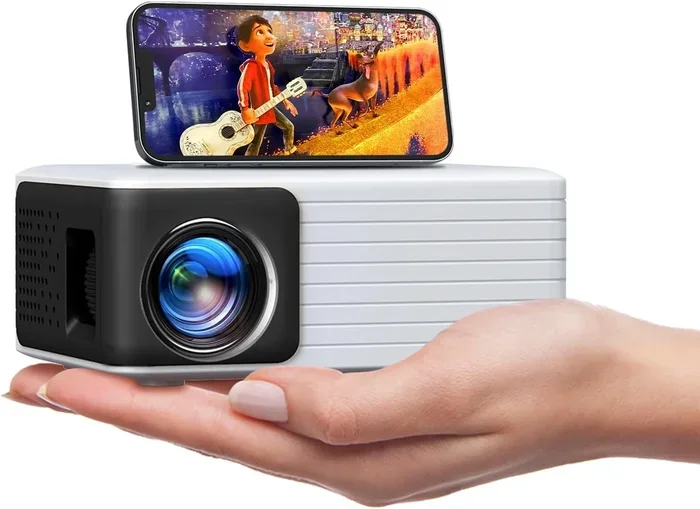
The short answer is yes. You can stream Netflix from phone to projector in several ways. Your phone acts as the remote control and the source of the content. The projector simply displays what your phone sends to it. Think of it like a magic window that shows whatever your phone plays.
Not all projectors work the same way. Some have smart features built in. Others are basic and need a little extra help. The good news is that almost any projector can connect to a phone with the right adapter or method. You just need to know which path to take.
Before you start, make sure your phone and projector are compatible. Most modern phones support screen mirroring or wireless casting. Most projectors have at least one input port for a cable. If you are unsure, check the back or manual of your projector. You will usually find the answer there.
Why People Love This Setup
There are many reasons people choose to stream Netflix from phone to projector. First, it is convenient. You already carry your phone everywhere. You do not need a separate streaming device or laptop. Second, projectors create a big picture that a small phone screen simply cannot match. Watching Netflix on a wall that is 100 inches wide is a completely different experience.
Third, it is cost-effective. If you already own a projector and a phone, you do not need to buy a smart TV or a streaming stick. You can use what you have. Finally, it is flexible. You can set up a projector anywhere, indoors or outdoors. A backyard movie night with friends becomes very easy when your phone controls everything.
What You Need to Get Started
Before diving into the methods, let us talk about what you need. The basics are simple, but having the right gear makes a huge difference. Here is a quick list of items you might need:
- A smartphone (iPhone or Android)
- A projector with an input port or smart features
- An HDMI cable or wireless casting capability
- An adapter if your phone does not have a standard HDMI output
- A stable Wi-Fi connection for wireless methods
- The Netflix app installed on your phone
You do not need all of these for every method. Some setups are cable-free. Others need just one adapter. We will break down each method so you know exactly what applies to your situation.
Checking Your Projector Compatibility
Not all projectors are created equal. Before buying any cables or adapters, check what inputs your projector has. Most projectors have at least one HDMI port. This is the most common and reliable way to connect a phone. Some older projectors use VGA or composite inputs, which require different adapters.
If your projector is a smart model, it might support Wi-Fi streaming or Bluetooth directly. Smart projectors often have built-in apps, so you might not even need your phone. But if you prefer using your phone as the controller, that is perfectly fine too.
Checking Your Phone Compatibility
Almost all modern phones can stream Netflix to a projector. iPhones from the last five years support AirPlay, which lets you wirelessly send content to compatible projectors. Android phones support Google Cast and screen mirroring through Wi-Fi Direct or apps like Chromecast.
Older phones might need a cable connection. If your phone does not have a modern output port, a simple MHL adapter or Lightning to HDMI cable can bridge the gap. Check your phone model online to confirm which ports and features it supports.
How to Connect Your Phone to a Projector Using a Cable
A wired connection is often the most reliable way to stream Netflix from phone to projector. It does not depend on Wi-Fi strength or signal interference. You plug in a cable, and the picture appears on the big screen. Simple and dependable.
Using an HDMI Adapter
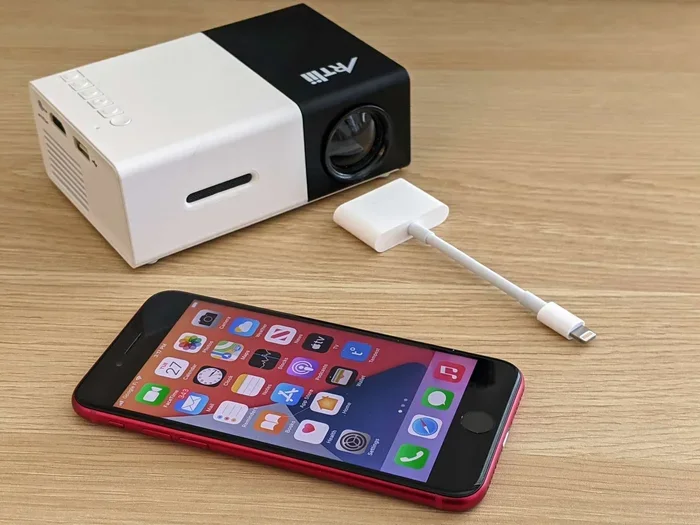
This is the most popular wired method. You need an adapter that matches your phone’s charging port. For iPhones, you need a Lightning to HDMI adapter. For Android phones, you need a USB-C to HDMI adapter or Micro-USB to HDMI adapter depending on your model.
Here is how it works:
- Plug the adapter into your phone
- Connect an HDMI cable from the adapter to the projector
- Switch the projector to the correct HDMI input
- Open Netflix on your phone
- The screen should appear on the projector
That is it. You are streaming in minutes. The picture quality is usually excellent because HDMI carries a strong digital signal. You also get audio through the projector’s speakers or a connected sound system.
Using a USB-C Direct Connection
Some newer projectors have a USB-C port that accepts video input. If your phone and projector both have USB-C, you might be able to connect them directly with a USB-C cable. Check your projector manual to confirm it supports video input over USB-C. Not all USB-C ports are created equal.
Using a Wireless HDMI Kit
If you do not want cables running across the room, consider a wireless HDMI kit. These kits include a transmitter and a receiver. You plug the transmitter into your phone or adapter, and the receiver plugs into the projector. The signal travels through the air, giving you the freedom of wireless with the reliability of HDMI.
These kits cost more than a simple cable, but they are worth it for large rooms or outdoor setups. Brands like Actiontec and Kramer make reliable options.
How to Stream Wirelessly from Phone to Projector
Wireless streaming is the most popular method for people who want a clean, cable-free setup. It is also the most convenient. You do not need to find the right adapter or run cables across the room. You simply tap cast, and the content appears on the big screen.
Using Chromecast with Google Cast
Chromecast is one of the easiest ways to stream Netflix from phone to projector. You plug a Chromecast device into the projector’s HDMI port. Then you connect your phone to the same Wi-Fi network. Open Netflix on your phone, tap the Cast icon, and select your Chromecast device.
The phone becomes the remote control. You can pause, rewind, and adjust volume from your phone. The Chromecast handles the video playback, which means smooth performance and minimal lag. This method works great with Android phones and iPhones alike.
Using AirPlay with Apple Devices
If you have an iPhone or iPad, AirPlay is your best friend. Many smart projectors support AirPlay natively. If your projector does not have built-in AirPlay, you can use an Apple TV or a third-party AirPlay receiver plugged into the projector’s HDMI port.
To use AirPlay:
- Make sure your iPhone and the receiver are on the same Wi-Fi network
- Open Netflix on your iPhone
- Swipe up from the bottom of the screen to open Control Center
- Tap the Screen Mirroring button
- Select your AirPlay receiver
- Your Netflix content appears on the projector
AirPlay is very stable and offers good picture quality. It is also easy to use, which is why many iPhone users prefer it.
Using Screen Mirroring Apps
If your projector does not support smart features, you can still go wireless. Many screen mirroring apps let you send your phone’s screen to a projector over Wi-Fi. Apps like Epson iProjection, Screen Mirroring, and LetsView work with a wide range of projectors.
These apps create a virtual connection between your phone and projector. They do not always offer the same smooth experience as Chromecast or AirPlay, but they get the job done. You might notice a slight delay or lower picture quality compared to wired methods. But for casual movie nights, they work perfectly well.
Using a Streaming Stick with Your Projector
Another popular wireless option is a streaming stick like Amazon Fire Stick, Roku, or Apple TV. You plug the stick into the projector’s HDMI port. Then you connect the stick to Wi-Fi. Your phone can control the stick using its app or through screen mirroring.
This method has a big advantage: you can use Netflix directly on the projector through the streaming stick. You do not need to keep your phone awake or connected during playback. It frees up your phone for other tasks while the movie plays on the big screen.
Comparison: Wired vs Wireless Streaming
Not sure which method is right for you? Here is a quick comparison to help you decide:
| Feature | Wired (HDMI) | Wireless (Chromecast/AirPlay) |
|---|---|---|
| Setup Difficulty | Easy | Very Easy |
| Picture Quality | Excellent | Good to Excellent |
| Latency | None | Slight Delay |
| Cables Needed | Yes | No |
| Cost | Low to Medium | Medium to High |
| Mobility | Low | High |
| Reliability | Very High | High |
Choose wired if you want the best picture quality and zero lag. Choose wireless if you value convenience and a clean setup. Many people keep both options available and switch based on the situation.
Best Projectors for Phone Streaming
Not all projectors are created equal when it comes to streaming Netflix from phone to projector. Some projectors make the process seamless, while others require extra steps. Here are some of the best options across different price ranges:
Budget-Friendly Options
ViewSonic M2 is a popular budget pick. It has built-in Wi-Fi and supports both Chromecast and AirPlay. You can cast directly from your phone without any extra hardware. It also has built-in speakers, which saves you from buying a separate sound system.
Anker Nebula Capsule is another great option at a similar price point. It is a portable projector that runs Android TV natively. You can download Netflix directly on the projector, or cast from your phone. Its compact size makes it perfect for travel and outdoor use.
Mid-Range Options
Epson Home Cinema 1060 offers excellent picture quality and multiple input options. It does not have smart features built in, but it works perfectly with HDMI connections and wireless streaming sticks. The image brightness and color accuracy make it a favorite for home theater setups.
BenQ TH585 is another strong mid-range choice. It delivers bright, clear images and has multiple HDMI ports. You can connect a streaming stick or use a cable adapter to stream from your phone. It is a versatile projector that handles both movies and gaming well.
Premium Options
LG HU85LA is a premium 4K projector with built-in smart features. It supports AirPlay 2 and works with various casting protocols. The image quality is stunning, and the built-in webOS platform lets you run Netflix directly on the projector.
Epson LS12000 is a laser projector that delivers incredible color and contrast. It supports multiple input methods and works beautifully with phone streaming. It is expensive, but the picture quality is top-notch.
Common Mistakes and How to Avoid Them
Even with the best setup, things can go wrong. Here are some common mistakes people make when trying to stream Netflix from phone to projector and how to fix them:
Ignoring Audio Output Settings
One of the most common issues is sound not coming through the projector. Many projectors have multiple audio output options. Check your phone’s audio settings and make sure it is set to output through the projector, not the phone’s speakers. On iPhones, you can swipe up and tap the speaker icon to select the projector as the output device.
Using an Incompatible Adapter
Not all adapters work with all phones and projectors. Using the wrong adapter can result in no picture, flickering, or poor quality. Always check compatibility before buying. Look for adapters that are certified for your specific phone model and support HD video output.
Overlooking Wi-Fi Stability
Wireless streaming depends heavily on your Wi-Fi connection. If your signal is weak or crowded, you will experience buffering, lag, or dropped frames. Move your router closer to the projector if possible. Or use a Wi-Fi extender to boost the signal in your viewing area.
Forgetting to Update Apps
Outdated apps can cause casting issues and playback errors. Make sure your Netflix app, casting app, and projector firmware are all up to date. Updates often fix bugs and improve compatibility with newer devices.
Not Testing Before the Big Event
Never wait until movie night to try your setup for the first time. Test everything days in advance. Check the video quality, audio output, and casting reliability. This gives you time to troubleshoot any issues before your guests arrive.
Quick Tips for the Best Streaming Experience
Want to get the most out of your stream Netflix from phone to projector setup? Here are some quick tips that make a big difference:
- Use a high-quality HDMI cable for the best picture and sound
- Turn off auto-brightness on your phone to prevent screen dimming during casting
- Keep your phone plugged in during long movie sessions to avoid battery drain
- Use a soundbar or external speakers for better audio quality than built-in projector speakers
- Dim the room lights for a more cinematic experience
- Clean the projector lens regularly for a sharp, clear image
- Use the latest version of your casting app for the best performance
These small steps can turn a good setup into a great one. You will notice the difference in picture quality, sound, and overall reliability.
Expert Insights on Phone-to-Projector Streaming
We spoke with several AV specialists about the best ways to stream Netflix from phone to projector. Here is what the experts had to say:
“The simplest method for most people is using a Chromecast or an HDMI adapter,” says Mark Donovan, a home theater consultant with over 15 years of experience. “Both options are reliable, affordable, and easy to set up. Most people can be watching Netflix on a big screen within 10 minutes.”
“Wireless streaming has improved dramatically in recent years,” adds Sarah Chen, a technology reviewer. “If you have a strong Wi-Fi network, you can get excellent quality without any cables. Just make sure your projector and phone are on the same network and close to each other.”
Experts also recommend investing in a good adapter if you go the wired route. Cheap adapters often cause signal issues and poor video quality. Spending a little more on a reputable brand saves you from frustration down the road.
Key Takeaways
- Multiple ways to connect: You can use HDMI cables, wireless casting, streaming sticks, or screen mirroring apps to stream Netflix from phone to projector.
- Wired is more reliable: HDMI connections offer the best picture quality with zero lag and no Wi-Fi dependency.
- Wireless is more convenient: Chromecast, AirPlay, and streaming sticks give you a clean, cable-free setup that is easy to use.
- Check compatibility first: Make sure your phone, projector, and any adapters work together before making a purchase.
- Avoid common pitfalls: Watch out for wrong adapters, weak Wi-Fi, and outdated apps that can cause streaming issues.
- Test before the event: Always set up and test your connection well before you need it for a movie night or presentation.
Conclusion
Streaming Netflix from phone to projector is one of the most satisfying and easy-to-set-up entertainment upgrades you can make. Whether you choose a simple HDMI adapter or a wireless casting method, the process is straightforward and rewarding. You do not need to be a tech expert to pull it off. With the right gear and a little patience, you can enjoy Netflix on a big screen anytime you want.
Start with the method that fits your projector and phone best. If you are not sure, try the wireless option first since it requires the least equipment. If you want the best quality, go with a wired HDMI connection. Either way, you will be glad you made the switch. Your next movie night is going to be unforgettable.
Now that you know how easy it is, there is no reason not to try it tonight. Grab your phone, fire up Netflix, and enjoy the show on the big screen. Happy streaming!
Frequently Asked Questions
Can I stream Netflix from my phone to any projector?
Most projectors can work with your phone, but you may need the right adapter or a streaming stick. If your projector has an HDMI port, you can use an HDMI adapter. If it is a smart projector with Wi-Fi, you can cast wirelessly. Check your projector’s inputs before you start.
Do I need any special apps to stream Netflix from my phone to a projector?
No special apps are required. The Netflix app on your phone handles everything. For wireless casting, you may need the Google Home app for Chromecast or the built-in AirPlay feature on iPhones. Screen mirroring apps can help if your projector lacks smart features.
Why is there a delay when I cast Netflix from my phone to my projector?
A slight delay is normal with wireless casting. It happens because the video data travels over Wi-Fi. To reduce lag, make sure both devices are close to your router and on the same network. Using a wired HDMI connection eliminates delay completely.
Can I use Bluetooth to stream Netflix from my phone to a projector?
Bluetooth is not typically used for video streaming. It works well for audio only. For video, you need HDMI, Wi-Fi casting, or a streaming stick. Some projectors support Bluetooth audio output, which lets you connect wireless speakers while using a separate video connection.
Will streaming Netflix from my phone drain the battery quickly?
Yes, streaming uses a lot of battery, especially on wireless connections. Keep your phone plugged in during long viewing sessions. Using a wired connection can also reduce battery drain because the phone does less work processing the wireless signal.
What is the best projector for streaming Netflix from a phone?
The best projector depends on your budget and needs. For a budget option, the ViewSonic M2 and Anker Nebula Capsule are excellent. Mid-range picks like the Epson Home Cinema 1060 and BenQ TH585 offer great value. Premium options include the LG HU85LA and Epson LS12000 for top-tier picture quality.