Can You Easily Layer Pictures Directly in Word Document
Yes, you can layer pictures directly in a Word document using built-in tools like text wrapping, image ordering, and the Wrap Text feature. This guide shows you exactly how to layer images in Word, arrange multiple photos, and create professional-looking overlays without any design software.
Have you ever tried to place one image on top of another inside a Word document? Maybe you want to create a simple graphic, add a watermark, or design a certificate with a logo overlaid on a background. The good news is that you absolutely can layer pictures directly in Word.
Many people assume you need Photoshop or Canva to stack images. But Microsoft Word has surprisingly powerful tools for layering images in Word. You just need to know where to look and how to use them. This guide walks you through every step in plain language.
Whether you are a student making a poster, a small business owner designing a flyer, or someone putting together a personal project, this article covers everything you need. Let’s dive in and explore how easy it really is to layer pictures in a Word document.
Key Takeaways
- Word supports image layering natively: You don’t need external software to stack and overlap images in your documents.
- Text wrapping is the key: Switching to “In Front of Text” or “Behind Text” unlocks full control over how images sit on the page.
- Use the “Bring Forward” and “Send Backward” tools: These simple commands let you control which image appears on top.
- Grouping images saves time: Once layered, you can group them to move, resize, or format them as one unit.
- Transparency and cropping add polish: Small tweaks like adjusting image brightness or using crop tools make layered designs look professional.
- Common mistakes slow you down: Avoid locking images in place too early and forgetting to save versions before major edits.
📑 Table of Contents
- Understanding How Image Layering Works in Word
- Step-by-Step Guide to Layer Pictures in Word
- Advanced Layering Techniques in Word
- Comparing Layering Options: Word vs. Other Tools
- Common Mistakes When Layering Pictures in Word
- Quick Tips for Better Layered Images
- Expert Insights on Word Image Layering
- Key Takeaways
- Conclusion
Understanding How Image Layering Works in Word
Before you start stacking images, it helps to understand how Word handles pictures. Unlike design tools that use complex layer panels, Word uses a simpler system based on text wrapping and image ordering. Once you grasp these basics, layering becomes second nature.
How Word Treats Images on a Page
When you insert a picture into Word, the program places it inline with your text by default. This means the image behaves like a giant letter in your paragraph. It does not float freely, and you cannot easily place another image behind or in front of it.
To change this, you need to adjust the text wrapping settings. This is the single most important step in Word document layering. Once an image is set to float, you can move it anywhere on the page and stack it with other images.
Why Layering Matters for Document Design
Layering adds depth and visual interest to your documents. Instead of flat, single-image layouts, you can create designs that feel more polished and professional. Think about book covers, certificates, invitations, or infographics. All of these benefit from overlapping images.
Here are some common uses for layered images in Word:
- Adding a logo watermark behind text on a letterhead
- Creating a photo collage with overlapping pictures
- Designing a certificate with a border image and a centered photo
- Placing an icon or graphic over a colored background
- Building a simple infographic with stacked shapes and images
Step-by-Step Guide to Layer Pictures in Word
Now let’s get into the hands-on part. Follow these steps carefully, and you will have layered images in your document in just a few minutes.
Step 1: Insert Your First Image
Open your Word document and place your cursor where you want the first image. Go to the Insert tab on the ribbon and click Pictures. Select the image you want to use as your base layer. This will usually be your background image or the bottom-most image in your stack.
After inserting, the image will appear inline with your text. That is fine for now. We will fix that in the next step.
Step 2: Change the Text Wrapping
Click on the image to select it. You will see a small Layout Options icon appear near the top-right corner of the image. Click on it. A menu will pop up with several wrapping options.
Select “In Front of Text” or “Square” wrapping. Both options allow the image to float freely on the page. “In Front of Text” gives you the most flexibility for overlaying images in Word. The image will no longer push your text around like a block.
Step 3: Insert Your Second Image
Repeat the insert process for your second image. Go to Insert, click Pictures, and choose the image you want to place on top. Again, change its text wrapping to “In Front of Text.”
Now both images float on the page. You can drag them around and position them however you like. But right now, they might overlap in a way you did not intend. That is where the ordering tools come in.
Step 4: Control the Image Order
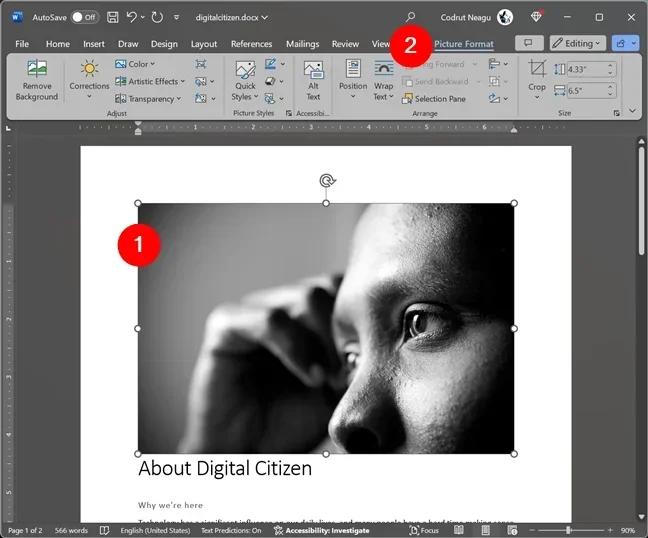
Click on the image you want to move to the front or back. Go to the Format tab under Picture Tools on the ribbon. You will see a “Bring Forward” and “Send Backward” section. These buttons control which image appears on top.
Here are the specific options you will find:
- Bring to Front: Places the selected image above all other images on the page.
- Bring Forward: Moves the image one layer up.
- Send Backward: Moves the image one layer down.
- Send to Back: Places the selected image below all other images.
Use these tools to arrange your images exactly how you want them. This is the core of image layering in Microsoft Word.
Step 5: Fine-Tune Position and Size
Once your images are layered, you may want to adjust their size or position. Click and drag the corners of an image to resize it while keeping the aspect ratio. To move an image precisely, use the arrow keys on your keyboard for small, controlled adjustments.
You can also right-click an image, select “More Layout Options,” and enter exact position values. This is helpful when you need pixel-perfect alignment for a professional look.
Advanced Layering Techniques in Word
Once you are comfortable with the basics, you can explore more advanced techniques. These tips will help you create more polished and creative designs using Word picture layering.
Using Transparency to Create Overlays
Sometimes you want an image to show through another image slightly. Word allows you to adjust the transparency of a picture. Select the top image, go to the Format tab, click Color, and choose “Set Transparent Color.” Click on the solid background of your image, and that color becomes transparent.
This technique is perfect for creating transparent image overlays in Word. For example, you can place a semi-transparent logo over a full-page background without blocking the text underneath.
Cropping Images to Fit Layers
Not every image fits perfectly into your layout. The Crop tool lets you trim parts of an image so it fits better within your layered design. Select the image, go to Format, click Crop, and drag the cropping handles inward.
You can also crop images to specific shapes. Under the Format tab, click Crop, then choose Crop to Shape. This lets you place circular, rounded rectangular, or custom-shaped images into your layered design.
Grouping Layered Images Together
When you have multiple images stacked and positioned perfectly, you do not want them to shift accidentally. Select all the layered images by holding down the Ctrl key and clicking each one. Then right-click and choose “Group.”
Grouping locks your layers together. You can now move, resize, or format all images at once. This is a huge time-saver when working on complex document layouts with images.
Adding Borders and Shadows for Depth
Small visual effects make a big difference in layered designs. Select an image and go to the Format tab. Click Picture Border to add a colored outline. Click Picture Effects to add shadows, reflections, or glow effects.
A subtle drop shadow on the top image makes it feel like it is floating above the bottom image. This simple trick adds a professional touch to any layered Word document design.
Comparing Layering Options: Word vs. Other Tools
While Word handles basic to intermediate layering well, it is worth understanding how it compares to other tools. Here is a quick look at where Word stands.
| Feature | Microsoft Word | Canva | Adobe Photoshop |
|---|---|---|---|
| Layering Images | Yes, basic | Yes, intermediate | Yes, advanced |
| Text Wrapping Control | Yes | Limited | No (design tool) |
| Transparency Adjustment | Yes | Yes | Yes |
| Grouping Layers | Yes | Yes | Yes |
| Complex Blending Modes | No | No | Yes |
| Free to Use | Yes (with subscription) | Freemium | Paid |
| Best For | Simple documents | Social media graphics | Professional design |
For most everyday needs, layering pictures in Word is more than enough. You save time by not switching between applications, and your final document stays in one file. Reserve Photoshop and Canva for projects that need advanced effects or precise color control.
Common Mistakes When Layering Pictures in Word
Even experienced Word users run into problems with image layering. Knowing these common mistakes helps you avoid frustration and wasted time.
Forgetting to Change Text Wrapping
The number one mistake is trying to layer images while they are still inline with text. Inline images cannot overlap or float freely. Always change the wrapping to “In Front of Text” before you attempt to layer anything. This single step unlocks the entire layering system.
Not Saving Before Major Edits
Layering involves a lot of moving, resizing, and rearranging. If something goes wrong, you might lose your work. Save a copy of your document before making big changes to your image layout. Use “Save As” to create a backup version.
Ignoring Image Resolution
Word documents are often printed or shared as PDFs. If your images are low resolution, they will look blurry or pixelated, especially when layered and resized. Use high-quality images from the start to ensure your final design looks sharp.
Overcomplicating the Design
Just because you can layer many images does not mean you should. Too many overlapping images create a cluttered, messy look. Keep your designs clean and purposeful. Two or three well-placed layers often look better than ten stacked images.
Quick Tips for Better Layered Images
Here are some fast tips that will improve your image layering in Word right away:
- Use the Alt key to move images in small, precise increments.
- Hold Shift while dragging to maintain proportions when resizing.
- Use the Selection Pane (under Format) to see and manage all images on the page at once.
- Lock images in place only after you are completely happy with the layout.
- Use the Align tools under Format to center or evenly space your layered images.
- Preview your document in Print Layout to see exactly how layers will appear when printed or exported.
Expert Insights on Word Image Layering
Professional document designers know that layering pictures in a Word document is about balance and restraint. The best layered designs use images to support the text, not compete with it. Keep your color palette consistent, leave enough white space, and let each layer serve a purpose.
One pro tip from experienced designers is to use a light-colored or muted background image as your bottom layer. This ensures that text placed on top remains readable. Bright, busy backgrounds can make your document hard to read and look unprofessional.
Another tip is to use the “Wrap Text” options creatively. Setting an image to “Through” wrapping lets text flow around the actual shape of the image, not just its bounding box. This creates more organic, visually interesting layouts where text and images blend naturally together.
Key Takeaways
- Word supports image layering natively: You do not need external software to stack and overlap images in your documents.
- Text wrapping is the key: Switching to “In Front of Text” or “Behind Text” unlocks full control over how images sit on the page.
- Use the “Bring Forward” and “Send Backward” tools: These simple commands let you control which image appears on top.
- Grouping images saves time: Once layered, you can group them to move, resize, or format them as one unit.
- Transparency and cropping add polish: Small tweaks like adjusting image brightness or using crop tools make layered designs look professional.
- Common mistakes slow you down: Avoid locking images in place too early and forgetting to save versions before major edits.
Conclusion
So, can you layer pictures directly in a Word document? Absolutely yes. Word gives you all the tools you need to create layered, visually appealing designs without leaving the application. From simple image overlays to more complex multi-image layouts, the process is straightforward once you understand text wrapping and image ordering.
Start with the basics: insert your images, change the wrapping, and use the ordering tools to stack them. Then explore advanced features like transparency, cropping, and grouping to elevate your designs. Avoid the common mistakes that trip up most users, and follow the quick tips to work faster and smarter.
The next time you need to create a flyer, a certificate, a brochure, or any document with multiple images, remember that layering pictures in Word is not only possible, it is easy. With a little practice, you will be creating professional-looking layered designs right inside your Word document. Give it a try today and see how simple it really is.
Frequently Asked Questions
Can I layer more than two pictures in a Word document?
Yes, you can layer as many pictures as you want in a Word document. Just insert each image, set the text wrapping to “In Front of Text,” and use the “Bring Forward” or “Send Backward” options to arrange them in the order you want. Word handles multiple layers without any issues.
Why can’t I move my image freely in Word?
This happens when your image is set to inline with text. Click on the image and look for the Layout Options icon near the top-right corner. Select “In Front of Text” or “Square” wrapping, and your image will float freely on the page.
Can I make part of an image transparent in Word?
Yes. Select the image, go to the Format tab, click Color, and choose “Set Transparent Color.” Then click on the part of the image you want to make transparent. This is a great way to create clean overlays without a background showing through.
Will my layered images look the same when I export to PDF?
In most cases, yes. Layered images retain their positioning and order when exported to PDF from Word. However, always preview the PDF before sharing to make sure everything looks exactly as intended.
Can I animate or add effects to layered images in Word?
Word does not support complex animation for layered images the way presentation software does. However, you can add static effects like shadows, reflections, and borders through the Format tab. These effects enhance the visual depth of your layered design.
What is the best image format for layering in Word?
PNG files work best for layering because they support transparency and maintain quality. JPEG files also work well but do not support transparent backgrounds. Use high-resolution images for the sharpest results when printing or sharing your document.