Do I Need An Encoder To Live Stream On Any Platform
Not everyone needs a dedicated encoder to go live. Many streaming platforms now handle encoding on their end, and software solutions like OBS Studio can replace expensive hardware. Whether you are a beginner or a pro streamer, this guide breaks down everything you need to know about live streaming encoders and when they are truly necessary.
You have a great setup. You have a good camera, a decent microphone, and maybe even a USB webcam ready to go. But then you see the word “encoder” everywhere, and suddenly you are wondering if you need to buy one more piece of gear before you can start live streaming.
The short answer is: maybe not. The longer answer is that it depends on what platform you are streaming to, what device you are using, and how much control you want over your broadcast quality. Do I need an encoder to live stream is one of the most common questions new streamers ask, and the answer is not as complicated as you might think.
In this guide, we will walk through everything you need to know. We will cover what an encoder actually does, when you need one, when you do not, and how to choose the right streaming setup for your situation. By the end, you will know exactly what gear you need and what you can skip.
Key Takeaways
- Software encoders like OBS Studio are free and powerful enough for most streamers.
- Hardware encoders offer reliability and lower CPU usage but come at a higher cost.
- Many platforms like YouTube and Twitch handle encoding automatically on their servers.
- You can stream without a dedicated encoder if you have a decent computer or smartphone.
- Understanding bitrate, RTMP, and stream keys helps you set up a smooth broadcast.
- Your choice depends on your budget, streaming goals, and the platforms you use.
📑 Table of Contents
- What Is a Live Streaming Encoder?
- Do You Actually Need an Encoder?
- Software Encoders vs Hardware Encoders
- How to Choose the Right Streaming Setup
- Quick Tips for Streaming Without an Encoder
- Common Mistakes Streamers Make With Encoders
- Expert Insights on Live Streaming Encoding
- Final Thoughts
- Frequently Asked Questions
What Is a Live Streaming Encoder?
An encoder is a tool that takes your raw video and audio and converts it into a format that streaming platforms can broadcast to viewers. Think of it as a translator. Your camera captures video in one format, and the platform needs it in another. The encoder bridges that gap.
Hardware Encoders
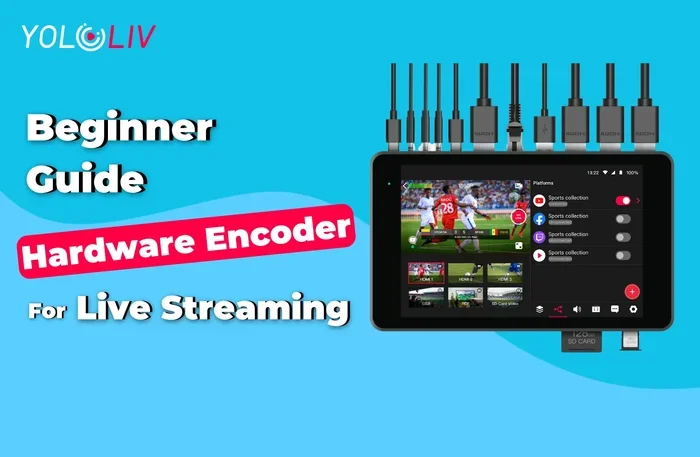
A hardware encoder is a physical device built specifically for encoding video. Devices like the Elgato HD60 S+ or the AverMedia Live Gamer capture your video signal and compress it before sending it to the platform. These devices are popular among professional streamers and content creators who want a reliable, dedicated encoding hardware solution.
Hardware encoders do not rely on your computer’s processor as much. This means your gameplay or video feed stays smooth while the encoding happens on the device itself. They are also generally more stable during long streaming sessions.
Software Encoders
A software encoder runs on your computer or device. Programs like OBS Studio, Streamlabs Desktop, and XSplit are all live streaming software options that handle encoding digitally. They use your computer’s CPU or GPU to process and compress your video in real time.
Software encoders are incredibly popular because most of them are free. OBS Studio, for example, is open source and used by millions of streamers worldwide. If you already have a computer that can handle streaming, a software encoder is often all you need.
Built-In Platform Encoders
Here is something many beginners do not realize. Platforms like YouTube Live, Twitch, and Facebook Live have their own built-in encoders. When you stream directly through their web interface or mobile app, the platform handles the encoding on their servers. You do not need any external encoder at all.
This is why many people start streaming with nothing more than a smartphone and a Wi-Fi connection. The platform does the heavy lifting for you.
Do You Actually Need an Encoder?
The answer comes down to three main factors: your device, your platform, and your streaming goals. Let us break this down.
When You Do NOT Need an Encoder
You can skip a dedicated encoder in several situations:
- You are streaming from a smartphone or tablet. Most mobile apps for Twitch, YouTube, and TikTok handle encoding automatically. You just tap “Go Live” and start broadcasting.
- You are using a platform’s built-in web streaming tool. YouTube and Facebook both let you stream directly from your browser without any external software.
- You are doing simple, low-budget streams. If you are just chatting with friends or doing casual gameplay, the built-in encoder will work just fine.
- Your computer is powerful enough. Modern computers with decent processors can handle software encoding without any extra hardware.
If you want to stream to multiple platforms at the same time, you might still need a software encoder that supports multistreaming. But even then, many free tools can handle this without a dedicated encoder box.
When You DO Need an Encoder
There are situations where a dedicated encoder makes a real difference:
- You are streaming high-quality gameplay at 1080p or 4K. Higher resolutions require more processing power. A dedicated video encoder takes that load off your computer.
- You are using professional broadcast equipment. If you have DSLR cameras, capture cards, or professional audio gear, a hardware encoder helps manage all that input smoothly.
- You stream for long hours regularly. Hardware encoders are more reliable during marathon streaming sessions and are less likely to crash or drop frames.
- You want the highest possible stream quality with minimal latency. Professional streamers who need every frame to be perfect often rely on dedicated hardware.
If you are just starting out, you probably do not need a hardware encoder yet. Start with a free software encoder and upgrade only if you feel the need.
Software Encoders vs Hardware Encoders
Choosing between a software encoder and a hardware encoder is one of the biggest decisions new streamers face. Both have pros and cons, and the right choice depends on your setup and budget.
Software Encoder Pros and Cons
Software encoders are flexible, affordable, and easy to use. OBS Studio is free, and Streamlabs offers a user-friendly interface that beginners love. You can customize every setting, from your bitrate to your resolution, right from the software.
The downside is that software encoders use your computer’s resources. If your PC is not powerful enough, your gameplay might lag while the encoder is running. You also need a stable internet connection, since your computer is doing all the work of compressing and sending the video.
Hardware Encoder Pros and Cons
Hardware encoders are built for one purpose: encoding video. They do not drain your computer’s resources, which means smoother gameplay and more stable streams. They are also very reliable and can handle long streaming sessions without overheating or crashing.
The main downside is cost. A good hardware encoder can cost anywhere from $100 to $300 or more. They also add another piece of equipment to your setup, which means more cables and more things to set up. For casual streamers, this extra cost and complexity might not be worth it.
| Feature | Software Encoder | Hardware Encoder |
|---|---|---|
| Cost | Free or low cost | $100 to $300+ |
| Computer Performance | Uses CPU/GPU resources | Minimal impact on PC |
| Setup Difficulty | Easy to moderate | Moderate to advanced |
| Customization | Very high | Limited |
| Reliability | Depends on your PC | Very high |
| Best For | Beginners and casual streamers | Professional and serious streamers |
How to Choose the Right Streaming Setup
Your streaming setup should match your goals and budget. Here is a simple way to think about it.
Budget Streaming Setup
If you are on a tight budget, skip the hardware encoder. Use a free software encoder like OBS Studio and stream directly from your computer. Make sure your internet connection is stable and your PC can handle the workload. A basic streaming setup like this costs nothing extra.
You can also use your smartphone as a camera and stream through the platform’s mobile app. This is a great way to start without spending anything at all.
Mid-Range Streaming Setup
If you have some budget to work with, consider a video capture card like the Elgato Cam Link. This lets you use a DSLR or mirrorless camera as your webcam without needing a full hardware encoder. Pair it with a software encoder, and you have a solid setup for under $150.
You can also look into a mid-range audio encoder if sound quality is a priority for your streams. Good audio makes a huge difference in viewer experience.
Professional Streaming Setup
For serious streamers and professional broadcasters, a dedicated hardware encoder is worth the investment. Look for devices that support high bitrates, multiple input sources, and advanced encoder settings for fine-tuning your stream quality.
Professional setups often include redundant encoding, backup internet connections, and dedicated streaming gear designed for 24/7 operation. But again, this level of investment only makes sense if streaming is your full-time job or a serious business.
Quick Tips for Streaming Without an Encoder
If you decide to skip a dedicated encoder, here are some tips to make sure your stream still looks and sounds great:
- Use a wired internet connection. Wi-Fi can be unstable, and a dropped connection means a dropped stream. Plug your computer directly into your router with an ethernet cable whenever possible.
- Close unnecessary programs. Every program running in the background takes processing power away from your encoder. Close anything you are not using while streaming.
- Start with lower resolution. 720p at 30 frames per second is a great starting point. You can always upgrade to 1080p once you are comfortable with your setup.
- Test before you go live. Use the platform’s preview or test stream feature to make sure everything looks right before your audience arrives.
- Check your bitrate settings. A bitrate that is too high can cause buffering for viewers. A bitrate that is too low makes your stream look pixelated. Most platforms recommend between 2500 and 6000 kbps for 1080p streaming.
Common Mistakes Streamers Make With Encoders
Even experienced streamers sometimes make mistakes when setting up their encoding. Here are a few to watch out for:
- Using the wrong encoder preset. If you set your encoder to “ultrafast” for maximum quality, you will get a pixelated mess. Choose a preset that balances speed and quality, like “medium” or “slow” in OBS.
- Ignoring your audio encoder. Video gets all the attention, but bad audio drives viewers away faster than anything. Make sure your audio encoder settings are properly configured too.
- Not updating your encoder software. Outdated software can cause compatibility issues and missed features. Keep your streaming software up to date.
- Overcomplicating the setup. If you are just starting out, do not buy expensive hardware until you know you need it. Start simple and upgrade as you grow.
Another mistake is assuming that a more expensive encoder automatically means better quality. The truth is, a well-configured free software encoder can produce streams that look just as good as a $300 hardware encoder. The key is in the settings, not the price tag.
Expert Insights on Live Streaming Encoding
Many professional streamers and content creators agree that the encoder is not the most important part of your setup. Your camera, your lighting, and your content matter far more than whether you use a $100 or a $1000 encoder.
The rise of cloud-based transcoding has also changed the game. Platforms like YouTube and Twitch now process your stream on their servers, which means they can adapt the quality for each viewer based on their internet speed. This is called adaptive bitrate streaming, and it means your viewers get the best possible quality without you needing to encode multiple versions of your stream.
For most people, a simple software encoder paired with a decent computer and a stable internet connection is all you need to start live streaming today. Save your money for better cameras, better lighting, or better content instead.
If you are planning to stream from a tablet or use a USB-C hub to connect multiple devices, make sure your setup supports the connections you need. A good hub can simplify your setup significantly and reduce cable clutter on your streaming desk.
Final Thoughts
So, do you need an encoder to live stream? The honest answer is that most people do not need a dedicated hardware encoder. Software encoders like OBS Studio are free, powerful, and more than enough for the vast majority of streamers. Platforms like Twitch and YouTube handle much of the encoding work on their end, which makes getting started easier than ever.
That said, if you are a serious streamer who wants the highest quality, the lowest latency, and the most reliable performance, a hardware encoder is a worthwhile investment. The key is to match your tools to your goals.
Start simple. Use what you have. Upgrade only when you feel the limitations. The best encoder is the one that fits your budget, your setup, and your streaming ambitions. Do I need an encoder to live stream? For most of you, the answer is no. And that is great news for anyone who wants to start sharing their content with the world today.
Remember, the content you create matters more than the gear you use. Focus on delivering value, building your audience, and improving over time. The right encoder will come when you need it. Until then, just hit that “Go Live” button and start streaming.
Frequently Asked Questions
Can I live stream without any encoder at all?
Yes, you can. Most streaming platforms like YouTube, Twitch, and Facebook have built-in encoders that handle everything for you when you stream through their website or app. You just need a device and an internet connection.
Is OBS Studio a good free encoder for beginners?
Absolutely. OBS Studio is one of the most popular free live streaming software options available. It is powerful, customizable, and has a huge community of users who share tutorials and tips online.
What is the difference between a video encoder and an audio encoder?
A video encoder compresses your video signal, while an audio encoder compresses your sound. Both are essential for a good stream. Many software encoders handle both at the same time, but you can adjust their settings separately.
Do I need a hardware encoder if I stream at 4K?
It helps. Streaming at 4K puts a lot of strain on your computer’s processor. A hardware encoder takes that burden away and gives you a smoother, more reliable stream. But if your computer is powerful enough, a software encoder can handle 4K too.
Can I use my phone as an encoder for live streaming?
Yes, in a way. When you stream from your phone using apps like the Twitch or YouTube mobile app, your phone acts as both the camera and the encoder. It processes and sends your video to the platform automatically.
How do I know if my computer can handle software encoding?
If your computer has at least 8GB of RAM, a modern processor, and a dedicated graphics card, it should handle software encoding well. You can also run a test stream to check for dropped frames or lag before going live.