How Do I Fix It If My Screen Is Zoomed In On Windows
A zoomed in screen on Windows can make everything look huge and frustrating. This guide walks you through simple fixes for both Windows 10 and Windows 11, including display settings, keyboard shortcuts, and the Magnifier tool. You will learn how to unzoom your screen fast and prevent it from happening again.
Have you ever sat down at your computer and found that everything on your screen looks huge? Text is oversized. Icons are massive. Your desktop feels cramped and weird. This is one of the most common Windows problems, and it happens to almost everyone at some point. The good news is that fixing a zoomed in screen is usually quick and easy. You do not need to be a tech expert to get your display back to normal.
Whether you are using Windows 10 or Windows 11, there are several ways to unzoom your screen. Sometimes it is a simple keyboard shortcut. Other times, you need to dig into your display settings. This guide covers every method you need. You will learn how to fix a zoomed in screen on any Windows PC, why it happens in the first place, and how to stop it from coming back.
Let us get your screen back to normal right now. No need to squint or strain your eyes. Follow these steps and you will be back to a comfortable view in just a few minutes.
Key Takeaways
- Quick Zoom-Out Fix: Press Ctrl and Minus to zoom out instantly on any Windows PC.
- Display Settings Matter: Adjusting scale and resolution in Windows settings solves most zoom problems.
- Magnifier Tool Can Cause Zoom: The Windows Magnifier may turn on by accident and zoom your screen in.
- Windows 10 and 11 Differ: Each version has slightly different paths to fix display zoom issues.
- Keyboard Shortcuts Save Time: Mastering a few shortcuts lets you control screen zoom without digging through menus.
- External Monitors Add Complexity: Mixed monitor setups can cause zoom inconsistencies that need individual fixes.
- Prevention Is Easy: Simple habits keep your screen zoom level where you want it.
📑 Table of Contents
- Why Does My Screen Get Zoomed In?
- How to Fix a Zoomed In Screen on Windows 10
- How to Fix a Zoomed In Screen on Windows 11
- Keyboard Shortcuts to Control Screen Zoom
- Common Mistakes That Cause Screen Zoom Problems
- Quick Tips to Prevent Zoom Issues in the Future
- When Should You Seek Professional Help?
- Key Takeaways
- Conclusion
Why Does My Screen Get Zoomed In?
A zoomed in screen on Windows is almost always caused by one of a few common triggers. Understanding why this happens helps you fix it faster and prevent it in the future. Let us look at the main reasons your screen might appear zoomed in.
Accidental Keyboard Shortcuts
The most common reason is an accidental keypress. Windows has built-in zoom shortcuts that can turn on without you noticing. Pressing Ctrl and Plus (+) zooms in. Pressing Ctrl and Minus (-) zooms out. If you accidentally hit the wrong combination, your screen can zoom in suddenly. This happens a lot when people are typing fast or gaming.
Windows Magnifier Turns On
Windows includes a built-in tool called Magnifier. It is designed to help people with visual impairments see their screen better. But sometimes Magnifier turns on by accident. When it does, your entire screen zooms in. You might not even realize Magnifier is the cause at first. This is one of the top reasons people search for a zoomed in screen fix.
Display Scaling Changed
Windows lets you adjust how large items appear on your screen. This is called display scaling. If the scaling percentage gets set too high, everything looks zoomed in. This often happens after a Windows update. It can also happen when you connect a new monitor or change your screen resolution. The display scaling setting controls the overall size of text, apps, and icons on your desktop.
Graphics Driver Issues
Your graphics driver controls how your screen displays everything. If the driver is outdated, corrupted, or has a bug, it can cause weird display problems. A zoomed in screen is one of those problems. After a major Windows update, drivers sometimes need to be refreshed. This is especially common with NVIDIA and AMD graphics cards.
External Monitor Problems
If you use more than one monitor, zoom issues can pop up on just one screen. Each monitor has its own scaling settings. When these settings do not match, one screen might look zoomed in while the other looks normal. This is very common for people who use a laptop with an external display.
How to Fix a Zoomed In Screen on Windows 10
Windows 10 has several built-in tools to fix a zoomed in screen. You can try these methods in order. Most people find that the first or second method solves the problem right away.
Method 1: Use the Keyboard Shortcut
The fastest way to unzoom your screen is with a keyboard shortcut. This works instantly and requires no menus. Here is what you need to do:
- Press the Ctrl key and the Minus (-) key at the same time. This zooms out by 10% each time you press it.
- Keep pressing Ctrl and Minus until your screen returns to normal size.
- Alternatively, press Ctrl and 0 (zero) to reset zoom to 100% immediately.
This shortcut works in your web browser, on the desktop, and in most apps. It is the easiest fix for a zoomed in screen on Windows 10. Try this first every time.
Method 2: Turn Off Windows Magnifier
If the keyboard shortcut does not work, Magnifier might be the culprit. Here is how to turn it off:
- Press the Windows key and the Plus (+) key to open Magnifier if it is on.
- Press the Windows key and the Esc key to close Magnifier completely.
- You can also go to Settings, then Ease of Access, then Magnifier. Toggle Magnifier off.
Once Magnifier is off, your screen should return to its normal size. This is one of the most overlooked fixes for a screen zoomed in on Windows.
Method 3: Adjust Display Scaling
When your display scaling is set too high, everything looks bigger than it should. Here is how to fix it:
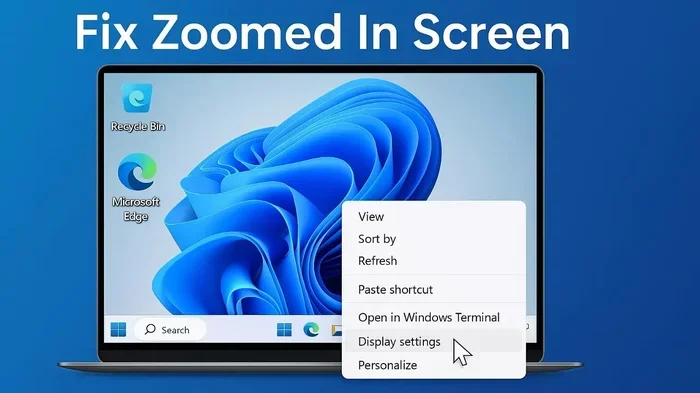
- Right-click on your desktop and select Display settings.
- Look for the Scale and layout section.
- Find the dropdown menu for Change the size of text, apps, and other items.
- Set it to 100% or the recommended setting for your monitor.
- Click Apply and then Keep changes.
If 100% does not look right, try other recommended percentages. The right setting depends on your monitor size and resolution. A 24-inch monitor at 1080p often works best at 100%. A 27-inch monitor at 1440p might look better at 125%. Experiment until the text and icons look comfortable.
Method 4: Change Your Screen Resolution
Sometimes the screen resolution is set incorrectly, which can make everything appear zoomed in. To fix this:
- Right-click on your desktop and select Display settings.
- Scroll down to Display resolution.
- Select the recommended resolution from the dropdown menu.
- Click Keep changes to confirm.
The recommended resolution is always the best option for your monitor. Choosing a lower resolution will make everything bigger and zoomed in. Always stick with the recommended setting unless you have a specific reason to change it.
Method 5: Update Your Graphics Driver
An outdated graphics driver can cause all sorts of display problems, including a zoomed in screen. Here is how to update it:
- Right-click the Start button and select Device Manager.
- Expand the Display adapters section.
- Right-click your graphics card and select Update driver.
- Choose Search automatically for drivers.
- Follow the on-screen instructions to complete the update.
You can also visit your graphics card manufacturer’s website directly. NVIDIA, AMD, and Intel all offer free driver downloads. Updating your driver after a major Windows update is a smart habit to build.
How to Fix a Zoomed In Screen on Windows 11
Windows 11 has a slightly different layout for display settings, but the fixes are very similar. Here is how to fix a zoomed in screen on Windows 11 step by step.
Quick Zoom-Out Shortcut
The same keyboard shortcut works on Windows 11. Press Ctrl and Minus (-) to zoom out. Press Ctrl and 0 to reset to 100%. This is always the first thing you should try. It takes just one second and works across all apps.
Turn Off Magnifier in Windows 11
Windows 11 moved the Magnifier settings to a new location. To turn it off:
- Press Windows key and Plus (+) to open Magnifier if it is active.
- Press Windows key and Esc to close it.
- You can also go to Settings, then Accessibility, then Magnifier. Toggle it off.
Windows 11 also lets you set Magnifier to turn on automatically under certain conditions. Check that these options are disabled if you do not need Magnifier.
Adjust Display Scaling in Windows 11
Windows 11 changed where the scaling controls live. Here is how to find them:
- Right-click on your desktop and select Display settings.
- Look for Scale under the Scale & layout section.
- Select the recommended scale or set it to 100%.
- Your screen will apply the change immediately.
Windows 11 also has a feature called custom scaling. If the preset options do not work for you, you can set a custom scaling percentage. Go to Display settings, click Advanced scaling, and enter a custom value. This is helpful for mixed-monitor setups.
Check for Windows 11 Display Bugs
Some Windows 11 users report a zoomed in screen after major feature updates. Microsoft has released several patches for display scaling bugs. Make sure your system is fully updated. Go to Settings, then Windows Update, and check for updates. Installing the latest patches often fixes these display glitches.
Keyboard Shortcuts to Control Screen Zoom
Learning a few keyboard shortcuts gives you instant control over your screen zoom. These shortcuts work on both Windows 10 and Windows 11. Once you memorize them, you will never be stuck with a zoomed in screen for long.
Essential Zoom Shortcuts
- Ctrl and Plus (+): Zooms in by 10% each time you press it.
- Ctrl and Minus (-): Zooms out by 10% each time you press it.
- Ctrl and Zero (0): Resets zoom to 100% instantly.
- Windows key and Plus (+): Opens the Magnifier tool.
- Windows key and Minus (-): Zooms out in Magnifier.
- Windows key and Esc: Closes Magnifier.
Bonus Shortcuts for Power Users
These shortcuts give you even more control over your display. They are especially useful if you work with multiple monitors or external displays.
- Ctrl and Scroll Wheel: In many apps, scrolling your mouse wheel while holding Ctrl zooms in and out. This is a quick alternative to the keyboard shortcuts.
- Alt and Tab: Switch between open windows. Sometimes zoom issues only affect one app, and switching windows helps you identify which one is stuck.
- Windows key and D: Shows your desktop instantly. This is a great way to check if your desktop icons look normal when you are not in an app.
Try these shortcuts now. They take seconds to use and can save you a lot of frustration. Bookmark this page so you can come back if your screen zoomed in again.
Common Mistakes That Cause Screen Zoom Problems
Some habits and mistakes make zoom problems more likely. Knowing what causes them helps you avoid the issue in the future. Here are the most common mistakes people make.
Ignoring Display Settings After a Windows Update
Windows updates sometimes reset your display settings without asking. Your scaling might change, or your resolution might shift. After every major update, take 30 seconds to check your display settings. This simple habit prevents most zoom surprises.
Not Checking Magnifier Settings
Many people do not realize Magnifier has a shortcut that turns it on by accident. If you use a laptop with a touchpad, a pinch gesture might trigger zoom. Check your touchpad settings and disable any zoom gestures if you do not use them.
Using the Wrong Scaling for Your Monitor
Every monitor has an ideal scaling percentage. Using a setting that is too high or too low causes everything to look wrong. High-DPI monitors like 4K displays need higher scaling to look comfortable. But setting scaling too high will make your zoomed in screen worse, not better.
Skipping Driver Updates
Graphics drivers are the bridge between Windows and your monitor. Outdated drivers cause all kinds of display issues. Set a reminder to check for driver updates once a month. This keeps your display running smoothly and prevents zoom problems.
Quick Tips to Prevent Zoom Issues in the Future
Prevention is always easier than fixing a problem. Here are simple tips to keep your screen at the right zoom level every day.
- Check your display settings once a week. A quick glance at your scaling and resolution settings catches problems early.
- Memorize Ctrl, Minus, and Ctrl, Zero. These two shortcuts solve 90% of zoom issues in seconds.
- Keep Windows updated. Microsoft regularly fixes display bugs in new updates. Staying current prevents known issues.
- Update your graphics driver monthly. Set a calendar reminder so you never forget.
- Disable Magnifier if you do not use it. Turn it off in Accessibility settings to prevent accidental activation.
- Use the recommended settings for each monitor. If you have multiple displays, set each one individually for the best results.
- Restart your PC after major updates. A fresh restart applies all display changes correctly.
When Should You Seek Professional Help?
Most zoom issues are easy to fix at home. But sometimes the problem goes deeper than a simple settings change. Here are signs that you need professional help.
If you have tried every method in this guide and your screen zoomed in problem persists, there may be a hardware issue. A failing monitor cable can cause display distortion that looks like zoom. Try swapping your cable first. If you are using a VGA cable, switch to HDMI or DisplayPort. Old cables often cause display problems that mimic software issues.
Another sign is if your screen zooms in and out randomly by itself. This could indicate a failing graphics card or a serious driver conflict. Check your Device Manager for any error messages next to your display adapter. If you see yellow warning icons, your graphics hardware may need attention.
If you use a laptop and the zoom issue only happens when the lid is open or closed, it could be a sensor problem. Some laptops have auto-brightness and auto-rotate features that affect display settings. Disabling these features in Settings can sometimes resolve the issue.
For desktop users, try connecting your monitor to a different port on your graphics card. A faulty port can cause display scaling issues. If none of these steps work, consult a professional technician or contact your monitor manufacturer for support.
Key Takeaways
- Quick Zoom-Out Fix: Press Ctrl and Minus to zoom out instantly on any Windows PC.
- Display Settings Matter: Adjusting scale and resolution in Windows settings solves most zoom problems.
- Magnifier Tool Can Cause Zoom: The Windows Magnifier may turn on by accident and zoom your screen in.
- Windows 10 and 11 Differ: Each version has slightly different paths to fix display zoom issues.
- Keyboard Shortcuts Save Time: Mastering a few shortcuts lets you control screen zoom without digging through menus.
- External Monitors Add Complexity: Mixed monitor setups can cause zoom inconsistencies that need individual fixes.
- Prevention Is Easy: Simple habits keep your screen zoom level where you want it.
Conclusion
A zoomed in screen on Windows is a frustrating but very fixable problem. Whether you are on Windows 10 or Windows 11, the solutions in this guide cover every common scenario. Start with the keyboard shortcut. Try Ctrl and Minus, or Ctrl and Zero. If that does not work, check your Magnifier settings and display scaling. Update your graphics driver if the problem persists. And always keep your Windows system up to date to prevent future issues.
The key to solving this problem quickly is knowing which tool to use first. The keyboard shortcut is your best friend. Display settings are your go-to for permanent fixes. And Magnifier control keeps accidental zoom from ruining your day. With these tools in your toolkit, you will never be stuck with a screen zoomed in for long.
Now that you know how to fix a zoomed in screen, you can handle it in under a minute. Share this guide with friends and family who struggle with display zoom issues. It is one of the simplest and most helpful things you can know about your Windows PC. Keep this page bookmarked for easy reference whenever you need it again.
Frequently Asked Questions
Why is my screen suddenly zoomed in on Windows?
A suddenly zoomed in screen is usually caused by an accidental keyboard shortcut or the Windows Magnifier turning on. Press Ctrl and Minus to zoom out, or check your Magnifier settings in Accessibility. These two fixes solve the problem in most cases.
What is the keyboard shortcut to zoom out on Windows?
Press Ctrl and Minus (-) to zoom out by 10% each time. Press Ctrl and Zero (0) to reset zoom to 100% instantly. These shortcuts work on both Windows 10 and Windows 11 and in almost every app.
How do I fix my zoomed screen on Windows 11?
Go to Settings, then Accessibility, then Magnifier, and toggle it off. You can also right-click your desktop, select Display settings, and adjust the Scale setting to 100% or the recommended level. These steps fix the zoomed in screen issue on Windows 11.
Can a zoomed screen damage my monitor?
No, a zoomed screen will not damage your monitor. It is purely a software and settings issue. However, if your screen stays zoomed in for a long time, it can cause eye strain and headaches. Fix it quickly for a more comfortable viewing experience.
Why does my screen keep zooming in by itself?
If your screen keeps zooming in by itself, Magnifier may be triggering accidentally. Check your touchpad settings and disable pinch-to-zoom gestures. You should also scan for malware, as some unwanted software can trigger system shortcuts without your knowledge.
How do I reset my display settings to default on Windows?
Go to Settings, then System, then Display. Set Scale to 100% and Resolution to the recommended option. You can also click Advanced display settings to fine-tune your refresh rate and color depth. Restarting your PC after making these changes ensures they apply correctly.