How Do I Connect My Android To My Macbook Wirelessly
Connecting your Android to your MacBook wirelessly is easier than you think. You can use Bluetooth, third-party apps like AirDroid, or cloud services to transfer files, mirror your screen, and sync data across devices. This guide walks you through every method with simple, clear steps so you can get started right away.
Have you ever stared at your Android phone and your MacBook sitting side by side, wishing they could just talk to each other? You are not alone. Millions of people switch between these two platforms every day and need a way to share files, sync photos, or even mirror their screen without plugging in a single cable.
The good news is that connecting your Android to your MacBook wirelessly is totally doable. Whether you want to move a few photos, back up important files, or just keep things in sync, there are several methods that work beautifully. In this guide, we will walk you through every option step by step. You will learn the easiest Bluetooth tricks, discover powerful third-party apps, and explore cloud-based solutions that make cross-platform life a breeze.
Key Takeaways
- Bluetooth pairing: A built-in, free option for basic file transfers between Android and MacBook.
- Third-party apps: Tools like AirDroid and Pushbullet make wireless sharing fast and feature-rich.
- Cloud services: Google Drive and Dropbox offer reliable cross-platform syncing without cables.
- Samsung DeX: Samsung users get a desktop-like experience when connecting wirelessly to a MacBook.
- Wi-Fi Direct: Enables direct device-to-device transfers without needing an internet connection.
- Common mistakes: Avoid skipping software updates and ignoring Bluetooth visibility settings.
📑 Table of Contents
- Why You Should Connect Your Android to Your MacBook Wirelessly
- Method 1: Using Bluetooth to Pair Your Android and MacBook
- Method 2: Third-Party Apps for Seamless Wireless Sharing
- Method 3: Wi-Fi Direct and Cloud-Based Syncing
- Method 4: Samsung DeX and Screen Mirroring Options
- Quick Tips and Common Mistakes to Avoid
- Which Method Should You Choose?
- Final Thoughts on Connecting Your Android to Your MacBook Wirelessly
Why You Should Connect Your Android to Your MacBook Wirelessly
Wireless connections save time. They save you from digging for cables. They let you work from across the room. And they keep your devices talking even when you are on the move. Here is why this matters so much in everyday life.
- No cables needed: You can transfer files from your Android device to your MacBook Pro or MacBook Air without fumbling with a USB cord.
- Speed and convenience: Wireless file sharing takes seconds once you set it up properly.
- Cross-platform flexibility: Android and macOS are different ecosystems, but wireless tools bridge that gap easily.
- Less wear and tear: Fewer cable connections mean your charging ports last longer.
- Real-time sync: Many wireless methods keep your files updated across both devices automatically.
When you understand how to connect Android to MacBook wirelessly, you unlock a smoother workflow. You stop treating your phone and laptop as separate worlds. Instead, they become one seamless setup that works for you.
Method 1: Using Bluetooth to Pair Your Android and MacBook
Bluetooth is the most basic way to connect your Android to your MacBook wirelessly. Every Mac and every Android phone has it built in. It does not require any extra apps. It works right out of the box. Let us walk through the setup process.
Step-by-Step Bluetooth Pairing
- Turn on Bluetooth on your MacBook. Click the Apple menu, then System Settings, then Bluetooth. Make sure it is switched on.
- Enable Bluetooth on your Android phone. Swipe down from the top of your screen and tap the Bluetooth icon. Or go to Settings, then Connections, then Bluetooth.
- Make your devices visible. On your MacBook, it should show up under “Other Devices.” On your phone, tap “Scan for devices” or look for your Mac in the list.
- Select your MacBook from your phone’s Bluetooth menu. You may see a pairing code on both screens. Enter the code on your phone to confirm.
- Accept the connection on your MacBook when prompted. You are now paired.
Once paired, your Android phone and MacBook can share files through Bluetooth. On your Mac, right-click the Bluetooth icon in the menu bar and choose “Send File to Device.” On your phone, you can share files via Bluetooth from any app.
Tips for Better Bluetooth Performance
- Keep both devices within 10 feet of each other during pairing.
- Turn off other Bluetooth devices that might cause interference.
- Restart Bluetooth on both devices if the connection drops.
- Update your macOS and Android software regularly for the best compatibility.
Method 2: Third-Party Apps for Seamless Wireless Sharing
Bluetooth works, but it has limits. That is where third-party apps come in. These tools add features that built-in Bluetooth simply cannot match. They make wireless file transfer faster, more reliable, and more fun. Here are the best options you should try.
AirDroid: The All-in-One Solution
AirDroid is one of the most popular apps for connecting Android to Mac. It lets you manage your phone from your laptop. You can transfer files, read texts, and even control your notifications from your MacBook.
Here is how to get started:
- Download AirDroid from the App Store on your Mac and from the Google Play Store on your phone.
- Open AirDroid on both devices. They will automatically detect each other if you are on the same Wi-Fi network.
- Log in with the same account on both devices.
- Use the AirDroid web interface or desktop app to browse your phone’s files from your Mac.
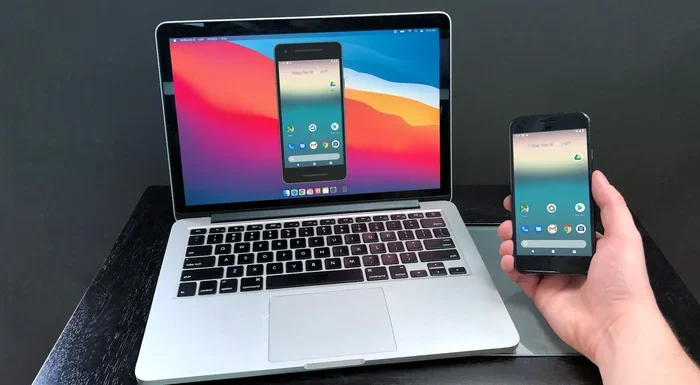
AirDroid supports wireless file sharing of photos, videos, music, and documents. It also lets you mirror your Android screen on your Mac. That alone makes it worth the download.
Pushbullet: Messaging and File Sharing Combined
Pushbullet is another excellent tool for cross-platform users. It connects your Android device to your MacBook so you can send links, files, and notifications between them. It works through your web browser or a dedicated desktop app.
Key features include:
- Send files from your Mac to your phone instantly.
- Reply to text messages from your laptop.
- Push links and notifications across devices.
- Universal copy and paste between your Android phone and MacBook Pro.
Other Apps Worth Trying
Beyond AirDroid and Pushbullet, here are a few more tools that make wireless device pairing easy:
- Send Anywhere: Fast, peer-to-peer file sharing with no size limits.
- Portal by Pushbullet: Simple drag-and-drop file transfers over Wi-Fi.
- Feem: Free cross-platform sharing that works without an internet connection.
Method 3: Wi-Fi Direct and Cloud-Based Syncing
If you want a wireless connection that does not need any app installation, Wi-Fi Direct and cloud services are your best bet. These methods use your local network or the internet to keep your Android and MacBook in sync.
Wi-Fi Direct: Direct Device-to-Device Transfer
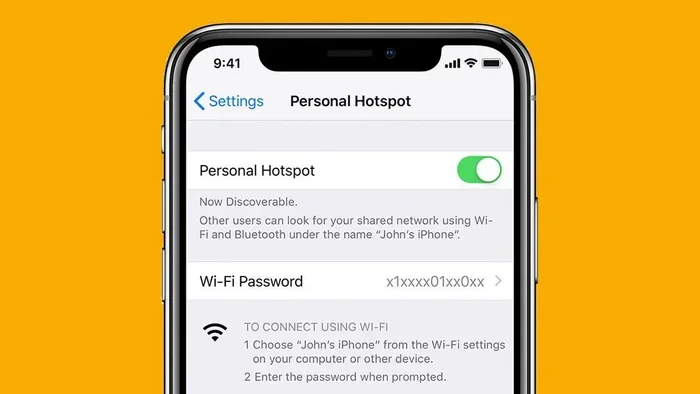
Wi-Fi Direct creates a direct connection between two devices. It does not need a router or internet connection. Your Android phone acts as a portable hotspot, and your MacBook connects to it directly.
To use Wi-Fi Direct:
- On your Android, go to Settings, then Connections, then Wi-Fi Direct.
- Search for available devices.
- Select your MacBook from the list.
- Once connected, you can share files directly between the two devices.
This method is perfect for large files. Videos, presentations, and bulk photo folders transfer much faster over Wi-Fi Direct than Bluetooth. It is also more secure since the connection stays between your two devices.
Cloud Services: Google Drive and Dropbox
Cloud syncing is one of the simplest ways to wirelessly connect Android to MacBook. You upload a file on your phone, and it appears on your laptop. No cables, no apps, no pairing codes.
Here is how to set it up:
- Google Drive: Install the Google Drive app on your Android and the Google Drive desktop app on your Mac. Sign in with the same Google account. Any file you save to Drive on your phone will sync to your MacBook instantly.
- Dropbox: The process is the same. Install Dropbox on both devices, sign in, and your files stay synced automatically.
- OneDrive: Microsoft’s cloud service works well for users who already use Office tools on their MacBook.
| Method | Speed | Ease of Setup | Best For |
|---|---|---|---|
| Bluetooth | Slow | Very Easy | Small files, quick transfers |
| AirDroid | Fast | Easy | Full phone management |
| Wi-Fi Direct | Very Fast | Moderate | Large files, no internet needed |
| Cloud Services | Medium | Very Easy | Ongoing sync, backups |
| Third-Party Apps | Fast | Easy | Messaging, notifications, files |
Method 4: Samsung DeX and Screen Mirroring Options
If you own a Samsung phone, you have access to some powerful features that make connecting to your MacBook even better. Samsung DeX and screen mirroring let you use your phone as a second display or even as a standalone computer.
What Is Samsung DeX?
Samsung DeX transforms your Galaxy phone into a desktop-like experience. You get a taskbar, windowed apps, and a full multitasking interface. When connected wirelessly to your MacBook, it opens up new possibilities for productivity.
To use Samsung DeX wirelessly:
- Make sure your Samsung phone and MacBook are on the same Wi-Fi network.
- Open the DeX app on your phone.
- Select “Connect to DeX” and choose your MacBook from the list.
- Your phone’s screen will appear as a separate display on your Mac.
This is incredibly useful for people who want a bigger screen without buying a second monitor. You can run apps, edit documents, and browse the web all from your Android device while using your MacBook as the display.
Screen Mirroring with Third-Party Tools
Not a Samsung user? No problem. Apps like ApowerMirror and LetsView let you mirror any Android screen to your Mac. These tools work over Wi-Fi and support both Windows and macOS.
- ApowerMirror: Offers high-quality screen casting with minimal lag. You can control your phone from your Mac and even take screenshots.
- LetsView: A free, open-source option that works well for basic screen mirroring needs.
- Scrcpy: A free, open-source tool for advanced users who want full control over their Android screen from a computer.
Quick Tips and Common Mistakes to Avoid
Even with the right tools, wireless connections can sometimes be tricky. Here are some tips that will save you time and frustration.
Quick Tips for a Smooth Connection
- Keep your software updated. Both macOS and Android regularly release updates that improve cross-device compatibility.
- Restart both devices before troubleshooting a connection issue.
- Use a strong Wi-Fi network. A weak signal causes slow transfers and dropped connections.
- Turn off battery saver mode on your Android. It can limit Bluetooth and Wi-Fi performance.
- Check your firewall settings on your Mac. Sometimes macOS blocks incoming connections from third-party apps.
Common Mistakes People Make
- Skipping the pairing confirmation. Both devices must approve the connection. If you skip this step, the devices will not connect.
- Ignoring app permissions. Apps like AirDroid need permission to access your files and notifications. Deny those permissions, and the app will not work properly.
- Using outdated software. Old versions of apps or operating systems can cause compatibility issues with wireless file sharing.
- Forgetting to turn on visibility. Your Android phone must be visible to other Bluetooth devices. If it is hidden, your MacBook will never find it.
- Overlooking Wi-Fi channel congestion. In apartment buildings or offices, too many devices on the same Wi-Fi channel can slow everything down.
Which Method Should You Choose?
The best method depends on what you need. Here is a simple breakdown to help you decide.
For quick, small file transfers: Bluetooth is your go-to option. It is always there, it is free, and it requires no setup beyond the initial pairing.
For ongoing file management: AirDroid or Pushbullet gives you the most control. You can manage your phone from your Mac, reply to messages, and transfer files of any size.
For large files and no internet: Wi-Fi Direct is the fastest option. It creates a direct connection that bypasses your router entirely.
For automatic syncing and backups: Cloud services like Google Drive and Dropbox keep your files updated across both devices without any effort.
For Samsung users who want a desktop experience: Samsung DeX is unmatched. It turns your phone into a productivity powerhouse when paired with your MacBook.
Final Thoughts on Connecting Your Android to Your MacBook Wirelessly
Connecting your Android to your MacBook wirelessly opens up a world of convenience. You no longer need to carry cables everywhere. You do not need to email files to yourself or use USB drives. Your devices can talk to each other effortlessly, whether you are at home, in the office, or on the go.
The methods we covered in this guide give you options for every situation. Bluetooth works for simple tasks. Third-party apps add powerful features. Cloud services keep everything synced automatically. Wi-Fi Direct handles large files with speed. And Samsung DeX brings a whole new level of productivity.
Start with the method that fits your needs best. Try it out. Experiment with a couple of different options. Once you find what works for you, you will wonder how you ever managed without a wireless connection between your Android phone and your MacBook. The future of cross-platform work is wireless, and now you are ready for it.
Take a few minutes today to set up one of these methods. You will be glad you did. Your workflow will feel faster, smoother, and more connected than ever before.
Frequently Asked Questions
Can I connect my Android to my MacBook wirelessly without any apps?
Yes. Bluetooth and cloud services like Google Drive work without installing any third-party apps. You can also use Wi-Fi Direct on supported devices. These built-in options handle most basic file transfer needs just fine.
Is wireless file transfer between Android and MacBook secure?
It can be. Bluetooth and Wi-Fi Direct create encrypted connections between your devices. Cloud services use secure servers. For the best security, avoid public Wi-Fi networks and always use trusted apps from official app stores.
Why is my Bluetooth connection between Android and MacBook so slow?
Bluetooth has a limited data range and speed. It works best for small files. Distance, interference from other devices, and outdated software can all slow things down. Move closer to your MacBook and restart both devices if you experience issues.
Can I use AirDroid on any Android phone with a MacBook?
Yes. AirDroid works with virtually all Android devices running Android 5.0 or later. It is fully compatible with all MacBook models running macOS. Just download the app on both devices and sign in with the same account.
How do I mirror my Android screen to my MacBook without Samsung DeX?
Apps like ApowerMirror, LetsView, and Scrcpy let you mirror any Android screen to your Mac over Wi-Fi. These tools are not limited to Samsung phones. They work with all Android brands and models.
What is the fastest way to transfer large files from Android to MacBook wirelessly?
Wi-Fi Direct is the fastest method for large files. It creates a direct connection between your devices without using your router. AirDroid and Portal by Pushbullet are also fast and reliable for transferring large files over a strong local Wi-Fi network.
=== CONCLUSION ===
Connecting your Android to your MacBook wirelessly is one of the simplest upgrades you can make to your daily workflow. Whether you choose Bluetooth, a third-party app like AirDroid, cloud syncing, Wi-Fi Direct, or Samsung DeX, each method offers real value. The key is to pick the approach that matches your needs and stick with it.
Start small. Try Bluetooth for a quick file transfer. Then explore an app like AirDroid for deeper integration. Before long, you will wonder how you ever worked without a wireless connection between your devices. The tools are there, they are easy to use, and they work beautifully. Go ahead and give it a try today.