How Can I Get A Free Hotspot On My Iphone Right Now
You can easily get a free hotspot on your iPhone by using the built-in personal hotspot feature or exploring alternative methods like public Wi-Fi and carrier promotions. This guide shows you the exact steps to turn your phone into a Wi-Fi router without paying extra. Keep reading to discover how to share your internet connection safely and effectively.
Have you ever found yourself in a situation where your phone has cellular data, but your laptop or tablet desperately needs internet access? Maybe you are traveling for work, or perhaps your home internet just went down unexpectedly. In these frustrating moments, knowing how Can I Get A Free Hotspot On My Iphone becomes incredibly valuable. The good news is that you do not need to spend a single dollar to turn your smartphone into a Wi-Fi router. This article will walk you through the simplest and most effective methods to get your personal hotspot up and running right now. We will cover everything from basic settings to clever workarounds that keep you connected without breaking the bank. Whether you are trying to finish a work project or just browse the web, we have you covered. Let us dive right into the world of internet sharing and get you online.
When you understand how your iPhone shares its connection, the process becomes much less intimidating. Many people think they need a special plan or expensive equipment to get online anywhere. The truth is that your phone already has the tools you need. You just need to know where to look and how to use them properly. By the end of this guide, you will feel confident enough to share your internet with friends, family, or your own other devices. You will also learn how to avoid common pitfalls that can waste your data or drain your battery. So grab your iPhone, and let us get started on this journey to free, reliable internet sharing.
Key Takeaways
- Built-in feature: Your iPhone has a native personal hotspot setting that costs nothing extra if you already have cellular data.
- Carrier check: Always verify with your carrier that your data plan includes hotspot tethering before you try to connect.
- Public Wi-Fi: You can find free internet in cafes and libraries, which lets you browse without using your mobile data.
- Third-party apps: Some apps can help you find nearby free Wi-Fi networks or share your connection more efficiently.
- Data limits: Monitor your data usage closely to avoid overage charges when you use your phone as a portable hotspot.
📑 Table of Contents
- How Can I Get A Free Hotspot On My Iphone: Understanding Your Options
- How to Set Up a Free Hotspot Right Now
- Alternative Ways to Get Free Wi-Fi on Your iPhone
- Common Mistakes to Avoid When Using a Hotspot
- How to Monitor Your Data Usage
- Troubleshooting Common Hotspot Problems
- Expert Insights on iPhone Hotspotting
- Conclusion
How Can I Get A Free Hotspot On My Iphone: Understanding Your Options
Before you dive into the setup process, it helps to understand what you are actually doing when you share your connection. When you use your iPhone to share its internet connection with other devices, you are engaging in a process called tethering. This allows your laptop, iPad, or another smartphone to access the web through your phone’s cellular network. There are a few different ways this can happen, and knowing them helps you choose the best method for your specific situation. Some methods use built-in features, while others rely on finding open networks in your area. Let us break down the most common options so you can pick the one that works best for you.
The Built-in Personal Hotspot Feature
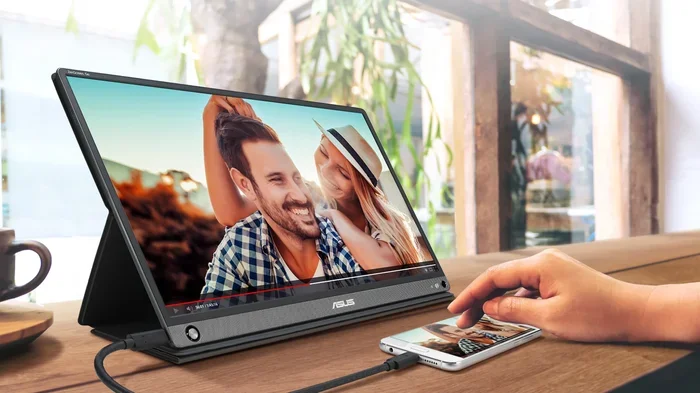
Apple built a fantastic tool right into iOS called the Personal Hotspot. This feature uses your phone’s cellular data to create a local Wi-Fi network. Other devices can then see this network, enter a password, and connect to the internet. It is the most straightforward way to share your connection because it is already integrated into the operating system. You do not need to download any extra software, and it works reliably most of the time. The only real requirement is that your cellular plan must support this type of sharing. When you turn it on, your phone essentially becomes a portable hotspot, broadcasting a signal that nearby devices can latch onto. This method is perfect for when you need to connect a laptop or a tablet to the web quickly. You can connect multiple devices at once, making it ideal for families or workgroups who need internet access on the go.
Checking Your Carrier and Data Plan
Here is the catch that many people overlook: not all cellular plans allow you to share data for free. Some carriers restrict hotspot tethering or charge an extra monthly fee for the privilege of sharing your connection. Before you try to turn on your personal hotspot, you should check your plan details carefully. You can usually find this information in your carrier app or by logging into your account online. Look for terms like “hotspot data” or “tethering allowance” in your plan description. If your plan already includes this feature, you are in luck. If not, you might need to look at alternative methods or contact your carrier to discuss your options. Sometimes, simply asking customer service can unlock this feature on your line. They might have a hidden setting or a temporary promotion you can take advantage of. Always read the fine print of your contract to avoid unexpected charges.
Bluetooth and USB Tethering Alternatives
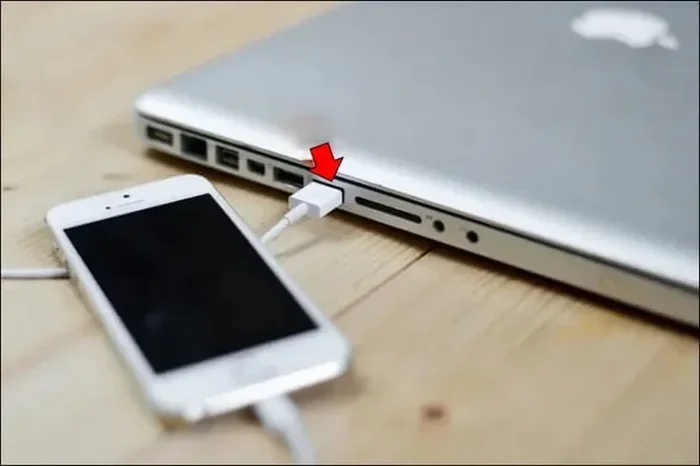
While Wi-Fi is the most popular way to share a connection, your iPhone also supports Bluetooth and USB tethering. Bluetooth tethering is slower than Wi-Fi, but it uses less battery power. This can be a great option if you only need to connect one device and you are trying to save your iPhone’s charge. USB tethering requires a cable, but it provides a very stable connection and can charge your phone at the same time. These alternative methods are often overlooked, but they can be lifesavers when Wi-Fi is not an option. Knowing all three methods gives you flexibility no matter where you are. You can switch between them depending on your needs and how much battery you have left.
How to Set Up a Free Hotspot Right Now
Now that you know the basics, let us get into the step-by-step process. Setting up your iPhone to share internet is quick and easy. Follow these instructions carefully to ensure everything works smoothly and you can get online in just a few minutes. Do not worry if you are not very tech-savvy; these steps are designed to be simple for everyone.
Step-by-Step Setup Guide
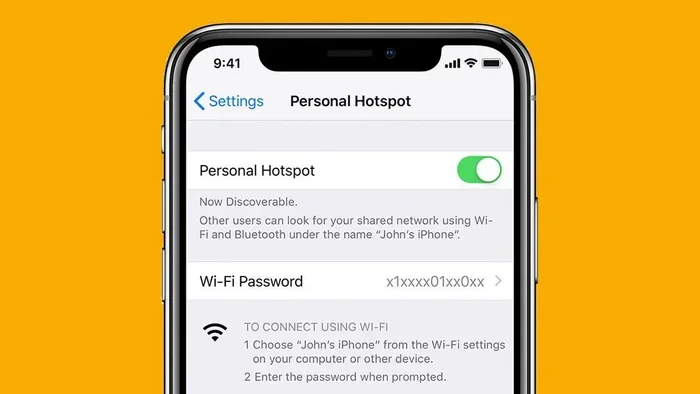
First, make sure your iPhone has an active cellular data connection. You can check this by looking at the top left corner of your screen for the signal bars. If you see no bars, you will not be able to share a connection. Next, open the Settings app on your phone. Scroll down until you find the Personal Hotspot option. Tap on it to view the settings. You will see a toggle switch to turn the hotspot on. Once you flip the switch, your iPhone will start broadcasting a Wi-Fi network almost immediately.
You will also notice a Wi-Fi password displayed on this screen. This password is essential for keeping your connection secure. Other devices will need to enter this exact password to join your network. If you want to change the password for easier memory, you can tap on the password field and type a new one. Make sure it is something you can remember but is still hard for others to guess. Once the hotspot is active, go to the other device you want to connect. Open its Wi-Fi settings, find your iPhone name in the list of available networks, and enter the password. You should see a “Connected” status appear shortly. If the connection fails, try toggling the hotspot off and back on again. Sometimes the network needs a moment to refresh so other devices can see it.
Quick Tips for a Stable Connection
Sometimes, setting up the hotspot is only half the battle. You might experience slow speeds or dropped connections. Here are a few quick tips to keep your connection strong and reliable. First, place your iPhone in a location with a strong cellular signal. If you are in a basement or a far corner of a building, the signal might be weak, which slows down the shared internet. Second, keep your phone plugged into a charger. Sharing a hotspot uses a lot of battery power, and your phone might drain quickly if it is working hard. Third, try to keep the number of connected devices to a minimum. The more devices connected, the more the bandwidth is split, which can slow everyone down. Finally, restart your iPhone if you notice any connection issues. A simple reboot can often clear up temporary network glitches and refresh your connection. Keeping your phone cool also helps maintain a strong signal.
Alternative Ways to Get Free Wi-Fi on Your iPhone
What if your carrier does not support free hotspot tethering? Do not worry. There are still plenty of ways to get free internet on your other devices using your iPhone. These methods do not involve turning your phone into a router, but they achieve the same goal of getting you online without paying extra fees. Exploring these alternatives can save you a lot of money and frustration in the long run.
Using Third-Party Apps to Find Free Networks
The internet is full of free Wi-Fi networks that the public can use. Apps like Wi-Fi Finder or similar tools can help you locate these networks quickly. These apps use a database of crowdsourced Wi-Fi locations to show you where free internet is available nearby. You can use these apps to find a nearby coffee shop, library, or airport lounge with free Wi-Fi. Once you find a network, you can connect your other devices to your iPhone’s personal hotspot instead of searching for public networks directly. However, always be cautious when using public Wi-Fi, as these networks can sometimes be less secure than your home network. Make sure the network is legitimate before you connect any of your devices. Look for networks that require a password provided by the establishment.
Finding Public Wi-Fi Safely
When you connect to public Wi-Fi, you expose your device to potential security risks. Hackers can sometimes intercept data on open networks, putting your personal information at risk. To stay safe, avoid accessing sensitive information like bank accounts or entering passwords when you are on a public network. Using a virtual private network, or VPN, is a great way to encrypt your data and protect your privacy. Many VPN apps are free and easy to use. They create a secure tunnel for your internet traffic, making it much harder for anyone to spy on your online activity. This way, you can browse safely even on unsecured networks. Always look for HTTPS websites when you are using public connections. A VPN adds an extra layer of protection that is well worth the peace of mind.
Offline Hotspot Apps and Workarounds
Some apps claim to create a free offline hotspot, but you need to be very careful with these. Most of the time, these apps simply connect you to existing public Wi-Fi networks rather than creating a true hotspot. They can be helpful for finding nearby networks, but they do not magically generate free internet out of thin air. Always read the reviews and check the permissions of any app before you install it. Stick to well-known apps from trusted developers to avoid malware or data theft. Your best bet for a truly free connection is still using your own cellular data through the built-in hotspot feature. Do not fall for apps that promise free internet without any data usage, as they are often scams.
Common Mistakes to Avoid When Using a Hotspot
Using a hotspot is convenient, but it is easy to make mistakes that cost you data or money. Avoiding these pitfalls will help you have a much better experience and keep your connection running smoothly. Learning from other people’s errors can save you a lot of headache.
One common mistake is forgetting to turn off the hotspot when you are done. If you leave your hotspot running, other devices might connect to it without your knowledge. This can drain your battery and use up your data allowance without you realizing it. Another mistake is ignoring your data usage. Hotspot tethering uses a lot of data because you are often browsing on laptops or tablets, which load heavier web pages than phones. Keep an eye on your data usage in your settings to avoid surprise overage charges. Finally, never leave your hotspot password as the default if you change it. A weak or simple password makes it easy for strangers in the area to hop onto your network and use your data. Always use a strong, unique password to protect your connection.
It is also important to understand the difference between your regular cellular data and your hotspot data. Some plans separate these, giving you a specific amount of data for tethering. Even if you have unlimited data for browsing, your hotspot usage might be capped at a certain limit. Once you hit that cap, your speeds will drop dramatically. Knowing this distinction helps you manage your expectations and plan your usage accordingly.
How to Monitor Your Data Usage
Keeping track of how much data you use is crucial when you share your connection. Hotspot tethering can consume data very quickly, especially if you are streaming videos or downloading large files. You can monitor your data usage directly on your iPhone by going to the Settings app. Tap on Cellular, and then scroll down to see how much data your apps have used. This feature helps you identify which apps are using the most data. If you notice a particular app is using too much, you can restrict its background data. Setting a data warning can also alert you when you are approaching your limit. By staying vigilant, you can enjoy your free hotspot without worrying about unexpected charges.
Troubleshooting Common Hotspot Problems
Even with the best setup, you might run into issues with your hotspot. Knowing how to troubleshoot these problems can save you a lot of time and frustration. Most issues are easy to fix with a few simple steps.
If your other devices cannot find the hotspot network, make sure the hotspot is turned on and your iPhone is not in airplane mode. Sometimes restarting the hotspot feature by toggling it off and on again can refresh the connection. If you are connected but have no internet access, check if your cellular data is working on your iPhone first. You might need to toggle airplane mode on your iPhone to reset the network connection. For slow speeds, try moving to a different location with better signal strength. A simple restart of the device you are trying to connect can also resolve many connectivity issues. These small fixes often solve the most common problems.
If none of the above works, you can try resetting your network settings. Go to Settings, then General, then Reset, and choose Reset Network Settings. Keep in mind that this will erase all your saved Wi-Fi passwords, so use it as a last resort. After the reset, you will need to reconnect to your Wi-Fi networks and re-enter your passwords. This can often clear up deep-seated connection issues that simple restarts cannot fix.
Expert Insights on iPhone Hotspotting
We asked a few tech experts about the best ways to manage a free hotspot on an iPhone. Their advice can save you a lot of frustration and help you get the most out of your cellular connection. They emphasize the importance of understanding your data limits. Even if your plan claims to offer unlimited data, there are often fair use policies that throttle your speeds after a certain amount of hotspot usage. Knowing these limits helps you manage your expectations and avoid sudden slowdowns when you need the internet the most.
Experts also recommend updating your iOS regularly. Apple frequently releases updates that improve the stability and security of the personal hotspot feature. Keeping your phone updated ensures that you have the best possible performance and protection against vulnerabilities. Outdated software can sometimes cause connection drops or compatibility issues with newer devices. Lastly, they suggest investing in a good cell signal booster if you live in an area with weak coverage. A strong signal makes all the difference when you are trying to share your connection with multiple devices. It ensures that everyone stays connected and enjoys fast browsing speeds.
Conclusion
Learning how Can I Get A Free Hotspot On My Iphone opens up a world of convenience and connectivity. Whether you use the built-in personal hotspot feature or find a clever alternative, staying connected is easier than ever. Just remember to check your carrier settings, monitor your data usage, and follow the quick tips we shared. With the right approach, you can keep all your devices online without spending a dime on extra fees. Start trying these steps today, and you will have a reliable internet connection wherever you go. Do not let a lack of Wi-Fi slow you down anymore. Take control of your internet access and enjoy the freedom of staying connected at all times.
Frequently Asked Questions
Can I get a completely free hotspot on my iPhone?
Yes, you can get a free hotspot if your cellular data plan already includes tethering. You just need to turn on the personal hotspot feature in your settings. However, if your plan charges extra for hotspot usage, you might incur fees when you share your connection.
Why is my iPhone hotspot not working?
Your hotspot might not be working if your cellular data is turned off or if you have a weak signal. You should also check if your carrier has restricted hotspot tethering on your specific plan. Restarting your iPhone or resetting network settings often fixes temporary connection issues.
How do I find the password for my iPhone hotspot?
You can find your hotspot password by going to the Settings app and tapping on Personal Hotspot. The password is displayed on that screen, and you can change it if you want to make it easier to remember. This password is required for other devices to connect securely to your network.
Is it safe to use a free Wi-Fi hotspot?
Using public Wi-Fi hotspots can be risky because they are often unsecured, making it easier for hackers to intercept your data. To stay safe, avoid logging into sensitive accounts like banking apps when connected to public networks. Using a VPN app adds a layer of encryption to protect your privacy.
Will using a hotspot drain my iPhone battery?
Yes, using your iPhone as a hotspot can drain your battery quickly because it is working hard to broadcast a Wi-Fi signal and process data for other devices. To preserve battery life, keep your phone plugged into a charger while sharing your connection. You can also reduce the number of devices connected to help save power.
Can I connect multiple devices to my iPhone hotspot?
You can usually connect up to five devices to your iPhone personal hotspot at the same time. However, connecting multiple devices will split your available bandwidth, which can slow down the internet speed for each device. Try to limit connections to only the devices that really need the internet.