How Can I Display My Phone Screen On My Monitor Today
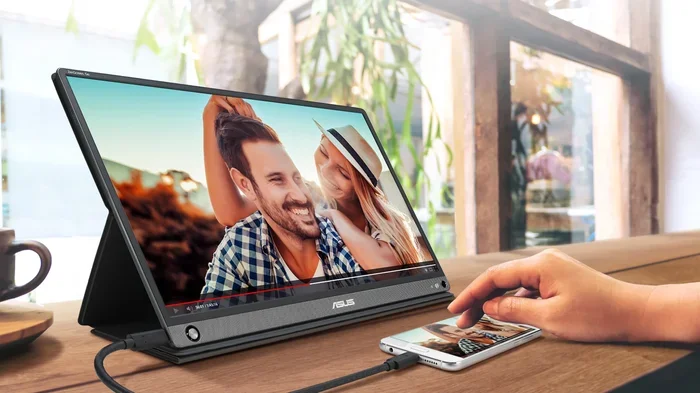
Displaying your phone screen on a monitor is easier than you think. Whether you use an iPhone or Android device, you can mirror your phone to a bigger screen using wired adapters or wireless casting. This guide covers every method, so you can display my phone screen on my monitor in minutes with confidence.
Key Takeaways
- Wired and wireless options exist: You can use HDMI adapters or wireless protocols like Miracast and AirPlay to connect your phone to a monitor.
- It works for all phones: iPhone, Samsung, Google Pixel, and other Android devices all support screen mirroring to monitors.
- No special monitor needed: Any monitor with an HDMI input can receive your phone screen with the right cable or adapter.
- Wireless is convenient: Tools like Chromecast, Miracast, and Samsung DeX let you cast without cables.
- Latency varies: Wired connections offer the best performance for gaming and video, while wireless is great for presentations.
- Check compatibility first: Not all phones and monitors support every method, so verify before buying gear.
📑 Table of Contents
- Display My Phone Screen On My Monitor: The Complete Guide
- Wired Methods: Connecting Your Phone to a Monitor with Cables
- Wireless Methods: Casting Your Phone Screen Without Cables
- Comparison: Wired vs Wireless Display Methods
- Common Problems and How to Fix Them
- Quick Tips for the Best Experience
- Expert Insights on Phone-to-Monitor Display Technology
- Final Thoughts
Display My Phone Screen On My Monitor: The Complete Guide
Have you ever wanted to see your phone on a bigger screen? Maybe you need to share photos with friends. Perhaps you want to play mobile games on a larger display. Or you might need to give a presentation at work. Whatever the reason, displaying your phone screen on a monitor is a simple and useful skill.
The good news is that you do not need expensive equipment. Most phones and monitors work together with basic cables or free apps. In this guide, we will walk you through every method. You will learn about wired connections, wireless options, and brand-specific tips. By the end, you will know exactly how to display my phone screen on my monitor in your own setup.
Let us start with the basics. Screen mirroring means showing your phone screen on another display in real time. Your phone sends its image to the monitor, and you see everything exactly as it appears on your small screen. This is different from extending your display, which creates a second workspace. Mirroring is the most common way people connect phones to monitors.
You might also hear terms like screen casting, screen sharing, or phone projection. These all mean the same thing: showing your phone content on a larger screen. The method you choose depends on your phone model, your monitor type, and what you want to do. Let us explore all the options.
Why Would You Want to Mirror Your Phone to a Monitor?
There are many reasons people connect their phones to monitors. Here are some of the most common ones:
- Presentations at work or school: Showing slides or documents from your phone on a big screen makes them easier to see.
- Gaming: Mobile games look and feel much better on a large monitor, especially action and strategy games.
- Photo and video sharing: Viewing your vacation photos or home videos on a big screen is a great experience.
- Productivity: Some people use their phone as a second computer screen or run apps on a larger display.
- Streaming content: Watching YouTube, Netflix, or other apps on a monitor gives you better quality and comfort.
- Teaching and tutorials: Showing your phone screen helps others follow along with app tutorials or demonstrations.
No matter your reason, the methods below will help you get it done. Let us move into the different ways you can connect your phone to a monitor.
Wired Methods: Connecting Your Phone to a Monitor with Cables
Wired connections are the most reliable way to display my phone screen on my monitor. They offer the best image quality and the lowest delay. If you care about performance, a cable is usually the best choice.
Using an HDMI Adapter
Most monitors have an HDMI port. Your phone likely does not. So you need a small adapter that bridges the gap. These adapters plug into your phone’s charging port and connect to the monitor with an HDMI cable.
For Android phones, you will often need a USB-C to HDMI adapter. Apple iPhones use a Lightning to HDMI adapter. Both are widely available and affordable. You can find them online or at electronics stores for around $10 to $25.
Here is how to set it up:
- Plug the adapter into your phone.
- Connect an HDMI cable from the adapter to your monitor.
- Switch your monitor to the correct HDMI input.
- Your phone screen should appear on the monitor right away.
That is it. No apps needed. No Wi-Fi required. The connection is instant and stable. This is the best method if you want zero lag or latency.
USB-C DisplayLink Adapters
Some advanced USB-C adapters use DisplayLink technology. These adapters do more than just mirror your screen. They can extend your display, giving you extra workspace. This is great if you use your phone like a computer and want a second monitor.
DisplayLink adapters work best with newer Android phones that support USB-C video output. Check your phone’s specifications to see if it supports this feature. Samsung, Google Pixel, and OnePlus phones often include this capability.
Using a Capturing Device or Capture Card
Another wired option is a capture card. These small devices are popular with streamers and content creators. You plug your phone into the capture card using a USB cable. Then you connect the capture card to your monitor via HDMI.
Capture cards add a small amount of delay, so they are not ideal for gaming. But they work well for presentations, video calls, and screen recordings. Brands like Elgato and AverMedia make reliable capture cards.
Wireless Methods: Casting Your Phone Screen Without Cables
Wireless screen mirroring is incredibly convenient. You do not need any cables or adapters. As long as your phone and monitor are on the same Wi-Fi network, you can cast your screen freely.
Using Miracast for Android Phones
Miracast is a wireless standard built into many Android phones and monitors. It lets you mirror your screen without any extra apps. Many smart TVs and some monitors support Miracast natively.
If your monitor does not have Miracast built in, you can buy a Miracast dongle. These small USB devices plug into your monitor’s HDMI port. They cost around $20 to $40 and work with most Android phones.
To use Miracast:
- Make sure your phone and monitor are on the same Wi-Fi network.
- Open your phone’s settings and look for Screen Mirroring or Cast.
- Select your monitor or Miracast dongle from the list.
- Your phone screen will appear on the monitor within seconds.
Miracast works well for everyday use. The video quality is good, and the connection is stable. However, you may notice slight lag during fast-moving content like sports or games.
Using Chromecast to Cast from Android or iPhone
Google Chromecast is a popular wireless casting device. You plug it into your monitor’s HDMI port and connect it to your Wi-Fi. Then you can cast your phone screen to the monitor using the Google Home app.
Chromecast works with both Android and iPhone. It is very easy to set up and use. The casting experience is smooth, and you can even use your phone as a remote control while your screen plays on the monitor.
One thing to keep in mind: Chromecast uses your Wi-Fi network. If your internet connection is slow or crowded, the casting quality may drop. For best results, use a strong and stable Wi-Fi connection.
Using AirPlay with iPhone and Apple Devices
If you have an iPhone, AirPlay is your built-in wireless mirroring tool. Apple designed AirPlay to work seamlessly with Apple devices. You can mirror your iPhone screen to any monitor that supports AirPlay.
Many smart TVs support AirPlay natively. If your monitor does not, you can buy an AirPlay-compatible streaming device. Apple TV is the most well-known option, but there are also third-party devices that support AirPlay.
To mirror using AirPlay:
- Make sure your iPhone and the receiving device are on the same Wi-Fi network.
- Open the Control Center on your iPhone.
- Tap the Screen Mirroring button.
- Select your monitor or Apple TV from the list.
AirPlay delivers excellent video quality and smooth performance. It is one of the best wireless options available. The only downside is that it works best within the Apple ecosystem.
Samsung DeX: A Special Option for Samsung Phone Users
Samsung DeX is a powerful feature that turns your Samsung phone into a desktop-like experience. You connect your Samsung phone to a monitor using a USB-C cable or a DeX docking station. The monitor then shows a full desktop interface.
Samsung DeX is different from simple screen mirroring. It gives you a windowed interface similar to a computer desktop. You can run multiple apps side by side, use a mouse and keyboard, and even open files. It is an excellent option if you want to use your phone as a primary computer.
Samsung DeX works with many Samsung Galaxy phones. You will need a monitor with an HDMI input and the right cable or dock. The experience is smooth and polished, making it one of the best options for productivity.
Comparison: Wired vs Wireless Display Methods
Choosing between wired and wireless methods depends on your needs. Here is a quick comparison to help you decide:
| Feature | Wired (HDMI Adapter) | Wireless (Miracast/AirPlay) |
|---|---|---|
| Image Quality | Excellent, no compression | Good, slight compression |
| Latency | Near zero | Small delay (1-3 seconds) |
| Convenience | Requires cable and adapter | No cables needed |
| Setup Difficulty | Very easy, plug and play | Easy, requires Wi-Fi setup |
| Best For | Gaming, video, presentations | Casual sharing, quick mirroring |
| Cost | $10-$30 for adapter | $20-$50 for dongle or streaming device |
| Reliability | Very high | Depends on Wi-Fi strength |
As you can see, wired methods win on performance and reliability. Wireless methods win on convenience and flexibility. Many people use both depending on the situation. Keep an adapter at your desk and use wireless when you need to move around.
Common Problems and How to Fix Them
Even though connecting your phone to a monitor is straightforward, you might run into issues. Here are the most common problems and their solutions.
No Signal on the Monitor
If your monitor shows no signal, first check the cable connections. Make sure the HDMI cable is firmly plugged in on both ends. Try a different HDMI port on your monitor. Also, make sure your monitor is set to the correct input source.
For wireless connections, check that both devices are on the same Wi-Fi network. Restart your phone and the receiving device. Sometimes a simple reboot fixes the issue.
Poor Image Quality or Lag
Lag and poor image quality are common with wireless mirroring. To improve performance, move closer to your Wi-Fi router. Reduce the number of devices using your network. If you are using an adapter, make sure it is compatible with your phone model.
For wired connections, use a high-quality HDMI cable. Cheap cables can cause signal issues. A certified Premium High Speed HDMI cable will give you the best results.
Phone Screen Rotates or Zooms Incorrectly
Sometimes your phone screen may not display correctly on the monitor. The image might be rotated, cropped, or stretched. This usually happens because your phone is set to auto-rotate. Lock your phone screen orientation to fix this issue.
On Android, you can toggle auto-rotate in your quick settings. On iPhone, open Control Center and lock the screen orientation. This should correct the display on your monitor.
Quick Tips for the Best Experience
Here are some expert tips to make your phone-to-monitor setup work perfectly:
- Use a high-quality adapter: Cheap adapters can cause lag, poor image quality, or connection drops. Invest in a reputable brand.
- Keep your phone charged: Screen mirroring uses a lot of battery. Plug your phone into a charger while using it on a monitor.
- Use a strong Wi-Fi network: For wireless methods, a 5 GHz Wi-Fi band gives better performance than 2.4 GHz.
- Update your phone software: Keep your phone updated to ensure compatibility with the latest mirroring features.
- Test before you present: Always test your setup before a meeting or presentation. Fix any issues beforehand.
- Consider a docking station: If you use your phone as a work device, a docking station gives you a clean and permanent setup with monitor, keyboard, and mouse.
Expert Insights on Phone-to-Monitor Display Technology
Display technology has come a long way in recent years. Just a few years ago, mirroring your phone to a monitor was clunky and unreliable. Today, the experience is smooth and nearly seamless. Wireless protocols like Miracast and AirPlay have improved dramatically. Adapters are smaller and more affordable than ever.
Industry experts predict that wireless display will become even more common in the coming years. New standards like Wi-Fi Direct and improved Bluetooth protocols will make connections faster and more reliable. Some monitors now come with built-in wireless casting, eliminating the need for any extra hardware.
For now, the best approach is to have a wired adapter as your backup. Wireless is convenient, but cables never fail you when you need them most. A USB-C to HDMI adapter in your bag or desk drawer is a small investment that pays off in many situations.
Final Thoughts
Displaying my phone screen on my monitor opens up a world of possibilities. You can game, present, share, and work with a bigger and better display. Whether you choose a wired HDMI adapter or a wireless casting method, the process is simpler than most people think.
Start with the method that fits your phone and monitor best. Try a wired adapter if you want the most reliable performance. Try Miracast or AirPlay if you value convenience and freedom of movement. You can always experiment with both to find what works for you.
The key is to just try it. You do not need to be tech-savvy to get this working. With the right adapter or the right app, you can display my phone screen on my monitor in just a few minutes. Once you see your phone content on a big screen, you will wonder how you ever managed without it.
So go ahead. Grab your phone, find your monitor, and give it a try. You will be amazed at how easy and useful this simple setup can be.
Frequently Asked Questions
Can I display my phone screen on any monitor?
Yes, you can display your phone screen on most monitors. You just need the right adapter or a wireless casting device. Any monitor with an HDMI input can work with a simple adapter. For wireless options, your monitor needs to support Miracast, AirPlay, or have a Chromecast device connected.
Do I need any special apps to mirror my phone to a monitor?
Not always. Wired HDMI adapters work without any apps. For wireless mirroring, some phones have built-in casting features like AirPlay and Miracast. If your monitor does not support these natively, you may need a free app or a streaming device like Chromecast.
Is there a delay when wirelessly casting my phone screen?
Yes, wireless casting usually has a small delay of one to three seconds. This is normal and happens because the video signal travels over Wi-Fi. For most everyday uses like presentations and photo sharing, the delay is barely noticeable. For fast-paced gaming, a wired connection is a better choice.
Can I use my phone while it is mirrored to a monitor?
Yes, you can continue using your phone while it is mirrored. However, anything you do on your phone will also show on the monitor. If you want to use your phone privately, you can pause the mirroring or disconnect temporarily.
What is the best adapter for iPhone users?
The Lightning to HDMI adapter from Apple is the most reliable option for iPhone users. It works with most monitors and requires no setup. You can also use third-party adapters that are certified for Apple devices. Make sure to choose one that supports your iPhone model.
Can I extend my phone screen instead of mirroring it?
Yes, you can extend your display in some cases. Samsung DeX and USB-C DisplayLink adapters support extended display mode. This gives you a second screen where you can run different apps. Standard Miracast and AirPlay only mirror your screen, they do not extend it.
=== CONCLUSION ===
Displaying your phone screen on a monitor is a simple and powerful skill. You now know all the main methods, from wired HDMI adapters to wireless casting with Miracast, AirPlay, and Chromecast. You have seen how Samsung DeX can turn your phone into a desktop powerhouse. You also know how to troubleshoot common issues and get the best results.
The best method for you depends on your phone, your monitor, and what you want to do. Wired connections offer the best performance and reliability. Wireless methods give you freedom and convenience. Both have their place, and both are easy to set up.
Take a few minutes today to try one of these methods. You will be glad you did. Once you see your phone screen on a big monitor, you will find new ways to use your phone every day. Display my phone screen on my monitor and unlock a bigger, better viewing experience right now.