Can You Connect Your Phone To A Fangor Projector Right Now
Yes, you can connect your phone to a Fangor projector using multiple methods. Whether you prefer wireless screen mirroring, HDMI adapters, or dedicated casting apps, the process is straightforward and works with most modern smartphones. This guide walks you through every step so you can start projecting from your phone in minutes.
Have you ever wanted to share photos, watch movies, or present slides on a big screen straight from your phone? A Fangor projector makes this possible, and the best part is that the setup is simpler than you might think.
Many people ask, “Can you connect your phone to a Fangor projector?” The answer is a clear yes. Whether you own a newer Fangor model or are thinking about buying one, you will find that phone-to-projector connectivity is built right into the experience. In this article, we will walk you through every method, every tip, and every trick you need to get your phone screen shining on a big display.
We cover wireless options, wired setups, app recommendations, and troubleshooting steps. By the end, you will know exactly how to connect your phone to a Fangor projector and enjoy a smooth, lag-free viewing experience. Let us dive in.
Key Takeaways
- Multiple Connection Options: You can connect your phone to a Fangor projector wirelessly via WiFi or Bluetooth, or use a wired HDMI adapter for a stable link.
- Screen Mirroring Works Instantly: Most Fangor projectors support built-in screen mirroring, making phone-to-projector casting quick and easy.
- Apps Boost Performance: Dedicated casting apps like AirScreen and EZCast improve streaming quality and reduce lag.
- Wired Connections Are More Reliable: An HDMI adapter eliminates wireless interference and delivers sharper image quality.
- Common Issues Have Simple Fixes: Most connection problems stem from WiFi settings, outdated firmware, or incorrect input sources.
- Fangor Projectors Are Budget-Friendly: They offer solid phone connectivity at a fraction of the cost of premium brands.
📑 Table of Contents
- Understanding the Fangor Projector Lineup
- How to Connect Your Phone to a Fangor Projector
- Step-by-Step Wireless Setup Guide
- Using Apps for Phone-to-Projector Streaming
- Common Connection Problems and How to Fix Them
- Expert Insights for the Best Viewing Experience
- Is the Fangor Projector Worth Your Money for Phone Connectivity?
- Final Thoughts
Understanding the Fangor Projector Lineup
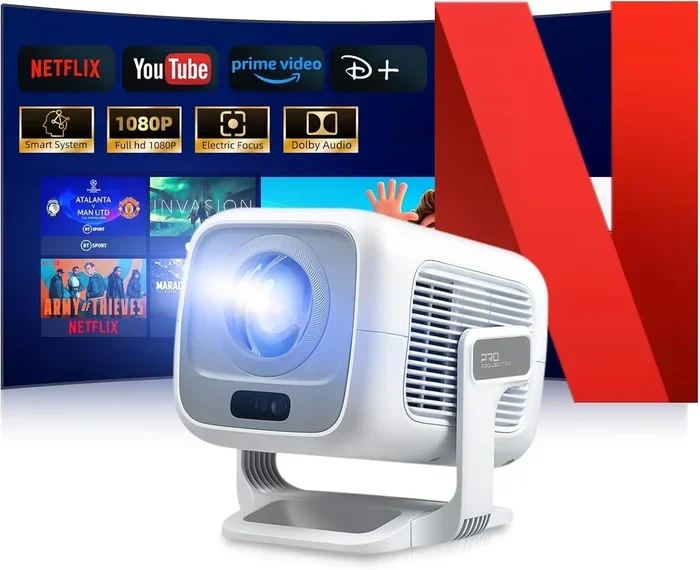
Before we get into the connection details, it helps to understand what makes Fangor projectors a popular choice. Fangor is a brand known for offering affordable home entertainment and portable projection solutions. Their projectors cater to casual users, students, and small business owners alike.
What Makes Fangor Projectors Popular
Fangor projectors have gained a strong following for several reasons. They are compact, lightweight, and easy to carry around. Most models come with built-in WiFi and Bluetooth, which means you do not need extra accessories just to get started. The brand focuses on delivering solid image quality at prices that won’t break the bank.
Here are some key features you will find across the Fangor lineup:
- Built-in WiFi connectivity for wireless streaming
- Bluetooth support for audio output to speakers or headphones
- Multiple input ports including HDMI and USB
- Built-in speakers for quick, no-setup audio
- Portable design that fits in a backpack or bag
- LED lamp technology for longer-lasting light sources
- Auto keystone correction for easy image alignment
These features make Fangor projectors a great match for phone projection. Since most models include WiFi and Bluetooth, you have multiple paths to connect your mobile device without hassle.
How to Connect Your Phone to a Fangor Projector
There are two main ways to connect your phone to a Fangor projector: wireless and wired. Each method has its own benefits, and the right choice depends on what you need in the moment.
Wireless Connection Methods
Wireless projection is the most popular way to link a phone to a Fangor projector. You do not need any cables, and the setup takes less than a minute. Most Fangor models support WiFi Direct and Miracast, which are built-in wireless display standards.
Here is how wireless connection typically works:
- Turn on your Fangor projector and go to the wireless display or screen mirroring menu.
- Make sure your phone is connected to the same WiFi network as the projector.
- On your phone, open the screen mirroring or cast feature.
- Select your Fangor projector from the list of available devices.
- Wait for the connection to establish, and your phone screen will appear on the projection.
This method works with both Android and iPhone devices, though the exact steps may vary slightly depending on your phone model.
Wired Connection Options
Some users prefer a wired connection for its reliability and stability. If you want zero lag and the highest possible image quality, plugging in a cable is the way to go.
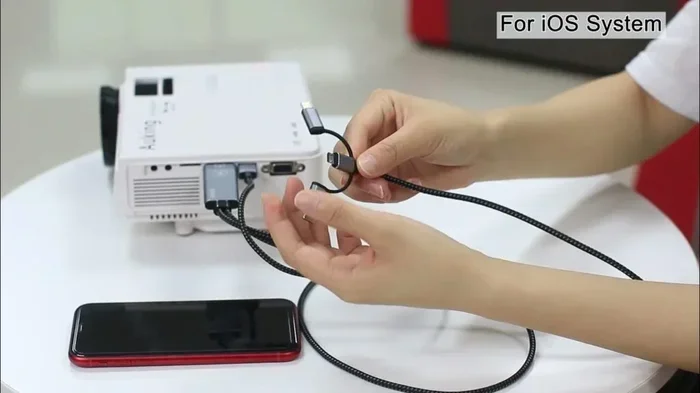
The most common wired setup uses an HDMI adapter. Here is what you need:
- A Lightning-to-HDMI adapter for iPhone users
- A USB-C-to-HDMI cable or adapter for Android users
- An HDMI cable to link the adapter to the projector
Once you have these items, the process is simple. Plug the adapter into your phone, connect the HDMI cable from the adapter to the projector, and switch the projector to the correct input source. Your phone screen will display instantly on the big screen.
Wired connections are especially useful for presentations, gaming, or any situation where a stable, uninterrupted signal matters most.
Connection Method Comparison
| Feature | Wireless | Wired (HDMI) |
|---|---|---|
| Setup Speed | Very fast (under 1 min) | Fast (under 2 min) |
| Image Quality | Good, may compress slightly | Excellent, no compression |
| Lag or Delay | Minor lag possible | No lag |
| Cable Needed | No | Yes |
| Best For | Casual use, movies, quick sharing | Presentations, gaming, critical viewing |
| Compatibility | Most phones with WiFi | Phones with USB-C or Lightning |
Step-by-Step Wireless Setup Guide
Let us walk through the wireless setup process in detail. This is the method most people use when they ask how to connect their phone to a Fangor projector.
Step 1: Power On Your Projector
Plug in your Fangor projector and turn it on. Use the remote control or the button on the device to access the main menu.
Step 2: Navigate to the Wireless Display Menu
On the projector’s home screen, look for an option labeled “WiFi,” “Wireless Display,” “Screen Mirroring,” or “Miracast.” Different models may use slightly different labels, but the function is the same.
Step 3: Enable the Wireless Signal
Turn on the wireless display feature. The projector will now search for nearby devices. You should see a message saying it is ready to receive a connection.
Step 4: Prepare Your Phone
On your phone, make sure WiFi is turned on. If your Fangor projector creates its own WiFi hotspot, connect your phone to that network. Otherwise, ensure both devices are on the same home WiFi network.
Step 5: Start Screen Mirroring
On Android, swipe down from the top of your screen and tap “Smart View,” “Screen Mirroring,” or “Cast.” On iPhone, open the Control Center and tap “Screen Mirroring.” Select your Fangor projector from the list.
Step 6: Confirm the Connection
You may see a prompt on the projector asking you to accept the connection. Confirm it, and your phone screen will appear on the projected display within seconds.
That is it. You are now casting your phone screen to a big display. Try opening a photo, a video, or a web browser to test the connection.
Using Apps for Phone-to-Projector Streaming
While built-in screen mirroring works well for most tasks, dedicated apps can take your experience to the next level. These apps are designed specifically for projecting content from your phone to a larger screen, and they often deliver better performance than the default mirroring tools.
Best Apps for Casting to a Fangor Projector
Here are some of the top-rated apps that work great with Fangor projectors:
- AirScreen: This app turns your projector into an AirPlay and Miracast receiver. It works with both Android and iOS devices and supports streaming from almost any app on your phone.
- EZCast: EZCast offers a simple interface for wireless projection. It supports multiple protocols and is one of the easiest apps to set up for beginners.
- Screen Mirroring – Cast: A lightweight app that focuses on fast, reliable screen mirroring without extra features you do not need.
- AllCast: Great for streaming media files from your phone to the projector. It supports a wide range of file formats and video types.
- LocalCast: This app excels at casting local media files and also supports streaming from popular online services.
Most of these apps are free or offer a free version with enough features for everyday use. Download one, connect it to your Fangor projector, and enjoy smoother, more reliable casting.
Quick Tips for App-Based Streaming
- Always download apps from the official app store to avoid security risks.
- Keep both your phone and projector on the same WiFi network for the best results.
- Close background apps on your phone before casting to free up memory and reduce lag.
- Update the app regularly to benefit from performance improvements and bug fixes.
Common Connection Problems and How to Fix Them
Even with the simplest setup, you might run into issues now and then. Here are the most common problems people face when trying to connect their phone to a Fangor projector, along with practical solutions.
Projector Not Showing Up in the Device List
If your phone cannot find the Fangor projector, the first thing to check is the WiFi connection. Make sure both devices are on the same network. If your projector creates a separate hotspot, connect your phone directly to it. Restarting both devices often solves this problem quickly.
Screen Mirroring Keeps Disconnecting
Intermittent disconnections usually happen because of WiFi interference. Move closer to the projector and reduce the number of devices using the same network. If the problem persists, try switching to a wired HDMI connection for a more stable link.
Poor Image Quality or Lag
Lag and blurry images are common when using wireless mirroring over a long distance. Shorten the distance between your phone and the projector. Also, make sure your WiFi signal is strong. For the best image quality, switch to a wired HDMI connection.
Audio Is Not Synced with Video
Audio delay is a minor but annoying issue that can happen with wireless connections. Try lowering the resolution of the content you are projecting. On some projectors, you can adjust the audio sync settings in the display menu.
Phone Says “Connection Refused” or “Timeout”
This error often means the projector’s mirroring feature is not active, or there is a compatibility issue. Make sure your projector firmware is up to date. Restarting both devices and trying again usually resolves the problem.
Common Mistakes to Avoid
- Skipping firmware updates: Old firmware can cause compatibility issues with newer phones. Always keep your projector updated.
- Using the wrong input source: Make sure the projector is set to the correct HDMI or wireless input before troubleshooting.
- Ignoring WiFi band differences: Some projectors only support 2.4GHz WiFi. If your phone is on 5GHz, they may not communicate properly.
- Overcrowding the WiFi network: Too many connected devices can slow down wireless projection and cause stuttering.
- Not restarting devices: A simple restart of both your phone and projector fixes more problems than any other step.
Expert Insights for the Best Viewing Experience
Getting your phone connected to a Fangor projector is only half the battle. To truly enjoy the experience, you want to optimize your setup for the best possible picture and sound quality.
Optimize Your Projection Environment
Where you place the projector matters a lot. Set it on a stable surface or mount it on a tripod at the right distance from your wall or screen. A darker room will always produce a sharper, more vibrant image. Consider closing curtains and turning off unnecessary lights before you start projecting.
Adjust Projector Settings for Phone Content
Fangor projectors come with settings that you can tweak for a better experience. Try these adjustments:
- Brightness: Lower it slightly in dark rooms to improve contrast and color depth.
- Contrast: Increase it to make text and edges sharper when displaying phone content.
- Color Mode: Use the “Movie” or “Dynamic” mode for richer colors when streaming videos.
- Focus: Adjust the focus ring until the image is crystal clear.
Enhance Audio Quality
The built-in speakers on most Fangor projectors are decent, but they are not always powerful enough for a large room. If you want better sound, connect external speakers via Bluetooth. You can also use a 3.5mm audio cable to link the projector to a powered speaker system. Better audio makes movies, games, and presentations feel much more immersive.
Use the Right Resolution and Format
When casting from your phone, the content resolution matters. Streaming 1080p content will look much better than low-resolution videos. If your projector supports 1080p or higher, make sure your phone is sending the signal at the best available resolution. For local media files, use common formats like MP4 with H.264 encoding for the smoothest playback.
Expert Tip
For the smoothest wireless experience, position your phone and projector within 15 feet of each other. This reduces signal loss and keeps your projection stable. If you are projecting in a large room, a wired HDMI connection is always the safer bet for zero lag.
Is the Fangor Projector Worth Your Money for Phone Connectivity?
Now that you know how to connect your phone to a Fangor projector, you might be wondering if the investment is worth it. The short answer is yes, especially if you are looking for an affordable way to turn any room into a home theater or presentation space.
Fangor projectors offer solid phone connectivity at a price point that is hard to beat. You get built-in WiFi, Bluetooth, multiple input ports, and a portable design, all in one package. Compared to premium brands that charge three or four times as much, Fangor delivers excellent value for the money.
Here are a few scenarios where a Fangor projector really shines:
- Movie nights at home: Cast your phone to the projector for a cinematic experience on a big screen.
- Business presentations: Share slides, documents, and videos from your phone without needing a laptop.
- Outdoor gatherings: The portable design makes it easy to set up a movie screen in your backyard.
- Gaming on the big screen: Mirror your phone games for a larger, more engaging display.
- Teaching or tutoring: Project educational content directly from your phone for a more interactive session.
The ability to connect your phone to a Fangor projector opens up a world of possibilities. It is one of the most practical and versatile features these projectors offer, and it works reliably across most models in the Fangor range.
Final Thoughts
So, can you connect your phone to a Fangor projector? Absolutely. You have wireless options like screen mirroring and WiFi Direct, and you have wired options using HDMI adapters. Both paths are simple to follow, and the results are impressive.
Whether you are watching your favorite show, sharing photos with friends, or giving an important presentation, the connection process is quick and straightforward. With the right app, a stable WiFi connection, or a reliable cable, your Fangor projector becomes a powerful extension of your phone.
Take some time to explore the settings on your projector, try out different connection methods, and find what works best for your needs. Once you experience the convenience of projecting from your phone, you will wonder how you ever managed without it.
Start connecting today, and enjoy your content on a bigger, brighter screen. Your Fangor projector is ready, and so is your phone. All you need to do is make the connection.
Frequently Asked Questions
Can I connect an iPhone to a Fangor projector?
Yes, you can connect an iPhone to a Fangor projector using AirPlay, screen mirroring, or a Lightning-to-HDMI adapter. Most Fangor models support wireless mirroring, making it easy to cast your iPhone screen to the projected display without any extra accessories.
Do I need WiFi to connect my phone to a Fangor projector?
Not always. While WiFi makes wireless mirroring convenient, you can also use a wired HDMI connection that does not require any WiFi at all. Some Fangor projectors also support WiFi Direct, which creates its own network without needing a home WiFi router.
Why is my phone screen not showing on the Fangor projector?
This is usually caused by the devices not being on the same WiFi network, the projector being on the wrong input source, or the mirroring feature not being enabled. Try restarting both devices, checking the input source, and ensuring screen mirroring is turned on in your phone settings.
Is there any lag when casting from a phone to a Fangor projector?
Wireless casting may have a small amount of lag, especially when streaming high-resolution video. A wired HDMI connection eliminates lag completely. For the best experience, use a wired connection for gaming or fast-moving content, and wireless for casual viewing.
What apps work best for casting to a Fangor projector?
Apps like AirScreen, EZCast, and AllCast work very well with Fangor projectors. They support both Android and iOS devices and offer smooth, reliable screen mirroring. Most of these apps are free to download and easy to set up.
Can I connect multiple phones to a Fangor projector at the same time?
Most Fangor projectors allow one phone to connect at a time via screen mirroring. However, you can switch between phones quickly by disconnecting one and connecting another. Some models with advanced networking features may support limited multi-device casting, so check your specific model’s manual for details.
=== CONCLUSION ===
Connecting your phone to a Fangor projector is easy, versatile, and incredibly useful. Whether you choose a wireless setup through screen mirroring or a wired connection with an HDMI adapter, the process is designed to be simple and user-friendly. With the right apps, a few quick tips, and a basic understanding of your projector’s features, you can project anything from your phone onto a big screen in just a few minutes.
Remember to keep your devices updated, use the right connection method for your needs, and troubleshoot common issues with the solutions we shared. The Fangor projector is a fantastic tool for entertainment, education, and productivity, and it all starts with the connection between your phone and the projector.
Now that you have all the knowledge you need, go ahead and try it out. Connect your phone to your Fangor projector today and enjoy a bigger, better viewing experience.