How Do I Connect My Apeman Projector To My Tv Wirelessly
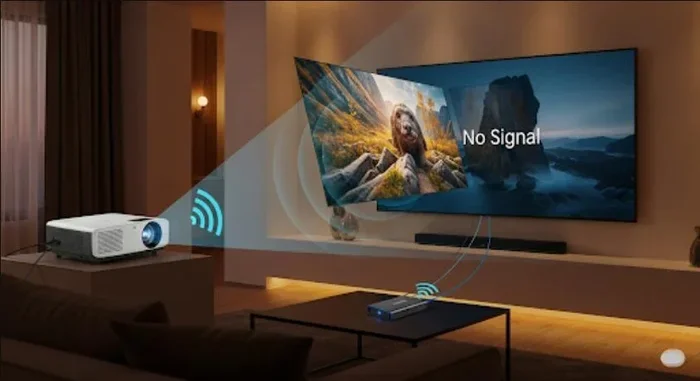
Connecting your Apeman projector to your TV wirelessly is simpler than you think. This guide walks you through every method, from screen mirroring to wireless HDMI adapters, so you can stream big on your TV screen without messy cables. You will learn the exact steps, tools you need, and how to fix common problems.
So you just got an Apeman projector and you want to know how to connect it to your TV wirelessly. Maybe you are tired of tripping over cables or you simply want a cleaner setup in your living room. Either way, you are in the right place. This guide will show you exactly how to get your Apeman projector connected to your TV without any fuss. You will learn every method that works, what gear you need, and how to avoid the most common mistakes people make.
Wireless projection has come a long way in the last few years. What used to require expensive equipment now works with affordable adapters and built-in WiFi features. Whether you want to mirror your phone screen to the projector or stream directly from your TV, there is a method that fits your needs. Let us dive right in and get your projector up and running.
Key Takeaways
- Wireless Connection Is Easy: You can link your Apeman projector to your TV using WiFi, screen mirroring, or a wireless HDMI transmitter without any extra cables.
- Multiple Methods Work: Screen mirroring, wireless HDMI adapters, and streaming sticks all let you cast content from your TV to your projector.
- Setup Takes Minutes: Most wireless connections can be ready in under 15 minutes with basic equipment you likely already own.
- Troubleshooting Is Simple: Most connection issues come from WiFi signal strength or incorrect input settings and are easy to fix.
- Audio Follows Video: Your projector can output sound through your TV speakers or its own built-in speaker depending on your setup.
📑 Table of Contents
- Understanding Your Apeman Projector and TV Connection Options
- What You Will Need for a Wireless Setup
- Method 1: Screen Mirroring From Your Phone or Tablet
- Method 2: Using a Wireless HDMI Transmitter
- Method 3: Using a Streaming Device with Your Projector
- Step-by-Step: Connecting Your Apeman Projector to Your TV Wirelessly
- Common Problems and How to Fix Them
- Expert Tips for the Best Wireless Viewing Experience
- Can You Use an Apeman Projector as a TV Replacement?
- Final Thoughts on Going Wireless With Your Apeman Projector
Understanding Your Apeman Projector and TV Connection Options
Before you start plugging things in or downloading apps, it helps to understand what connection options are actually available. Not every Apeman projector model has the same features, so knowing your options saves time and frustration. Most modern Apeman projectors come with WiFi and Bluetooth built in, which opens up several wireless paths to your TV.
The main ways to connect an Apeman projector to a TV wirelessly include screen mirroring, wireless HDMI transmitters, streaming device casting, and using apps that support direct streaming. Each method has its own strengths. Some offer better picture quality, while others are faster to set up. Let us look at each one so you can pick the best fit for your situation.
Does Your Apeman Projector Support Wireless Display?
Most Apeman projectors in the mid-range and above support wireless display protocols like Miracast and AirPlay. This means your phone, tablet, or laptop can send its screen directly to the projector without any extra hardware. Check your projector manual or the settings menu for a “Wireless Display” or “Screen Mirroring” option. If you see it, you are good to go. If not, do not worry, we have other methods for you.
Some older or budget Apeman models may not have native wireless display support. In those cases, a wireless HDMI transmitter or a streaming stick plugged into the projector’s HDMI port solves the problem. We will cover these solutions in detail below. The good news is that almost any Apeman projector can go wireless with the right approach.
What You Will Need for a Wireless Setup
Setting up a wireless connection between your Apeman projector and TV is straightforward. You likely already have most of what you need. Here is a simple list of items to gather before you begin.
- Your Apeman projector and its power cable
- A WiFi network that both your projector and TV can access
- A smartphone, tablet, or laptop for screen mirroring
- A wireless HDMI transmitter and receiver kit (optional, for best quality)
- A streaming device like a Roku, Fire Stick, or Chromecast (optional)
- Your TV remote and your projector remote for easy navigation
The wireless HDMI transmitter kit is the most reliable option for sending video from your TV to the projector without lag. These kits usually cost between 30 and 80 dollars and plug right into the HDMI ports on both devices. If you want the simplest setup, screen mirroring from your phone costs nothing extra and works in minutes.
Method 1: Screen Mirroring From Your Phone or Tablet
Screen mirroring is the easiest and most popular way to connect your Apeman projector to your TV wirelessly. It works by sending your device screen to the projector over your home WiFi network. Both Android and Apple devices support this in different ways.
How to Mirror From an Android Device
On Android phones and tablets, look for the “Cast” or “Smart View” or “Screen Mirroring” option in your quick settings panel. Swipe down from the top of your screen and tap the icon. Your Apeman projector should appear in the list of available devices. Tap on it and your screen will show up on the projector instantly.
Make sure your phone and projector are on the same WiFi network. This is the most common reason mirroring fails. If your projector does not show up, try restarting both devices and checking that WiFi is turned on. You can also check out our guide on connecting your phone to a projector with HDMI for a wired alternative.
How to Mirror From an iPhone or iPad
Apple users have it slightly easier thanks to AirPlay. Open your Control Center by swiping down from the top-right corner of your screen. Tap the “Screen Mirroring” button and select your Apeman projector from the list. Your iPhone screen will now display on the projector.
If AirPlay does not find your projector, make sure both devices are on the same WiFi network. Some Apeman projectors may need you to enable AirPlay in the settings menu first. This method works great for sharing photos, videos, or presentations with friends and family on a big screen.
Method 2: Using a Wireless HDMI Transmitter
A wireless HDMI transmitter offers the best picture and sound quality for wireless connections. This method sends the video signal from your TV directly to your Apeman projector without any compression or lag. It is ideal for watching movies or sports where timing matters.
Setting Up the Transmitter and Receiver
First, plug the HDMI transmitter into your TV’s HDMI output port. Then connect the receiver to your Apeman projector’s HDMI input port. Power on both devices using the included USB cables or power adapters. Most kits will auto-pair within a few seconds of turning on.
Once paired, whatever plays on your TV will show on the projector in real time. You can use your TV remote to change channels or apps, and the projector will display the same content. This is the closest you can get to a wireless cable connection. For more on HDMI connections, check out our article on doing HDMI over Ethernet for another wireless video solution.
Which Wireless HDMI Kit Works Best?
Popular brands like Nyrius, IOGEAR, and 5G Wireless HDMI offer reliable kits. Look for one that supports 1080p or 4K resolution depending on your projector’s capabilities. The 5G frequency band tends to have less interference than 2.4 GHz, which means a more stable connection. Place the transmitter and receiver within 30 feet of each other for the best results, and keep them away from thick walls or metal objects.
Method 3: Using a Streaming Device with Your Projector
Another great way to go wireless is by using a streaming stick or box with your Apeman projector. Devices like Chromecast, Roku Streaming Stick, or Amazon Fire TV Stick plug directly into your projector’s HDMI port and connect to your WiFi network. This turns your projector into a smart display that can access all your favorite apps.
Setting Up Chromecast or Fire Stick on Your Projector
Plug the streaming device into your Apeman projector’s HDMI port and connect it to power. Switch your projector to the correct HDMI input. Follow the on-screen setup instructions to connect to your WiFi network. Once set up, you can use your phone to cast content directly to the projector.
With Chromecast, you open a compatible app on your phone and tap the Cast icon. The content streams directly from the internet to the projector, not from your phone. This means you can use your phone for other things while your movie plays on the big screen. If you want to learn more about using projectors as TV replacements, our article on using a projector as a TV has helpful tips.
Pros and Cons of Each Wireless Method
Each wireless connection method has its own advantages and trade-offs. Here is a quick comparison to help you choose the right one for your setup.
- Screen Mirroring: Free, easy, and fast to set up. Best for casual use and sharing quick content. Picture quality depends on your WiFi strength.
- Wireless HDMI Transmitter: Best picture and sound quality with minimal lag. Requires buying a transmitter kit. Best for movie nights and gaming.
- Streaming Device: Turns your projector into a smart device with app access. Requires a one-time device purchase. Great for everyday streaming.
For most people, screen mirroring works perfectly for everyday use. If you want theater-quality picture, invest in a wireless HDMI kit. And if you want a permanent smart setup, a streaming stick is the way to go. You can even combine methods, like using a streaming stick for movies and screen mirroring for presentations.
Step-by-Step: Connecting Your Apeman Projector to Your TV Wirelessly
Now that you know the methods, here is a simple step-by-step walkthrough for the most popular approach, screen mirroring. Follow these steps and you will be watching on the big screen in no time.
- Place your Apeman projector on a stable surface or mount it facing your projection wall or screen. Make sure it is within range of your WiFi router.
- Turn on the projector and go to the home menu. Navigate to the “Settings” or “Network” section and confirm your WiFi is connected to your home network.
- Enable screen mirroring on the projector. Look for “Wireless Display,” “Miracast,” or “Screen Share” in the settings menu and turn it on.
- On your phone or tablet, open the screen mirroring or casting feature. Make sure your device is connected to the same WiFi network as the projector.
- Select your Apeman projector from the list of available devices. Wait a few seconds for the connection to establish.
- Start watching your content. Your phone screen will now appear on the projector. Open your favorite app and enjoy.
That is it. Six simple steps and you are wirelessly connected. If you run into any issues, check that both devices are on the same network and that nothing is blocking the signal. Moving closer to your WiFi router can also help. For more connectivity tips, see our guide on connecting your phone to TV with HDMI for a wired option.
Common Problems and How to Fix Them
Wireless connections can sometimes be tricky, but most issues have simple fixes. Here are the most common problems you might run into and how to solve them quickly.
Projector Does Not Show Up on Mirroring List
This usually happens when the projector and your phone are on different WiFi networks. Double-check that both devices are connected to the same network. Also, make sure your projector’s wireless display feature is turned on. Restarting both devices often fixes this issue right away.
Picture Is Lagging or Delayed
Lag during screen mirroring is usually caused by a weak WiFi signal or network congestion. Move your router closer to the projector or reduce the number of devices using your network. A wireless HDMI transmitter solves this problem completely since it uses a dedicated point-to-point signal. You can also learn more about improving your setup by reading our article on connecting your iPhone to TV with HDMI for tips on optimizing video connections.
No Sound From the Projector
Check that your projector’s volume is turned up and that it is not muted. If you are mirroring from your phone, make sure your phone is not routing audio to Bluetooth headphones or speakers. Some setups let you choose whether audio plays through the projector or the TV. If you want sound through your TV speakers, you may need to adjust your audio output settings on the streaming device or transmitter.
Poor Picture Quality
Weak WiFi signals can cause low resolution or pixelation. Ensure your projector is within a reasonable range of your router. If you are using a wireless HDMI kit, make sure there are no thick walls or large metal objects between the transmitter and receiver. Switching to the 5 GHz band on your WiFi network can also improve picture quality significantly.
Expert Tips for the Best Wireless Viewing Experience
Getting your Apeman projector connected to your TV wirelessly is only half the battle. Here are some pro tips to make your experience even better.
First, place your router as close to the projector as possible. WiFi signals weaken through walls and furniture. If you can, use a WiFi extender or mesh system to boost the signal in the room where your projector sits. A strong, stable connection is the foundation of a great wireless viewing experience.
Second, dim the lights in your room when watching content. Projectors work best in darker environments, and this also reduces eye strain during long movie sessions. You can also adjust the projector’s brightness and contrast settings to match your room lighting for the clearest picture.
Third, keep your projector firmware updated. Apeman regularly releases software updates that improve WiFi performance, fix bugs, and add new features. Check the settings menu or the Apeman website for the latest firmware version. A simple update can solve many connection issues you might encounter.
Fourth, consider using an external speaker if the projector’s built-in speaker is not loud enough for your room. You can connect Bluetooth speakers wirelessly or use a 3.5mm cable for a wired connection. This gives you richer sound that matches the big picture on the screen.
Finally, experiment with the projector placement. The further the projector is from the wall, the larger the image. But too far can make the picture dim or blurry. Find the sweet spot where the image fills your wall clearly and evenly. For more setup ideas, check out our guide on using a flashlight as a projector for creative projection tips.
Can You Use an Apeman Projector as a TV Replacement?
Many people wonder if an Apeman projector can fully replace a TV. The short answer is yes, with the right setup. By connecting a streaming device or using screen mirroring, your projector can access all the same apps and channels as a smart TV. You can watch Netflix, YouTube, live sports, and more on a much bigger screen than any standard TV offers.
The main trade-off is brightness. TVs are designed to be bright and visible even in sunny rooms, while projectors work best in dimmer environments. If you plan to watch during the day, consider a projector with higher lumens or use blackout curtains to block outside light. For more on this topic, our article on using a projector as a TV dives deeper into the pros and cons.
Final Thoughts on Going Wireless With Your Apeman Projector
Connecting your Apeman projector to your TV wirelessly opens up a world of entertainment possibilities. You can watch movies, share photos, play games, and present content all without dealing with cables cluttering your room. Whether you choose screen mirroring, a wireless HDMI transmitter, or a streaming stick, the process is straightforward and well worth the effort.
Start with the method that fits your budget and needs. Screen mirroring is free and works in minutes. A wireless HDMI kit delivers the best quality for a small investment. And a streaming stick gives you a permanent smart setup. Whatever path you choose, you are one setup away from enjoying your favorite content on a big screen in any room of your home.
Take your time, follow the steps in this guide, and do not be afraid to experiment with different methods. Once you experience the freedom of a wireless projector setup, you will never want to go back to cables. Happy viewing, and enjoy your Apeman projector to the fullest.
Frequently Asked Questions
Can I connect my Apeman projector to my TV without WiFi?
Yes, you can use a wireless HDMI transmitter that creates a direct point-to-point connection between your TV and projector without needing a WiFi network. You can also use a wired HDMI cable if you prefer a simple plug-and-play setup. These alternatives work great when WiFi is not available or stable.
Why is my Apeman projector not showing up on screen mirroring?
The most common reason is that your projector and phone are not on the same WiFi network. Check that both devices are connected to the same network and that wireless display is enabled on your projector. Restarting both devices and your router often fixes this issue quickly.
What is the best wireless HDMI kit for Apeman projectors?
Popular and reliable options include the IOGEAR wireless HDMI kit and the Nyrius Aries Pro. Look for kits that support at least 1080p resolution and use the 5 GHz frequency band for less interference. These kits typically cost between 30 and 80 dollars and plug directly into HDMI ports on both devices.
Can I use a streaming stick with my Apeman projector?
Yes, devices like Chromecast, Amazon Fire TV Stick, and Roku Streaming Stick work with any projector that has an HDMI port. Simply plug the stick into the HDMI port, connect to WiFi, and follow the on-screen setup. This turns your projector into a smart display with access to all major streaming apps.
Will screen mirroring cause lag when watching videos?
Screen mirroring can have slight lag depending on your WiFi strength and the number of devices on your network. For the smoothest experience, use a wireless HDMI transmitter or a streaming stick that streams content directly from the internet. These methods provide a much more responsive and lag-free viewing experience.
Can I connect multiple devices to my Apeman projector wirelessly?
Yes, most Apeman projectors support multiple wireless connections. You can switch between devices by selecting them from the mirroring or casting menu. However, only one device can display at a time. Some projectors also allow you to set up a dedicated WiFi network just for the projector to keep things fast and stable.
=== CONCLUSION ===
Connecting your Apeman projector to your TV wirelessly is a game changer for your home entertainment setup. You now know three proven methods, from simple screen mirroring to high-quality wireless HDMI kits. Each method gives you the freedom to enjoy big-screen content without the hassle of cables. Pick the one that fits your needs, follow the steps, and you will be watching in minutes.
Remember that a strong WiFi connection and the right equipment make all the difference. Start simple with screen mirroring and upgrade to a transmitter or streaming stick if you want better quality. With the tips and troubleshooting advice in this guide, you are fully equipped to create a seamless wireless setup. Enjoy your Apeman projector and the amazing viewing experience it brings to your home.