Can I Use My Iphone As A Projector Remote For Presentations
Yes, you can absolutely use your iPhone as a projector remote for presentations. With the right apps and a simple setup, your phone becomes a powerful wireless presentation controller that lets you advance slides, control volume, and use a virtual laser pointer. Turning your iPhone into a projector remote is easier than most people think and takes just a few minutes to set up.
Key Takeaways
- Yes, you can use your iPhone as a projector remote: With the right app and a simple setup, your iPhone becomes a powerful wireless presentation controller that lets you advance slides, control volume, and use a virtual laser pointer.
- Multiple free and paid apps are available: Options like Keynote, Google Slides, and premium remote apps give you flexibility based on your budget and presentation needs.
- Setup is quick and straightforward: Connecting your iPhone to the projector takes just a few minutes, especially when both devices are on the same Wi-Fi network.
- Keep a backup plan ready: Always carry a USB cable or a wired alternative in case the wireless connection fails during your talk.
- Advanced features enhance your delivery: Virtual laser pointers, slide previews, and annotation tools make your presentations more professional and engaging.
- Practice before the real event: Testing your iPhone projector remote setup beforehand helps you avoid surprises and builds confidence.
📑 Table of Contents
How Does Using Your iPhone As A Projector Remote Work
Have you ever stood in front of a room full of people and wished you could control your slides without being stuck behind a laptop? Can I use my iPhone as a projector remote? The short answer is yes. You can turn your phone into a powerful presentation tool that lets you move around the room, engage your audience, and stay in control of every moment.
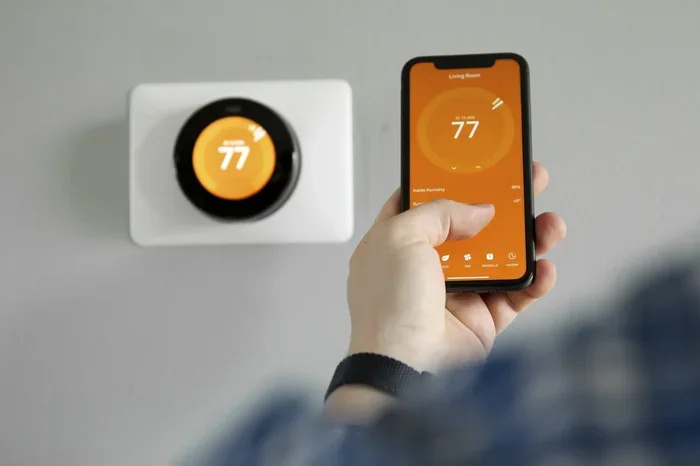
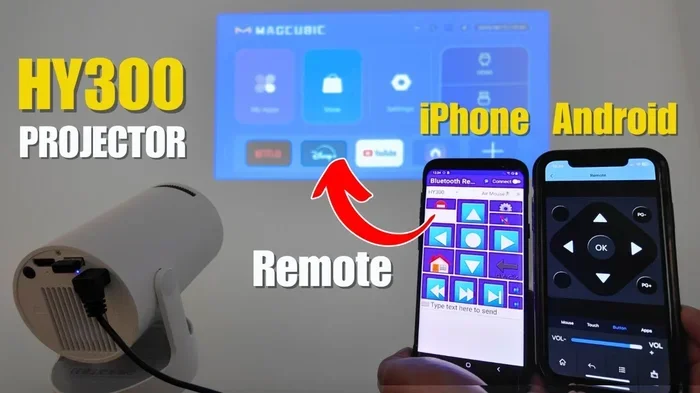
Using your iPhone as a projector remote is simpler than most people think. You connect your phone to the same network as the projector, open a remote app, and your device becomes a wireless presentation controller. You can advance slides, adjust volume, and even use a virtual laser pointer. Wireless presentation has never been this easy or this accessible.
The whole process works through a combination of apps and connectivity methods. Some solutions use Wi-Fi, while others rely on Bluetooth or even a simple cable connection. iPhone projector remote setups vary depending on your projector model and the app you choose. But the core idea stays the same. Your phone sends commands to the projector or the presentation software running on your computer.
Using your iPhone as a presentation remote gives you freedom you did not know you needed. You are no longer tethered to a desk or stuck behind a laptop. You can walk around the room, make eye contact with your audience, and deliver a more engaging talk. This is especially useful for business presentation tips and large group settings where movement adds energy to your message.
The technology behind this is straightforward. Your iPhone communicates with the projector or the computer connected to it through a local network. The remote app sends signals that tell the presentation software what to do. Next slide, previous slide, volume up, volume down. It all happens in real time. Once you set it up once, using your iPhone as a projector remote becomes second nature.
Best Apps To Turn Your iPhone Into A Projector Remote
Not all apps are created equal. Some are free, while others cost a few dollars. The right choice depends on what kind of presentations with iPhone you do most often. Let us look at some of the best options available right now so you can pick the one that fits your needs.
Free Options For Simple Presentations
If you want a quick and easy solution, there are several free projector remote apps for iPhone. One popular choice is the built-in Keynote app from Apple. If you use Keynote on your Mac or iPad, you can use your iPhone as a remote control. It works over Wi-Fi and lets you advance slides, see speaker notes, and even check the time. It is already on your phone, so there is nothing extra to download.
Another great free option is the iPhone remote control app called Unified Remote. This app works with a wide range of devices, including projectors that connect to a computer. You can set up custom buttons for slide advance, volume control, and more. The free version covers most basic needs and is a solid starting point for anyone new to wireless presentation setups.
For those who use Google Slides, the Google Slides app on iPhone has a built-in presenter mode. You can connect your phone to the same Wi-Fi network and use it to navigate your slides. This is one of the simplest presentation apps for iPhone available. It is reliable, free, and works seamlessly with Google’s cloud-based presentation platform.
Premium Apps With Advanced Features
If you need more power, paid apps offer advanced features that make wireless presentation even smoother. Apps like Presentation Remote and Remote for Slides cost a few dollars but give you much more control over your delivery.
These premium apps often include features like:
- Virtual laser pointer to highlight key points on screen without needing a physical device
- Slide thumbnail previews so you always know what comes next
- Timer and clock to keep your talk on track and within time limits
- Annotation tools to draw on slides in real time during your talk
- Battery status monitoring for both your phone and the projector
- Custom gesture controls for personalized navigation
When you use your iPhone as a projector remote with a premium app, the experience feels much more professional. You get smooth transitions, responsive controls, and fewer connection hiccups. For anyone who presents regularly, investing in a good presentation remote app is worth every penny. The extra features can truly elevate the quality of your talks.
Step By Step Setup Guide
Setting up your iPhone as a projector remote does not have to be complicated. Follow these steps and you will be ready in minutes. The process works whether you are using a Wi-Fi projector or connecting through a computer.
Connecting Your iPhone To The Projector
First, make sure your iPhone and the projector are on the same Wi-Fi network. This is the most important step. If they are on different networks, the remote connection will not work. Check your projector connectivity settings and make sure both devices can see each other on the network.
Next, download your chosen remote app from the App Store. Open the app and follow the on-screen instructions to pair it with your projector or computer. Most apps will automatically detect available devices on the same network. The pairing process usually takes less than a minute.
For those who use an HDMI connection iPhone setup, you may need an adapter. Apple makes a Lightning to HDMI adapter that lets you mirror your screen directly to a projector. While this does not give you remote control, it is a reliable backup option if wireless connections fail. It ensures your slides are always visible no matter what.
Some users also rely on wireless display adapters like Chromecast or Miracast devices. These small dongles plug into your projector and allow screen mirroring iPhone over Wi-Fi. Once the adapter is set up, your remote app can communicate with the projector through the same network. This is a great option for rooms where running cables is not practical.
After pairing, go to your iPhone settings and make sure Wi-Fi stays on during sleep mode. You can also check if you need adding prefixes to numbers on iPhone for any file naming or numbering conventions in your presentation files. This small detail can help you stay organized when managing multiple decks across different meetings.
Configuring The Remote App
After connecting, spend a few minutes configuring your iPhone remote control app. Most apps let you customize buttons and gestures. Set up the slide advance and retreat buttons first. Then add volume controls and any other features you use often. Personalizing the controls makes the whole experience feel natural.
It is also a good idea to test the setup before your actual presentation. Open a practice deck and walk around the room. Check if the remote responds quickly and reliably. iPhone presentation setup works best when you have already solved any problems beforehand. A five-minute test run can save you from a ten-minute headache during a live talk.
One thing to keep in mind is that your phone settings can affect performance. If your iPhone goes to sleep quickly, the remote connection may drop. Adjust the auto-lock timer in your settings to keep the screen awake during presentations. This is a small change that makes a big difference in reliability.
Tips For Smooth Presentations With Your iPhone Remote
A great setup means nothing if you do not know how to use it well during a live talk. Here are some practical tips to make your wireless presentation flow smoothly from start to finish.
Keeping A Stable Connection
The biggest fear with any wireless setup is losing the connection mid-presentation. To avoid this, stay close to the projector’s Wi-Fi range. If the projector is in a large room, position yourself within a reasonable distance from the router or access point. The closer you are, the stronger the signal.
Another tip is to turn off other apps that might use bandwidth. If you have a download running or a streaming app open in the background, it can slow down your remote connection. Close everything you do not need before you start presenting with iPhone. Your phone’s resources should be focused on one task.
Bring a backup plan. Carry a USB cable and a laptop mouse just in case. If the wireless connection fails, you can always fall back to a wired setup. Having a backup shows professionalism and keeps you calm if something goes wrong. Experienced speakers always prepare for the unexpected.
Using Advanced Features During Your Talk
Once you are comfortable with the basics, explore the advanced features of your iPhone presentation remote. The virtual laser pointer is one of the most useful tools. It lets you draw attention to specific parts of your slides without needing a physical laser pointer. Your audience stays focused on what matters most.
Use the timer feature to keep track of your pace. Many business presentation tips experts recommend checking the time every few minutes. Your iPhone remote makes this easy because you can glance at the timer on your phone without turning away from the audience. It helps you stay on schedule without breaking your flow.
If your app supports annotation, use it sparingly. Drawing on slides during a talk can be engaging, but too much of it can distract from your message. Use the annotation tool to highlight one or two key points and then move on. Less is often more when it comes to live annotations.
Here is a quick tip for anyone who works with spreadsheets during presentations. If you ever run into issues where a line won’t delete in Microsoft Excel while preparing your slides, do not panic. Simply save your file, close the app, and reopen it. This simple fix resolves the issue most of the time and saves you from last-minute stress before a big meeting.
Common Problems And How To Fix Them
Even the best setups can run into trouble. Knowing what to do when things go wrong saves you from awkward moments in front of your audience. Most problems have simple solutions that you can fix on the spot.
Connection Issues
If your iPhone projector remote stops responding, the first thing to check is your Wi-Fi connection. Are both devices still on the same network? Sometimes a router resets or a network changes, which breaks the connection between your phone and the projector.
Try turning Wi-Fi off and back on your iPhone. This simple step fixes many connection problems. If that does not work, restart the remote app. Closing and reopening the app often re-establishes the link with the projector without needing to redo the entire setup.
Another common issue is interference from other devices. In crowded spaces with many Wi-Fi networks, signals can get crowded. If possible, switch to a less congested network or use a mobile hotspot from your phone as a direct connection between your iPhone and the projector. A dedicated hotspot gives you full control over the network and eliminates interference from other users.
App Malfunctions
Sometimes the app itself causes problems. If the remote controls do not respond, check for app updates. Developers release fixes regularly, and an outdated app may not work with the latest iOS version. Keeping your apps updated is one of the easiest ways to prevent issues.
Clear the app cache if your phone is running low on storage. A full iPhone can cause apps to behave unpredictably. Restarting your device before a big presentation is always a good habit. It clears temporary files and frees up memory, which helps your iPhone presentation remote run smoothly and without lag.
If nothing else works, uninstall and reinstall the app. This resets all settings and often resolves hidden bugs that are hard to diagnose. Just make sure you remember your login credentials before you delete the app. Writing them down in a secure note on your phone is a smart precaution.
Why Using Your iPhone As A Remote Makes Sense
There are many reasons to make using your iPhone as a projector remote your go-to setup for every presentation. The benefits go beyond just convenience. Let us look at the biggest advantages that make this approach worth adopting.
Convenience And Portability
Your iPhone is always with you. You do not need to carry a separate remote or a USB dongle. This makes mobile presentation control incredibly convenient. Whether you are presenting in a small conference room or a large auditorium, your phone is all you need to run the show.
The portability factor is a real game changer. You can walk freely around the room, interact with your audience, and stay fully engaged. Traditional remotes limit your movement and tie you to a specific spot. An iPhone as presentation tool removes that limitation entirely and lets you move naturally.
Think about how many people already carry their phones everywhere. You do not need to remember an extra device. Your iPhone projector remote is always in your pocket, charged and ready to go. This level of convenience is hard to beat with any dedicated hardware remote.
Professional Presentation Benefits
Using your iPhone as a remote makes you look more polished and prepared. You are not fumbling with a USB receiver or worrying about batteries dying mid-presentation. The wireless connection feels seamless and modern. Your audience notices these details and it builds trust.
Your audience also benefits from your freedom of movement. When you can walk around freely, the presentation becomes more dynamic and engaging. Eye contact and body language improve, which makes your message more impactful. These are core business presentation tips that every speaker should follow to connect with their audience.
Plus, your iPhone has more features than any standard remote could offer. You can access speaker notes, check the time, and even take audience questions without leaving the stage. The digital presentation remote experience on iPhone is far superior to any basic clicker. You get a complete presentation toolkit in the palm of your hand.
Another reason this approach makes sense is cost. Most of the apps we discussed are free or very affordable. You do not need to buy a dedicated hardware remote that costs fifty or a hundred dollars. Your iPhone already has everything you need. This makes wireless presentation accessible to everyone, from students to corporate professionals.
The flexibility of using your phone also means you can adapt quickly. Need to pull up a different file? Just switch apps on your iPhone. Want to show a video? You can control playback directly from your remote. These small conveniences add up to a much smoother and more professional presentation experience overall.
Key Takeaways
- Yes, you can use your iPhone as a projector remote: With the right app and a simple setup, your iPhone becomes a powerful wireless presentation controller that lets you advance slides, control volume, and use a virtual laser pointer.
- Multiple free and paid apps are available: Options like Keynote, Google Slides, and premium remote apps give you flexibility based on your budget and presentation needs.
- Setup is quick and straightforward: Connecting your iPhone to the projector takes just a few minutes, especially when both devices are on the same Wi-Fi network.
- Keep a backup plan ready: Always carry a USB cable or a wired alternative in case the wireless connection fails during your talk.
- Advanced features enhance your delivery: Virtual laser pointers, slide previews, and annotation tools make your presentations more professional and engaging.
- Practice before the real event: Testing your iPhone projector remote setup beforehand helps you avoid surprises and builds confidence.
Conclusion
Can I use my iPhone as a projector remote for presentations? Absolutely. The answer is a clear and confident yes. With the right app, a stable Wi-Fi connection, and a little practice, your iPhone transforms into one of the most versatile presentation tools you will ever own. You get freedom of movement, professional features, and the convenience of carrying everything you need in your pocket.
Whether you choose a free app like Keynote or Google Slides, or invest in a premium presentation remote app, the setup process is quick and the results are impressive. You can walk around the room, engage your audience, and deliver a more dynamic talk. Wireless presentation has never been more accessible or more powerful.
Remember to test your setup before every important talk. Keep your apps updated and always have a backup plan in place. These small habits make a huge difference in how smooth your presentations go. The more you use your iPhone as a projector remote, the more natural and effortless it becomes.
So go ahead. Download an app, connect your devices, and start exploring what your iPhone can do. You might be surprised at how much more confident and connected you feel when you are not stuck behind a laptop. Your next presentation will be better for it. Embrace the freedom of mobile presentation control and take your talks to the next level starting today.
Frequently Asked Questions
Do I Need A Special App To Use My iPhone As A Projector Remote?
You do not necessarily need a special app. If you use Apple Keynote, the iPhone Keynote app already works as a built-in remote. However, third-party apps like Unified Remote or Google Slides presenter mode give you more flexibility and work with different presentation software. Most of these apps are free to download and easy to set up.
Can I Use My iPhone As A Projector Remote Without Wi-Fi?
Most wireless remote apps require both your iPhone and the projector to be on the same Wi-Fi network. However, some apps support Bluetooth or direct hotspot connections. If Wi-Fi is not available, you can create a personal hotspot on your iPhone and connect the projector or computer to it. This creates a direct network without needing an external router.
Is It Hard To Set Up An iPhone As A Projector Remote?
Not at all. The setup process is straightforward and usually takes less than five minutes. You need to connect both devices to the same Wi-Fi network, download a remote app, and pair them together. Most apps guide you through each step with clear on-screen instructions. If you can connect to Wi-Fi, you can set up an iPhone projector remote.
Will Using My iPhone As A Remote Drain The Battery Quickly?
Using a remote app uses very little battery because it only sends small wireless signals. However, if your screen stays on or you use features like the laser pointer and annotation tools extensively, battery usage will increase. To conserve power, lower your screen brightness and close other apps while presenting. Bringing a charger is always a good idea for long presentations.
Can I Use My iPhone As A Remote For Any Projector?
You can use your iPhone as a remote for most modern projectors, especially those that connect to a computer or support Wi-Fi. The key requirement is that your iPhone and the device controlling the presentation are on the same network. Some older projectors without network capabilities may need a wireless display adapter or a wired connection to work with your iPhone remote.
What Is The Best Free App For iPhone Projector Remote Control?
The best free option depends on your presentation software. If you use Keynote, the built-in Keynote remote is the easiest and most reliable choice. For Google Slides users, the Google Slides app has a free presenter mode. Unified Remote is another excellent free option that works with a wide range of presentation tools and devices. All three are worth trying to see which fits your workflow best.