How Do I Connect My 3m Worktunes To Bluetooth Easily
Connecting your 3M Worktunes to Bluetooth is quick and easy once you know the steps. This guide walks you through pairing, troubleshooting, and optimizing your wireless connection. You will learn how to enjoy hands-free audio at work or at home with confidence.
Key Takeaways
- Easy Pairing: You can connect your 3M Worktunes to Bluetooth in just a few simple steps.
- Wide Compatibility: These headphones work with most Bluetooth enabled devices including phones and tablets.
- Troubleshooting Helps: Common connection issues have simple fixes you can do at home.
- Better Audio Quality: Proper setup and positioning improve your wireless listening experience.
- Dual Use: 3M Worktunes serve both as hearing protection and as wireless audio headphones.
📑 Table of Contents
How to Connect Your 3M Worktunes to Bluetooth
So you just got a pair of 3M Worktunes and want to go wireless. Good news. The process is simple and takes less than five minutes. Whether you are at a job site or relaxing at home, connecting 3M Worktunes to Bluetooth opens up a world of wireless audio. You can stream music, take calls, and enjoy clear sound without any cords getting in your way.
These headphones are built for tough environments. They offer great hearing protection and now come with Bluetooth 5.0 technology. That means a stronger signal and better range than older versions. In this guide, we will walk you through every step. You will also learn how to fix common problems and get the best performance out of your headphones.
Before you start, make sure your headphones are charged. A full battery makes the pairing process smoother. Also, keep your phone or tablet nearby. You will need it to put your device into pairing mode. Let us get started.
What Are 3M Worktunes?
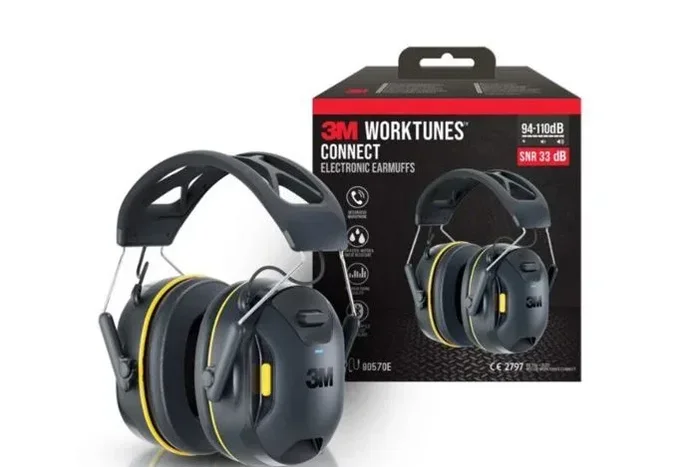
3M Worktunes are Bluetooth enabled hearing protection headphones. They are designed for people who work in loud environments. Construction workers, factory staff, and gardeners all love them. But they are not just for work. You can use them for listening to music or podcasts too.
The built-in Bluetooth chip lets you connect to any compatible device. This means no extra adapters or cables. Just turn on Bluetooth and pair. The headphones also have a high noise reduction rating. This protects your ears while you enjoy your favorite audio. It is the best of both worlds.
What You Need Before You Start
Before you try to connect 3M Worktunes to Bluetooth, gather a few things. Having everything ready saves time and frustration.
- Charged 3M Worktunes headphones with Bluetooth turned on
- A Bluetooth enabled device like a smartphone or tablet
- Access to your device settings for Bluetooth pairing
- A quiet space for the initial setup
That is it. No special tools needed. If your device supports Bluetooth, you are good to go. Most phones made after 2015 have Bluetooth built in. Even many older devices support it. Just check your device settings to be sure.
Step by Step Guide to Pairing Your 3M Worktunes
Now let us get into the actual pairing process. Follow these steps carefully and you will be connected in no time.
Step 1: Turn On Bluetooth on Your Device
Go to your phone or tablet settings. Look for the Bluetooth option. Tap it to turn it on. You should see a list of available devices appear. This means your device is now searching for things to connect to.
If you cannot find Bluetooth in your settings, try the quick settings panel. Swipe down from the top of your screen. Look for the Bluetooth icon. Tap it to enable wireless connectivity. This works on both Android and iPhone devices.
Step 2: Put Your 3M Worktunes into Pairing Mode
Press and hold the Bluetooth button on your headphones. You should see a flashing LED light. This tells you the headphones are ready to pair. The light usually flashes blue and red.
Some models may require you to hold the power button and the volume button together. Check your user manual if you are unsure. The pairing mode usually lasts for about two minutes. So act quickly once you see the flashing light.
Step 3: Select Your Headphones from the Device List
On your phone or tablet, look for “3M Worktunes” or “Worktunes” in the list of available devices. Tap on the name to start pairing. You may see a confirmation message asking if you want to connect. Tap yes or confirm.
Within a few seconds, the connection should be established. You will hear a short tone in your headphones. The LED light on the headphones will stop flashing and stay solid. This means the pairing was successful.
Step 4: Test the Connection
Play some music or a video on your device. You should hear the audio through your headphones. Try adjusting the volume from both your device and the headphones. This confirms the audio is flowing through the Bluetooth connection properly.
If you hear sound, congratulations. You have successfully connected 3M Worktunes to Bluetooth. If not, do not worry. We will cover troubleshooting in the next section.
Troubleshooting Common Bluetooth Connection Issues
Sometimes things do not go as planned. Bluetooth connections can be tricky at times. Here are the most common problems and how to fix them.
Headphones Not Showing Up on Device
If your 3M Worktunes do not appear in the device list, try these steps. First, make sure the headphones are in pairing mode. The flashing light is your guide. If the light is not flashing, hold the Bluetooth button again.
Second, turn Bluetooth off and back on your device. This refreshes the wireless search. Third, move closer to your headphones. Bluetooth has a range of about 30 feet. Walls and obstacles can weaken the signal. Being in the same room helps a lot.
Audio Keeps Cutting Out
Interrupted audio is a common Bluetooth annoyance. The most likely cause is distance. Stay within the recommended range. Also, avoid placing your phone in a pocket far from the headphones.
Other devices can interfere with the signal. Wireless routers, microwaves, and even other Bluetooth devices can cause problems. Try moving away from these sources. A fresh connection often solves the issue. If you are using your headphones as a mic for calls, check how to use your Bluetooth headset as a mic for better results.
Paired but No Sound Comes Through
This is usually an audio output setting problem. On your phone, go to Bluetooth settings. Find your 3M Worktunes in the paired devices list. Make sure the audio profile is set to “Media Audio.” This allows music and videos to play through the headphones.
Also check your phone volume. Make sure it is not muted or turned all the way down. Some headphones have their own volume controls too. Try adjusting both to get the best sound level.
Tips for Better Bluetooth Performance with 3M Worktunes
Once you have your headphones connected, you want the best experience possible. Here are some tips to improve your wireless audio setup.
Keep Your Firmware Updated
3M occasionally releases firmware updates for their headphones. These updates improve Bluetooth performance and fix bugs. Check the 3M website or app for the latest version. Updating is usually simple and free.
Charge Your Headphones Fully Before Use
A low battery can cause weak Bluetooth signals. Always charge your headphones fully before a long listening session. The battery life on 3M Worktunes is quite good. But starting with a full charge gives you the best experience.
Minimize Interference from Other Devices
Bluetooth uses the 2.4 GHz frequency band. Many household devices share this band. Wi-Fi routers, baby monitors, and wireless speakers all operate nearby. This can cause congestion and signal issues.
Try to keep your headphones and your source device close together. Avoid crowded Bluetooth environments. If you are in a busy office or workshop, move to a quieter spot for better results. If you are interested in using regular headphones wirelessly, learn how to make your wired headphones Bluetooth for more options.
Use the Headphones Within Their Range
Bluetooth 5.0 offers a decent range. But walls, metal objects, and other obstacles reduce it. For the best audio quality, stay within 15 to 20 feet of your device. This is especially important in industrial settings with lots of metal around.
Can You Use 3M Worktunes for More Than Just Work
Absolutely. While 3M Worktunes are built for the job site, they work great for everyday use too. You can wear them at home, at the gym, or even while doing yard work. The Bluetooth connection makes them versatile.
Many people ask if they can use these headphones for gaming. The answer is yes. Bluetooth headphones work well for casual gaming. For serious competitive gaming, a wired connection might be better. If you want to know more about using Bluetooth headphones for gaming, we have a guide for that too.
You can also use them for watching movies or TV shows on your tablet. The wireless freedom means you can move around without being tethered to your device. Just remember to keep the volume at a safe level. Your hearing protection is still doing its job even when you are listening to music.
Comparing 3M Worktunes to Other Bluetooth Headphones
How do 3M Worktunes stack up against regular Bluetooth headphones? Here is a quick comparison.
- Hearing Protection: 3M Worktunes offer built in noise reduction. Regular Bluetooth headphones do not.
- Durability: Worktunes are built for tough environments. Regular headphones are more fragile.
- Battery Life: Worktunes are designed for long work shifts. They often outlast regular Bluetooth headphones.
- Audio Quality: Both offer good sound. Worktunes focus on clarity for communication.
- Price: Worktunes cost more due to the added protection features.
If you want a headphone that protects your hearing and streams audio wirelessly, 3M Worktunes are hard to beat. They combine safety and entertainment in one device.
Frequently Asked Questions
How long does it take to pair 3M Worktunes with Bluetooth?
The pairing process takes about two to three minutes. Once you put both devices in discovery mode, the connection happens quickly. If it takes longer, check that both devices have enough battery power.
Can I connect 3M Worktunes to more than one device at a time?
Most 3M Worktunes models can remember multiple paired devices. However, they usually connect to only one device at a time. To switch devices, disconnect from the current one and connect to the new one. This is a common setup for most Bluetooth headphones.
Why won’t my 3M Worktunes show up in the Bluetooth list?
This usually means the headphones are not in pairing mode. Hold the Bluetooth button until you see the flashing LED light. Also make sure your phone or tablet is searching for new devices. Restarting both devices often fixes this problem.
Can I use my 3M Worktunes while they are charging?
Yes, you can use them while charging. However, the audio quality might be slightly affected. The Bluetooth signal can be less stable during charging. For the best experience, it is better to use them with a full battery.
How far can I move away from my phone while connected?
The Bluetooth range is about 30 feet in open space. Walls and metal objects reduce this distance. In a work environment with lots of obstacles, stay within 15 to 20 feet for the best connection. If you need to extend the range, you might want to explore options like HDMI over Ethernet for other device connections.
Are 3M Worktunes compatible with all phones?
Yes, 3M Worktunes work with any device that has Bluetooth. This includes iPhones, Android phones, tablets, and even some laptops. As long as your device supports Bluetooth, the headphones will connect. No special apps or software are required.
Final Thoughts
Connecting your 3M Worktunes to Bluetooth is a simple process that anyone can do. You just need to put both devices in pairing mode, find each other, and tap to connect. Within minutes, you are enjoying wireless audio with hearing protection built right in.
Remember to troubleshoot if you run into issues. Most problems have easy fixes. Keep your devices charged, stay within range, and minimize interference. With these tips, your Bluetooth connection will be strong and reliable every time.
3M Worktunes are a great investment for anyone who works in loud environments. They give you the freedom to enjoy music, take calls, and stay safe all at once. Now that you know how to connect 3M Worktunes to Bluetooth, you are ready to enjoy the wireless experience. Put on your headphones, press play, and get back to work or play with confidence.