Can Sony Tv Use A Bluetooth Speaker For Better Sound
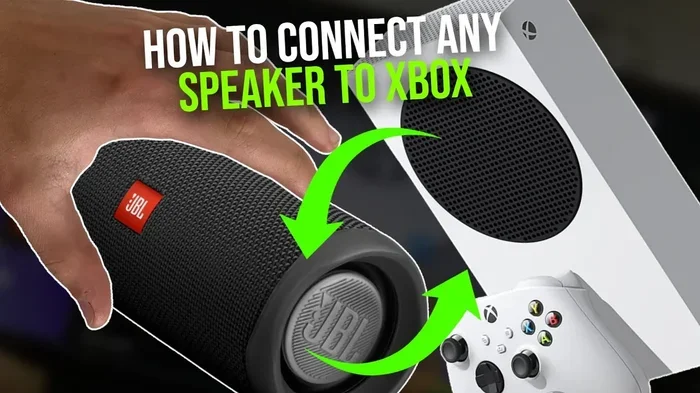
Yes, you can use a Bluetooth speaker with your Sony TV to get dramatically better sound. Most modern Sony TVs come with built-in Bluetooth, making it easy to connect wireless speakers without extra cables or gadgets. This guide covers pairing steps, troubleshooting tips, and the best speakers to use.
Can Sony TV use a Bluetooth speaker? The short answer is yes. If you have been stuck with flat, tinny sound coming from your TV speakers, a Bluetooth speaker can change everything. Sony TVs from recent years almost always include Bluetooth capability, which means you can connect wireless speakers, soundbars, or even portable speakers without any extra equipment.
Many people don’t realize how much better their TV audio can sound with a simple Bluetooth speaker. Whether you watch movies, play games, or stream your favorite shows, upgraded audio makes a huge difference. This guide will walk you through everything you need to know about connecting a Bluetooth speaker to your Sony TV.
We will cover compatibility, step-by-step pairing instructions, common problems, and the best speakers to buy. By the end, you will know exactly how to get better sound from your Sony TV using wireless audio. Let us dive right in.
Key Takeaways
- Sony TVs with Bluetooth: Most newer Sony TV models support Bluetooth audio output out of the box.
- Easy Pairing Process: Connecting a Bluetooth speaker to your Sony TV takes just a few simple steps through the settings menu.
- Better Sound Quality: A Bluetooth speaker can significantly improve your TV audio compared to built-in TV speakers.
- Common Issues Exist: Audio lag, connection drops, and compatibility problems can happen but are usually easy to fix.
- Best Speakers Matter: Choosing the right Bluetooth speaker for your Sony TV makes a big difference in your viewing experience.
- Wireless Freedom: You can place your speaker anywhere in the room for the best sound without worrying about cables.
📑 Table of Contents
- How Bluetooth Works on Sony TVs
- Benefits of Using a Bluetooth Speaker with Sony TV
- Step-by-Step Guide to Connecting a Bluetooth Speaker to Sony TV
- Common Issues When Using Bluetooth Speakers with Sony TVs
- Best Bluetooth Speakers for Sony TVs
- Tips for Optimizing Your Bluetooth Audio Experience
- Can Sony TV Use a Bluetooth Speaker? Final Thoughts
How Bluetooth Works on Sony TVs
Bluetooth is a wireless technology that lets devices talk to each other over short distances. Your Sony TV uses Bluetooth to send audio signals to a speaker without needing a cable. This is called Bluetooth audio output, and it works with most wireless speakers on the market today.
Sony has included Bluetooth in most of its TVs since around 2016. If you own a Sony TV from the last several years, there is a very good chance it supports Bluetooth. Older models might need a Bluetooth adapter, which plugs into an HDMI or USB port.
Checking If Your Sony TV Has Bluetooth
Before you try to connect anything, you should confirm that your TV supports Bluetooth. Here is how to check:
- Press the Home button on your Sony TV remote.
- Go to Settings and look for Network & Internet or Connections.
- Select Bluetooth Settings or Bluetooth Audio.
- If you see options to search for devices, your TV has Bluetooth.
If your TV does not show Bluetooth options, you may need a Bluetooth transmitter. These small devices plug into your TV and add wireless audio capability. They are affordable and work with almost any TV, even older models.
Understanding Bluetooth Versions
Not all Bluetooth connections are the same. Newer Bluetooth versions offer better range, faster connections, and less audio delay. Here is a quick look at what you might find:
- Bluetooth 4.0: Basic connectivity, moderate range, and some audio lag.
- Bluetooth 5.0: Better range, stronger connection, and improved audio quality.
- Bluetooth 5.2 and newer: The best experience with low latency and multipoint support.
Most Sony TVs released in the last few years use Bluetooth 5.0 or higher. This means you get a reliable connection with minimal delay. If you want the best experience, look for a Bluetooth speaker that also supports the latest Bluetooth version.
Benefits of Using a Bluetooth Speaker with Sony TV
Using a Bluetooth speaker with your Sony TV offers many advantages. Built-in TV speakers are often small and weak. They struggle to produce deep bass, clear dialogue, and rich sound. A Bluetooth speaker fixes all of these problems.
Improved Sound Quality
The most obvious benefit is better sound. A dedicated Bluetooth speaker has larger drivers, better amplifiers, and smarter audio processing. You will notice clearer voices, deeper bass, and more detailed sound overall. Movies, music, and games all sound much better through a wireless speaker.
Many Bluetooth speakers also come with built-in equalizer settings. You can adjust the sound to match your room and your preferences. Some speakers even have surround sound features that make you feel like you are inside the action.
Wireless Freedom and Flexibility
With a Bluetooth speaker, you are not tied to your TV by a cable. You can place the speaker anywhere in the room. Want it on the kitchen counter while you cook and watch TV? No problem. Want to move it to the bedroom for late-night viewing? Just pick it up and go.
This wireless flexibility is one of the biggest reasons people choose Bluetooth speakers over wired alternatives. You also avoid the mess of cables running across your living room floor.
Easy Setup and Portability
Setting up a Bluetooth speaker with a Sony TV is straightforward. There are no cables to manage, no extra ports to find, and no software to install. Most speakers connect within seconds of putting them in pairing mode. Plus, many Bluetooth speakers are battery-powered, which means you can take them anywhere.
If you already use a Bluetooth speaker for your phone or tablet, you can often use the same speaker for your TV. This makes it a very cost-effective upgrade for your home entertainment setup.
Step-by-Step Guide to Connecting a Bluetooth Speaker to Sony TV
Now that you understand the benefits, let us walk through the actual connection process. Follow these steps carefully, and you should be paired up in just a few minutes.
Step 1: Put Your Bluetooth Speaker in Pairing Mode
Every Bluetooth speaker has a pairing mode. This is how it announces itself to other devices. Usually, you press and hold the Bluetooth button on the speaker until a light starts flashing. Check your speaker’s manual if you are not sure how to do this.
Some speakers automatically enter pairing mode when you first turn them on. Others require a long press of a specific button. Make sure your speaker is charged before you start, as low battery can sometimes cause connection problems.
Step 2: Open Bluetooth Settings on Your Sony TV
On your Sony TV remote, press the Home button. Navigate to Settings, then look for Network & Internet or Connections. Select Bluetooth Settings. Your TV will start scanning for nearby devices.
You may also find this under Sound Settings or Audio Output on some Sony TV models. The exact path can vary slightly depending on your TV model and software version. If you are unsure, use the search function in the Settings menu and type Bluetooth.
Step 3: Select Your Speaker from the Device List
Once your TV finishes scanning, your Bluetooth speaker should appear on the list of available devices. Tap or select it. Your TV will attempt to pair with the speaker.
You may be asked to confirm a PIN or passcode. This is normal and helps keep your connection secure. Enter the PIN if prompted, or simply confirm the pairing request on both devices.
Step 4: Set the Speaker as Your Audio Output
After pairing, you need to make sure your Sony TV sends audio to the speaker. Go to Settings, then Sound, then Audio Output. Select your Bluetooth speaker from the list of available output devices.
Some Sony TVs automatically switch audio output when a Bluetooth device connects. Others require you to manually select it. If you do not hear sound from your speaker, check this setting first.
Note: If you have ever dealt with frustrating tech issues like A Line Wont Delete In Microsoft Excel, you know how small settings can cause big headaches. The same applies here, so double-check your audio output setting if things do not work right away.
Step 5: Test the Connection
Play some audio or video on your TV and listen to the sound coming from your Bluetooth speaker. If everything works, you are all set. If you hear nothing or the sound is delayed, move on to the troubleshooting section below.
Common Issues When Using Bluetooth Speakers with Sony TVs
Even though the process is simple, you might run into some issues. This is normal and happens with most Bluetooth connections. Here are the most common problems and how to fix them.
Audio Lag or Latency
Audio lag is when the sound from your speaker does not match what you see on screen. You hear the dialogue a fraction of a second after the lips move. This can be very distracting, especially during fast action scenes or while gaming.
Audio lag happens because Bluetooth has a slight delay in transmitting data. Most people do not notice it with movies, but it becomes obvious with gaming or live broadcasts. Here is how to reduce it:
- Use a Bluetooth speaker that supports aptX Low Latency or similar codecs.
- Keep your speaker close to the TV to maintain a strong signal.
- Check for firmware updates for both your TV and speaker.
- Reduce the number of Bluetooth devices connected to your TV.
Some people also experience lag when they have many wireless devices in the same area. Think about how you might also need to manage settings on other devices, much like you would carefully handle something as precise as A Line Wont Delete In Microsoft Excel where small errors matter. The same attention to detail helps with Bluetooth audio.
Connection Drops or Intermittent Sound
If your Bluetooth speaker keeps disconnecting or the sound cuts in and out, the connection is unstable. This usually happens because of distance or interference.
- Move the speaker closer to the TV.
- Remove other Bluetooth devices from the area temporarily.
- Make sure nothing is blocking the signal between the TV and speaker.
- Restart both the TV and the speaker, then try pairing again.
Wi-Fi routers and microwaves can also interfere with Bluetooth signals. If your speaker keeps dropping, try moving it away from these devices.
Speaker Not Showing Up in TV Settings
Sometimes your Bluetooth speaker simply does not appear in the TV’s device list. This can be frustrating, but it is usually easy to fix.
- Make sure your speaker is in pairing mode and not connected to another device.
- Turn off Bluetooth on other nearby devices temporarily.
- Restart your Sony TV and try scanning again.
- Reset your Bluetooth speaker to factory settings and try again.
If none of these steps work, your speaker might not be compatible with your Sony TV. Check the speaker’s specifications to confirm it supports standard Bluetooth profiles like A2DP and AVRCP.
Best Bluetooth Speakers for Sony TVs
Not all Bluetooth speakers are created equal. Some are designed for music, while others work better with TV audio. Here are some things to look for when choosing a speaker for your Sony TV.
What to Look For in a TV Bluetooth Speaker
- Low Latency Support: Look for speakers with aptX Low Latency or similar technology to minimize audio delay.
- Good Battery Life: For TV use, you want at least 8 to 10 hours of battery life so you do not have to charge it constantly.
- Clear Dialogue Enhancement: Some speakers have special settings that make voices sound clearer, which is perfect for TV watching.
- Compact Size: A smaller speaker fits better on a TV stand or shelf without taking up too much space.
- Strong Bluetooth Range: A range of at least 30 feet gives you flexibility in where you place the speaker.
Popular Bluetooth Speaker Options
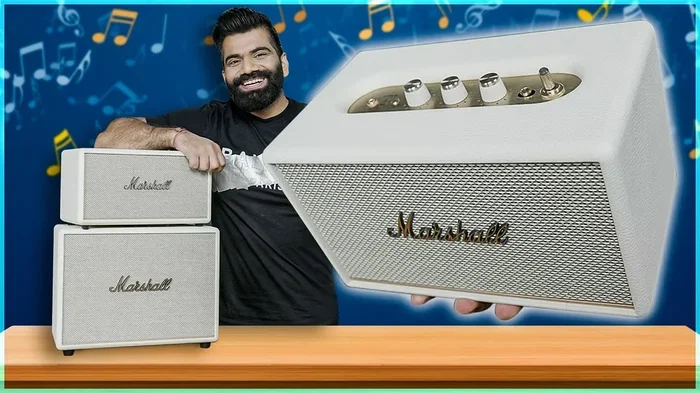
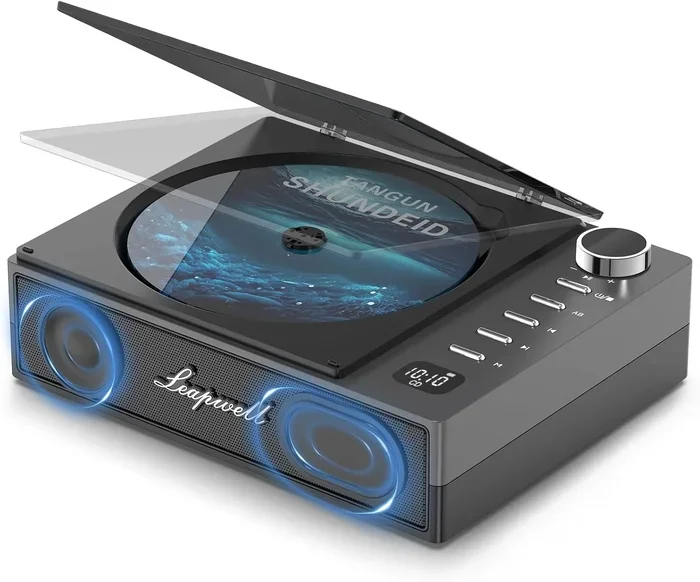
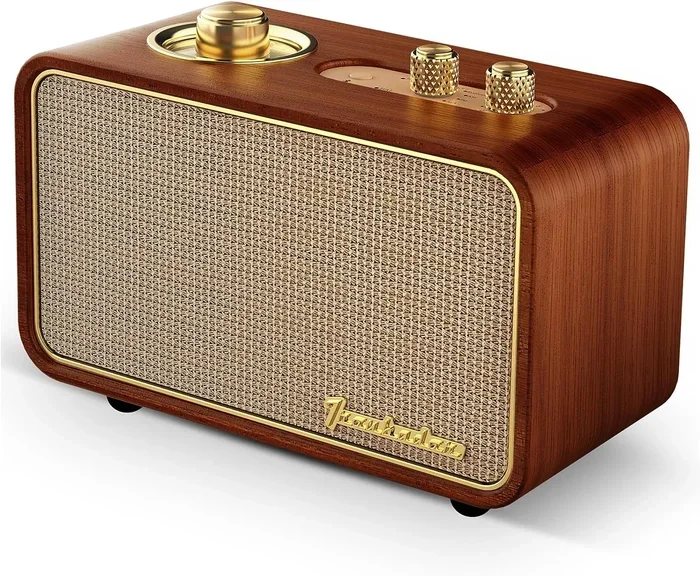
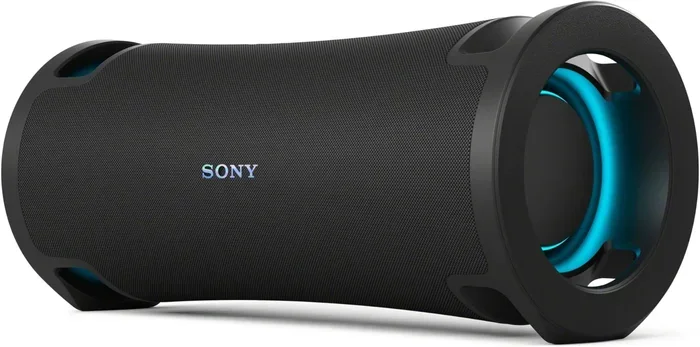
There are many great Bluetooth speakers available. Some popular choices for TV use include portable Bluetooth speakers from brands like JBL, Bose, and Anker. These brands offer reliable connections, good sound quality, and compact designs that work well with Sony TVs.
If you want a more permanent setup, consider a Bluetooth soundbar instead. Soundbars connect wirelessly and sit right under your TV. They offer much better sound than portable speakers and are designed specifically for home entertainment. Many soundbars also support subwoofers for deep, rich bass.
Tips for Optimizing Your Bluetooth Audio Experience
Once you have your Bluetooth speaker connected to your Sony TV, there are a few things you can do to get the best possible sound. These simple tips can make a big difference.
Position Your Speaker Strategically
Place your Bluetooth speaker at ear level when you are seated. If the speaker is on the floor or behind furniture, the sound will be muffled and weak. A shelf or table at the same height as your ears works best.
Try to keep the speaker in the center of the room or close to where you usually sit. This creates a more balanced sound and reduces the chance of connection problems.
Update Your TV and Speaker Firmware
Manufacturers regularly release firmware updates that improve Bluetooth performance and fix bugs. Check for updates on both your Sony TV and your Bluetooth speaker from time to time. On your Sony TV, go to Settings, then Device Preferences, then System Update.
Keeping your devices updated ensures the best compatibility and the most stable connection. This is one of the easiest things you can do to improve your wireless audio experience.
Adjust Audio Settings on Your TV
Your Sony TV has several audio settings that can enhance your listening experience. Try adjusting these:
- Equalizer Settings: Boost bass for movies or treble for dialogue clarity.
- Surround Sound: Enable virtual surround if your speaker supports it.
- Night Mode: This reduces loud sounds and boosts quiet dialogue, which is great for late-night viewing.
- Audio Format: Set your TV to output the best audio format supported by your speaker.
Taking a few minutes to tweak these settings can turn a good listening experience into a great one. You will be surprised how much difference small adjustments make.
Keep Your Devices Close
Bluetooth works best when devices are within 30 feet of each other with no major obstacles. If your speaker is in another room or behind a thick wall, the signal may weaken. For the best Bluetooth audio experience, keep your speaker in the same room as your TV.
Also, avoid placing your speaker near other wireless devices that might cause interference. A clean Bluetooth signal means better sound quality and fewer connection drops.
Can Sony TV Use a Bluetooth Speaker? Final Thoughts
So, can Sony TV use a Bluetooth speaker? Absolutely. The process is simple, the benefits are real, and the upgrade to your audio experience is immediate. Whether you buy a portable Bluetooth speaker or invest in a wireless soundbar, you will notice the difference right away.
Most Sony TVs come with built-in Bluetooth, which makes connecting wireless speakers easy and convenient. If your TV is older and does not have Bluetooth, a Bluetooth transmitter solves that problem affordably. The key is to choose a speaker that fits your needs, your budget, and your room setup.
Remember to troubleshoot any issues patiently, keep your devices updated, and position your speaker for the best sound. With the right setup, your Sony TV will sound better than ever before. You will wonder how you ever watched TV with just the built-in speakers.
Take some time today to explore your TV’s Bluetooth settings and find the perfect speaker for your setup. Your ears will thank you every time you sit down to watch your favorite show or movie.
Frequently Asked Questions
Can any Bluetooth speaker work with a Sony TV?
Most Bluetooth speakers work with Sony TVs as long as they support standard Bluetooth profiles like A2DP and AVRCP. If your speaker can connect to a phone or tablet, it will likely work with your Sony TV too. Just make sure both devices support the same Bluetooth version for the best experience.
Why is there a delay between the video and audio when using a Bluetooth speaker?
This delay, called audio latency, happens because Bluetooth takes a moment to transmit audio data. Newer Bluetooth versions and speakers with low-latency codecs like aptX reduce this delay significantly. Keeping your speaker close to the TV also helps minimize the lag.
Can I connect multiple Bluetooth speakers to my Sony TV at once?
Most Sony TVs can only connect to one Bluetooth audio device at a time. However, some newer models and speakers support multipoint pairing, which allows connections to multiple devices. Check your TV and speaker specifications to see if this feature is available.
Do I need any extra equipment to use a Bluetooth speaker with my Sony TV?
No extra equipment is needed if your Sony TV has built-in Bluetooth. If your TV is older and lacks Bluetooth, you will need a Bluetooth transmitter that plugs into an HDMI or optical audio port. These transmitters are inexpensive and easy to set up.
Will using a Bluetooth speaker affect my TV remote controls?
No, using a Bluetooth speaker does not affect your TV remote. Your remote controls the TV, and the Bluetooth speaker only handles audio output. You can still adjust volume using your TV remote, and some Sony TVs even let you control the speaker volume directly from the TV settings.
What is the best Bluetooth range for a Sony TV speaker connection?
Bluetooth typically works well within 30 feet of the source device. For the best connection, keep your speaker in the same room as your TV and within line of sight. Walls, furniture, and other electronic devices can reduce the effective range and cause connection issues.