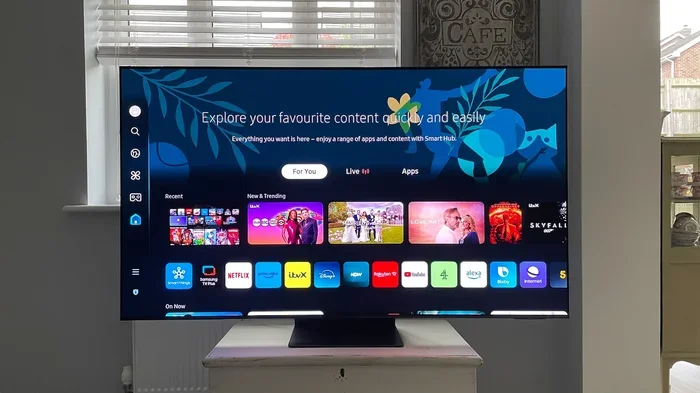
How Do I Check What Samsung TV I Currently Have Now
Finding out what Samsung TV you own is easier than you think. You can check the model number through your TV settings, look at the back panel label, or find it on your original box. This guide walks you through every method step by step so you can identify your Samsung TV fast.
So you just moved into a new place, or maybe you inherited a TV from a family member. Either way, you are standing in front of a Samsung TV and have no idea what model it is. You want to watch your favorite shows, connect your devices, or maybe even fix a glitch, but you need to know exactly what TV you are dealing with first.
Checking what Samsung TV you have is a straightforward process. There are several easy ways to find this information, and you do not need to be a tech expert. In this guide, we will walk you through every method so you can identify your TV in just a few minutes.
Whether you need the model number for warranty purposes, want to find the right settings, or are shopping for compatible accessories, knowing your exact Samsung TV model makes everything simpler. Let us dive right in.
Key Takeaways
- Check the Settings Menu: Your Samsung TV’s settings menu displays the model and serial number in just a few taps.
- Look at the Back Panel: Every Samsung TV has a label on the back or bottom edge with the model code and serial number.
- Use the Original Packaging: The box your TV came in has a sticker with all the key identification details.
- Check the Remote or Manual: The user manual and remote control often list the model number on their covers or inside the booklet.
- Use Samsung’s Online Support: Samsung’s website lets you look up your TV using the serial number or model code.
- Know Why It Matters: Identifying your exact model helps with troubleshooting, finding the right firmware updates, and buying compatible accessories.
📑 Table of Contents
- Why Knowing Your Samsung TV Model Matters
- Method 1: Check the TV Settings Menu
- Method 2: Look at the TV Label on the Back
- Method 3: Check the Original Box and Packaging
- Method 4: Use Samsung’s Online Support Page
- Method 5: Look at the TV Remote or User Manual
- Understanding Samsung TV Model Numbers
- What to Do After You Find Your Model
- Common Mistakes People Make When Identifying Their Samsung TV
- Expert Insights: Tips for Managing Your Samsung TV
- Conclusion
Why Knowing Your Samsung TV Model Matters
You might be wondering why it is so important to know exactly what Samsung TV you own. The truth is, your model number unlocks a lot of useful information. It tells you what features your TV supports, what software version it is running, and what kind of repairs or upgrades it can handle.
Here are some real reasons why identifying your Samsung TV matters:
- Firmware Updates: Samsung releases software updates that improve performance and fix bugs. But you can only download the right update if you know your exact model.
- Warranty Claims: If something goes wrong, Samsung support will ask for your model number and serial number before they help you.
- Compatible Accessories: Wall mounts, soundbars, and HDMI cables sometimes depend on your TV’s specific model and port layout.
- Troubleshooting: When you search for solutions online, you need to know your model to find fixes that actually work for your TV.
- Smart Features: Some Samsung smart TV features vary by model. Knowing yours helps you get the most out of your setup.
Now that you understand why this matters, let us look at the different ways you can find this information.
Method 1: Check the TV Settings Menu
The fastest way to find your Samsung TV model is right from the TV itself. You do not need any tools or the original box. Just follow these steps.
Step-by-Step Guide
- Turn on your Samsung TV. Make sure it is fully powered on and you are on the home screen.
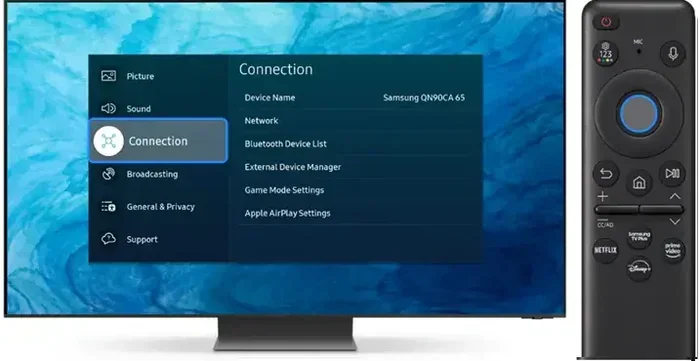
- Press the Menu button on your Samsung remote. This opens the main settings panel.
- Navigate to Support. Use the arrow keys to scroll to the Support option and press Enter.
- Select Contact Samsung. This option usually appears at the bottom of the support menu.
- View the Model Number. Your model code and serial number will appear on screen. Write them down or take a photo with your phone.
This method works on almost all Samsung smart TVs, including the newer QLED and Neo QLED models. The model number usually looks something like “UN55RU7100” or “QE65Q80A.” The first letters tell you the TV type, and the numbers tell you the screen size and year.
Quick Tip: If your remote does not have a Menu button, try pressing the Home button (the little house icon) and then navigate to Settings > Support > Contact Samsung.
Method 2: Look at the TV Label on the Back
Every Samsung TV comes with a manufacturer label stuck to the back or bottom edge of the screen. This label has all the key details you need. Here is how to find it.
Where to Find the Label
- Back Panel: Flip the TV carefully (or peek behind it if it is wall-mounted) and look for a white sticker.
- Bottom Edge: Some Samsung models have the label on the bottom bezel, near the center.
- Side Panel: On certain models, the label is on the side or rear corner of the TV body.
On the label, you will see the Model Number, Serial Number, and sometimes the Power Rating. The model number is the most important piece of information. It usually starts with a letter code like “UN,” “RU,” “TU,” or “QE” followed by numbers.
What the Model Code Means:
- UN: Standard Samsung TV (non-smart or older smart models)
- RU: Samsung RU series, typically mid-range smart TVs
- TU: Samsung TU series, usually budget-friendly options
- QE: Samsung QLED TV (premium display technology)
- QE: Neo QLED models also start with QE but have additional identifiers
Quick Tip: If your TV is mounted on the wall and hard to reach, try using your phone flashlight to look behind it. You can also check the user manual, which always lists the model number on the cover page.
Method 3: Check the Original Box and Packaging
If you still have the box your Samsung TV came in, you are in luck. The shipping sticker on the outside of the box contains all the identification details you need.
Look for a barcode sticker on the top or side of the box. It will clearly display the model number, serial number, and sometimes the product code. This is one of the most reliable methods because the information comes directly from Samsung’s factory packaging.
Even if you have recycled the box, check if you kept any packing slips or receipts. Those documents often list the model number too.
Method 4: Use Samsung’s Online Support Page
If you have the serial number but not the model number, or if you want to look up detailed specs, Samsung’s website is a great resource.
How to Use Samsung Support Online
- Go to Samsung’s support website at samsung.com/support.
- Enter your serial number or model number in the search bar.
- Select your product type (TV in this case).
- View the product page which shows the full model name, specs, and available downloads.
This method is especially helpful if you want to check whether your TV is eligible for a firmware update or if a specific part is still available for your model. You can also use this page to find the user manual for your exact TV.
Another great option is to use the Samsung SmartThings app on your phone. If your Samsung TV is connected to the same Wi-Fi network, the app will display your TV model and allow you to control it remotely.
Method 5: Look at the TV Remote or User Manual
This one is often overlooked, but your Samsung TV remote and user manual both contain the model number. Check the back of the remote or inside the battery compartment. Many Samsung remotes have a small sticker with the model code printed on it.
The user manual is another goldmine. Flip through the first few pages, and you will find the model number printed clearly on the cover or the first information page. If you have lost the physical manual, you can usually download a PDF from Samsung’s website by entering your model number.
Understanding Samsung TV Model Numbers
Once you find your model number, it helps to understand what it means. Samsung uses a specific naming system that tells you a lot about your TV at a glance.
Breaking Down the Model Code
Let us take a common example: UN55RU7100.
- UN: This tells you it is a standard Samsung LED TV.
- 55: This is the screen size in inches (55 inches in this case).
- RU: This indicates the series or tier (RU is mid-range).
- 7100: The final numbers specify the exact model within that series.
Here is a quick comparison of common Samsung model prefixes:
- UN – Standard LED TVs
- TU – Budget-friendly TVs
- RU – Mid-range smart TVs
- CU – Consumer-grade models
- QE – QLED TVs (quantum dot display)
- QN – Neo QLED TVs (advanced quantum dot)
- LS – Samsung Lifestyle TVs (The Frame, The Serif, etc.)
Knowing this code helps you understand what kind of TV you have and what features to expect. For instance, if your model starts with QE or QN, you have a premium display with excellent color and brightness.
What to Do After You Find Your Model
Now that you know how to find your Samsung TV model, you might be wondering what to do with that information. Here are some practical next steps.
1. Update Your TV Software
Go to Settings > Support > Software Update > Update Now. Make sure your TV is running the latest firmware. This improves performance, adds new features, and patches security issues.
2. Connect Your Devices
Once you know your TV model, you can find the right cables and accessories. For example, if you want to connect your phone to the TV, check whether your Samsung model supports HDMI Alt Mode or wireless mirroring. Many people also connect their phones to Samsung TVs for streaming, and you can mirror your phone to your smart TV without needing a Wi-Fi connection in some cases.
3. Set Up Smart Features
Samsung smart TVs offer features like voice control, SmartThings integration, and app streaming. Your model determines which features are available. If you want to use smart home devices with your TV, knowing your model helps you set up the right compatibility.
4. Get the Right Support
When you contact Samsung customer support, having your model number and serial number ready saves a ton of time. The support team can pull up your exact TV specifications and guide you through troubleshooting steps specific to your model.
Common Mistakes People Make When Identifying Their Samsung TV
Avoid these common pitfalls that make finding your Samsung TV model harder than it needs to be:
- Confusing the model number with the product code: The product code is different from the model number. Always look for the label that says “Model” or “Model No.”
- Ignoring the label on the back: Many people forget to check the physical TV and spend too much time searching online.
- Not writing down the serial number: The serial number is just as important as the model number, especially for warranty claims.
- Assuming all Samsung TVs have the same menu layout: Older models have different settings menus than newer ones. The path to find your model number may vary slightly.
- Forgetting to check the remote: The remote control is an easy place to find the model number, and many people overlook it.
Expert Insights: Tips for Managing Your Samsung TV
Once you have identified your Samsung TV, there are a few pro tips that make your experience much better. First, always keep your model number saved somewhere safe. You can take a photo of the label on the back of your TV and store it in your phone’s notes app. This way, you never have to hunt for it again.
Second, connect your Samsung TV to the internet and register it on Samsung’s website. This ensures you receive update notifications and warranty status alerts directly to your email. Third, if you are having trouble with your TV’s connectivity, consider whether your network setup might be the issue. For example, some users plug their router directly into their TV for a wired connection, which can improve streaming stability.
Finally, if you want to enhance your viewing experience, look into accessories that match your specific model. Whether it is a soundbar, a wall mount, or the right HDMI cable, knowing your exact Samsung TV model ensures perfect compatibility.
Conclusion
Checking what Samsung TV you have is simple when you know where to look. You can use the TV settings menu, check the back panel label, look at the original box, visit Samsung’s website, or check your remote and manual. Each method takes just a few minutes, and together they cover every possible scenario.
Once you find your model number, you unlock a world of possibilities. You can update your software, find compatible accessories, get the right support, and make the most of your Samsung TV’s features. Keep your model number handy, and you will always be prepared.
Now that you know exactly what Samsung TV you have, go ahead and enjoy your viewing experience with confidence. Whether you are streaming movies, gaming, or just watching the news, your TV is ready to deliver its best performance.
Frequently Asked Questions
Where is the model number on a Samsung TV?
The model number is usually found on a white sticker on the back or bottom edge of the TV. You can also find it in the TV settings menu under Support > Contact Samsung. The original box and user manual also list the model number clearly.
Can I find my Samsung TV model without turning it on?
Yes, you can. Look at the label on the back or side of the TV. The model number is printed on this sticker even when the TV is off. You can also check the original packaging or the user manual if you have them.
What does the model number on my Samsung TV tell me?
The model number tells you the TV type, screen size, and series tier. For example, “UN55RU7100” means it is a 55-inch standard Samsung LED TV in the RU mid-range series. The letters and numbers each carry specific meaning about your TV’s features and specs.
How do I update my Samsung TV if I do not know the model?
You can still update your TV by going to Settings > Support > Software Update > Update Now. However, knowing your exact model helps you download the correct firmware from Samsung’s website if the automatic update does not work.
Is the serial number the same as the model number on a Samsung TV?
No, they are different. The model number identifies the TV type and size, while the serial number is a unique identifier for your specific unit. Both are important for warranty claims and support requests.
Can I use my phone to identify my Samsung TV model?
Yes, you can. Download the Samsung SmartThings app and make sure your TV is connected to the same Wi-Fi network. The app will display your TV model and allow you to control it. You can also take a photo of the back label and use it as a reference later.
=== INTERNAL LINKS ===
If you want to get the most out of your Samsung TV setup, you might also be interested in learning how to mirror your phone to your smart TV without WiFi for seamless screen sharing. Additionally, if you are looking to connect your laptop or other device, you can learn more about converting USB C to HDMI for easy connectivity. For those who want to improve their TV’s internet connection, check out whether you can plug your router directly into your TV for a more stable streaming experience. Finally, if you are setting up audio with your Samsung TV, find out how to get audio out from HDMI for the best sound setup.