Can You Use Hdmi For Speakers Here Is What You Need To Know
Yes, you can use HDMI for speakers, and it is one of the best ways to get high-quality audio from your TV, laptop, or media player. HDMI carries both video and audio through a single cable, making it a simple and reliable choice for home audio setups. This guide covers everything from basic connection types to troubleshooting tips for HDMI speaker setups.
Have you ever plugged in a speaker system and wondered whether HDMI is the right way to connect it? You are not alone. Many people assume HDMI is only for video, but that is far from the truth. HDMI carries high-quality audio too, and it is one of the simplest ways to get great sound from your TV, computer, or media player.
In this guide, we will walk you through everything you need to know about using HDMI for speakers. From the basics of how HDMI audio works to step-by-step setup instructions, we have you covered. Whether you are setting up a home theater system or just trying to get sound from your laptop to a pair of powered speakers, this article will help you get it right.
Key Takeaways
- HDMI supports audio output: You can send sound from any HDMI-enabled device to speakers or a soundbar using a single cable.
- HDMI ARC and eARC are game-changers: These features let you control external speakers with your TV remote and support high-quality audio formats.
- Setup is simple: Most devices auto-detect HDMI audio, but you may need to adjust settings in your device menu.
- Common issues are fixable: No sound, lip sync problems, and audio format mismatches can usually be solved with a few quick steps.
- HDMI delivers superior audio quality: Compared to analog connections, HDMI supports surround sound and lossless audio formats for a better listening experience.
📑 Table of Contents
- What Is HDMI and Why Does It Matter for Audio?
- Can You Use HDMI For Speakers? The Short Answer
- Types of HDMI Audio Connections You Should Know
- How To Set Up HDMI Audio on Your Devices
- Benefits of Using HDMI for Speakers
- Common HDMI Speaker Problems and How To Fix Them
- HDMI vs. Other Speaker Connection Options
- Expert Tips for Getting the Most From HDMI Audio
- Final Thoughts on Using HDMI for Speakers
What Is HDMI and Why Does It Matter for Audio?
HDMI stands for High-Definition Multimedia Interface. It is a standard cable and connector type that was introduced in the early 2000s. The main idea behind HDMI was simple: carry both video and audio through one cable. Before HDMI, you needed separate cables for picture and sound. That meant more clutter, more ports used, and more chances for things to go wrong.
Today, HDMI is everywhere. Almost every modern TV, monitor, laptop, and streaming device has at least one HDMI port. HDMI audio support is built into the standard, so any device that uses HDMI can also send sound through it. This makes HDMI one of the most convenient options for connecting speakers to almost any source device.
How HDMI Handles Audio Signals
When you send a signal through an HDMI cable, it carries digital audio and video data at the same time. The audio can be in many different formats, from basic stereo to advanced surround sound like 5.1 or even 7.1 channels. HDMI also supports uncompressed audio formats, which means you get the best possible sound quality without any loss.
This is a big deal compared to older analog connections like RCA or 3.5mm jacks. Those connections convert digital audio to analog, which can introduce signal loss and interference. With HDMI, the signal stays digital all the way from the source to the speaker or receiver. The result is cleaner, clearer, and more detailed sound.
Can You Use HDMI For Speakers? The Short Answer
The short answer is yes, absolutely. You can use HDMI to connect speakers to almost any device that has an HDMI output. This includes smart TVs, computers, gaming consoles, Blu-ray players, and streaming devices like Roku or Apple TV.
But the way you set it up depends on what kind of speakers you have and what ports are available. A soundbar with an HDMI input works differently than a pair of computer speakers. And your TV may handle audio differently than your laptop. We will break down each scenario so you know exactly what to do.
When HDMI Works Best for Speakers
HDMI is ideal when you want high-quality audio without the hassle of multiple cables. It works especially well in these situations:
- Connecting a soundbar to your TV: Most modern soundbars have an HDMI input. You just plug one cable from your TV to the soundbar, and you are done.
- Setting up a home theater receiver: If you have a full speaker system with a receiver, HDMI makes it easy to route audio from multiple sources.
- Using a PC with external speakers: Many desktop computers and laptops have HDMI output, and you can use it to send audio to powered speakers or a monitor with built-in speakers.
In all of these cases, HDMI speaker connections give you better audio quality and simpler setup than most alternatives.
Types of HDMI Audio Connections You Should Know
Not all HDMI audio connections are the same. There are a few different ways HDMI handles audio, and knowing about them helps you get the best results from your setup.
Standard HDMI
A standard HDMI cable carries both video and audio. When you connect a device to a TV using HDMI, the TV receives the audio signal. If your TV has built-in speakers, you will hear sound from them. But if you want the audio to go to external speakers instead, you need to adjust your TV settings or use a feature like HDMI ARC.
HDMI ARC (Audio Return Channel)
HDMI ARC is a special feature built into many TVs and soundbars. It allows audio to travel in both directions through a single HDMI cable. Here is what that means in practice: your TV sends video to your soundbar, and your soundbar sends audio back to the TV. You can also use your TV remote to control the volume of your soundbar.
HDMI ARC is a huge convenience. Without it, you would need separate cables for video and audio, plus a separate remote or app to control speaker volume. With ARC, one cable handles everything, and your TV remote becomes the universal control.
HDMI eARC (Enhanced Audio Return Channel)
eARC is the newer and improved version of ARC. It supports higher audio bandwidth, which means it can carry advanced formats like Dolby Atmos and DTS:X. If you have a surround sound system and want the full cinematic experience, eARC is the way to go.
Not all devices support eARC, so check your TV and speaker specifications before you buy. You also need an HDMI cable that supports eARC, which is usually an HDMI 2.1 cable or higher.
HDMI Optical vs. HDMI ARC
Some people confuse HDMI audio with optical audio. An optical cable (also called TOSLINK) carries only audio, not video. It uses a different connector and a different technology. HDMI ARC, on the other hand, carries both audio and video and allows two-way communication between devices.
In most cases, HDMI ARC or eARC is better than optical because it supports more audio formats and simpler setup. But if your devices do not support HDMI ARC, an optical connection is a solid backup option.
How To Set Up HDMI Audio on Your Devices
Setting up HDMI audio is usually straightforward, but the exact steps depend on your devices. Here is a general guide that works for most setups.
Step-by-Step Setup for a TV and Soundbar
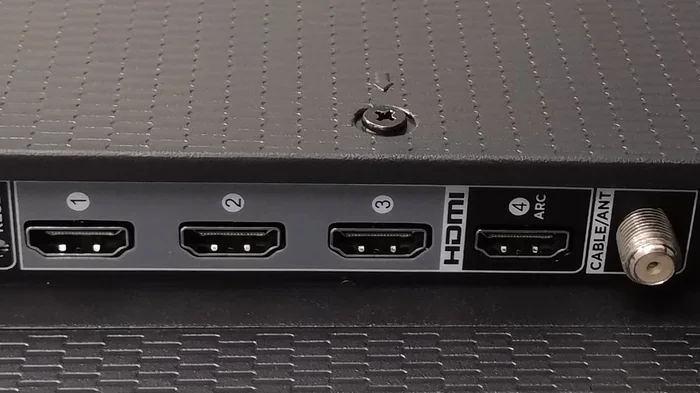
- Check the ports: Look at the back of your TV and soundbar. Find the HDMI ports labeled “ARC” or “eARC.”
- Connect the cable: Plug one end of an HDMI cable into the ARC port on your TV and the other end into the ARC port on your soundbar.
- Turn on HDMI-CEC: This feature, sometimes called “SimpLink” or “Bravia Sync,” allows devices to communicate through HDMI. Go to your TV settings and enable it.
- Set audio output: On your TV, go to Settings > Sound > Audio Output. Select “HDMI ARC” or “External Speaker” as the output source.
- Test it: Play a video or music and check if the sound comes from your soundbar or speakers.
Setting Up HDMI Audio on a Computer
If you are using a laptop or desktop with HDMI output, here is how to get audio through your speakers:
- Windows: Right-click the speaker icon in your taskbar. Select “Open Sound Settings.” Under “Output,” choose your HDMI device. The sound will now play through the connected speakers.
- Mac: Go to System Settings > Sound. Under the “Output” tab, select your HDMI-connected display or speaker system.
Quick Tips for a Smooth Setup
- Always use a high-quality HDMI cable. A cheap or damaged cable can cause audio dropouts or no sound at all.
- If you have no sound, check that the HDMI cable is fully seated in both ports.
- Restart both devices after making a new connection. This often fixes detection issues.
- Keep your device firmware updated. Manufacturers regularly improve HDMI audio compatibility through software updates.
Benefits of Using HDMI for Speakers
There are many reasons to choose HDMI over other audio connections. Here are the biggest advantages:
Superior Audio Quality
HDMI supports uncompressed digital audio, which means the sound you hear is as close to the original recording as possible. It also supports multi-channel audio, which gives you a richer, more immersive listening experience. If you care about sound quality, HDMI is hard to beat.
Single Cable Convenience
With HDMI, one cable handles both video and audio. This cuts down on cable clutter and makes your setup cleaner. You do not need to run a separate audio cable from your TV to your soundbar or receiver.
Easy Control
When you use HDMI ARC or eARC, you can control your speaker volume with your TV remote. This is a huge quality-of-life improvement. You do not need a separate remote for your soundbar or speaker system.
Wide Compatibility
HDMI is supported by almost every modern device. Whether you have a Samsung TV, a Sony soundbar, or a Windows laptop, HDMI audio will work. This universal compatibility makes it easy to mix and match equipment from different brands.
Support for Advanced Audio Formats
HDMI supports the latest audio technologies, including Dolby Atmos, DTS:X, and high-resolution audio formats. These formats deliver a cinema-like experience right in your living room. No other consumer connection type offers this level of audio support in such a simple package.
Common HDMI Speaker Problems and How To Fix Them
Even though HDMI audio is reliable, you may run into issues from time to time. Here are the most common problems and their solutions.
No Sound Through HDMI Speakers
This is the most common issue, and it is usually easy to fix. Start by checking your TV or device audio settings. Make sure the audio output is set to HDMI and not to the built-in speakers. Also, check that the HDMI cable is securely connected at both ends. If you are using an HDMI splitter or adapter, try bypassing it to see if that is the cause.
Audio and Video Are Out of Sync
Sometimes, the sound and video do not match up. This is called audio latency or lip sync issue. It can happen when your TV or soundbar processes audio too slowly. To fix this, look for an “Audio Delay” or “Lip Sync” setting in your TV or soundbar menu. Adjust it until the sound matches the video.
HDMI Audio Format Not Supported
Some older speakers or soundbars do not support newer audio formats. If you get no sound or distorted sound, try changing the audio format on your TV. Go to Settings > Sound > Audio Output and switch from “Bitstream” or “Auto” to “PCM.” PCM is a basic, widely supported format that works with almost any speaker system.
Intermittent Sound or Crackling
If your audio cuts in and out or sounds crackly, the HDMI cable may be faulty. Try a different cable. Also, make sure the cable is not pinched or bent. Long HDMI runs (over 15 feet) can sometimes cause signal loss. If that is the case, consider using an HDMI repeater or a shorter cable.
HDMI vs. Other Speaker Connection Options
HDMI is not the only way to connect speakers. Here is how it compares to other common options.
| Connection Type | Audio Quality | Convenience | Best For |
|---|---|---|---|
| HDMI ARC/eARC | Excellent, supports surround and lossless | Very high, single cable for audio and video | Home theater, soundbars, TV setups |
| Optical (TOSLINK) | Good, supports surround sound | Moderate, audio only | TVs, soundbars without HDMI ARC |
| 3.5mm Aux | Fair, analog, some signal loss | High, universal compatibility | Laptops, phones, portable speakers |
| Bluetooth | Good, compressed, some latency | Very high, wireless | Portable speakers, casual listening |
| USB | Good, digital | Moderate, device-specific | Computers, DAC setups |
As you can see, HDMI offers the best combination of audio quality and convenience for most home setups. If you are building a serious audio system, HDMI should be your first choice for connecting speakers.
Expert Tips for Getting the Most From HDMI Audio
Here are some expert-level tips that can help you get the best possible sound from your HDMI speaker setup:
- Use HDMI 2.1 cables for eARC: If your devices support eARC, use an Ultra High Speed HDMI cable to ensure you get the full bandwidth for advanced audio formats.
- Disable your TV’s internal speakers: When using external speakers via HDMI, always turn off the TV’s built-in speakers. Otherwise, you will hear sound from both sources, which can be confusing and muddy.
- Label your HDMI cables: If you have multiple HDMI connections, label them so you always know which one carries audio. This saves time when troubleshooting.
- Update your device software: Manufacturers regularly release firmware updates that improve HDMI audio compatibility and fix bugs. Check for updates regularly.
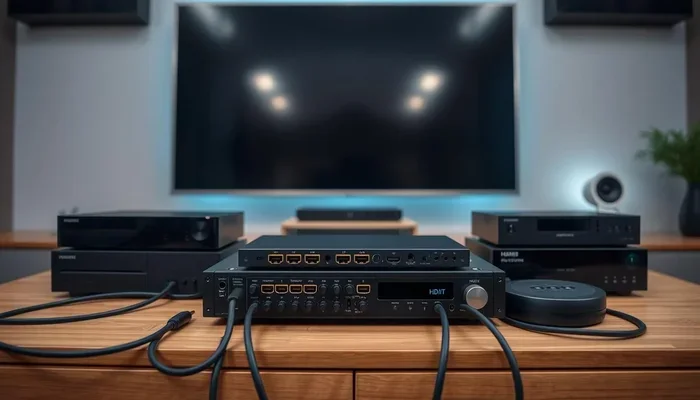
- Consider an audio receiver: If you have multiple audio sources, an HDMI receiver can switch between them and send audio to your speakers automatically. This is a great solution for complex home entertainment setups.
Following these tips will help you avoid common pitfalls and get the most out of your HDMI speaker connection. Whether you are a casual listener or an audiophile, these steps make a real difference in your daily experience.
Final Thoughts on Using HDMI for Speakers
Using HDMI for speakers is one of the smartest choices you can make for your home audio setup. It gives you excellent sound quality, simple connections, and easy control. Whether you are connecting a soundbar to your TV or routing audio from your computer to a pair of powered speakers, HDMI makes it all work smoothly.
The key is to understand your options. Know the difference between standard HDMI, ARC, and eARC. Check your device settings to make sure audio is routing correctly. And if you run into problems, most issues have simple fixes that take just a few minutes.
With the right setup and a little knowledge, your HDMI speaker connection will deliver rich, clear, and immersive sound every time. So go ahead, plug in those speakers, and enjoy your audio the way it was meant to be heard.
Frequently Asked Questions
Can I use any HDMI cable for audio?
Most HDMI cables will work for basic audio, but for the best results, use a high-quality cable that matches your device’s capabilities. If you are using HDMI ARC or eARC, make sure your cable supports the required bandwidth. A standard HDMI 2.0 cable is fine for most setups, but eARC benefits from an HDMI 2.1 cable.
Why is there no sound when I connect speakers via HDMI?
No sound usually means your device is not set to output audio through HDMI. Check your TV or computer audio settings and make sure HDMI is selected as the output source. Also, ensure the cable is firmly connected and try restarting both devices.
Can I connect multiple speakers to one HDMI port?
Not directly. An HDMI port sends audio to one output device at a time. If you want multiple speakers, you need an HDMI receiver or audio splitter. A receiver can take the HDMI input and distribute audio to multiple speaker channels.
Is HDMI better than Bluetooth for speakers?
For most home setups, yes. HDMI provides better audio quality, zero latency, and supports advanced formats like Dolby Atmos. Bluetooth is more convenient for portable use, but it compresses audio and can have slight delays. Choose HDMI for your home theater and Bluetooth for on-the-go listening.
Does HDMI support surround sound?
Absolutely. HDMI supports multi-channel audio formats including 5.1 and 7.1 surround sound, as well as advanced formats like Dolby Atmos and DTS:X. This makes it ideal for home theater setups where immersive sound is the goal.
What is the difference between HDMI ARC and standard HDMI for audio?
Standard HDMI sends audio in one direction, from the source to the display. HDMI ARC adds a return channel that sends audio back from the TV to a soundbar or receiver. This allows you to control external speakers with your TV remote and simplifies your cable setup. eARC goes even further by supporting higher bandwidth audio formats.
=== CONCLUSION ===
Can you use HDMI for speakers? Yes, and it is one of the easiest and highest-quality ways to get audio from your devices to your speakers. HDMI audio offers superior sound, simple setup, and wide compatibility with almost every modern device. Whether you are using HDMI ARC for your soundbar or connecting your laptop to external speakers, the process is straightforward and the results are excellent.
Remember to check your settings, use the right cables, and do not be afraid to troubleshoot if something does not work right away. With the tips and guidance in this article, you are well equipped to set up and enjoy HDMI speaker audio in any environment. Start connecting your speakers today and hear the difference for yourself.