Can I Get Audio Out From Hdmi And Enjoy Sound Again
Yes, you can get audio out from HDMI! This guide explains how to extract sound from HDMI cables, fix no audio issues, and enjoy clear movie and music sound again. You will learn simple fixes, best devices, and expert tips to solve HDMI audio problems fast.
If you are wondering Can I Get Audio Out From Hdmi, the answer is a clear yes. HDMI is not just for video. It carries high-quality sound too. You can enjoy movies, music, and games with crisp audio through a single cable. This guide will show you exactly how to get sound from your HDMI connection and fix any problems you might face.
Many people connect their Blu-ray players, game consoles, or laptops to TVs using HDMI cables. They expect perfect sound. But sometimes, no audio comes out. This can be frustrating. You might think the cable is broken. Or you might believe HDMI cannot send audio. That is not true. With the right settings and tools, you can unlock full audio from any HDMI port.
In this article, we will cover everything you need to know. We will explain how HDMI audio works. We will list the most common reasons for no sound. We will give you step-by-step fixes. We will also recommend the best devices to extract audio. Whether you want sound for a soundbar, headphones, or a home theater system, we have you covered. Read on to bring back your movie nights.
Key Takeaways
- HDMI carries both video and audio: A single HDMI cable sends high-quality sound and picture to your display or receiver.
- Check your audio output settings first: Wrong settings are the most common reason for no HDMI sound.
- Use an HDMI audio extractor when needed: These small boxes split the HDMI signal so you can send audio to headphones, soundbars, or amplifiers.
- Enable HDMI ARC or eARC for TV soundbars: This lets your TV send audio back through the same HDMI cable, simplifying your setup.
- Update drivers and firmware: Outdated software can block HDMI audio on PCs and smart TVs.
- Avoid cheap HDMI switches that block audio: Always check for audio pass-through support.
- Seek professional help for hardware faults: If cables, ports, or format issues persist, an expert can diagnose and repair the problem.
📑 Table of Contents
- What Is HDMI and How Does It Handle Audio?
- Can I Get Audio Out From Hdmi? The Short Answer
- Why You Might Lose Audio From Your HDMI Connection
- How to Get Audio Out From HDMI: Step-by-Step Fixes
- Best Devices and Adapters for HDMI Audio Extraction
- Quick Tips to Avoid HDMI Audio Problems
- When to Seek Professional Help
What Is HDMI and How Does It Handle Audio?
HDMI stands for High-Definition Multimedia Interface. It is a standard cable that transfers both video and audio. Unlike older cables that needed separate audio and video wires, HDMI does it all in one. A single HDMI cable can carry uncompressed video and compressed or uncompressed audio. This makes it very convenient.
The HDMI cable contains multiple pins. Some pins carry video data. Others carry audio data. The audio can be in different formats. These include PCM (Pulse Code Modulation), Dolby Digital, DTS, and even high-resolution formats like Dolby TrueHD and DTS-HD Master Audio. The device on the sending end (like a Blu-ray player) decides the format. The receiving device (like a TV or receiver) must support it.
Why HDMI Audio Is Better Than Other Connections
HDMI audio is superior to older connections like composite or component cables. Those cables only carry analog video and need separate audio cables. HDMI is digital. Digital signals do not lose quality over distance. You get the same sound at the source as you do at the display. This means no static, no hum, and no loss of detail.
HDMI also supports surround sound. You can get 5.1 or 7.1 channel audio from a single cable. This is perfect for home theaters. HDMI ARC (Audio Return Channel) and eARC (enhanced Audio Return Channel) let your TV send audio back to a soundbar or receiver. This simplifies setups. You do not need extra cables for audio.
Can I Get Audio Out From Hdmi? The Short Answer
Yes, you can get audio out from HDMI. Every HDMI cable carries audio. If you plug a device into a TV with HDMI, the TV receives both picture and sound. But the sound might not play from the TV speakers. This is by design. Many TVs mute their own speakers when an HDMI device is connected. The audio is sent to the HDMI output instead.
If you want to hear sound from the TV speakers, you can change settings. If you want sound from a soundbar, you use the HDMI output. The audio travels through the cable to the next device. So, the answer to “Can I Get Audio Out From Hdmi” is always yes, as long as the devices are compatible.
Common Devices That Use HDMI Audio
Many devices rely on HDMI audio. Blu-ray and 4K Ultra HD players send high-quality sound. Game consoles like PlayStation and Xbox use HDMI for both game audio and chat audio. Laptops and desktop PCs can output audio through HDMI. Streaming devices like Apple TV, Roku, and Chromecast also use HDMI. Even some cameras and camcorders have HDMI output for audio recording. Any device with an HDMI port can send audio.
Why You Might Lose Audio From Your HDMI Connection
Losing HDMI audio is common and usually easy to fix. The problem almost always comes down to settings, cables, or compatibility. Here are the top reasons your HDMI sound might be missing.
Wrong Audio Settings on Your TV or PC
The most common reason for no HDMI audio is incorrect settings. Your TV or PC might be set to output audio to the wrong place. For example, your PC might be set to play sound through its own speakers, even when an HDMI cable is plugged in. You need to tell it to use the HDMI output.
On a Windows PC, you can right-click the speaker icon and select “Playback devices.” Choose the HDMI output. On a Mac, go to System Settings > Sound > Output and select the HDMI display. On a TV, go to Settings > Sound > Audio Output and make sure it is set to HDMI. These small changes can fix the problem instantly.
Cable or Port Issues
A loose HDMI cable can cause audio dropouts. If the cable is not fully seated, the connection is broken. Dirt or dust in the HDMI port can also block the signal. Try unplugging the cable and plugging it back in firmly. If you use a long HDMI cable, signal loss can happen. Use a high-quality cable rated for HDMI 2.0 or 2.1 for best results.
Sometimes the HDMI port itself is faulty. Try a different port on your TV or monitor. If you use an HDMI switch or splitter, it might not pass audio correctly. Check the device specs. Some cheap splitters only handle video. Always choose an HDMI switch that supports audio.
Device Compatibility Problems
Not all devices speak the same audio language. If your source device sends audio in a format your TV does not understand, you get no sound. This often happens with older TVs and newer players. For example, a 4K Blu-ray player might send Dolby Atmos audio, but an older TV only supports stereo PCM. The TV will not decode the Atmos signal, so it mutes the audio.
To fix this, you can change the audio output format on the source device. Go into the player’s settings and select PCM or Stereo instead of Bitstream or Auto. This forces the device to send a compatible audio signal. You might lose surround sound, but you will get sound. This is a simple fix for many compatibility issues.
How to Get Audio Out From HDMI: Step-by-Step Fixes
Now that you know the common causes, let us walk through the fixes. Follow these steps in order. Most people solve their HDMI audio problem within minutes.
Fix 1 – Check and Change Audio Output Settings
Before you buy anything, check your settings. This is the easiest fix. On your TV, go to the sound menu. Look for “Audio Output” or “Speaker Settings.” Change it to “HDMI” or “External Speaker.” On a PC, set the default playback device to the HDMI display. On a Mac, select the HDMI output in Sound settings.
Also, check the volume on both the source device and the TV. Sometimes the TV is muted or the source device volume is turned down. This sounds silly, but it happens often. A quick volume check can save you hours of troubleshooting.
Fix 2 – Use an HDMI Audio Extractor
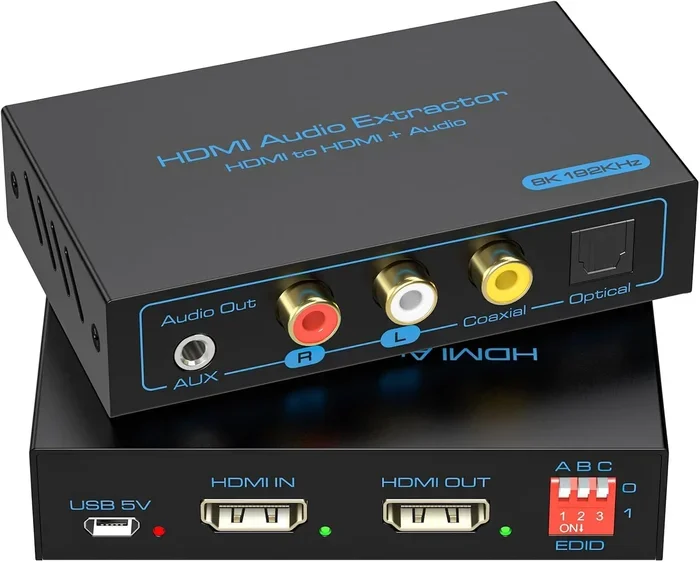
An HDMI audio extractor is a small box that splits the HDMI signal. It takes the HDMI input and gives you a HDMI video output and a separate audio output. The audio output can be a 3.5mm headphone jack, RCA cables, or optical S/PDIF. This lets you send video to your TV and audio to a soundbar, amplifier, or headphones.
To use an extractor, plug your source device (like a cable box) into the extractor with an HDMI cable. Then plug the extractor’s HDMI out into your TV. Connect the audio out to your sound system. Turn on the devices and select the right input on your TV. The sound will now come from your external speakers, not the TV.
Fix 3 – Enable HDMI ARC or eARC
HDMI ARC (Audio Return Channel) is a feature that lets your TV send audio back to a soundbar or AV receiver over the same HDMI cable. This means you can control the TV’s volume with your soundbar remote. To use ARC, both the TV and the soundbar must support it. You need to plug them into the ARC-labeled HDMI ports.
Go to your TV’s settings and enable HDMI CEC and ARC. On the soundbar, set the input to HDMI ARC. Now, when you play a movie on the TV, the audio will travel back through the HDMI cable to the soundbar. This is the cleanest way to get audio out of a TV without extra cables. eARC is an upgraded version that supports uncompressed surround sound and Dolby Atmos. If you have a modern TV and soundbar, enable eARC for the best quality.
Fix 4 – Update Drivers and Firmware
Sometimes the problem is software. Your PC’s audio driver might be outdated. On Windows, open Device Manager. Expand “Sound, video and game controllers.” Right-click your HDMI audio device and select “Update driver.” Choose “Search automatically for drivers.” On a Mac, updates come with macOS updates. Check for system updates.
Your TV and source devices also have firmware. Check the manufacturer’s website for updates. A firmware update can fix audio bugs and add new format support. After updating, restart all devices and test the audio again.
Best Devices and Adapters for HDMI Audio Extraction
If you need to pull audio out of an HDMI signal, an extractor is the best tool. There are many models available. Some are simple and cheap. Others support high-resolution audio like Dolby Atmos and DTS:X. Choose one based on your needs.
Look for an extractor that supports the HDMI version you use. If you have a 4K TV, get an extractor rated for HDMI 2.0 or 2.1. Check the audio outputs. Most extractors offer a 3.5mm jack, optical out, and sometimes coaxial out. Some also pass through HDMI ARC, which is useful for soundbars.
HDMI to 3.5mm Adapters and Optical Converters
For a simple solution, you can use an HDMI to 3.5mm adapter. This is a small dongle that plugs into the HDMI port and gives you a headphone-style jack. You can plug this into any powered speaker or soundbar with a 3.5mm input. It is not ideal for long cable runs, but it works for desktop setups.
An optical audio converter changes the HDMI signal to an optical (TOSLINK) output. Optical audio is digital and carries surround sound. You can connect the optical out to a soundbar, AV receiver, or active speaker with an optical input. This is a great option if your sound system has an optical port but no HDMI input.
Comparison Table of Popular HDMI Audio Extractors
| Device | HDMI Version | Audio Outputs | 4K Support | Price Range |
|---|---|---|---|---|
| Generic HDMI Audio Extractor | HDMI 2.0 | 3.5mm, Optical, HDMI Out | Yes | $15 – $30 |
| Fosmon HDMI Audio Extractor | HDMI 2.0 | 3.5mm, Optical | Yes | $20 – $35 |
| UGREEN HDMI Audio Extractor | HDMI 2.1 | 3.5mm, Optical, Coaxial | Yes (4K@60Hz) | $30 – $50 |
| Kinivo HDMI Audio Extractor | HDMI 2.0 | 3.5mm, Optical, HDMI Out | Yes | $25 – $40 |
| Premium HDMI 2.1 Extractor | HDMI 2.1 | 3.5mm, Optical, Coaxial, ARC | Yes (4K@120Hz) | $50 – $80 |
Quick Tips to Avoid HDMI Audio Problems
A few simple habits can prevent HDMI audio issues. Always plug in your HDMI cable fully until it clicks. Use high-quality cables from reputable brands. Avoid running HDMI cables near power cords to reduce interference. Keep your devices’ firmware up to date. A quick restart of your TV and source device once a week can clear minor glitches.
If you use an HDMI switch or splitter, make sure it supports audio. Not all switches do. Some only pass video. Check the product description for “audio pass-through.” When in doubt, use a direct HDMI connection between the source and the display. This is the most reliable setup.
Common Mistakes to Avoid
One common mistake is using a very long HDMI cable without a signal booster. Beyond 15 feet, the signal can weaken. This can cause audio dropouts or no sound at all. Another mistake is setting the audio format to “Bitstream” on a device that does not support the format. If you get no sound, switch to PCM. Also, avoid using cheap HDMI adapters that do not support audio. Always check the specs before buying.
When to Seek Professional Help
Most HDMI audio problems are easy to fix at home. But sometimes, the issue is deeper. If you have tried all the steps and still get no sound, it might be a hardware fault. Signs include crackling, popping, or audio that cuts in and out. If the HDMI port on your TV or device is physically damaged, you need repair.
Also, if you are setting up a complex home theater with multiple devices, an expert can help you configure audio formats and ARC settings correctly. They can also test for lip sync issues, where the audio does not match the video. A professional has the right tools to diagnose and fix these problems.
Expert Insights: What a Professional Can Do for You
A professional audio technician can test your HDMI setup with specialized equipment. They can check signal integrity and audio format compatibility. They can install an HDMI matrix switcher or a dedicated audio extractor with proper calibration. If your home has in-wall HDMI wiring, an expert can ensure the cables meet HDMI standards and are not causing signal loss. This saves you time and frustration.
Key Takeaways
- Always check your audio output settings before buying new gear.
- An HDMI audio extractor is a simple, affordable fix for most setups.
- Enable HDMI ARC or eARC for the cleanest TV-to-soundbar audio connection.
- Keep your HDMI cables and firmware updated to avoid common issues.
- If you have tried all fixes and still have no sound, call a professional.
So, can you get audio out from HDMI? Absolutely. Whether you use a TV, a PC, a game console, or a streaming box, HDMI carries sound. The problem is almost always a simple setting or a cheap cable. With the fixes and tools in this guide, you can enjoy clear, high-quality audio again. Do not let missing HDMI sound ruin your movie nights. Try these steps today and bring the sound back.
Frequently Asked Questions
Why is there no sound coming from my HDMI cable?
The most common reason is incorrect audio output settings on your TV or PC. Check that your device is set to output sound through the HDMI port. Also, ensure the cable is fully seated and try a different HDMI port. A simple settings change often restores the audio instantly.
Can I use an HDMI audio extractor with a 4K TV?
Yes, you can. Just make sure the extractor supports HDMI 2.0 or HDMI 2.1. Look for a model that explicitly states it supports 4K resolution. Most modern extractors handle 4K video and high-resolution audio formats like Dolby Atmos without any problem.
What is the difference between HDMI ARC and HDMI eARC?
HDMI ARC (Audio Return Channel) lets your TV send audio back to a soundbar or receiver. It supports standard surround sound formats. HDMI eARC (enhanced Audio Return Channel) is an upgraded version that supports uncompressed audio and high-resolution formats like Dolby Atmos and DTS:X. eARC also uses a simpler setup process.
Do I need a special cable to get audio from HDMI?
No, you do not need a special cable. A standard HDMI cable carries both video and audio. However, if you are using a long cable run over 15 feet, a high-quality HDMI 2.0 or 2.1 cable with good shielding will help prevent signal loss and audio dropouts.
Can I connect an HDMI audio extractor to a Bluetooth speaker?
Yes, you can. Most HDMI audio extractors have a 3.5mm output. You can plug that into a Bluetooth transmitter, which then sends the audio wirelessly to your Bluetooth speaker. This is a great way to get HDMI sound into any wireless speaker system.
What should I do if my HDMI audio keeps cutting out?
Start by checking the cable connections. A loose HDMI cable is the top cause of intermittent audio. Try a different HDMI cable and a different port on your TV. If the problem continues, update your device drivers and firmware. If none of this works, the HDMI port or the cable itself may be faulty and need replacement.