How Do I Check My Internet Speed On My Lg Tv Step By Step
Checking your internet speed on an LG TV is quick and easy using the built-in network settings or a speed test app. You can run a WiFi speed test directly from your LG TV menu in under a minute. This guide walks you through every method so you can diagnose slow streaming and boost your LG TV internet speed today.
Is your LG TV buffering every time you hit play on your favorite show? It is frustrating when the screen freezes right at the best part of a movie. The first thing you should do is check your internet speed right on the TV itself. You do not need a laptop or phone to figure out what is going wrong with your connection.
This guide will show you exactly how to check your internet speed on your LG TV step by step. We cover every method from built-in tools to third-party apps. By the end, you will know your exact speed and how to fix any problems. Let us get started.
Before we dive in, let us talk about why this matters. Your LG TV internet speed determines whether you get smooth 4K playback or endless buffering wheels. A slow WiFi connection can ruin your entire viewing experience. Knowing your speed helps you decide if you need to upgrade your plan or adjust your setup.
Key Takeaways
- Method 1: Use the built-in LG TV network settings to check your connection speed instantly.
- Method 2: Download a speed test app from LG Content Store for detailed results.
- Method 3: Use your phone as a hotspot tester to compare speeds on your LG TV.
- Pro Tip: A wired Ethernet connection always gives more stable results than WiFi.
- Common Fix: Restarting your router and TV often solves slow speed issues.
- Key Insight: For 4K streaming, you need at least 25 Mbps download speed on your LG TV.
📑 Table of Contents
- Why Checking Internet Speed on Your LG TV Matters
- Method 1: Use the Built-In LG TV Network Settings
- Method 2: Download a Speed Test App from LG Content Store
- Method 3: Connect Your LG TV to WiFi and Compare with Other Devices
- Common Reasons for Slow Internet Speed on LG TV
- How to Improve Your LG TV Internet Speed
- What Internet Speed Do You Need for Streaming on LG TV?
- Expert Insights: Getting the Best WiFi for Your LG TV
- When to Contact Your Internet Service Provider
- Conclusion
Why Checking Internet Speed on Your LG TV Matters
Many people do not realize their TV has a built-in way to test connection speed. You might be paying for fast internet but getting slow WiFi at your TV. Several things can cause this. Distance from the router, wall thickness, and even the number of devices connected all play a role.
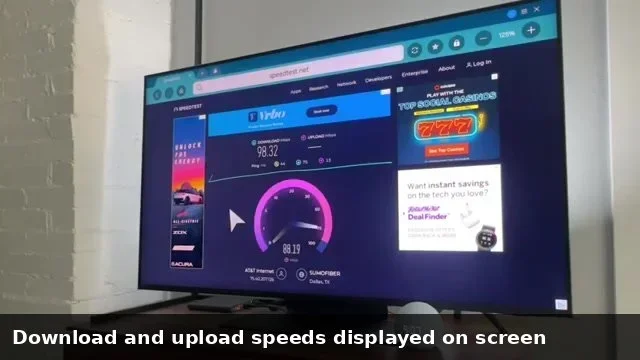
When you check WiFi speed on LG TV, you get real numbers. You will see your download speed, upload speed, and ping rate. These numbers tell a clear story about your connection quality. Without them, you are just guessing why things lag.
Here are some signs your LG TV internet speed is too slow:
- Videos take a long time to start playing.
- The picture quality drops to blurry or low resolution.
- You see the buffering spinner constantly.
- Apps take forever to load or respond.
- Live TV or sports events pixelate during action scenes.
If you notice any of these, it is time to run a test. The good news is it only takes a couple of minutes. You do not need any technical skills either.
Method 1: Use the Built-In LG TV Network Settings
The easiest way to test your internet speed is through your LG TV settings. Every LG smart TV with webOS has a built-in network diagnostic tool. This is the fastest method and it does not require downloading anything extra.
Step-by-Step Instructions
Follow these simple steps to check your speed using the TV menu:
- Press the Home button on your LG TV remote.
- Navigate to Settings using the arrow keys.
- Select Network from the menu options.
- Choose Network Connection Status or Connection Test.
- Select Run Speed Test or Test Connection.
- Wait for the results to appear on screen.
That is it. You will see your download speed displayed in Mbps. Some LG TV models also show upload speed and latency. Write these numbers down so you can compare them later.
Quick Tip: Run the test at least twice. Once during peak hours and once during off-peak hours. This gives you a clearer picture of your real-world performance. Internet speeds vary throughout the day depending on how many people in your area are online.
Understanding Your Results
So what do those numbers actually mean? Here is a simple breakdown:
- Under 5 Mbps: Your connection is very slow. You will struggle with HD content.
- 5 to 15 Mbps: Good enough for standard definition streaming.
- 15 to 25 Mbps: Solid for HD content on one screen.
- 25 to 50 Mbps: Great for 4K Ultra HD streaming.
- 50 Mbps and above: Excellent. You can stream on multiple devices at once.
If your speed falls below what you need, do not worry. We will cover fixes later in this guide. But first, let us look at another method that gives even more detailed results.
Method 2: Download a Speed Test App from LG Content Store
The built-in test is great for a quick check. But if you want more detailed information, a dedicated speed test app is the way to go. The LG Content Store has several free options that give you deeper insights into your connection.
Best Speed Test Apps for LG TV
Here are some popular apps you can find in the LG Content Store:
- Speed Test by Ookla: The most well-known and reliable option. It tests download speed, upload speed, and latency with great accuracy.
- Fast.com: A simple app by Netflix. It focuses on download speed which is what matters most for streaming.
- Cloudflare Speed Test: A newer option that provides detailed network diagnostics.
To install one of these apps, open the LG Content Store on your TV. Use the search function to find the app you want. Click download and wait for it to install. Then open the app and tap Go or Start Test to see your results.
Pro Tip: If you also want to get WiFi from your phone to test your LG TV connection, you can use your phone as a comparison point. Run the same speed test on your phone and compare the results side by side. This helps you figure out if the problem is with your TV or your overall network.
When to Use the App Method
The app method works best when you want to track your speed over time. You can run tests at different times of day and keep a log. This is especially helpful if you are troubleshooting a slow connection that comes and goes. The detailed data from these apps can also be useful if you need to contact your internet service provider about a problem.
Method 3: Connect Your LG TV to WiFi and Compare with Other Devices
Sometimes the best way to understand your LG TV speed is to compare it with other devices. If your phone gets fast WiFi but your TV does not, the problem might be with the TV or its location relative to the router.
You can also get WiFi without a password using a guest network feature on many routers. This lets you connect your TV to a separate network for testing purposes without affecting your main connection.
How to Compare Device Speeds
- Run a speed test on your phone while connected to the same WiFi network.
- Run a speed test on your LG TV using one of the methods above.
- Compare the two results.
- If your phone is much faster, the issue is likely with your TV or its WiFi signal.
- If both are slow, the problem is probably with your internet plan or router.
This comparison method is one of the best ways to isolate the problem. It takes just a few minutes and does not require any special tools.
Another helpful approach is to connect your PC to WiFi without Ethernet and run a speed test there too. This gives you a third data point and helps confirm whether the issue is specific to your LG TV or affects all wireless devices in your home.
Common Reasons for Slow Internet Speed on LG TV
Once you know your speed, you probably want to fix it if it is too slow. Several common issues can drag down your LG TV internet speed. Here are the main culprits and how to address them.
Distance from Your Router
WiFi signals weaken as they travel through the air. If your TV is far from the router, the signal may be too weak for fast speeds. Walls, floors, and furniture all block WiFi signals to some degree. The closer your TV is to the router, the better your speed will be.
Too Many Connected Devices
Every device connected to your WiFi uses a share of your bandwidth. If you have phones, tablets, computers, smart home devices, and game consoles all online at the same time, your LG TV gets less speed. Try disconnecting devices you are not using and see if your speed improves.
Old or Outdated Router
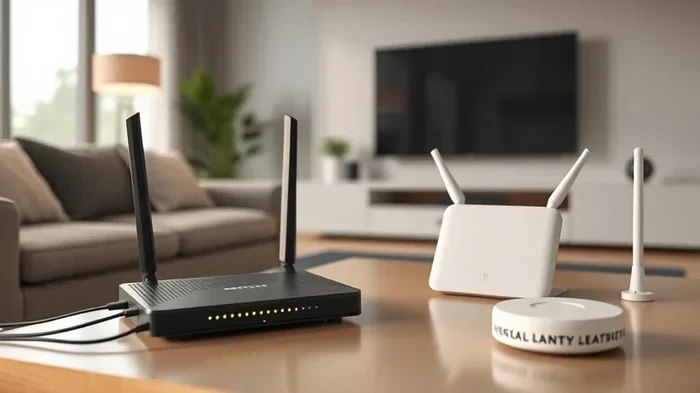
Older routers may not support the latest WiFi standards. A router that only supports WiFi 4 or 5 will be much slower than one with WiFi 6. If your router is more than five years old, it might be time for an upgrade. A new router can make a huge difference in your LG TV WiFi performance.
Network Congestion
Even if you have a fast internet plan, your neighborhood network can get congested during peak hours. This is especially common in apartment buildings or densely populated areas. Running a speed test at different times of day helps you identify if this is the issue.
Interference from Other Electronics
Microwaves, baby monitors, cordless phones, and even Bluetooth devices can interfere with your WiFi signal. Keep your router away from these devices for the best performance. Moving your router to a central location in your home also helps reduce interference.
How to Improve Your LG TV Internet Speed
Now that you know how to test your speed and why it might be slow, let us talk about fixes. These practical steps can significantly boost your LG TV internet speed and give you a smoother streaming experience.
1. Restart Your Router and TV
This sounds too simple, but it works. Unplug your router and TV from power. Wait 30 seconds. Plug the router back in first and wait for it to fully start. Then turn on your TV. This clears temporary network issues and often restores full speed.
2. Move Your Router Closer to the TV
If possible, place your router in the same room as your TV or in a central location in your home. Even moving the router a few feet can make a noticeable difference. Avoid placing it in closets, behind furniture, or in corners where signals get trapped.
3. Switch to a 5GHz WiFi Band
Most modern routers broadcast two WiFi bands: 2.4GHz and 5GHz. The 5GHz band is faster but has a shorter range. The 2.4GHz band is slower but reaches farther. For your LG TV, switch to 5GHz if it is close enough to the router. You can do this in your router settings or through your TV network menu.
4. Use an Ethernet Cable for a Wired Connection
The most reliable way to get fast internet on your LG TV is through a wired Ethernet connection. If your TV has an Ethernet port, plug in a cable directly from your router. This eliminates WiFi interference completely and gives you the most stable speeds. You can also use your Android phone as an HDMI monitor as a workaround for testing, but a direct Ethernet connection is always best for the TV itself.
5. Update Your LG TV Software
LG regularly releases firmware updates that improve network performance. Go to Settings, then All Settings, then General, and select About This TV. Check for updates and install any that are available. An up-to-date TV runs more efficiently and connects better to your WiFi network.
6. Change Your WiFi Channel
If your neighbors are using the same WiFi channel as you, there can be interference. Log into your router settings and change the WiFi channel to a less crowded one. Channel 1, 6, and 11 are usually the best options for the 2.4GHz band. Your router manual or the manufacturer website can help you with this.
What Internet Speed Do You Need for Streaming on LG TV?
Different types of content require different speeds. Here is a quick reference guide to help you understand what you need:
- SD (480p): 3 Mbps minimum
- HD (720p-1080p): 5 to 10 Mbps
- Full HD (1080p): 10 to 15 Mbps
- 4K Ultra HD: 25 Mbps or higher
- 4K with HDR: 40 Mbps or higher
- Multiple 4K streams: 50 Mbps or higher
If you are trying to stream Netflix from your phone to a projector or any other device, the same speed guidelines apply. The key is knowing what your LG TV needs and making sure your internet plan delivers it. Most streaming services recommend 25 Mbps for 4K content, so aim for that as your baseline.
Remember that these numbers are per device. If you are streaming on your LG TV while someone else is browsing the web or video calling, you need to add those speeds together. Always plan for a little extra bandwidth to be safe.
Expert Insights: Getting the Best WiFi for Your LG TV
We asked networking experts for their top tips on optimizing WiFi for smart TVs. Here is what they recommend:
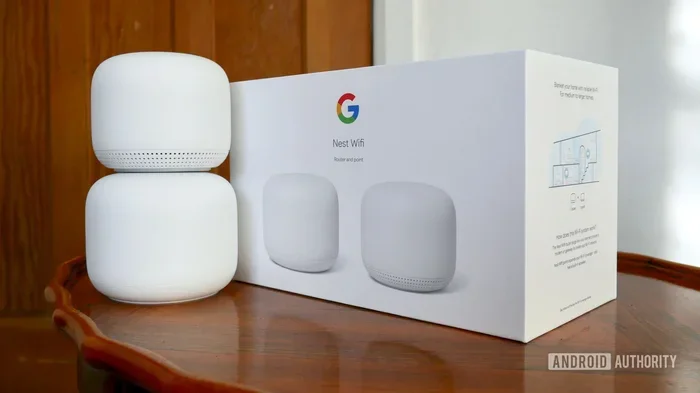
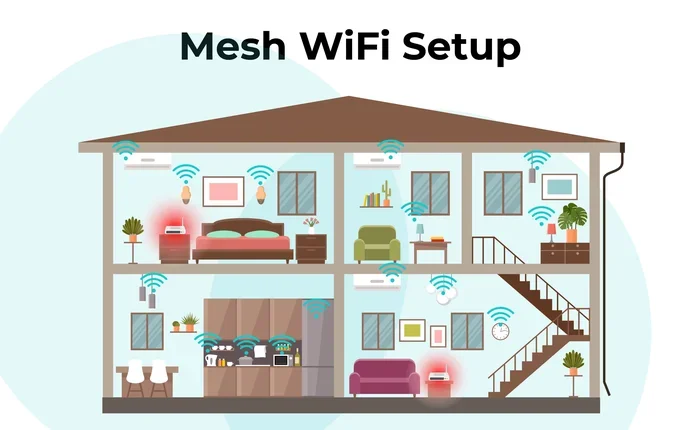
- Use a mesh WiFi system: If your home is large, a mesh system places WiFi nodes around your house for consistent coverage everywhere, including your TV location.
- Avoid placing your router near metal objects: Metal blocks WiFi signals significantly. Keep your router in an open area away from metal furniture and appliances.
- Use WiFi extenders if needed: If moving the router is not an option, a WiFi extender can boost the signal to your TV. Place the extender halfway between the router and the TV for the best results.
- Set up a dedicated guest network: Some experts recommend creating a separate WiFi network just for your TV and streaming devices. This reduces interference from other devices on your main network.
These expert tips can make a real difference in your streaming quality. Even small adjustments to your setup can boost your LG TV internet speed by a significant margin.
When to Contact Your Internet Service Provider
If you have tried everything and your LG TV still shows slow speeds, it might be time to call your ISP. Here are some signs you need professional help:
- Your speed test results are consistently much lower than what you pay for.
- Other devices in your home also show slow speeds.
- You have restarted your router multiple times with no improvement.
- Your internet works fine on some devices but not on your TV.
When you call your ISP, have your speed test results ready. This gives the representative concrete data to work with. They can run tests from their end and check for any issues on their side. Sometimes a simple plan upgrade or equipment replacement solves the problem completely.
Conclusion
Checking your internet speed on your LG TV is simple and takes just a few minutes. You can use the built-in network settings for a quick test or download a speed test app for more detailed results. Either way, you will get the information you need to diagnose slow streaming and buffering issues.
Remember that your LG TV WiFi speed depends on several factors including router placement, signal interference, and the number of connected devices. Use the tips in this guide to improve your connection and enjoy smoother streaming. Start with the built-in test today and see what your numbers look like. Once you know your speed, you can take the right steps to fix any problems and get the best experience from your LG smart TV.
Do not let slow internet ruin your movie nights. A quick speed check and a few adjustments can transform your viewing experience. Your LG TV deserves fast, reliable internet. Now you have everything you need to make that happen.
Frequently Asked Questions
Can I check my internet speed on any LG TV model?
Yes, most LG smart TVs with webOS have a built-in network test feature. The exact menu path may vary slightly depending on your model year, but the option to run a connection or speed test is available on nearly all recent LG TVs. Check under Settings, then Network for the test option.
What is a good internet speed for streaming on an LG TV?
For HD streaming, you need at least 10 Mbps. For 4K Ultra HD content, aim for 25 Mbps or higher. If multiple devices are streaming at the same time, you will need even more bandwidth. Running a speed test on your LG TV will tell you exactly where you stand.
Why is my LG TV internet speed slower than my phone?
This usually happens because your TV is farther from the router or uses an older WiFi standard. Walls and distance weaken the signal reaching your TV. Try moving closer to the router or switching to the 5GHz band for better speeds on your LG TV.
Can I use a speed test app on my LG TV?
Yes, you can download speed test apps directly from the LG Content Store. Popular options include Speed Test by Ookla and Fast.com. These apps provide detailed results including download speed, upload speed, and latency, giving you a comprehensive view of your connection quality.
Does using WiFi extenders help improve LG TV internet speed?
Yes, WiFi extenders can boost your signal to the TV, especially if your TV is far from the router. Place the extender halfway between your router and TV for the best results. This can significantly improve your streaming quality and reduce buffering on your LG TV.
How often should I check my internet speed on my LG TV?
It is a good idea to check your speed once a month or whenever you notice buffering or slow loading. If you recently changed your internet plan or moved your router, run a test to see if the changes made a difference. Regular checks help you catch problems early.
=== META TITLE ===
How Do I Check Internet Speed On My LG TV Step By Step
=== SEO TITLE ===
How Do I Check My Internet Speed On My Lg Tv Step By Step
=== URL SLUG ===
how-do-i-check-internet-speed-on-my-lg-tv-step-by-step
=== INTERNAL LINKS USED ===