Can I Use My Android Phone As A Hdmi Monitor Easily
Yes, you can use your Android phone as an HDMI monitor with the right adapter or cable. This guide covers MHL, USB-C to HDMI, SlimPort, and wireless options so you can mirror or extend your phone screen to any TV or display. You will learn which method works best for your device, what gear you need, and how to set it up in minutes.
Have you ever wanted to use your Android phone as a second screen or even a primary monitor? Maybe you are traveling and forgot your laptop. Or perhaps you just want to watch videos on a bigger display without buying a new device. Whatever the reason, the good news is that you absolutely can use your Android phone as an HDMI monitor.
This guide walks you through every method available today. We will cover wired options like MHL and USB-C adapters. We will also explore wireless screen mirroring and casting. By the end, you will know exactly which method works best for your phone and your setup. Let us get started.
Key Takeaways
- Multiple methods exist: You can use MHL cables, USB-C to HDMI adapters, SlimPort, or wireless screen mirroring to connect your phone to a monitor.
- Check compatibility first: Not all Android phones support HDMI output. Look for MHL or USB-C Alt Mode support before buying any adapter.
- Wired options give the best quality: A direct wired connection delivers zero lag and full HD or 4K resolution for gaming and streaming.
- Wireless is convenient: Apps like Chromecast, Miracast, and Samsung DeX let you cast your screen without any cables at all.
- You need the right cable or adapter: Using the wrong adapter is the most common mistake. Match your phone’s port to the correct HDMI adapter.
- Set up takes minutes: Most wired connections are plug-and-play. Wireless setup also happens in just a few simple steps.
📑 Table of Contents
- What Does It Mean to Use Your Phone as an HDMI Monitor
- Wired Methods to Connect Your Phone to HDMI
- Wireless Methods to Use Your Phone as a Monitor
- How to Choose the Right Method for Your Phone
- Step-by-Step Setup Guide
- Common Mistakes and How to Avoid Them
- Expert Tips for the Best Experience
- Frequently Asked Questions
- Conclusion
What Does It Mean to Use Your Phone as an HDMI Monitor
When we talk about using an Android phone as an HDMI monitor, we mean sending your phone screen to a TV or external display through an HDMI connection. The phone becomes the source device. The TV or monitor receives the signal and shows what is on your phone.
This is different from simply casting content. With HDMI output, your entire phone screen appears on the bigger display. You can see your home screen, open apps, notifications, and everything else. It is like using your phone as a computer monitor or a media player.
Why Would You Want to Do This
There are many practical reasons to connect your phone to a monitor. Here are some of the most common ones:
- Presentations at work: You can show slides or documents from your phone directly to a projector or TV.
- Gaming on a big screen: Many games look and feel better on a larger display.
- Streaming movies: Why watch a small screen when you can use your TV?
- Productivity boost: Use your phone as a secondary display while working on your computer.
- Travel convenience: No need to carry a laptop when your phone can do the job.
Wired Methods to Connect Your Phone to HDMI
Wired connections offer the best performance. They give you zero lag, stable output, and often support full HD or even 4K resolution. Let us look at the most popular wired options available today.
MHL Adapter (Mobile High-Definition Link)
MHL was one of the first standards for sending HDMI output from a mobile device. Many older Android phones used Micro-USB or Mini-USB ports. An MHL adapter connects to your phone and outputs an HDMI signal to your TV.
Here is what you need to know about MHL:
- It works with phones that have a Micro-USB or Mini-USB port.
- You need an MHL-compatible adapter or cable.
- Some adapters also pass through charging, so your phone charges while you use it.
- MHL supports up to 1080p resolution on most devices.
- Not all phones support MHL. Check your phone manufacturer’s specs before buying.
The biggest advantage of MHL is its simplicity. You plug one end into your phone and the other into your TV. The connection is instant. However, MHL is becoming less common as phones move away from Micro-USB ports.
USB-C to HDMI Adapter
Modern Android phones almost all use USB-C ports. This is great news because USB-C supports a feature called DisplayPort Alt Mode. When a phone supports this, it can output video directly through a USB-C to HDMI adapter.
Here is what makes USB-C to HDMI so popular:
- Wide compatibility: Most phones released after 2018 support USB-C video output.
- High resolution: Many adapters support 4K at 60Hz, which is excellent for video and gaming.
- Simple setup: Plug the adapter into your phone, connect an HDMI cable, and you are done.
- No software needed: It works at the hardware level, so no apps are required.
When shopping for a USB-C to HDMI adapter, look for ones that explicitly mention DisplayPort Alt Mode support. Cheap adapters that do not support this feature will not work, even if the phone does. This is the most common mistake people make.
SlimPort Technology
SlimPort is another wired option for sending video from your phone to a display. It was developed by a company called Analogix Semiconductor. SlimPort works through Micro-USB or USB-C ports and can output to HDMI, VGA, or even DVI.
SlimPort adapters are less common than MHL or USB-C to HDMI, but they still work well with supported devices. The main benefit is that SlimPort does not require MHL licensing, so some manufacturers prefer it. If you have an older phone with a Micro-USB port, SlimPort might be your best wired option.
Wireless Methods to Use Your Phone as a Monitor
Not everyone wants to deal with cables. Wireless options are convenient and increasingly powerful. They do require a Wi-Fi connection and a compatible TV or display, but the setup is usually very simple.
Chromecast and Google Cast
Chromecast is one of the most popular ways to wirelessly send your phone screen to a TV. You plug a Chromecast device into your TV’s HDMI port. Then you use your phone to cast content directly to the TV.
Here is how it works:
- Plug your Chromecast into the TV’s HDMI port.
- Connect both your phone and the Chromecast to the same Wi-Fi network.
- Open a supported app on your phone.
- Tap the cast icon and select your Chromecast device.
- Your content now plays on the TV screen.
Chromecast works great for streaming videos, photos, and music. However, it does not mirror your entire phone screen in most apps. It works within supported applications. For full screen mirroring, you may need a different method.
Miracast Wireless Display
Miracast is a wireless standard that lets you mirror your entire phone screen to a TV or monitor. Many Smart TVs support Miracast built in. If your TV does not, you can buy a Miracast dongle that plugs into an HDMI port.
To use Miracast on your Android phone:
- Go to Settings and look for Cast or Screen Mirroring.
- Turn on the feature and wait for your TV to appear.
- Select your TV from the list of available devices.
- Your phone screen will now appear on the TV in real time.
Miracast gives you full screen mirroring with no cables. The downside is that wireless connections can have slight lag. For casual use like browsing or watching videos, this is usually not noticeable. For fast-paced gaming, a wired connection is better.
Samsung DeX Mode
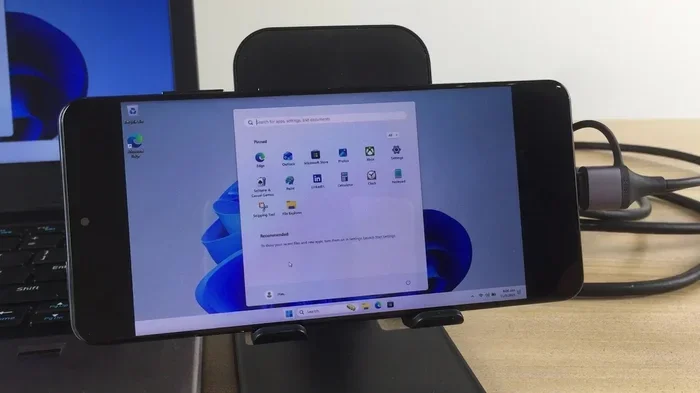
If you have a Samsung phone, you have access to Samsung DeX. This is a powerful feature that turns your phone into a desktop-like experience when connected to a monitor. DeX supports both wired USB-C to HDMI connections and wireless connections.
With DeX, you get a full desktop interface on your TV or monitor. You can open multiple windows, use a mouse and keyboard, and even run apps side by side. It is one of the best ways to use your phone as a true monitor or workstation.
Here are the key benefits of Samsung DeX:
- Desktop-like interface: It looks and feels like a computer desktop.
- Multi-window support: Run several apps at the same time.
- Keyboard and mouse support: Connect peripherals for a full computing experience.
- Wireless and wired options: Use it with a cable or over Wi-Fi.
How to Choose the Right Method for Your Phone
Not every method works with every phone. Your choice depends on your phone model, the ports it has, and what you want to do. Let us break this down clearly.
Check Your Phone’s Port Type
The first step is identifying what kind of port your phone uses. Most modern phones have USB-C. Older phones may have Micro-USB. A few phones still have a dedicated micro-HDMI port, which makes things even easier.
Once you know your port type, you can narrow down your options:
- USB-C port: Use a USB-C to HDMI adapter or a USB-C docking station.
- Micro-USB port: Use an MHL adapter or SlimPort adapter.
- micro-HDMI port: Use a direct micro-HDMI to HDMI cable.
Check for HDMI Output Support
Even if your phone has the right port, it may not support video output. Some phones only support data transfer and charging through USB-C. You need to confirm that your phone supports DisplayPort Alt Mode or MHL before buying an adapter.
Here is how to check:
- Visit your phone manufacturer’s website and look up your model’s specifications.
- Search for terms like “HDMI output,” “DisplayPort Alt Mode,” or “MHL support.”
- Read user reviews to see if others have successfully used HDMI output with your model.
Consider Your Use Case
Think about what you plan to do with the connection. Are you just watching videos? A basic wireless cast may be enough. Do you need zero lag for gaming? A wired USB-C to HDMI adapter is the way to go. Need a desktop experience? Samsung DeX is your best bet.
Here is a quick comparison of the main methods:
Quick Comparison Table
Method | Connection | Lag | Resolution | Best For
USB-C to HDMI | Wired | None | Up to 4K | Gaming, presentations
MHL Adapter | Wired | None | Up to 1080p | Older Micro-USB phones
Chromecast | Wireless | Low | Up to 4K | Streaming videos and music
Miracast | Wireless | Low to Medium | Up to 1080p | Full screen mirroring
Samsung DeX | Wired or Wireless | Very Low | Up to 4K | Desktop productivity
Step-by-Step Setup Guide
Let us walk through a simple wired setup using a USB-C to HDMI adapter. This is the most common and reliable method for modern Android phones.
What You Need
- An Android phone with a USB-C port
- A USB-C to HDMI adapter (make sure it supports DisplayPort Alt Mode)
- An HDMI cable
- A TV or monitor with an HDMI input
Setup Steps
- Connect the adapter to your phone. Plug the USB-C end into your phone firmly.
- Attach the HDMI cable. Connect one end of the HDMI cable to the adapter and the other end to your TV or monitor.
- Switch your TV to the correct input. Use your TV remote to select the HDMI port where you plugged in the cable.
- Check your phone screen. Your phone display should now appear on the TV. If it does not, try unplugging and replugging the adapter.
- Adjust display settings if needed. Go to Settings, then Display, and look for options to adjust resolution or screen rotation.
That is it. In less than two minutes, you are up and running. No apps, no software, no complicated setup. This is why wired connections remain the most popular method.
Common Mistakes and How to Avoid Them
Even with the right gear, things can go wrong. Here are the most common issues people face and how to fix them.
Using the Wrong Adapter
Not all USB-C adapters support video output. Some adapters only support data transfer or charging. Always check the product description for “DisplayPort Alt Mode” or “HDMI output” support. Buying a cheap, incompatible adapter is the number one reason this setup fails.
Phone Does Not Support HDMI Output
Some phones simply do not support video output through their USB-C port. This is especially true for certain carrier-locked or budget models. Before buying any adapter, verify your phone’s specifications online.
TV Not Detecting the Signal
If your TV shows no signal, try these steps:
- Make sure the HDMI cable is firmly connected on both ends.
- Check that your TV is on the correct HDMI input.
- Try a different HDMI port on your TV.
- Restart your phone and try again.
- Test the adapter with a different TV to rule out a TV issue.
Lag or Stuttering During Wireless Casting
Wireless connections can experience lag, especially on crowded Wi-Fi networks. To reduce lag:
- Use a 5 GHz Wi-Fi band instead of 2.4 GHz.
- Make sure your phone and TV are close to the router.
- Close background apps on your phone to free up bandwidth.
- Use a wired connection for anything that requires real-time responsiveness.
Expert Tips for the Best Experience
Here are some pro tips that will help you get the most out of your phone-to-HDMI setup:
- Invest in a quality adapter. A well-made adapter from a reputable brand will give you a stable connection and better video quality. Cheap adapters often overheat or produce poor output.
- Use an active adapter for longer cables. If you need a long HDMI cable run, an active adapter with a built-in signal booster will maintain a strong signal.
- Keep your phone cool. Extended video output can cause your phone to heat up. Remove thick cases and avoid using your phone heavily while outputting video.
- Update your phone software. Sometimes, display output issues are fixed in software updates. Make sure your phone is running the latest version of Android.
- Try both wired and wireless. Each method has its strengths. Use wired for gaming and presentations, and wireless for casual streaming and browsing.
Frequently Asked Questions
Can any Android phone be used as an HDMI monitor?
No, not every Android phone supports HDMI output. You need to check if your phone supports MHL, DisplayPort Alt Mode, or SlimPort. Look up your phone model’s specifications on the manufacturer’s website to confirm compatibility before purchasing any adapter.
Do I need a special cable or just an adapter?
It depends on the method. For USB-C to HDMI, you need a USB-C to HDMI adapter and a standard HDMI cable. For MHL, you need a specific MHL-compatible cable or adapter. For wireless methods like Chromecast, you only need the Chromecast device and a Wi-Fi connection.
Will using my phone as an HDMI monitor drain the battery quickly?
Yes, video output uses significant processing power and can drain your battery faster than normal use. To reduce battery drain, keep your phone plugged into a charger while using it as a monitor. Some MHL and USB-C adapters also pass through charging, which helps a lot.
Can I use my phone as a monitor for a laptop?
Yes, you can use your Android phone as a secondary monitor for a laptop, but the process is different. You would typically use apps like Duet Display or Spacedesk that turn your phone into a display receiver. This is not the same as HDMI output, but it achieves a similar result.
What is the difference between screen mirroring and HDMI output?
Screen mirroring sends a copy of your phone screen wirelessly to a TV. HDMI output sends a direct video signal through a cable. HDMI output usually has better quality, zero lag, and supports higher resolutions. Screen mirroring is more convenient but can have slight delays and lower image quality.
Is Samsung DeX available on all Samsung phones?
Samsung DeX is available on select Samsung phones and tablets, mostly mid-range and flagship models released after 2017. Older Samsung devices and entry-level models may not support DeX. Check Samsung’s official website for a list of DeX-compatible devices.
Conclusion
Using your Android phone as an HDMI monitor is easier than most people think. Whether you choose a wired USB-C to HDMI adapter, an MHL cable, or a wireless method like Chromecast or Miracast, the process is straightforward and affordable. The key is knowing which method your phone supports and getting the right equipment.
Wired connections give you the best performance and zero lag. Wireless options offer convenience and flexibility. For Samsung users, DeX provides a truly desktop-like experience that stands out from all other methods.
Start by checking your phone’s specifications. Find out what ports it has and what video output standards it supports. Then pick the method that fits your needs and budget. With the right setup, your Android phone becomes a powerful and versatile display device that you can use at home, at work, or on the go.
So go ahead and try it out. Connect your phone to your TV, and you will wonder why you did not do it sooner.