How Do I Change My Xfinity To 4k And Get Stunning Picture
Changing your Xfinity to 4K is easier than you think, and it instantly upgrades your viewing experience with crisp, lifelike picture quality. This guide walks you through every step, from adjusting your Xfinity X1 box settings to checking your internet speed and TV compatibility. You will learn how to access 4K content, troubleshoot common issues, and get the most out of your Xfinity streaming setup.
If you are tired of watching your favorite shows and movies in standard definition, you are not alone. Many Xfinity subscribers want to know how to change their Xfinity to 4K and finally enjoy that crystal-clear picture they have been paying for. The good news is that switching to 4K on your Xfinity setup is a straightforward process, and you can have stunning picture quality in just a few minutes.
4K resolution offers four times the detail of standard HD. That means sharper images, richer colors, and more realistic textures on your screen. Whether you are binge-watching a series on Xfinity On Demand or watching a live sports event, the difference is night and day. In this guide, we will walk you through every step to get your Xfinity box set up for the best picture possible.
Before you start, make sure you have the right equipment. You need a 4K-compatible TV, an Xfinity X1 4K box or XG1v4, and a reliable internet connection. If your home WiFi is weak in certain rooms, you might want to consider your options. For example, you can check if changing out your router with Spectrum or another provider improves your setup. But for now, let us focus on getting your Xfinity box to deliver that beautiful 4K picture.
Key Takeaways
- 4K Support Depends on Your Equipment: You need a 4K-compatible TV, an Xfinity X1 4K box, and a strong internet connection to stream in ultra HD.
- Changing Settings Is Simple: You can switch your Xfinity box to 4K through the display settings menu or by adjusting your TV input settings.
- Internet Speed Matters: Streaming 4K content requires at least 25 Mbps, so check your connection before troubleshooting picture issues.
- Not All Content Is in 4K: Only select channels, On Demand titles, and live events offer 4K resolution on Xfinity.
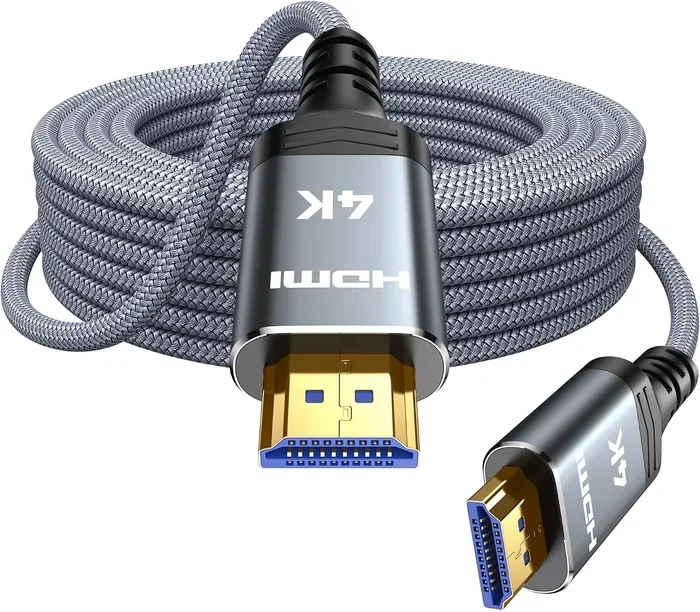
- HDMI Cable Quality Is Important: Using an HDMI 2.0 or higher cable ensures your 4K signal passes through without degradation.
- Mesh WiFi Can Help: If you have multiple TVs or a large home, adding mesh WiFi to your existing router improves streaming stability.
📑 Table of Contents
Understanding 4K and Your Xfinity Setup
Before you change any settings, it helps to understand what 4K means and what your Xfinity equipment needs to support it. Not every Xfinity box or TV can display 4K content, so confirming compatibility is the first step.
What Is 4K Resolution?
4K resolution means your screen displays about 8.3 million pixels. That is roughly four times more than standard 1080p HD. The result is an incredibly sharp and detailed image. On a 55-inch or larger TV, the difference between HD and 4K is very noticeable. Text looks crisper, colors pop more, and motion appears smoother.
Xfinity offers 4K content through its X1 platform. This includes select live channels, On Demand movies, and original programming. However, not every channel or show is available in 4K. You will need to check the channel or title to confirm it supports ultra HD streaming.
What Equipment Do You Need for 4K?
To enjoy 4K on Xfinity, you need three key pieces of equipment:
- A 4K TV: Your television must support 4K resolution. Most TVs sold today are 4K, but older models may only be HD. Check your TV manual or settings to confirm.
- An Xfinity 4K Box: The Xfinity X1 4K box (XG1v4) supports 4K output. Older Xfinity boxes may not. If you are not sure what you have, check the model number on the back of your box.
- An HDMI 2.0 Cable: This cable carries the 4K signal from your box to your TV. An older HDMI 1.4 cable may limit you to 30 frames per second instead of 60. For the best experience, use an HDMI 2.0 or higher cable.
Can You Add More WiFi Coverage for Better Streaming?
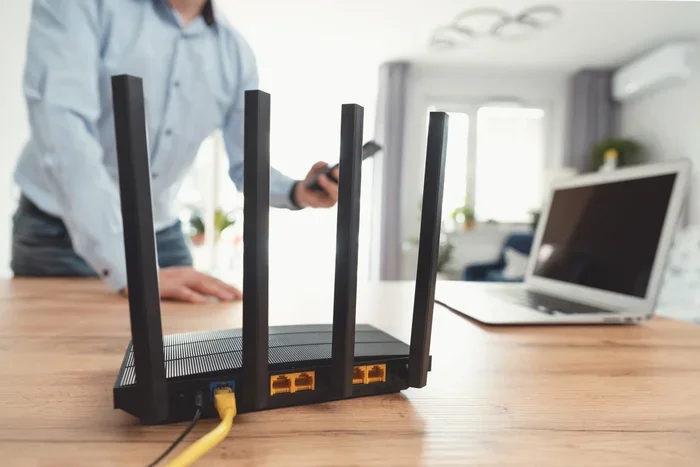
If your home is large or your WiFi signal is weak in the room where your TV sits, streaming 4K can be frustrating. Buffering and pixelation are common signs of a weak connection. One solution is to improve your home network. You might explore whether having Xfinity WiFi in two houses or setting up a second access point helps. Another option is to use a wired Ethernet connection for your Xfinity box, which provides the most stable streaming experience.
How to Change Your Xfinity Box to 4K
Now that you know what you need, let us walk through the actual steps to change your Xfinity box to 4K. The process is simple and takes only a few minutes.
Step 1: Turn on Your TV and Xfinity Box
Start by turning on both your TV and your Xfinity box. Make sure your TV is set to the correct input. Most people use HDMI 1 or HDMI 2, but check your TV remote to confirm. You should see the Xfinity home screen on your TV.
Step 2: Access the Settings Menu
Press the gear icon on your Xfinity remote to open the Settings menu. Use the arrow keys to navigate to the Display or Audio section. The exact location may vary slightly depending on your Xfinity box model.
Step 3: Navigate to Display Settings
Once you are in Settings, look for the Display or Video Settings option. This is where you control your picture output. Select it to see the available resolution options.
Step 4: Change the Resolution to 4K
In the Display Settings menu, you should see options like 720p, 1080i, 1080p, and 4K (or 2160p). Select 4K or 2160p to switch your output to ultra HD. Your screen may briefly go dark as it adjusts. Once it comes back, you should see the Xfinity interface in 4K.
Step 5: Adjust Your TV Settings Too
Do not forget to check your TV settings as well. Go to your TV’s picture or display settings and make sure it is set to 4K or Ultra HD. Some TVs have a motion smoothing or HDR setting that can enhance the picture further. Turning on HDR (High Dynamic Range) gives you better contrast and more vivid colors.
Checking Your Internet Speed for 4K Streaming
Even with the right equipment, your internet speed determines whether you can actually stream 4K content smoothly. 4K streaming uses a lot of data, and a slow connection will cause buffering or poor picture quality.
Minimum Speed Requirements
Xfinity recommends at least 25 Mbps for 4K streaming. However, if you have multiple devices using the network at the same time, you will want more speed. Here is a quick reference:
- 25 Mbps: Minimum for one 4K stream
- 50 Mbps: Recommended for two devices streaming 4K
- 100 Mbps or more: Ideal for households with multiple 4K streams
How to Test Your Speed
You can test your internet speed using the Xfinity xFi app or by visiting a speed test website on your phone or computer. Run the test and check your download speed. If it is below 25 Mbps, you may experience issues with 4K content.
If your speed is too low, consider contacting Xfinity to upgrade your plan. You can also check if blocking a device from using your Xfinity WiFi frees up bandwidth for your 4K streaming. Other devices downloading updates or streaming in HD can slow down your connection significantly.
Troubleshooting Common 4K Issues
Sometimes, even after you change your settings, 4K content may not look right. Here are the most common issues and how to fix them.
Your Screen Looks Blurry or Pixelated
This usually means your TV or box is not outputting at 4K. Go back to the Display Settings on your Xfinity box and confirm the resolution is set to 4K. Also, check that your HDMI cable is rated for 4K. A cheap or damaged cable can limit your picture quality.
You See a Black Bar Around the Picture
Black bars often appear when the content is not natively 4K or when your TV aspect ratio is wrong. Check the aspect ratio in your TV settings and set it to 16:9. Also, confirm that the channel or movie you are watching actually supports 4K.
Your Picture Keeps Buffering
Buffering is almost always a WiFi or internet speed issue. Try moving your Xfinity box closer to your router. If that is not possible, consider using an Ethernet cable. You can also check if adding mesh WiFi to your existing router improves coverage in your living room.
4K Option Is Not Available in Settings
If you do not see a 4K option, your box may not support it. Older Xfinity models like the XG1v3 do not output 4K. Contact Xfinity customer support to request an upgrade to a 4K-capable box. You may also want to check if your TV plan includes 4K access, as some basic plans do not.
Colors Look Washed Out or Too Dark
Try turning on HDR in both your Xfinity box and TV settings. HDR enhances the range of colors and brightness levels. If the picture still looks off, reset your TV picture settings to factory defaults and adjust the brightness, contrast, and color sliders manually.
Tips to Get the Best 4K Picture on Xfinity
Once you have 4K working, you can fine-tune your setup for the best possible experience. Here are some expert tips.
Use the Xfinity Stream App
The Xfinity Stream app lets you watch 4K content on your TV, phone, or tablet. Make sure the app is updated to the latest version for the best 4K support. You can also cast content from the app to your TV using Chromecast or AirPlay.
Enable Auto-Adjust for Picture Settings
Many modern TVs have an auto-adjust feature that optimizes picture settings based on the room lighting. Turn this on for the best 4K experience without manual tweaking.
Keep Your Xfinity Box Firmware Updated
Xfinity regularly releases updates that improve 4K performance and fix bugs. Check for updates in the Settings menu under System Information. Keeping your box updated ensures you get the latest features and improvements.
Consider Your Room Lighting
4K TVs look their best in rooms with controlled lighting. Bright sunlight can wash out the picture and make it harder to see the extra detail that 4K provides. Dimming your lights or closing your blinds during movie time can make a big difference.
Explore Xfinity 4K Content
Xfinity offers a growing library of 4K content. Look for the 4K badge on movies, shows, and live events. Popular categories include sports, action movies, and nature documentaries. The more you explore, the more you will appreciate the upgrade.
Frequently Asked Questions
Can I Change My Xfinity Box to 4K if I Have an Older Model?
Older Xfinity boxes like the XG1v3 do not support 4K output. You will need to request a newer 4K-capable box from Xfinity, such as the XG1v4 or XG1v5. Contact Xfinity customer support or check your account online to request an equipment upgrade.
Do I Need a Special Xfinity Plan to Watch 4K Content?
Yes, you need an Xfinity TV plan that includes 4K access. Some base plans may not include this feature. Check your plan details in the Xfinity app or website, or call customer support to confirm your plan supports 4K streaming.
What HDMI Cable Do I Need for 4K on Xfinity?
You need an HDMI 2.0 or higher cable for 4K at 60 frames per second. Most new TVs and Xfinity boxes come with an HDMI 2.0 cable included. If you are using an older cable, it may limit your picture to 30 frames per second or lower resolution.
Why Does My 4K Picture Look Blurry Sometimes?
A blurry 4K picture is usually caused by a weak internet connection, an outdated HDMI cable, or incorrect TV settings. Check your WiFi speed, replace your HDMI cable if needed, and confirm your TV is set to 4K resolution in its display settings.
Can I Stream 4K Content Using Xfinity WiFi in Another Room?
Yes, but your WiFi signal needs to be strong in that room for smooth 4K streaming. If your signal is weak, consider moving your router closer or adding mesh WiFi to your existing router for better coverage throughout your home.
Is There a Difference Between Xfinity 4K and Regular HD?
Absolutely. 4K has four times the pixel count of regular HD. This means sharper images, more detail, and better color depth. On a 4K TV, the difference between HD and 4K is very easy to see, especially on larger screens.
Conclusion
Changing your Xfinity to 4K is one of the easiest ways to dramatically improve your home entertainment. With the right equipment, the correct settings, and a solid internet connection, you can enjoy stunning picture quality on every show and movie you watch. The steps are simple, and the results are worth the effort.
Start by confirming your TV, Xfinity box, and HDMI cable all support 4K. Then follow the display settings steps to switch your output to ultra HD. Check your internet speed, troubleshoot any issues, and explore the growing library of 4K content on Xfinity. Once you make the switch, you will wonder how you ever watched anything else.
Take action today and change your Xfinity to 4K. Your eyes will thank you. Whether you are watching the big game, a new movie release, or your favorite series, the difference in picture quality is impossible to ignore. Enjoy every detail and make the most of your Xfinity experience.